If you are looking to switch away from third-party software, this guide will walk you through completely uninstalling Legacy Launcher from your Windows, macOS, or Linux computer. For the safest and most secure Minecraft experience, we strongly recommend purchasing and using the official game client directly from minecraft.net.
Close the Launcher
Before starting the uninstallation process, make sure that Legacy Launcher and any running instances of Minecraft are completely closed.
Check your system tray (bottom-right on Windows or top-right on Mac) to ensure the application isn't running in the background.
Remove the Application
On Windows, open your Control Panel, go to Programs and Features, locate Legacy Launcher in the list, and click Uninstall. Alternatively, you can search for it in your Windows Settings under Installed Apps.
If you are on macOS, simply drag the Legacy Launcher application icon from your Applications folder into the Trash.
Locate and Clear AppData Files
Third-party launchers often leave behind configuration files, caches, and cached game assets. Press Win + R on your keyboard, type %appdata%, and press Enter to open your roaming folder.
Look for any folders related to Legacy Launcher or its previous iterations (such as TLegacy) and delete them to free up disk space.
Clean Up the .minecraft Directory
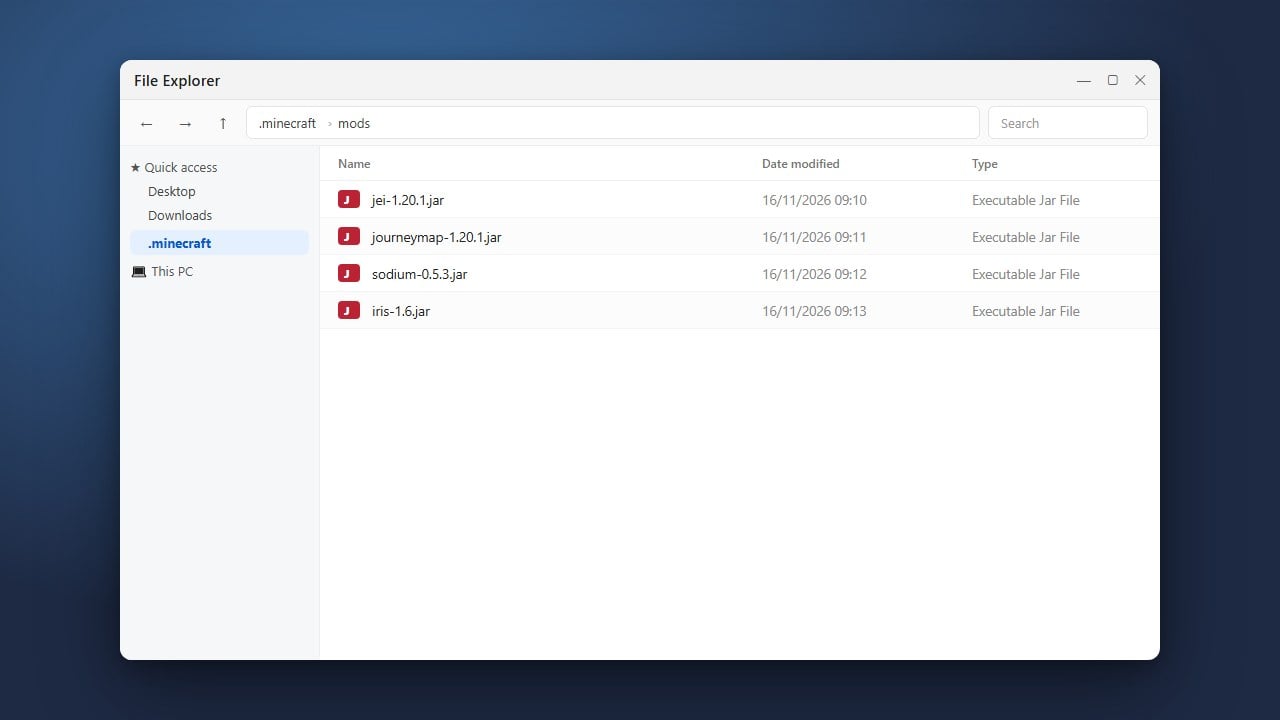
If Legacy Launcher shared or modified files inside your main .minecraft folder, you may want to clean up custom versions or mods installed by the launcher.
Navigate back to %appdata%, open the .minecraft folder, and remove any old profiles, logs, or modified jar files created by the launcher.
Empty Your Recycle Bin
To finish the cleanup process, right-click your Recycle Bin or Trash icon on your desktop and select Empty Recycle Bin.
This ensures that all cached files and application binaries are permanently removed from your computer storage.
Frequently Asked Questions
Will uninstalling Legacy Launcher delete my Minecraft worlds?
World saves are normally stored inside the standard .minecraft/saves folder. However, some third-party launchers use custom directories. Always back up your saves folder before deleting application files.
Is Legacy Launcher safe to use?
Third-party cracked launchers bypass official authentication servers and pose significant malware risks and account security vulnerabilities. We strongly advise purchasing the official game from minecraft.net.