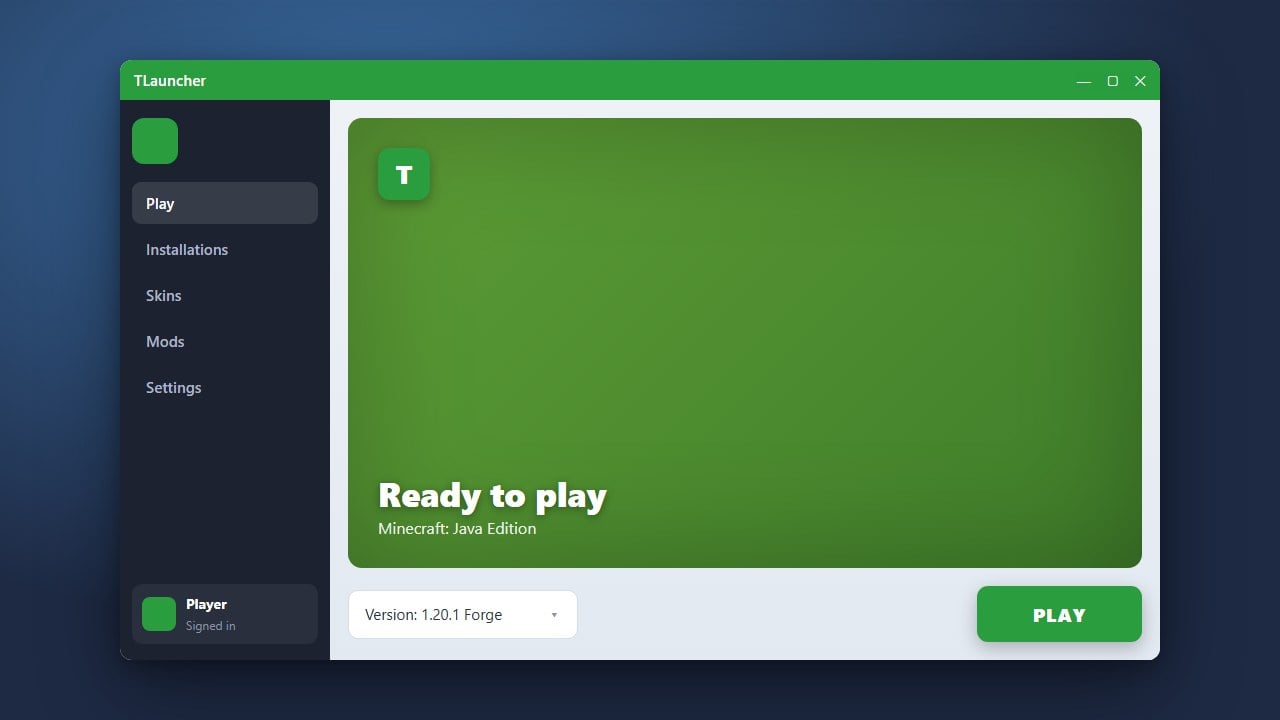
If TLauncher is refusing to open or crashing immediately on Minecraft Java Edition, it can be frustrating. We strongly recommend purchasing the official game directly from minecraft.net to ensure full security, official support, and safe gameplay. Unofficial launchers can sometimes carry privacy risks, adware, or account security concerns. If you are using TLauncher and experiencing startup issues, follow these troubleshooting steps to get it running.
Unofficial launchers have historically faced scrutiny regarding adware bundled into installers and potential account data privacy issues. Always exercise caution and consider switching to the official launcher.
If you encounter issues managing memory allocations or versions later on, you can also check our guide on How to Allocate More RAM in TLauncher.
Close Background Processes
Sometimes TLauncher fails to start because a previous instance is already running frozen in the background. Open your Task Manager on Windows or Activity Monitor on macOS, look for any active TLauncher processes, and end them completely.
After closing any stuck background processes, try launching the application again to see if the main window appears normally.
Update or Reinstall Java
Minecraft Java Edition relies heavily on Java to run properly. Ensure you have the correct and most up-to-date Java runtime installed for your system. If your Java version is outdated or corrupted, the launcher may fail to execute.
Download the latest Java development kit or runtime environment matching your operating system architecture, install it, and restart your computer before launching the program again.
Clear Corrupted Launcher Files
Corrupted local configuration or cache files can prevent the user interface from loading. Navigate to your system's roaming application data folder and locate the specific directory associated with your launcher.
Delete or rename the configuration folders to force the application to regenerate fresh default files upon your next startup attempt.
Check Your Antivirus and Firewall
Overzealous antivirus software or Windows Defender can sometimes mistakenly flag launcher executables or downloaded game files as false positives, blocking them from running.
Check your security software's quarantine or history logs. If TLauncher was blocked, add an exclusion exception for the application directory so it can communicate and execute freely.
Reinstall TLauncher Completely
If core application files are missing or damaged beyond repair, a clean reinstallation is often the fastest fix. Completely uninstall the software from your system, then download the latest official installer package.
Run the fresh installer with administrative privileges to ensure all necessary runtime dependencies and file paths are correctly established.
Frequently Asked Questions
Why is TLauncher not opening at all when I double-click it?
This is usually caused by a frozen background process, outdated Java installations, or your antivirus software blocking the executable file from running.
Is TLauncher safe to use for Minecraft Java Edition?
While many players use alternative launchers, they do not offer the same security guarantees as the official client. Third-party software can sometimes bundle adware or pose privacy and account security risks. We always recommend playing through the official minecraft.net channels.