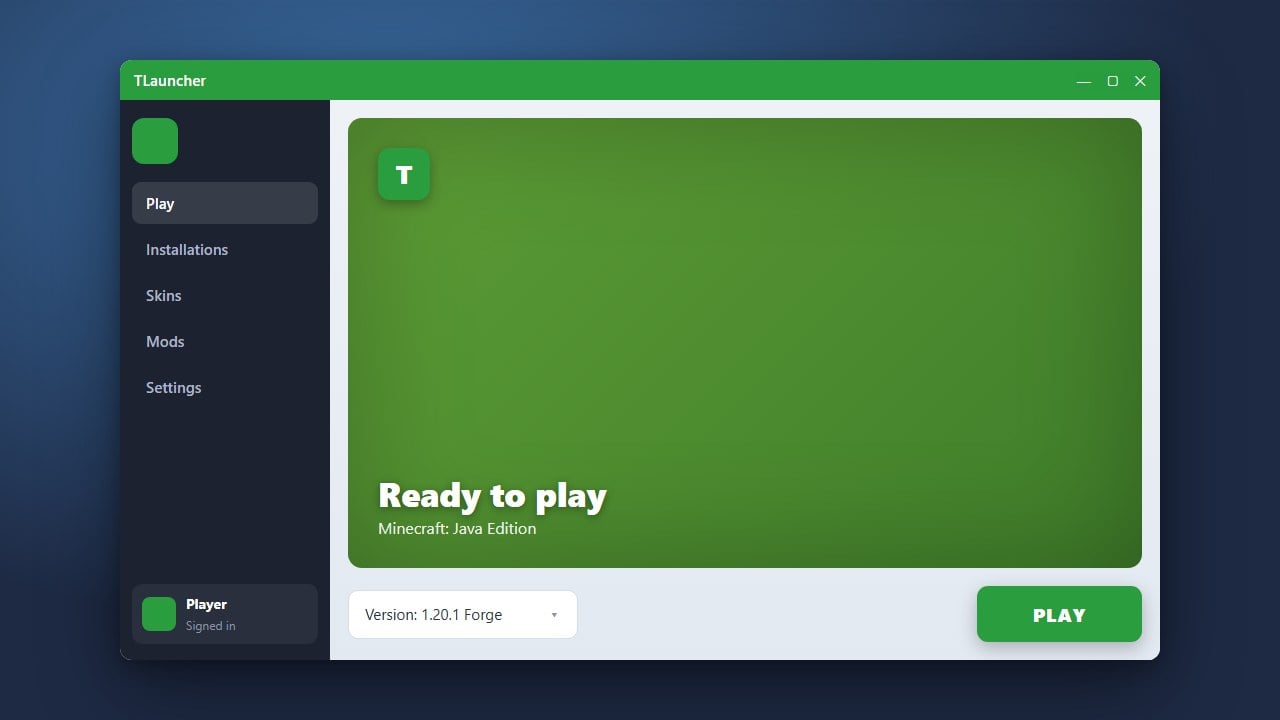
TLauncher is a popular third-party alternative launcher for Minecraft Java Edition that allows players to manage game versions, skin customization, and mods easily. While it can be used conveniently, we always recommend purchasing and supporting the official game directly from minecraft.net to get full access to official features, security updates, and safe multiplayer servers.
Safety Warning: TLauncher has historically faced criticism regarding bundled adware, telemetry tracking, and privacy concerns. Always run a trusted antivirus scan on downloaded files, and avoid entering your official Mojang or Microsoft account credentials into unofficial launchers.
Visit the Official Website
Open your web browser and go to the official TLauncher website to find the download section. Be cautious when browsing third-party software websites and make sure you do not click on misleading ads or malicious copycat links.
Download the Installer
Click the download button on the site and choose your operating system, whether it is Windows, macOS, or Linux. Save the installer file to an easily accessible location on your computer, such as your desktop or downloads folder.
Run the Installation Wizard
Double-click the downloaded setup file to launch the installation wizard. Follow the on-screen prompts, accept the terms of use, and complete the installation process. Make sure you have a compatible Java Runtime Environment installed on your system if prompted.
Configure Your Profile and Version
Open TLauncher after the installation finishes. Enter your preferred username and select the Minecraft version you want to play from the version dropdown menu. You can also explore options like How to Change the Minecraft Version in TLauncher if you want to switch between different releases.
Launch the Game
Click the large install and play button to download the necessary game assets and start Minecraft. If you plan on playing heavy modpacks, you may also want to check out our guide on How to Allocate More RAM in TLauncher to ensure smooth performance.
Frequently Asked Questions
Is TLauncher free to use?
Yes, the launcher itself is free to download and use. However, playing official premium multiplayer servers requires a legitimate Minecraft account purchased from minecraft.net.
Can I install mods using TLauncher?
Yes, TLauncher features built-in support for Forge and Fabric, allowing you to easily browse and install various mods and modpacks directly from the launcher interface.