The Minecraft Launcher is the central hub for managing your game on Java Edition. From launching the latest updates to switching between snapshots and modded installations, knowing how to navigate the launcher is essential for every player. If you haven't set up your game yet, you might want to check out How to Download and Install Minecraft (Java Edition) first.
You can use the Installations tab to allocate more RAM to heavy modpacks or custom versions if you experience lag.
1. Open the Minecraft Launcher
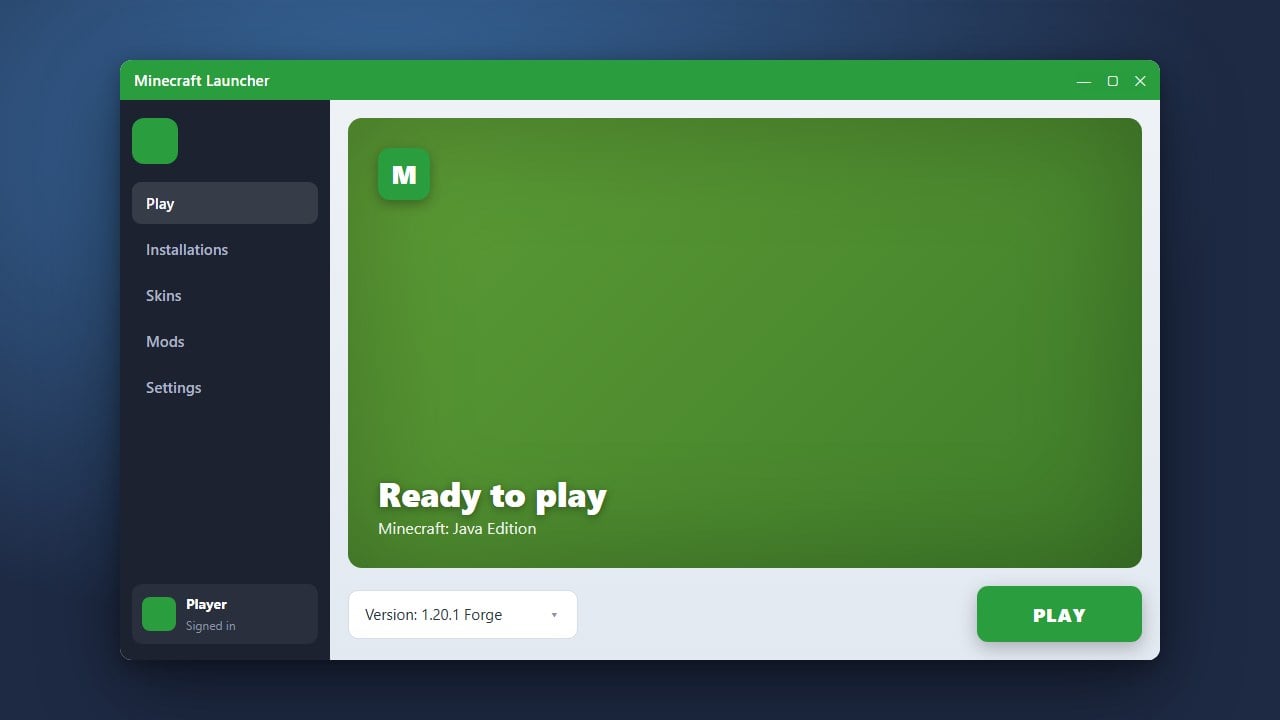
Locate the Minecraft icon on your desktop, application folder, or search bar and open it. If you have not signed in yet, use your Microsoft account credentials to log in.
2. Select Your Game Edition
Along the left-hand side or top navigation panel of the launcher window, ensure you have selected Minecraft: Java Edition. This ensures you are viewing the correct options, updates, and news for the Java version of the game.
3. Play the Latest Release
To jump right into standard survival or creative gameplay, simply click the large green Play button at the bottom of the screen. The launcher will automatically fetch any necessary files for the newest stable game version and start your game.
4. Manage Installations and Versions
If you want to play older updates, snapshots, or modded versions, click on the Installations tab at the top of the window. Here you can create custom profiles, change game versions, or set up tools like How to Install Minecraft Forge for your favorite mods.
5. Adjust Launcher Settings
Click the Settings icon in the bottom corner to customize your launcher experience. You can choose whether the launcher stays open while playing, change your account, or manage your game directory.
Frequently Asked Questions
Why is the Play button grayed out?
This usually happens if you are not signed into the correct Microsoft account that owns the game, or if your launcher needs an update. Try restarting the launcher and signing out and back in.
Can I install mods directly from the Minecraft Launcher?
No, the official launcher manages game versions and profiles, but you will need to manually install mod loaders like Forge or Fabric to run modifications.