Snapshots allow Java Edition players to test cutting-edge features, experimental blocks, and bug fixes before an official update rolls out. Because snapshot support is built directly into the official Minecraft Launcher, enabling them takes only a few clicks without needing third-party tools or mods.
Never open an existing long-term survival world in a snapshot without making a backup first. Snapshots are experimental development builds and can cause game crashes, glitchy terrain, or permanent world corruption.
Snapshots are exclusive to Java Edition. If you are playing on Bedrock Edition (Windows, consoles, or mobile), experimental builds are instead accessed through the separate Minecraft Preview application.
Open the Minecraft Launcher
Start the official Minecraft Launcher on your computer and make sure Minecraft: Java Edition is selected on the left navigation panel.
Navigate to the Installations Tab
Click on the Installations tab along the top bar of the launcher window. This screen lists all installed profiles, including your latest release and any custom configurations.
Enable the Snapshots Checkbox
Look toward the top-right corner of the window under the VERSIONS filter section. Check the box labeled Snapshots. Once checked, an entry named Latest snapshot will immediately appear in your installation list.
Select or Configure a Snapshot Profile
If you want to play the newest snapshot, the default Latest snapshot entry is ready to use. If you want to play a specific older snapshot, click New installation, name it, open the VERSION drop-down menu, and select your desired build. We strongly recommend reading how to back up your world before opening any existing world in a snapshot.
Launch the Snapshot from the Play Tab
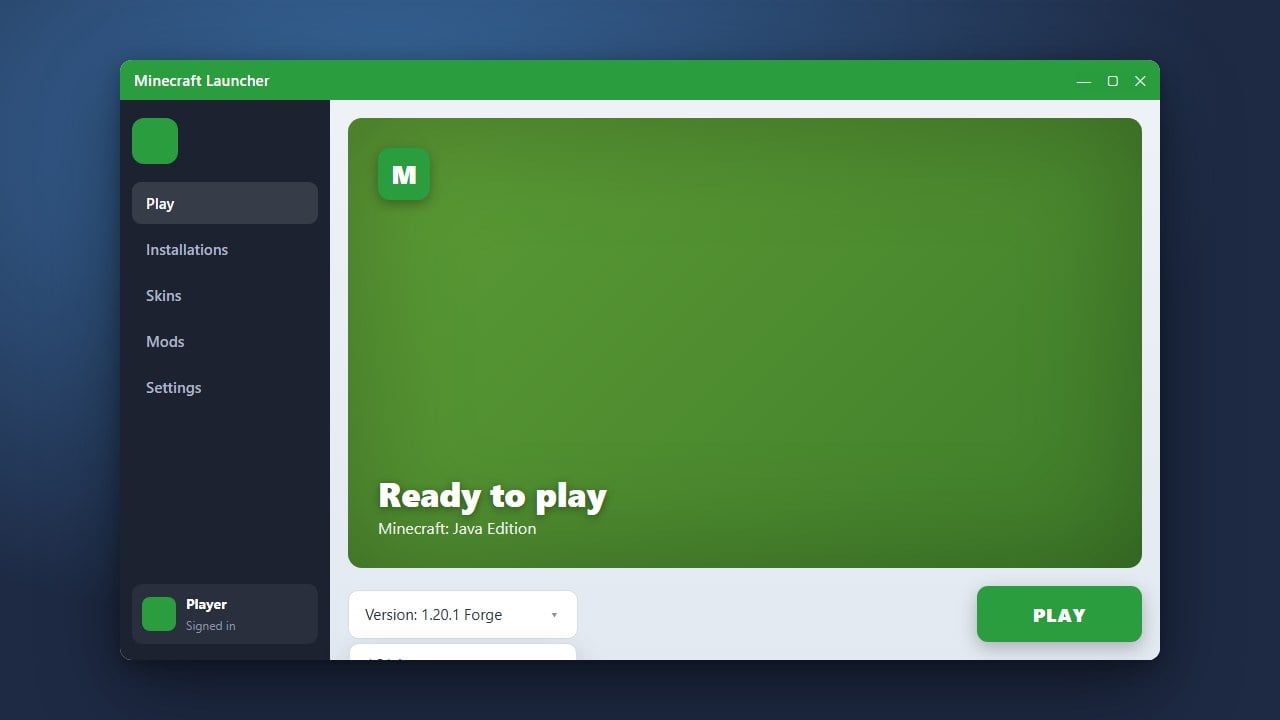
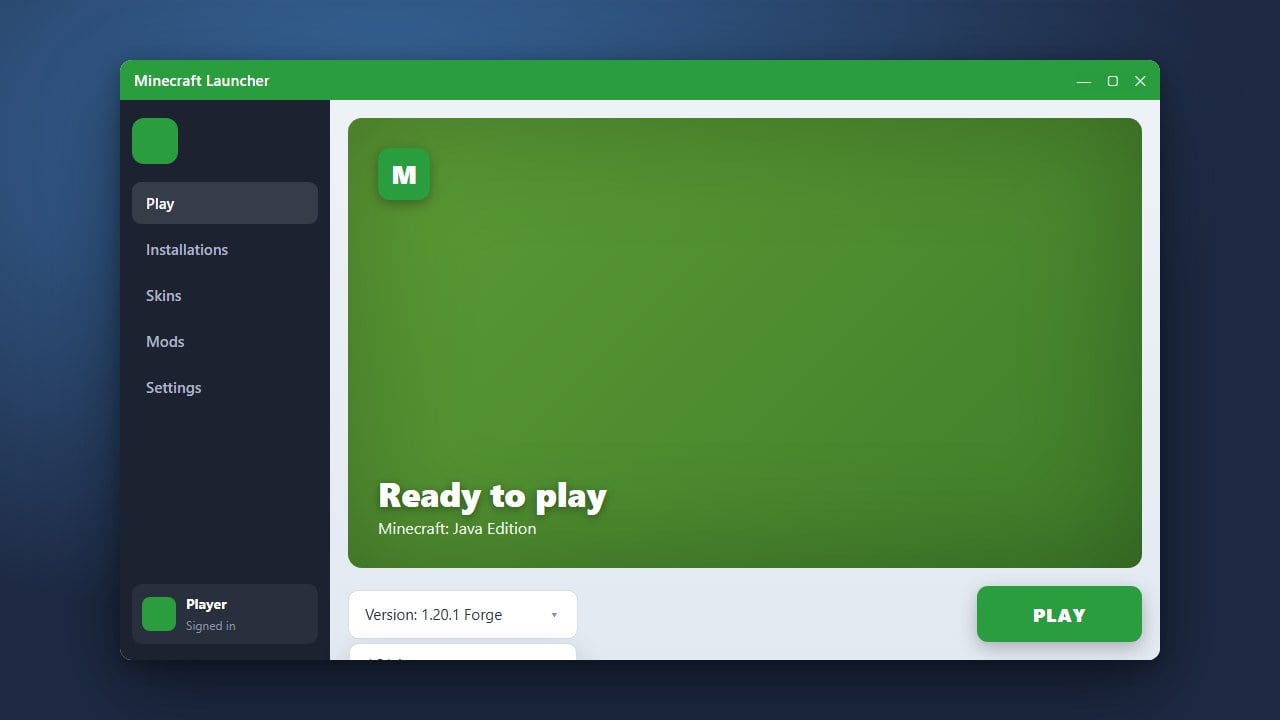
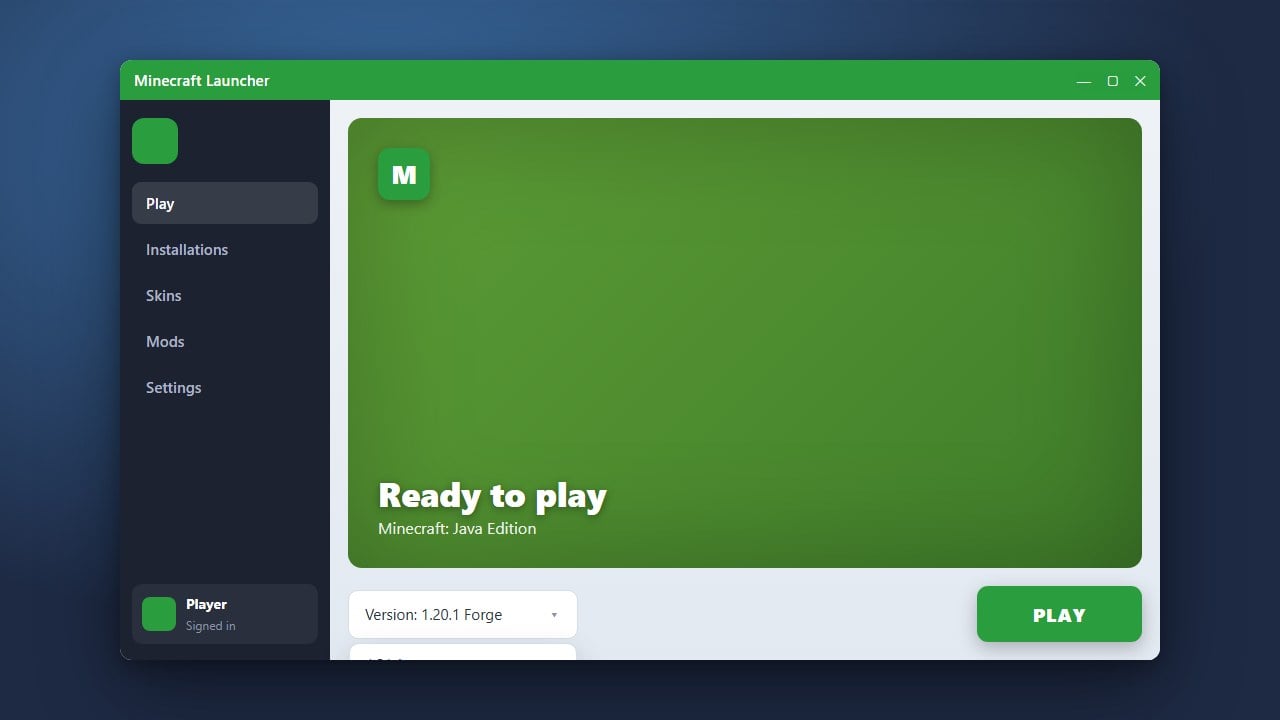
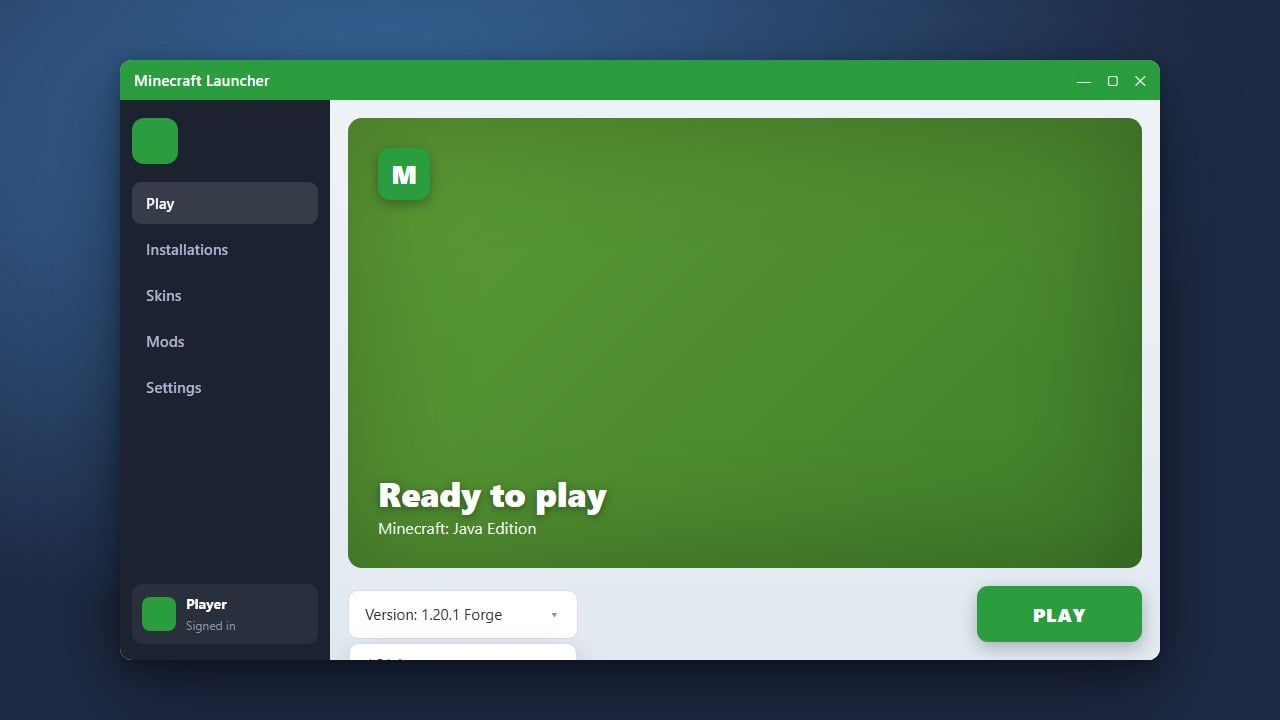
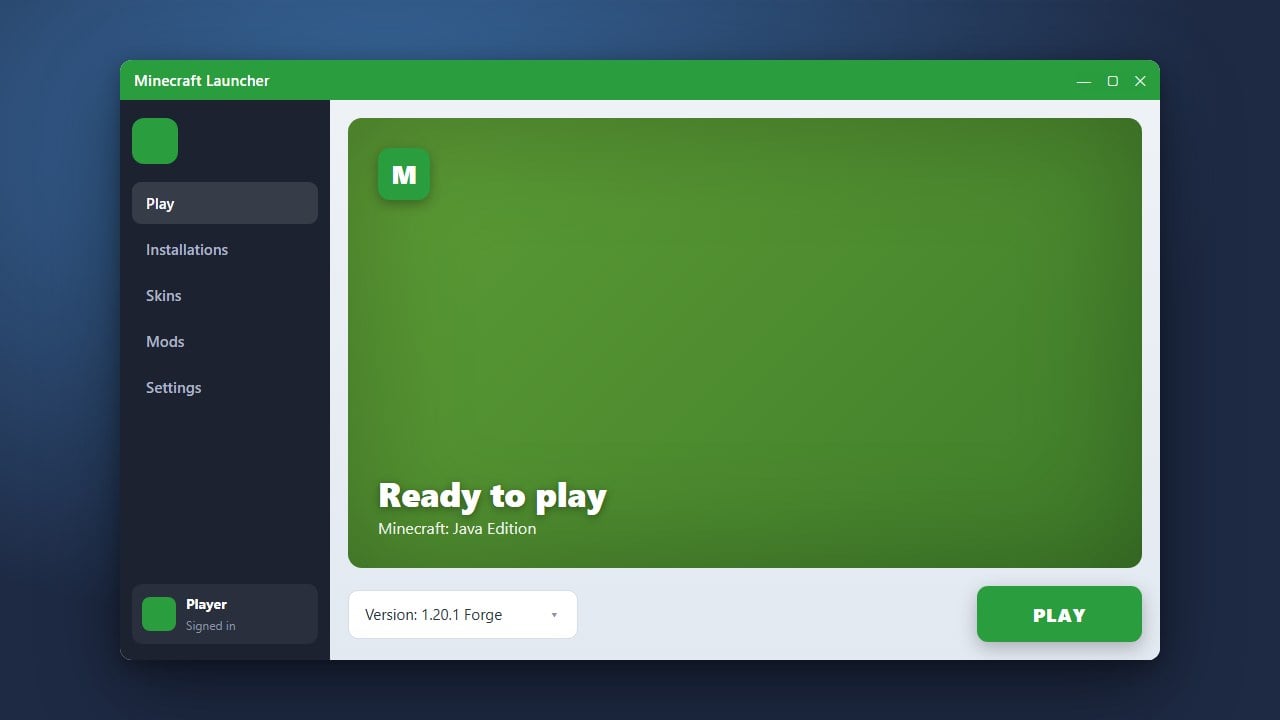
Return to the Play tab at the top. Click the drop-down menu located to the left of the green button, select your snapshot profile, and click Play. The launcher will automatically download the snapshot files and start the game.
Frequently Asked Questions
Can I play snapshots on multiplayer servers?
Yes, but the multiplayer server must be running the exact same snapshot version as your client. Regular release servers will reject the connection due to version mismatch errors.
How do I switch back to the normal release version?
Return to the Play tab in your launcher, click the version selector drop-down next to the Play button, and choose Latest release. You can check our guide on how to change your Minecraft version for more details.
Why isn't the Latest Snapshot entry appearing?
Make sure the Snapshots checkbox under the Installations tab is checked. If it is checked and still missing, close and relaunch the Minecraft Launcher while connected to the internet to refresh the version list from Mojang.