Backing up your Minecraft world is the best way to protect your progress from accidental loss, game crashes, or corrupted files. Whether you play on Java Edition or Bedrock Edition, creating a safe copy of your save takes only a few minutes and gives you total peace of mind before updating the game or experimenting with mods.
Make a fresh backup before installing major updates, snapshots, or tweaking game files to prevent losing your favorite builds to unexpected errors.
Quit Your World
Before making any backup, save and quit your active world to the main menu. This ensures all the latest block placements, player inventories, and chunk data are fully written to your storage files without corruption.
Locate Your World Folder (Java Edition)
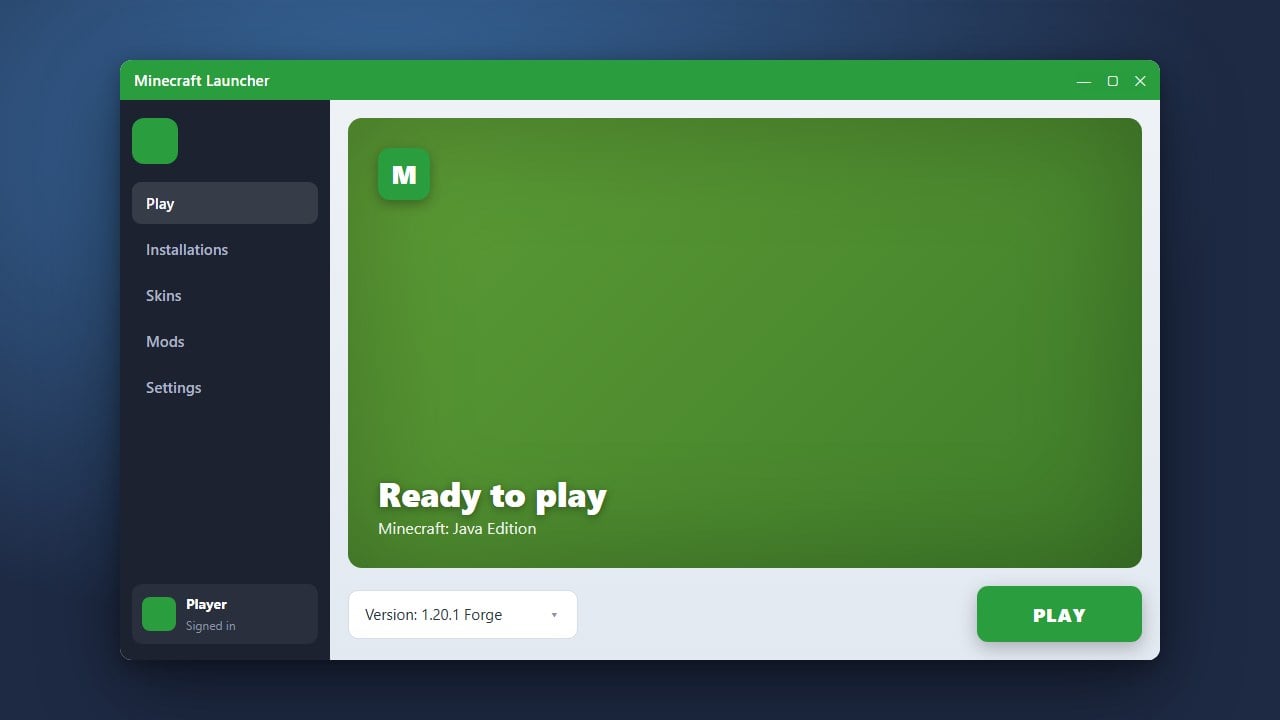
If you play Java Edition, open the Minecraft Launcher, go to Installations, and click the folder icon next to your game directory. Alternatively, you can use the run command and consult our guide on how to find your .minecraft folder. Once inside, open the saves folder to see all of your individual world directories.
Export or Copy Your World Save
For Java Edition, right-click your world's folder inside the saves directory, compress it into a .zip file (or copy the folder), and paste it into a safe backup location on your computer or cloud storage. For Bedrock Edition, open your world settings, scroll down to the Storagesection, and export your world package as a .mcworld file to save it anywhere you like.
Verify the Backup File
Always make sure your copied .zip or .mcworld archive is fully transferred and readable. You can test restoring the backup into a test slot if you want to be completely certain your valuable builds and items are safe.
Frequently Asked Questions
How often should I back up my Minecraft world?
It is a good habit to back up your world after every major building session, or at least once a week if you play regularly. Always back up immediately before installing mods, data packs, or game updates.
Can I back up Bedrock worlds on mobile and console?
Yes, on mobile devices you can access world files through your device's file manager app. On consoles, backups usually rely on cloud saves linked to your console account or subscription services, though exporting worlds via external tools varies by platform.