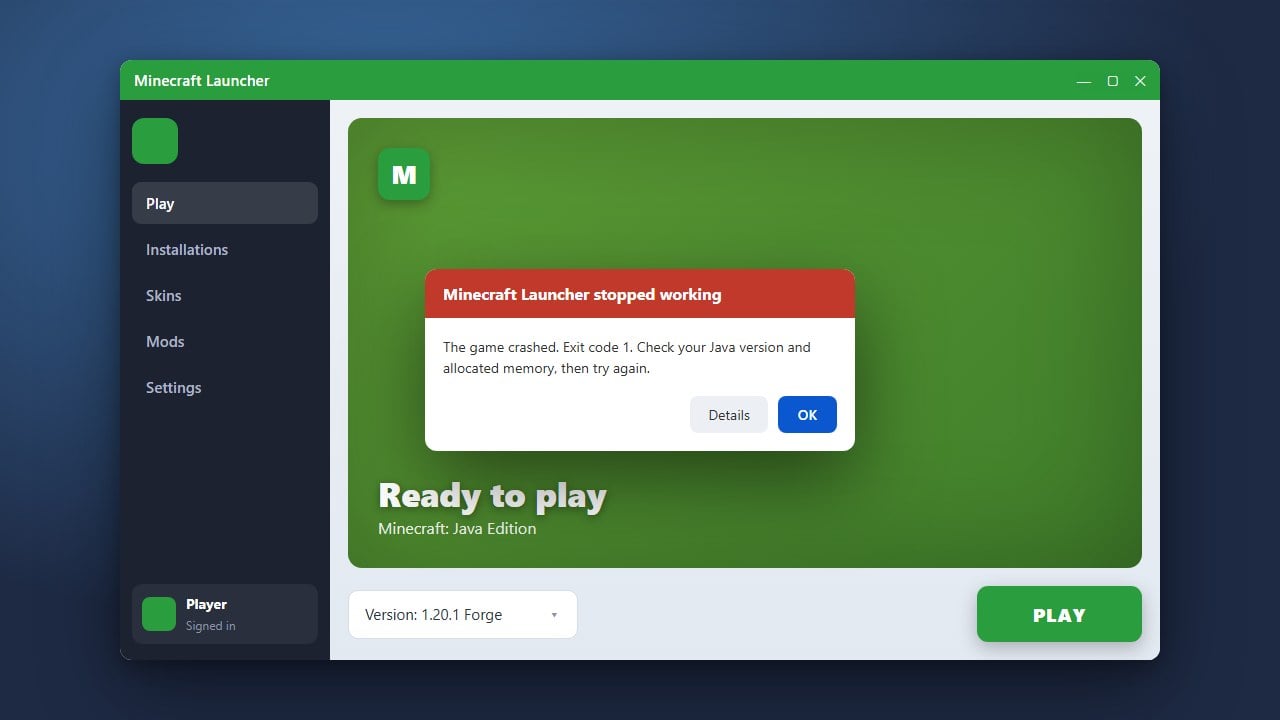
If your game is stuttering or running slowly, especially when playing with heavy mods or high render distances, you may need to increase the amount of memory your game uses. This step-by-step tutorial will show you how to allocate more RAM to Minecraft Java Edition using the official Minecraft Launcher.
Never allocate all of your computer's total RAM to Minecraft. Always leave at least 2GB to 4GB of RAM free for your operating system and background applications to prevent system crashes.
Make sure you have the 64-bit version of Java installed on your computer. The 32-bit version cannot allocate more than 1GB to 2GB of RAM regardless of your settings.
Open the Minecraft Launcher
Start by opening the official Minecraft Launcher on your Windows, Mac, or Linux computer. Make sure you are signed into your Microsoft or Mojang account.
Navigate to the Installations Tab
At the top of the launcher window, click on the Installations tab. This page lists all the game versions and modded profiles you have installed on your system.
Edit Your Installation Settings
Find the version or profile you want to play, hover your mouse over it, and click the three dots (...) menu on the right side. Select Edit from the dropdown menu.
Access More Options
In the edit menu, click on the More options dropdown at the bottom to reveal advanced Java arguments and settings. If you are experiencing performance drops, you might also want to check out our guide on How to Fix Minecraft Lag for additional performance boosts.
Modify the JVM Arguments
Locate the text box labeled JVM Arguments. By default, Minecraft starts with a string of code that includes -Xmx2G, which limits the game to 2 gigabytes of RAM. Change the number next to -Xmx to your desired amount of RAM (for example, -Xmx4G for 4 gigabytes or -Xmx6G for 6 gigabytes).
Save Your Changes
After updating the argument to your preferred memory limit, click the green Save button in the bottom right corner. You are now ready to launch the game with your newly allocated RAM! If you ever run into memory issues while playing heavily modded packs, review our guide on How to Fix an Out of Memory Error for extra troubleshooting.
Frequently Asked Questions
How much RAM should I allocate to Minecraft?
For vanilla Minecraft, 2GB to 4GB is usually plenty. If you are playing with heavy modpacks or high-resolution shaders, you may need to allocate 6GB to 8GB of RAM.
Does this work for Minecraft Bedrock Edition?
No. Bedrock Edition is coded in C++ and automatically manages its own memory usage. Manual RAM allocation is only necessary and possible for Java Edition.