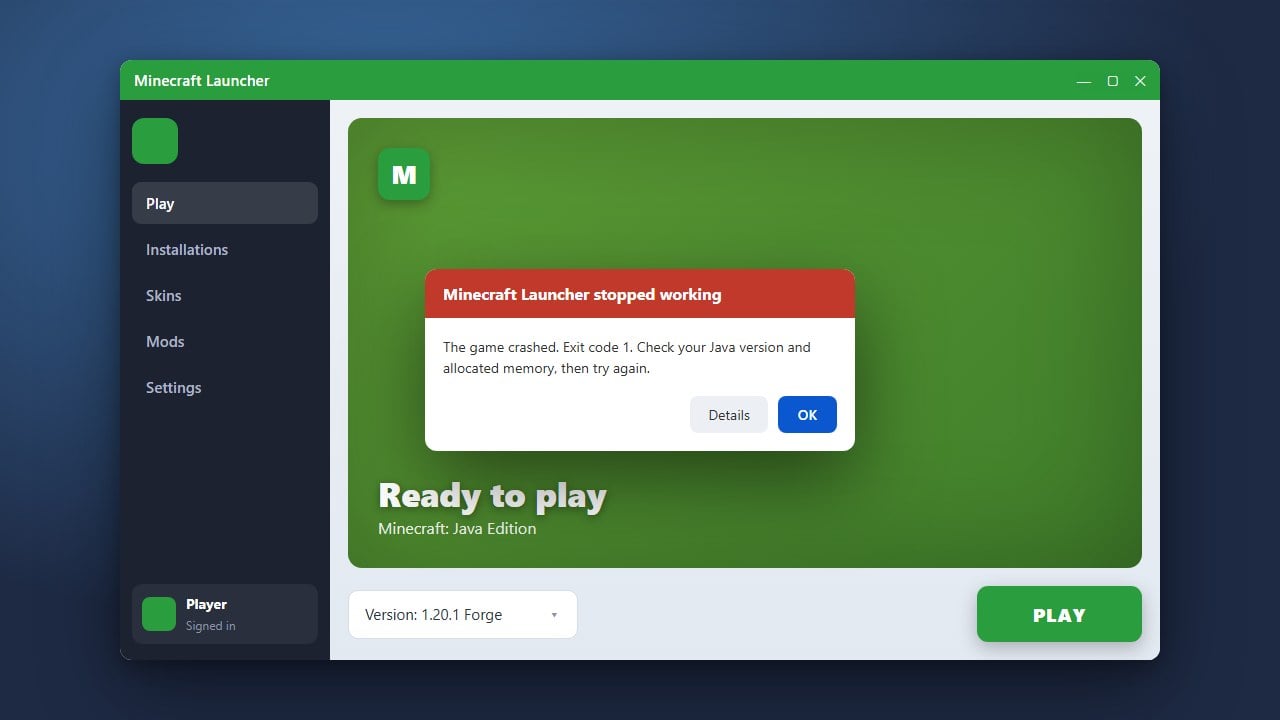
When Minecraft Java Edition crashes, it often generates a detailed text file called a crash report. While it looks like a wall of confusing code, learning how to read a crash report helps you quickly identify broken mods, outdated drivers, or missing files so you can get back to playing.
Locate the Crash Reports Folder
When your game unexpectedly closes, the first step is finding where the text file is stored. You will need to how to find your .minecraft folder to access these logs.
Inside your main Minecraft directory, look for a folder named crash-reports. Open it and sort the files by date modified to find the most recent text document matching the exact time your game crashed.
Check the Time and Version Summary
Open the latest text file using a basic text editor like Notepad. The very first few lines give you essential metadata about your game state.
Check the timestamp to ensure you are looking at the correct crash, and verify the Minecraft version, operating system, and loaded mod loader (such as Forge or Fabric) listed near the top.
Find the Crash Reason
Scroll down past the system specifications until you see a section labeled Time of crash followed by Description. This is usually a one-line summary telling you why the game stopped running.
Common descriptions include null pointer exceptions, ticking entity errors, or running out of system memory. If you see memory-related errors, you may want to review how to allocate more RAM to Minecraft.
Identify the Culprit in the Stack Trace
Below the description, you will see a massive block of text called the stack trace. This shows the exact sequence of code operations that were running when the failure happened.
Scan through this section for mod IDs, plugin names, or specific block and item identifiers. If a particular mod keeps appearing on multiple lines, that mod is almost certainly causing the crash.
Take Action to Fix the Issue
Once you identify the problematic mod, resource, or corrupted world file, you can take corrective steps. Try removing the offending mod, updating your graphics drivers, or restoring a previous save if your world data was damaged.
If your game continues to fail on startup or gives generic errors, check our guide on how to fix Minecraft crashes for additional troubleshooting methods.
Frequently Asked Questions
Where are Minecraft crash reports saved?
They are saved in the crash-reports subfolder inside your main Minecraft directory. Each file is named with the exact date and time the crash occurred.
What should I do if no crash report is generated?
If the game closes instantly without creating a file, check your latest launcher log or standard game output log in the logs folder for error details.