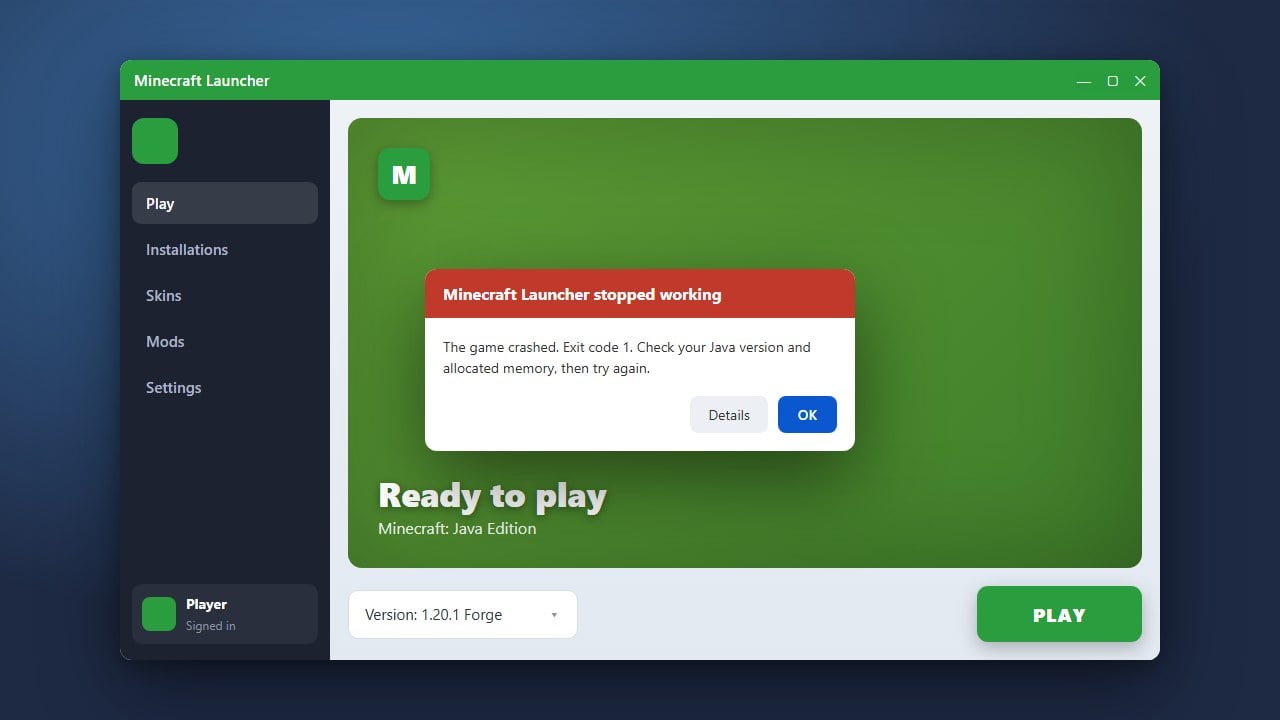
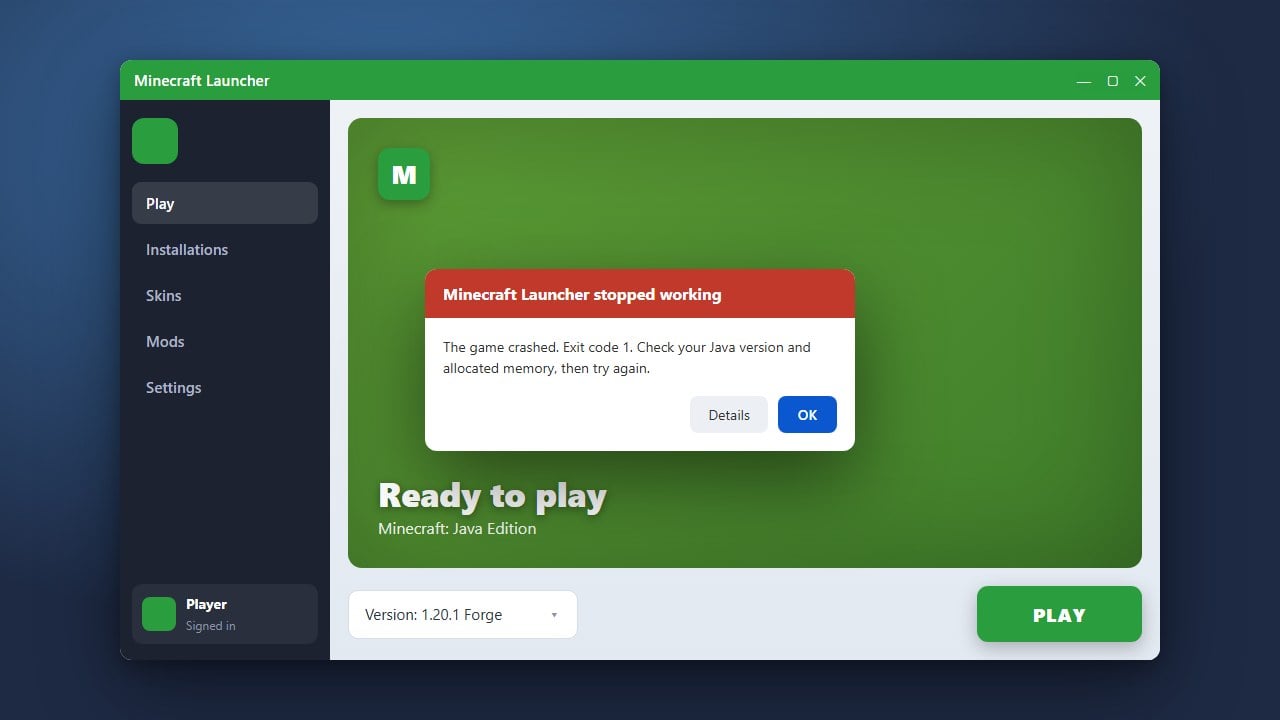
When Minecraft refuses to start, it can be frustrating. Whether you play Java or Bedrock Edition, various issues like outdated graphics drivers, corrupted game files, or conflicting mods can prevent the game from opening. This guide will walk you through the most effective troubleshooting steps to fix launch problems and get you back into your world.
1. Update Your Graphics Drivers
Outdated or corrupted graphics drivers are one of the most common reasons Minecraft fails to launch or throws a black screen. Visit the official website of your GPU manufacturer—such as NVIDIA, AMD, or Intel—to download and install the latest drivers for your graphics card.
After updating your drivers, restart your computer completely before trying to launch the game again. For more detailed troubleshooting on startup display bugs, check our guide on How to Fix a Black Screen on Startup.
2. Close Background Processes and Launcher Tasks
Sometimes Minecraft processes get stuck running in the background, preventing a new session from starting. Open your Task Manager (Ctrl+Shift+Esc on Windows) or Activity Monitor (on Mac) and look for any active instances of Minecraft or the Minecraft Launcher, then force close them.
Once all background tasks are closed, reopen your launcher with administrator privileges and try starting the game again. If your game boots up but struggles with performance afterward, you might want to look into How to Increase FPS in Minecraft.
3. Remove Problematic Mods and Resource Packs
If you are playing Java Edition with mods, a broken or incompatible mod file will often crash the game instantly upon launch. Navigate to your mods folder (you can learn How to Find Your .minecraft Folder) and temporarily move your mods to your desktop to see if the game launches successfully.
If the vanilla game starts fine, add your mods back one by one to identify which specific file is causing the conflict. Always make sure your installed mods match your current game version.
4. Repair or Reinstall the Minecraft Launcher
Corrupted launcher installation files can block the game from communicating with Microsoft servers. On Windows, open your system Settings, navigate to Installed Apps, locate the Minecraft Launcher, and select Advanced Options to use the Repair or Reset functions.
If repairing does not work, completely uninstall the launcher, download a fresh copy from the official Minecraft website, and reinstall it. For persistent crashing issues right as the game window opens, you can also read our guide on How to Fix Minecraft Crashes.
Frequently Asked Questions
Why does my Minecraft launcher close instantly after clicking Play?
This usually happens due to outdated graphics drivers, corrupted Java runtime files (on Java Edition), or background interference from third-party antivirus software blocking the executable.
Will reinstalling Minecraft delete my worlds?
On Windows and Mac, uninstalling the launcher generally preserves your save files located in the .minecraft folder. However, it is always best practice to manually back up your saves before performing a clean reinstall.