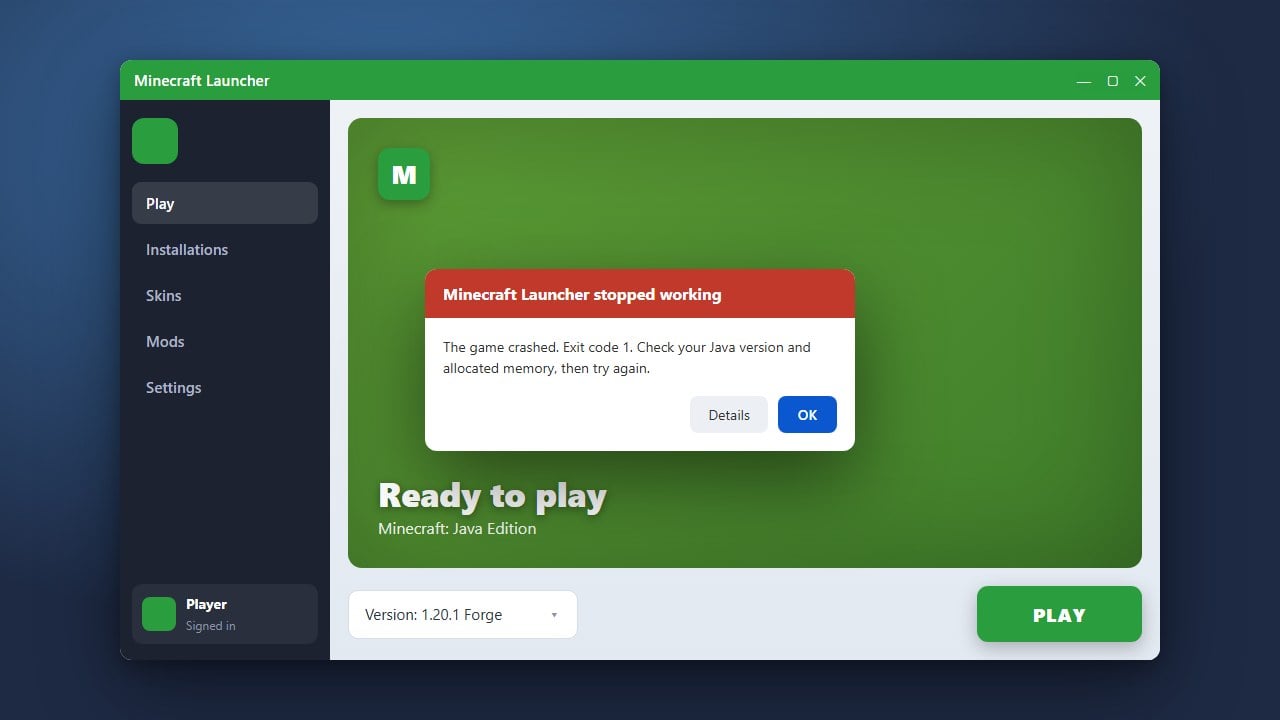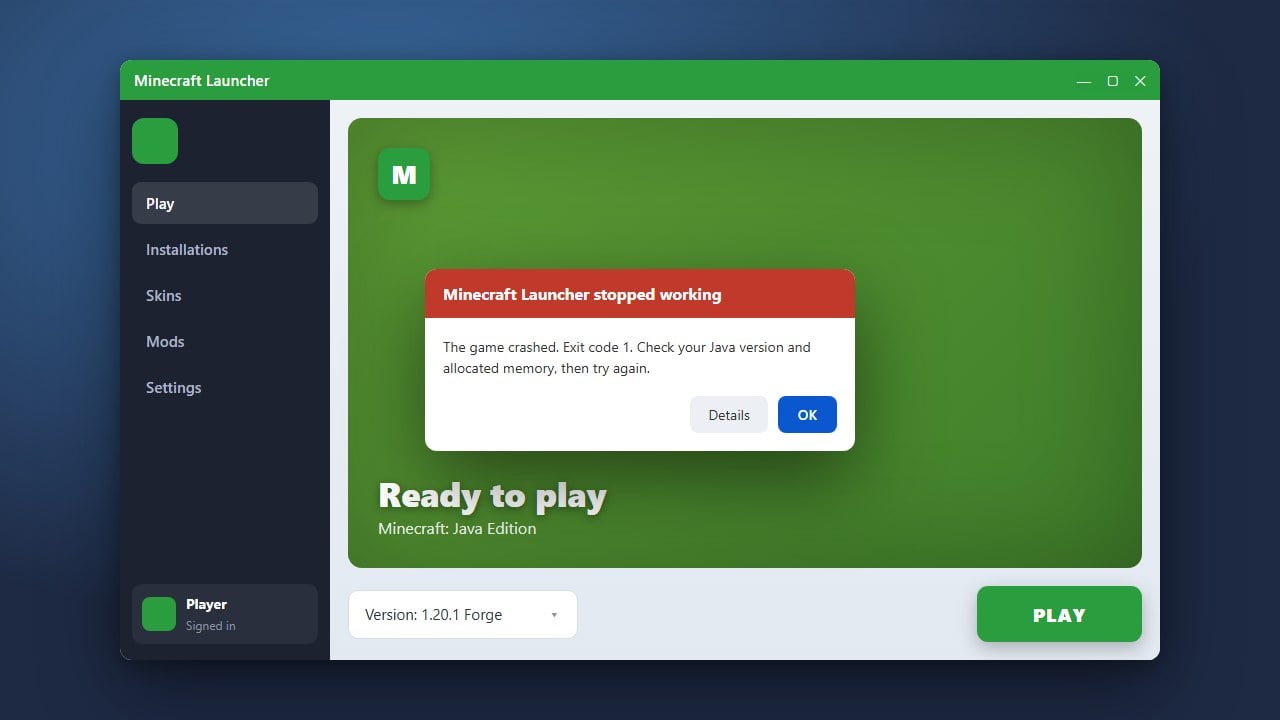
Staring at a blank black screen when launching Minecraft can be frustrating, but it is a common issue that is usually easy to fix. Whether you are playing Java or Bedrock Edition, this guide will walk you through the most effective troubleshooting steps to get your game booting up properly.
saves folder before deleting any game files or removing major mod folders to prevent accidental data loss.Update Your Graphics Drivers
Outdated or corrupted graphics card drivers are one of the most common causes of a black screen on startup. Visit the official website of your GPU manufacturer (NVIDIA, AMD, or Intel) to download and install the latest drivers for your system.
After updating your drivers, restart your computer entirely before attempting to launch Minecraft again to ensure the changes take full effect.
Remove Incompatible Mods and Resource Packs
If you play Java Edition with mods, an outdated or broken mod will often freeze the game on a black screen. Navigate to your How to Find Your .minecraft Folder directory, open the mods folder, and temporarily move your mods elsewhere to test if one of them is causing the crash.
Similarly, conflicting resource packs or shader packs can cause launch failures. You can also check out our guide on How to Fix Minecraft Crashes for more detailed log analysis.
Update Java (Java Edition Only)
Minecraft Java Edition relies on the Java Runtime Environment to run. If your Java version is outdated or improperly configured, the game may fail to initialize its graphics pipeline and show only a black window.
Ensure you are running the correct, up-to-date version of Java recommended for your current game version. For newer Minecraft updates, the official launcher usually manages its own bundled Java runtime, but standalone installations may need manual updates.
Run Minecraft in Windowed Mode
Sometimes the game launches successfully in the background, but your display resolution or fullscreen settings fail to render. You can force Java Edition to open in windowed mode through the official Minecraft Launcher by editing your installation settings and adding a window size argument like -pgr width 1280 height 720.
For Bedrock Edition, pressing F11 or Alt + Enter after launching can sometimes toggle the window state and break the black screen freeze.
Reinstall Minecraft
If core game files have become corrupted, a clean installation is often the fastest fix. For Java Edition, uninstall the launcher or delete corrupted game files, making sure to follow How to Back Up Your World first so you do not lose your saved progress.
For Bedrock Edition, reinstalling through the Microsoft Store or your platform's app store will refresh damaged application files without affecting cloud-synced worlds.
Frequently Asked Questions
Why does my screen go black immediately when I open Minecraft?
This is usually caused by outdated graphics drivers, conflicting third-party mods, corrupted game configuration files, or an issue with your display resolution settings.
Does this black screen issue affect both Java and Bedrock editions?
Yes, both editions can experience startup black screens, though the underlying causes differ. Java issues are frequently tied to mods, Java runtime versions, and drivers, while Bedrock issues often relate to Microsoft Store glitches or display scaling.