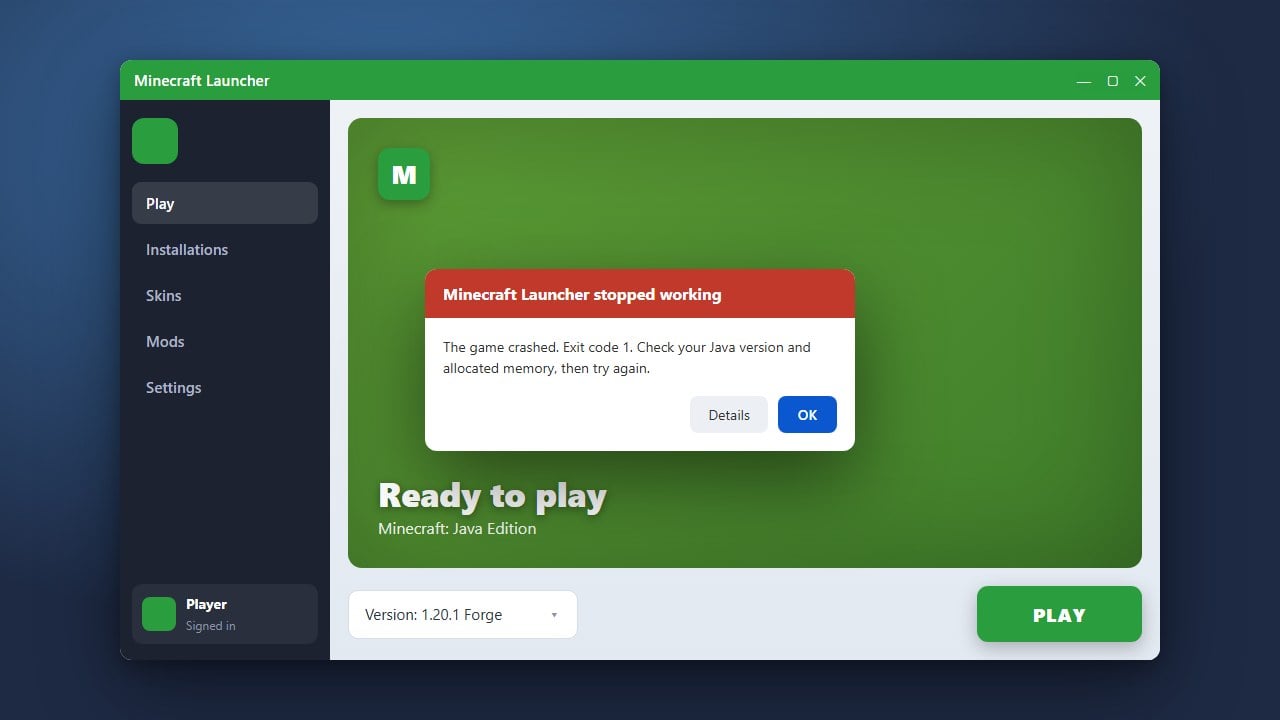
Crashing in Minecraft can be frustrating, whether your game abruptly closes to the desktop or freezes completely. This guide covers practical troubleshooting steps for both Java and Bedrock editions to help you identify the root cause and get your game running smoothly again.
Always create a backup of your worlds before deleting game files or removing major mods to prevent permanent data loss. Refer to How to Back Up Your World for detailed instructions.
Update Your Graphics Drivers
Outdated or corrupted graphics card drivers are one of the most common causes of game crashes and unexpected errors. Visit the official website of your GPU manufacturer—NVIDIA, AMD, or Intel—to download and install the latest drivers for your system.
Check and Update Java (Java Edition)
Minecraft Java Edition relies on Java to run properly. If you are using an outdated version of Java or conflicting runtimes, your game may fail to launch or crash mid-game. Ensure you are using the correct Java version bundled with the official Minecraft launcher or update your standalone installation.
Remove Conflicting Mods and Resource Packs
Third-party mods, resource packs, and outdated add-ons frequently break game stability after updates. Try temporarily removing your mods or checking out How to Fix Exit Code 1 if you encounter specific launch errors related to modified game files.
Allocate Adequate System Memory
Running out of memory can cause your game to freeze and crash without warning. If you are playing heavily modded instances, you may need to assign more RAM to your client. Read How to Allocate More RAM to Minecraft to learn how to safely adjust your memory settings.
Verify and Repair Game Files
Corrupted installation files can trigger persistent crashes every time you load a specific world or action. Use the official Minecraft Launcher or your platform's store (such as the Xbox app for Windows) to verify integrity, reinstall missing files, or perform a clean reinstallation of the game.
Frequently Asked Questions
Where can I find my Minecraft crash logs?
On Java Edition, crash reports are saved in your .minecraft/crash-reports directory. You can locate your game directory quickly by following the steps in How to Find Your .minecraft Folder.
Why does Minecraft crash immediately upon launching?
Immediate crashes on startup are usually caused by outdated graphics drivers, incompatible mods, or corrupted configuration files. Reviewing your recent error logs will usually pinpoint the exact file causing the issue.