
Transferring a world directly from Minecraft Java Edition to Bedrock Edition is not natively supported because both versions use entirely different file formats and game engines. However, you can successfully move your favorite worlds over using specialized community conversion tools like Chunker or MCC ToolChest. Before you begin, always make sure to create a backup using our guide on how to back up your world to prevent any accidental data loss.
Locate Your Java World Folder
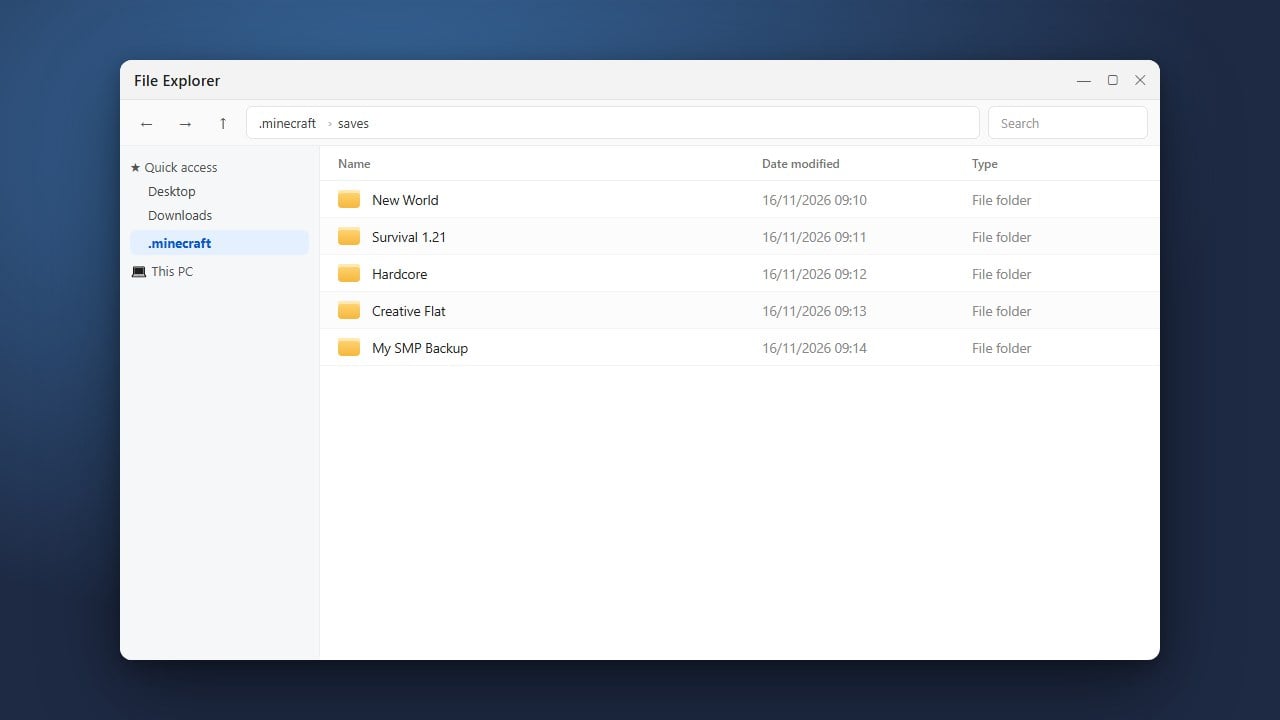
First, you need to find the save folder of the world you want to transfer from your Java installation. Press the Windows key + R, type %appdata%\.minecraft\saves, and press Enter to open your saves directory.
Identify the folder that matches your world's name and keep this window open. It contains region files, player data, and level information required for the conversion process.
Choose a Conversion Tool
Because Java and Bedrock use different block IDs and file structures, you need a conversion utility. The official web-based tool Chunker by Hive Games is currently the easiest and most reliable option for translating Java world data into Bedrock format.
Open your web browser and navigate to the Chunker website, or prepare a desktop application like MCC ToolChest if you prefer an offline converter.
Upload and Convert the World Files
Drag and drop your Java world folder into the Chunker interface, or use the file browser to select your world directory from the saves folder. Follow the on-screen prompts to start the conversion process.
During conversion, the tool will map Java blocks and items to their closest Bedrock equivalents. Once the processing is complete, download the resulting Bedrock-compatible export file to your computer.
Import the World into Bedrock Edition
The downloaded Bedrock world file will typically have a .mcworld extension. Simply double-click this file on a Windows device, and Minecraft Bedrock Edition will automatically launch and import the world for you.
If you are playing on a console or mobile device, you may need to transfer the file via a local realm or a third-party file manager app depending on your specific platform setup.
Frequently Asked Questions
Can I transfer a Bedrock world to Java instead?
Yes, converters like Chunker and MCC ToolChest also support Bedrock-to-Java conversions, though some block states and structures may still require minor adjustments.
Will my player inventory and experience be saved?
In most cases, player coordinates, inventory items, and XP levels transfer successfully, but Ender Chest contents can sometimes reset depending on the converter used.
















