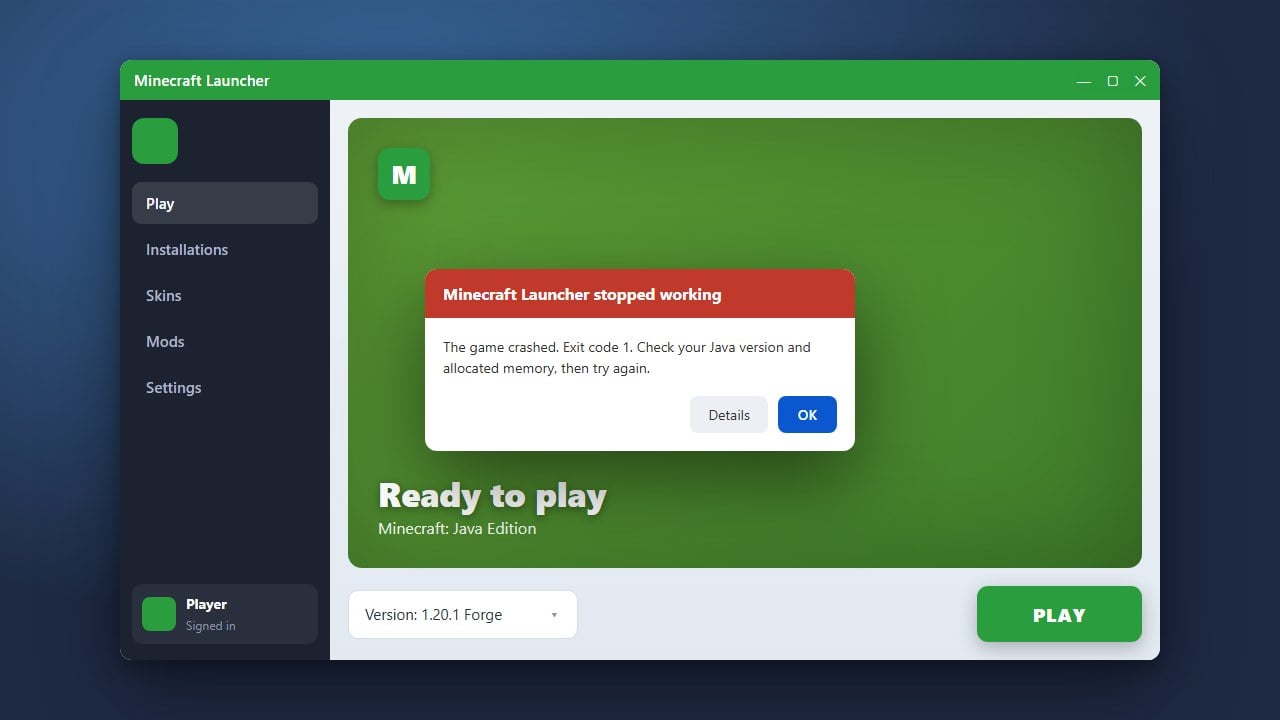
When the Minecraft Launcher refuses to open, it can be extremely frustrating. Whether you are playing Java or Bedrock Edition, various background glitches, outdated installations, or corrupt cache files can prevent the launcher from starting. This guide will walk you through the most effective methods to fix the issue and get you back into your worlds.
1. End Background Tasks via Task Manager
Sometimes the launcher process is already running in the background as a frozen task, which blocks new windows from opening. On Windows, press Ctrl + Shift + Esc to open the Task Manager. Look for any processes named Minecraft, Minecraft Launcher, or OpenJDK Platform binary.
Right-click each of these background processes and select End Task. Once everything related to Minecraft is closed, try launching the application again. If you continue experiencing startup issues once it opens, you might want to look into How to Fix Minecraft Launcher for deeper troubleshooting.
2. Run the Launcher as Administrator
Permissions issues can often block applications from writing necessary temporary files during startup. Right-click your Minecraft Launcher shortcut on your desktop or app list and select Run as administrator.
If a User Account Control prompt appears asking for permission to make changes to your device, click Yes. If this successfully opens the launcher, you can set it to always run as an administrator by opening its properties, going to the Compatibility tab, and checking the box for 'Run this program as an administrator'.
3. Update the Microsoft Store and Xbox App
The modern Minecraft Launcher relies heavily on the Xbox app and Microsoft Store services for authentication and updates, especially on Windows. Open the Microsoft Store app, click on Library in the bottom-left corner, and click Get updates to ensure all core system components are up to date.
Additionally, open the Xbox app and make sure you are logged into your correct Microsoft account. If your system components are severely outdated or failing to update, you may need to consult How to Fix Minecraft Launcher Not Updating for specialized steps.
4. Repair or Reset the Launcher App
Windows features a built-in repair tool for installed applications that can fix broken file paths without deleting your game data. Open your Windows Settings, navigate to Apps > Installed apps (or Apps & features), and search for Minecraft Launcher.
Click the three-dot menu next to the launcher, select Advanced options, and click the Repair button. If repairing does not work, return to this menu and click the Reset button, which clears app data and often resolves stubborn launch loops.
5. Reinstall the Minecraft Launcher Completely
If none of the previous steps work, your installation files may be permanently corrupted. Uninstall the Minecraft Launcher completely from your system, then restart your computer to clear lingering temporary files.
Head to the official Minecraft website to download the latest installer fresh. For players experiencing broader application failures beyond just the startup phase, checking out How to Fix Minecraft Not Launching can provide extra context.
Frequently Asked Questions
Why does the Minecraft Launcher instantly close after opening?
This is usually caused by outdated graphics drivers, conflicting overlay software (like Discord or GeForce Experience), or corrupted launcher cache files. Try updating your GPU drivers and disabling third-party overlays.
Will reinstalling the launcher delete my Minecraft worlds?
No. Your world saves and screenshots are stored in a separate folder (typically within the .minecraft directory on Java Edition) which is not touched when you uninstall just the launcher application.