If your Minecraft Launcher refuses to open, gets stuck on a loading screen, or throws frustrating errors, you are not alone. This guide walks you through the easiest and most effective ways to fix the Minecraft Launcher for both Java and Bedrock editions so you can get back to playing.
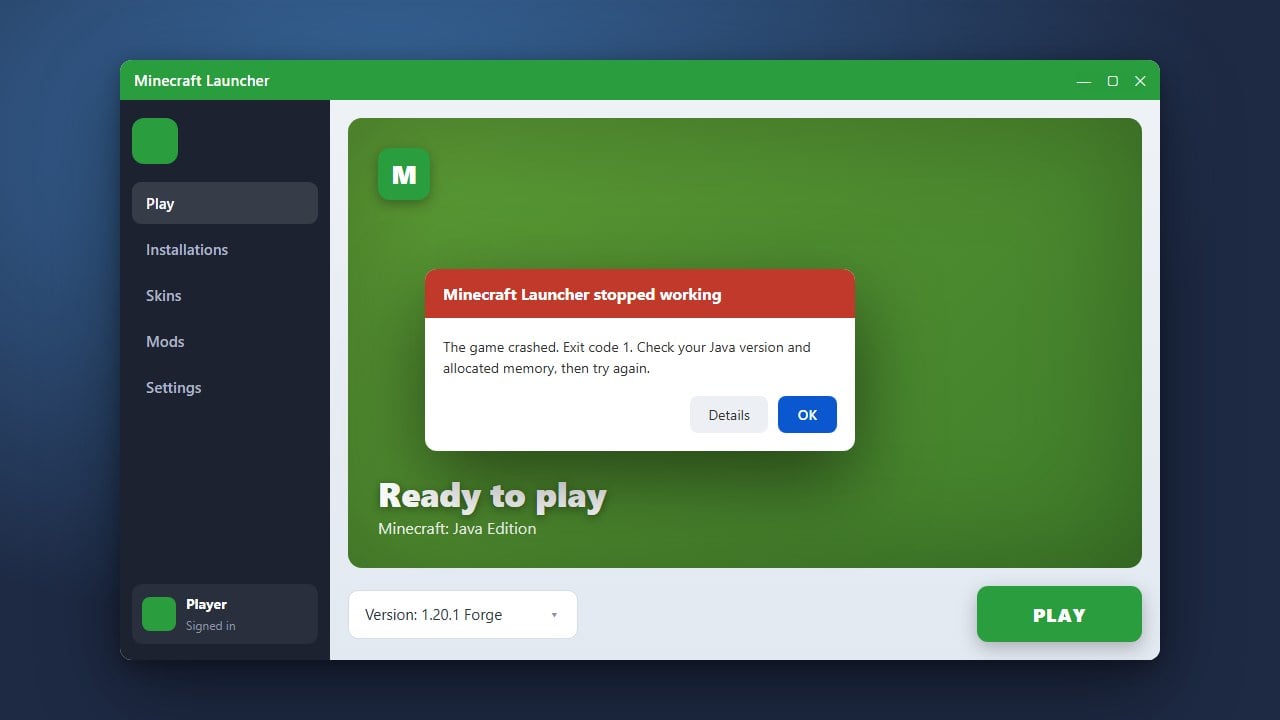
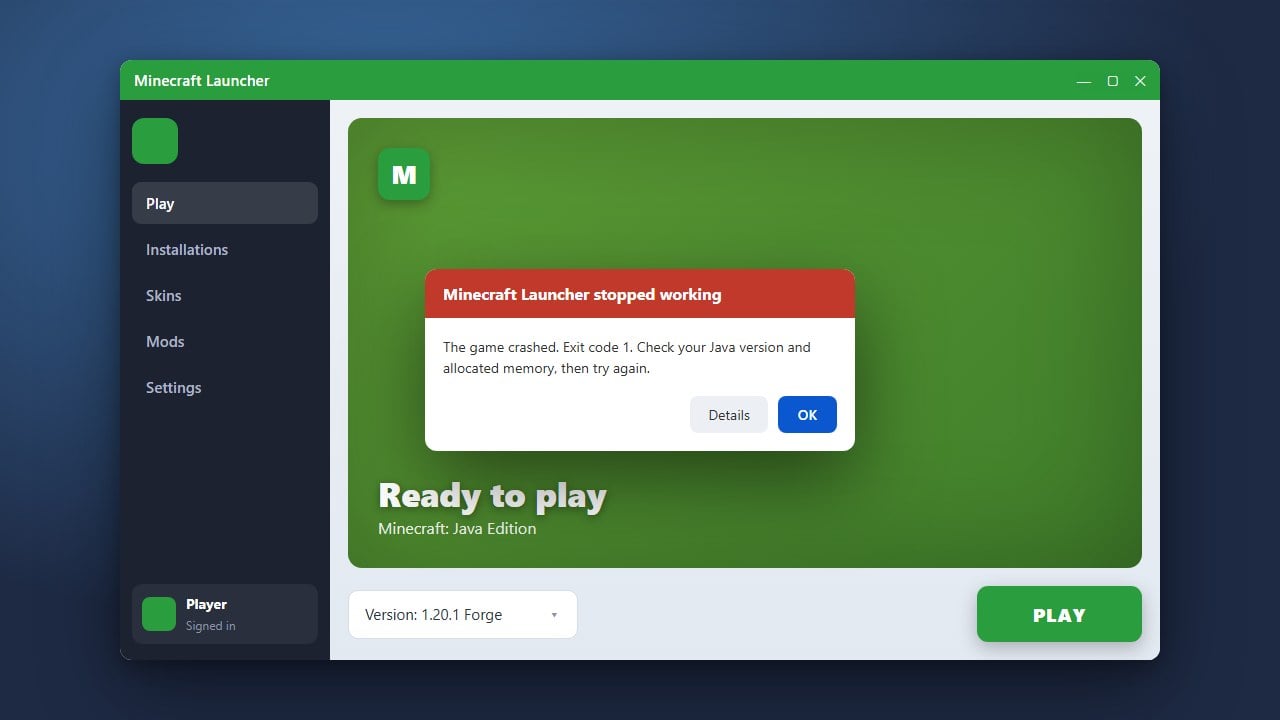
If you are struggling with Java Edition version crashes after successfully opening the launcher, you might need to check out How to Fix Exit Code 1 for targeted error solutions.
Close All Background Processes
Sometimes the launcher has already started a background process that freezes the new window. Open your Task Manager on Windows (Ctrl + Shift + Esc) or Activity Monitor on Mac, look for any running instances of Minecraft or the Minecraft Launcher, and end those tasks.
After closing any lingering background processes, try launching the application again to see if it responds normally.
Run the Launcher as Administrator
Permission issues can prevent the launcher from updating or accessing necessary system files. If you are on Windows, right-click the Minecraft Launcher icon and select Run as administrator.
If a prompt appears asking for permission to make changes to your device, click Yes and check if the launcher opens successfully.
Log Out and Back Into Xbox and Microsoft Store Apps
The Minecraft Launcher relies heavily on your Microsoft account and the Xbox ecosystem to verify ownership. Open the Microsoft Store and the Xbox app on your PC, log out of your account, and then log back in using the correct Microsoft credentials.
Once you have re-authenticated your account across these companion apps, restart the Minecraft Launcher and try signing in again.
Repair or Reset the App (Windows)
Windows features a built-in repair tool for installed applications. Open your Windows Settings, navigate to Apps > Installed apps (or Apps & features), and search for Minecraft.
Click the three dots next to it, select Advanced options, and click the Repair button. If that does not work, return to the same menu and try the Reset option, which clears app data and often resolves stubborn launching issues.
Download and Reinstall a Fresh Launcher
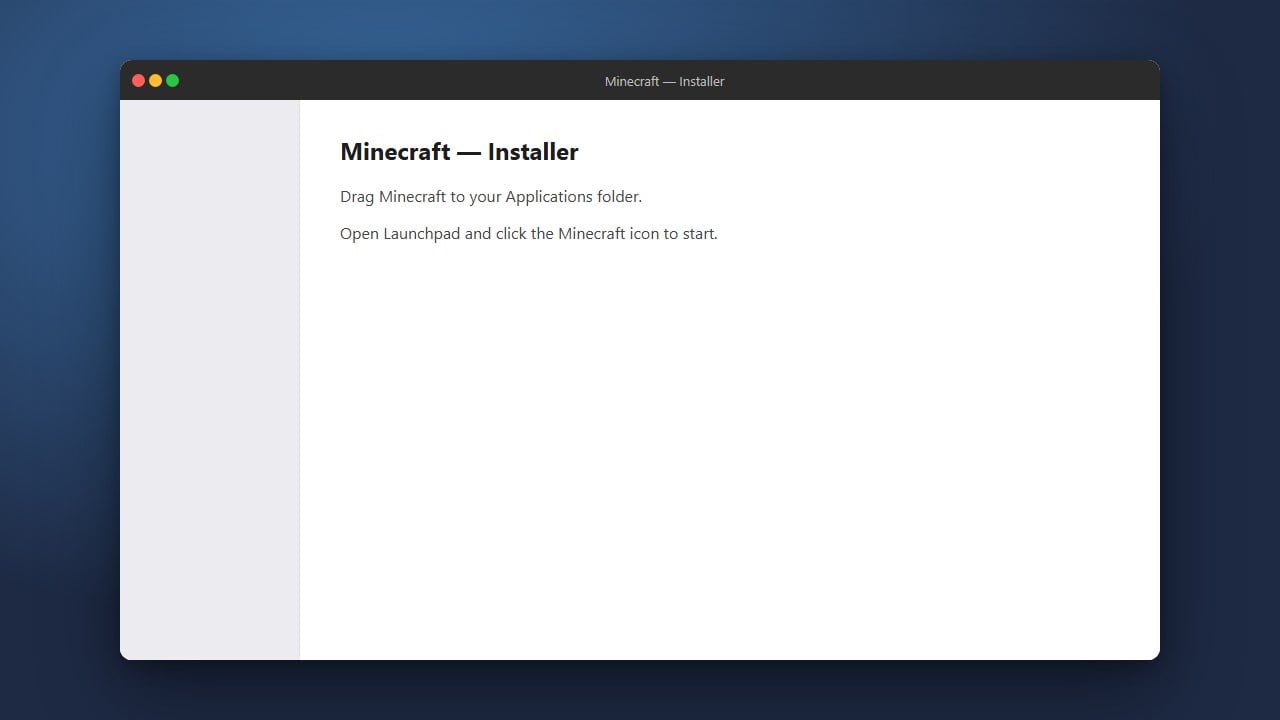
If core files are corrupted, a clean installation is usually the best fix. Uninstall your current launcher through your system settings, then head to the official Minecraft website to download the newest installer.
If you continue experiencing persistent startup failures specifically tied to installation or system compatibility, you may want to review How to Fix Minecraft Launcher Not Opening for additional troubleshooting strategies.
Frequently Asked Questions
Why does the Minecraft Launcher get stuck on the loading screen?
This is usually caused by corrupted local cache files, outdated Windows/macOS services, or interference from third-party antivirus software. Clearing your app data, restarting the Xbox app, or reinstalling the launcher typically resolves this behavior.
Will reinstalling the Minecraft Launcher delete my saved worlds?
No. Your Minecraft worlds are stored in a separate folder on your computer (inside the .minecraft folder for Java Edition). However, it is always a good idea to create backups before making major system changes. Check out How to Back Up Your World if you want to secure your save files first.