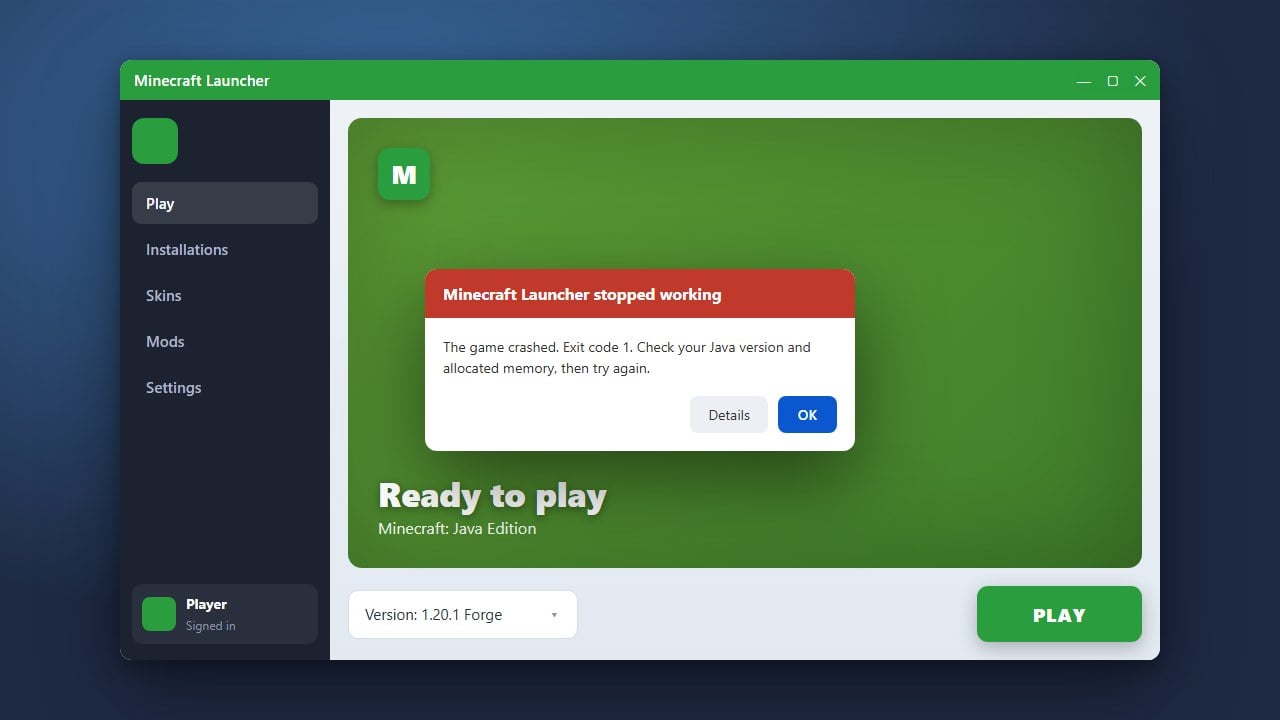
If you click the Minecraft Launcher icon on your Mac and nothing happens, or it immediately crashes, it can be frustrating. Fortunately, this is a common issue on macOS with straightforward fixes. Follow this guide to troubleshoot your launcher, clear corrupted files, and get Minecraft running again on both Java Edition and Bedrock Edition launchers.
saves folder located inside the minecraft directory before uninstalling or modifying core game files to prevent accidental data loss.Force Quit Background Processes
Sometimes a hidden instance of the Minecraft Launcher is already running in the background, which prevents a new window from opening. Press Command + Option + Escape to open the Force Quit Applications menu.
Select the Minecraft Launcher from the list, click Force Quit, and then try opening the app again.
Restart Your Mac
A simple system reboot clears temporary system glitches, stuck background services, and memory issues that might be blocking your applications from launching. Click the Apple logo in the top-left corner of your screen and select Restart.
Once your Mac boots back up, try launching the Minecraft Launcher again before opening any other apps.
Clear Launcher Cache Files
Corrupted cache files are one of the most frequent causes of launcher startup failures. Open Finder, press Command + Shift + G to open the Go to Folder window, and type ~/Library/Application Support/minecraft to find your game directory.
Locate any cache or temporary folders related to the launcher and remove them. If you experience further issues later, you may want to review guides like How to Fix Minecraft Launcher for deeper troubleshooting.
Update macOS and Java
Running an outdated operating system can cause compatibility errors with modern application updates. Go to System Settings > General > Software Update to check for any pending macOS updates.
Additionally, for Java Edition players, ensure your system's Java runtime environment is fully up to date to prevent sudden startup crashes.
Reinstall the Minecraft Launcher
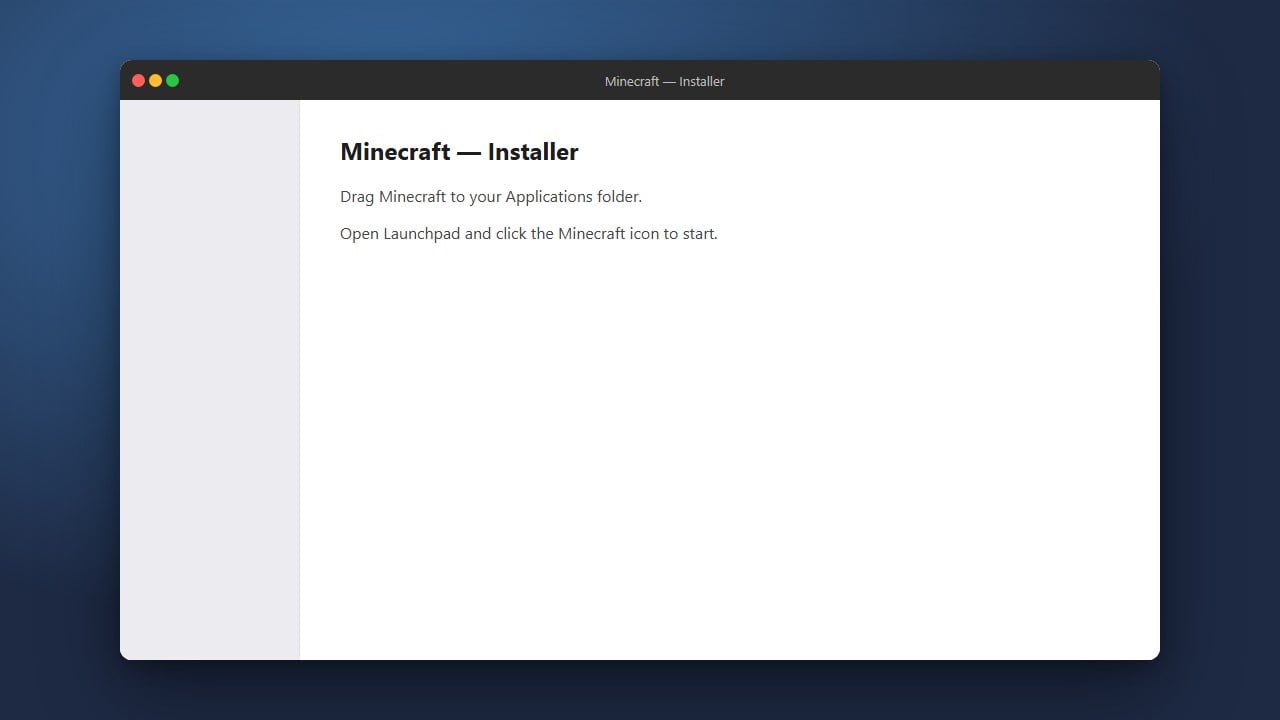
If none of the previous steps worked, your launcher installation files may be damaged. Drag the Minecraft Launcher application from your Applications folder to the Trash.
Go to the official Minecraft website, download a fresh copy of the installer for macOS, and drag it back into your Applications folder. If your actual game files or worlds were affected, you might need to check How to Back Up Your World for future safety measures.
Frequently Asked Questions
Why does the launcher bounce in the Mac dock and then stop?
This usually means the launcher is attempting to open but immediately crashing due to a corrupted configuration file or permission error. Force quitting background processes or reinstalling usually fixes this behavior.
Will reinstalling the launcher delete my Minecraft worlds?
No, your world saves are stored separately in your application support folder, so uninstalling the launcher application itself will not delete your single-player worlds. However, making a manual backup is always recommended.