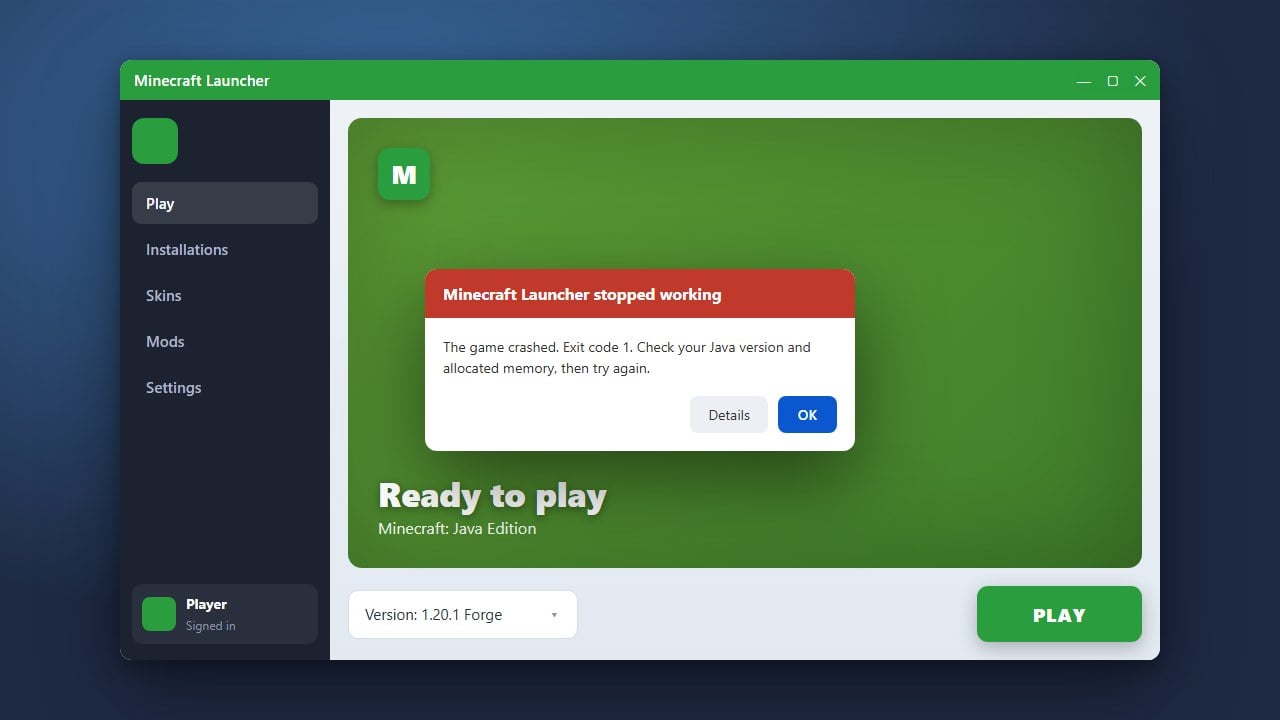
If Minecraft Bedrock Edition refuses to open or crashes immediately on startup, it can be extremely frustrating. Fortunately, most launch issues on Windows, consoles, or mobile devices can be quickly resolved with a few simple troubleshooting steps. Whether you need help with your files or general stability, we will get you back into the game safely.
Restart Your Device
Before trying advanced troubleshooting, perform a complete restart of your PC, console, or mobile device. Temporary system glitches and background processes often prevent games from initializing properly.
Once your device has fully rebooted, try launching Minecraft Bedrock again to see if the issue is resolved.
Check for Game and Store Updates
Running an outdated version of Minecraft Bedrock or your platform's store app can cause startup failures. On Windows, open the Microsoft Store, go to your Library, and click Get updates to ensure Minecraft is up to date.
If you are experiencing broader issues with the application portal, you might also want to read How to Fix Minecraft Launcher for additional launcher-specific assistance.
Use the Windows Repair or Reset Tool
If you are playing on Windows, you can fix corrupted game files without losing your worlds. Open your Windows Settings, navigate to Apps > Installed apps, find Minecraft, and click on Advanced options.
Scroll down and click the Repair button. If that does not work, you can use the Reset option, though resetting will clear local game data, so make sure your worlds are synced to the cloud first.
Sign Out and Back Into Your Account
Sometimes authentication errors with your Microsoft account prevent the game from loading past the initial splash screen. Open the Minecraft Launcher or your platform's store app, sign out of your Microsoft account completely, and then sign back in.
Relaunch the game to establish a fresh connection to your profile and Xbox services.
Reinstall Minecraft Bedrock Edition
If none of the previous steps work, your installation files may be severely corrupted. Uninstall Minecraft Bedrock from your device, restart your system, and then download a fresh copy from your platform's store.
To prevent losing your progress in singleplayer, consider reviewing How to Back Up Your World before performing a clean reinstallation.
Frequently Asked Questions
Why does Minecraft Bedrock crash on the loading screen?
This is usually caused by outdated graphics drivers, corrupted game files, or incompatible resource packs. Try updating your system and restarting the app.
Will I lose my worlds if I reinstall Minecraft Bedrock?
On Windows and mobile, reinstalling can sometimes remove local world files unless they are synced to Minecraft Realms or backed up manually beforehand. Always back up your worlds first.