
Server lag can ruin your multiplayer experience, causing delayed block breaking, rubberbanding, and low TPS (Ticks Per Second). Whether you are running a private Java Edition server or hosting a Bedrock world, this guide will walk you through the essential steps to identify and fix performance issues.
Always remember to perform a complete world backup before editing configuration files or installing performance plugins. Check out our guide on How to Back Up Your World to keep your save safe.
If players are experiencing rubberbanding rather than low TPS, the issue might be network-related rather than server hardware lag. Make sure your internet connection is stable and firewall settings are not blocking connection ports.
Check Server TPS and Performance Metrics
Before making changes, you need to know how severe the lag is. On Java Edition servers, type /mspt or /tps in the console or chat (if you have operator permissions) to check your current milliseconds per tick and ticks per second. A healthy server maintains a steady 20 TPS.
If your TPS is dropping below 18, your server is struggling to keep up with game calculations, entities, or redstone contraptions.
Allocate More RAM to Your Server
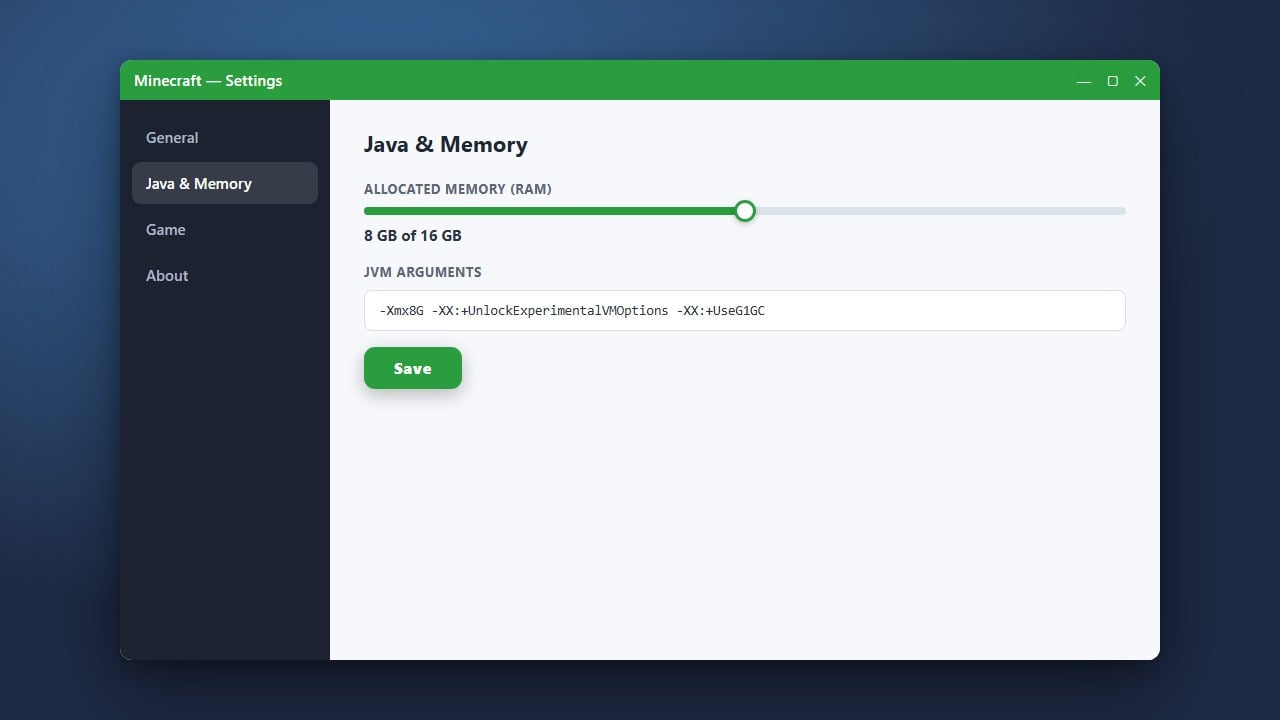
Running out of memory is one of the most common causes of sudden server lag spikes. If you are hosting a Java Edition server on your own computer, make sure you have given it enough memory using your startup script. You can learn more about configuring memory limits by checking out our guide on How to Allocate More RAM to Minecraft.
For hosted servers, check your control panel and upgrade your plan if your RAM usage consistently sits above 85%.
Optimize Server Configuration Files
Default server settings are rarely optimized for performance. Open your server.properties file and look for settings like view-distance and simulation-distance. Lowering the view distance from 10 down to 6 or 8 drastically reduces the amount of world chunks your server has to keep loaded at once.
If you are running a Java Edition server, consider switching your software from vanilla to a performance-optimized server jar like Paper or Purpur, which includes built-in optimizations for entity and redstone calculations without altering vanilla gameplay.
Clear Excess Entities and Mob Farms
Large numbers of entities—such as dropped items, massive animal farms, and uncontained villagers—are the number one killer of server performance. Use commands like /kill @e[type=item] to clear out accumulated dropped items that are left on the ground.
Encourage players on your server to spread out their bases and limit massive automated redstone clocks or ultra-dense mob farms that constantly tax the server CPU.
Pre-Generate Your World Chunks
As players explore new areas, the server uses massive amounts of processing power to generate terrain on the fly, resulting in severe lag spikes. You can prevent this by pre-generating your world border using world management plugins or built-in commands.
Once the world is fully generated and saved to your storage drive, moving through those areas requires much less CPU power, keeping your server running at a stable 20 TPS.
Frequently Asked Questions
What is a good TPS in Minecraft?
A healthy Minecraft server runs at a maximum of 20 TPS (Ticks Per Second). Anything between 18 and 20 is generally acceptable, but once it drops below 15, players will start noticing severe delays and block lag.
Do plugins help reduce server lag?
Yes. Optimized server software like Paper for Java Edition includes advanced asynchronous chunk loading and entity management toggles that can significantly improve performance compared to the default vanilla server software.
















