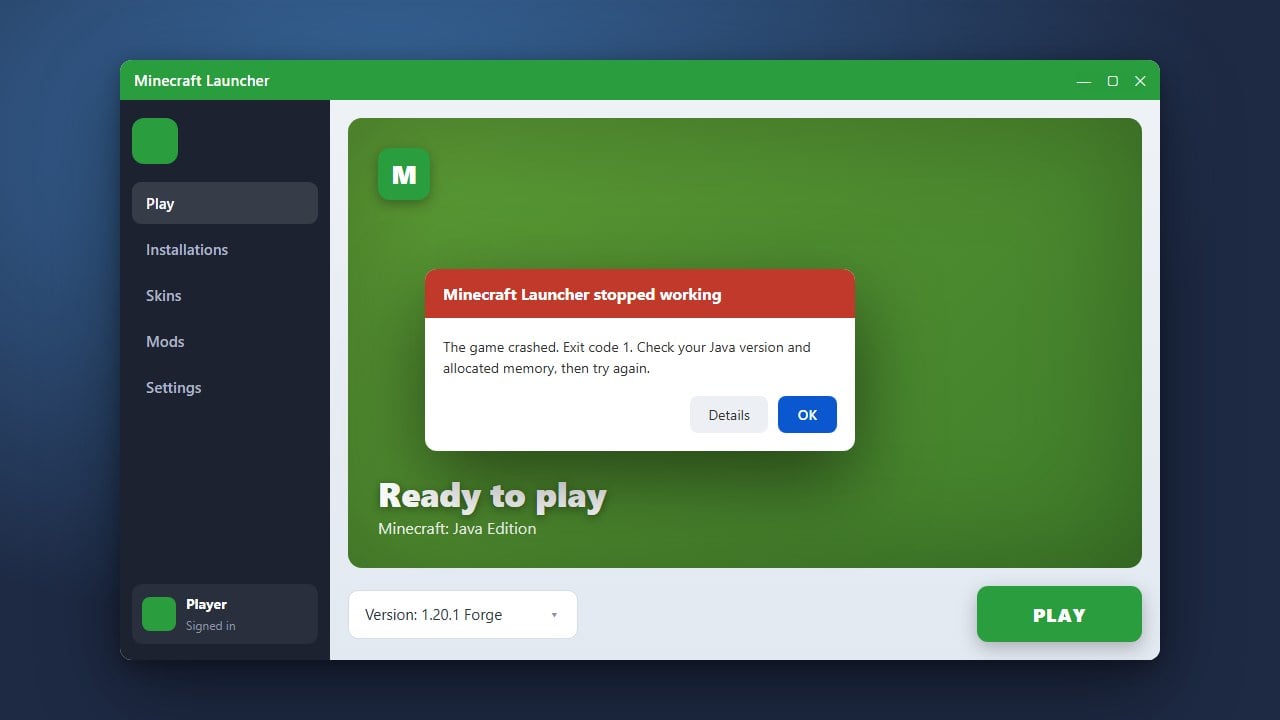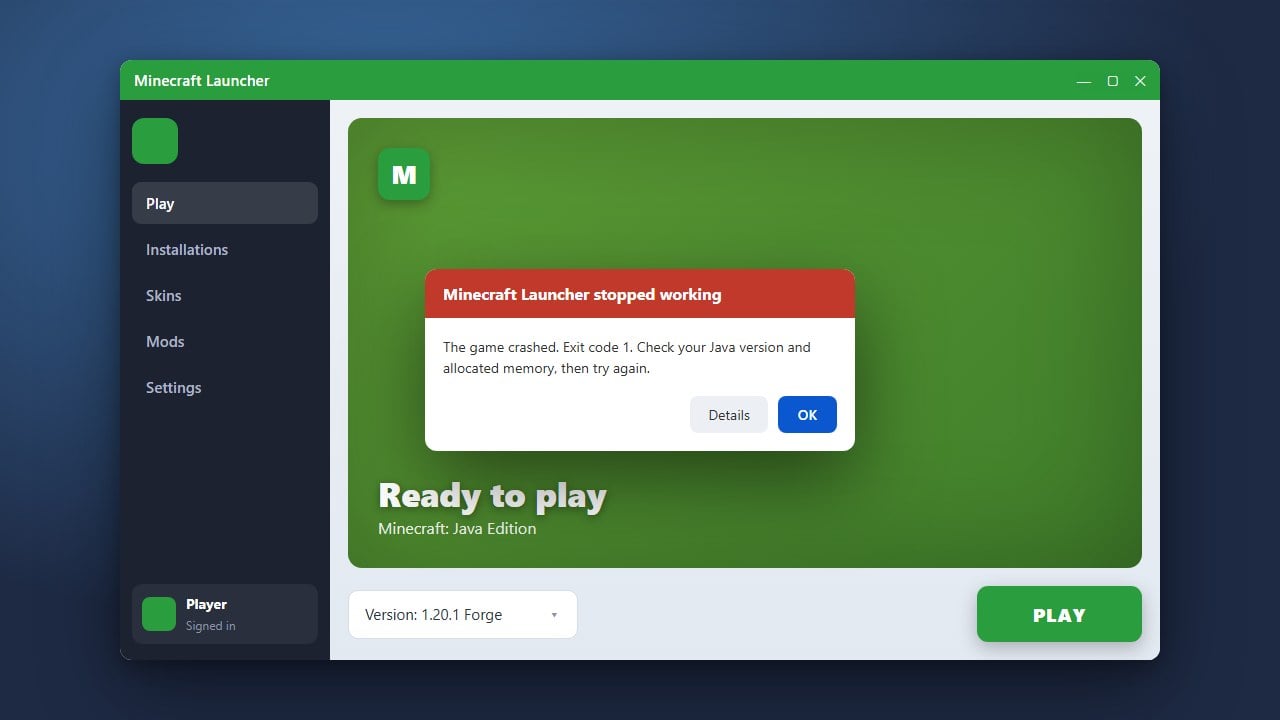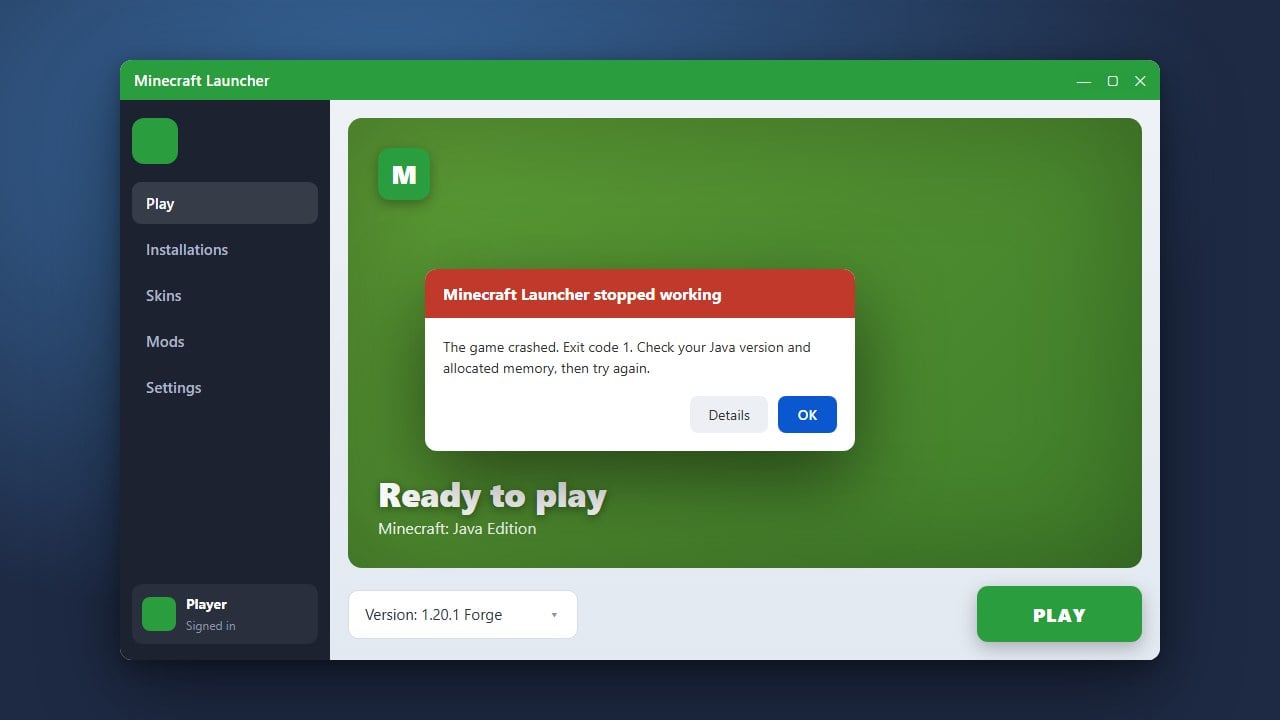
Struggling with a Minecraft Launcher that refuses to open, crashes on startup, or gets stuck on loading screens? This comprehensive troubleshooting guide will help you diagnose and resolve common launcher issues on both Java and Bedrock editions so you can get back to playing quickly.
End Background Processes
Sometimes the launcher is already running invisibly in the background, preventing a fresh instance from starting. Open your Task Manager (Windows) or Activity Monitor (Mac) by pressing Ctrl + Shift + Esc or searching for it in your system menu.
Look through the list of running processes for anything named Minecraft or Minecraft Launcher. Right-click on it and select End Task, then try launching the game again.
Run the Launcher as Administrator
Permission issues can prevent the launcher from accessing necessary system files or updating properly. If you are on Windows, find your Minecraft Launcher shortcut, right-click it, and select Run as administrator.
If a User Account Control prompt appears asking for permission to make changes, click Yes. If this successfully opens the game, you can set it to always run as administrator through its properties menu.
Sign Out and Sign Back In
Authentication glitches between your Microsoft account and the Xbox app can cause the launcher to hang or fail. Open the launcher (if it opens partially), click on your profile name or account icon in the top corner, and select Sign Out.
Restart the launcher and sign back in using your correct Microsoft account credentials. Make sure that your Xbox app and Microsoft Store apps are also signed into the exact same account.
Repair or Reset the Launcher App
Windows users can use built-in tools to repair corrupted app data without completely reinstalling the game. Open your Windows Settings, navigate to Apps > Installed apps (or Apps & features), and search for Minecraft Launcher.
Click the three-dot menu next to it, select Advanced options, and click Repair. If that does not work, return to the same menu and click Reset to clear its cached data.
Update Windows and Graphics Drivers
An outdated operating system or old graphics card drivers can cause sudden software incompatibility. Check for pending Windows updates in your system settings, and use software like GeForce Experience or AMD Adrenalin to update your GPU drivers.
Keeping your system updated ensures full compatibility with modern versions of the game. For additional troubleshooting related to startup failures, check out our guide on How to Fix Minecraft Launcher Not Opening.
Reinstall the Minecraft Launcher
If none of the previous steps worked, a fresh installation is often the best solution. Uninstall the current Minecraft Launcher through your system settings or control panel, then restart your computer.
Go to the official Minecraft website to download the latest installer package. Once installed, log in and verify your game files function properly. If you run into deeper game errors later, you may also want to read How to Fix Exit Code 1.
Frequently Asked Questions
Why is my Minecraft Launcher stuck on the loading screen?
This is usually caused by outdated graphics drivers, a corrupted cache, or temporary Microsoft authentication issues. Try signing out of your account, restarting your computer, and running the app as an administrator.
Will reinstalling the launcher delete my worlds?
No, uninstalling the launcher does not delete your world saves, as they are stored in a separate folder on your computer. However, it is always recommended to back up your saves just in case.
Do I need an active internet connection to open the launcher?
You need an internet connection to log in and update the launcher. Once logged in, Java Edition allows you to play offline in singleplayer mode if previously configured.