
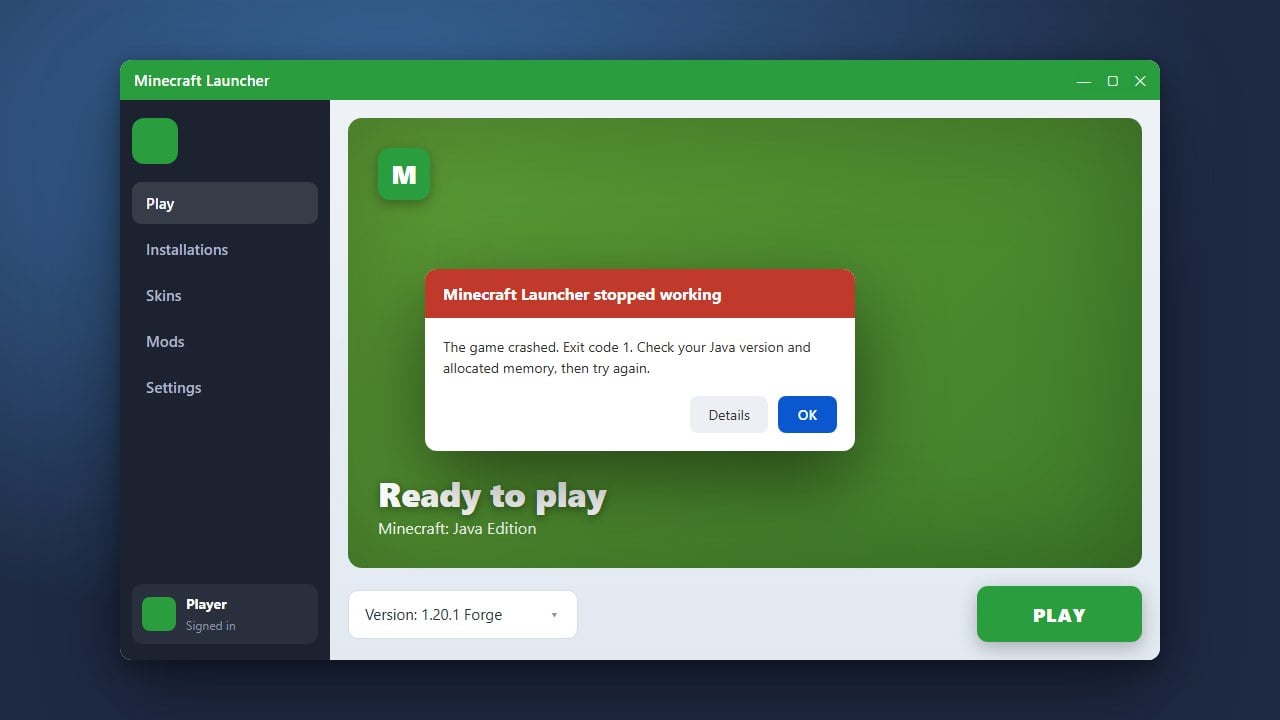
Minecraft crashing can ruin your gaming session, whether you are playing Java Edition or Bedrock Edition. Fortunately, most crashes can be resolved quickly by updating your software, checking your hardware, or removing faulty modifications. Follow these troubleshooting steps to get your game running smoothly again.
1. Restart the Minecraft Launcher and Your Device
Sometimes a simple reboot is all it takes to clear temporary system glitches causing the crash. Completely close out of the Minecraft Launcher and any background processes through your Task Manager (Windows) or Activity Monitor (Mac).
After closing everything, restart your computer or console entirely. Once your device boots back up, open the launcher fresh and try launching your game again.
2. Update Your Graphics Drivers
Outdated or corrupt graphics card drivers are one of the most common causes of game crashes on PC. Visit the official website of your GPU manufacturer—NVIDIA, AMD, or Intel—to download and install the latest drivers for your graphics card.
For Java Edition players, outdated OpenGL drivers frequently trigger sudden shutdowns. Keeping your system software fully updated ensures maximum stability and performance.
3. Remove Conflicting Mods and Resource Packs
If you play Java Edition with mods, shaders, or resource packs, an incompatible file is likely the culprit. Temporarily move your mods folder out of your .minecraft directory to see if the game launches successfully without them.
If the game works, add your mods back one by one to identify which specific file is causing the crash. For Bedrock Edition, try disabling active marketplace resource packs or behavior packs in your world settings.
4. Allocate More RAM (Java Edition)
Running out of memory can cause Java Edition to crash abruptly with an out-of-memory error. You can fix this by assigning more system memory to the game via your launcher settings.
To learn how to adjust these settings safely, check out our guide on how to allocate more RAM to Minecraft to ensure your game has enough breathing room.
5. Verify and Reinstall Minecraft Files
Corrupted game files can prevent Minecraft from starting or staying open. In the official Minecraft Launcher, use the installation settings to verify or repair your game files.
If errors persist, uninstall the game completely and download a fresh copy. Make sure to back up your important saves before doing this; you can learn how to secure your progress safely by reading our guide on how to back up your world.
Frequently Asked Questions
Why does Minecraft keep crashing on startup?
Startup crashes are usually caused by outdated graphics drivers, incompatible mods, or corrupted installation files. Verifying your game files or updating your GPU drivers typically solves this issue.
Where can I find my Minecraft crash logs?
On Java Edition, crash reports and logs are saved in the crash-reports and logs folders located inside your main .minecraft directory.
















