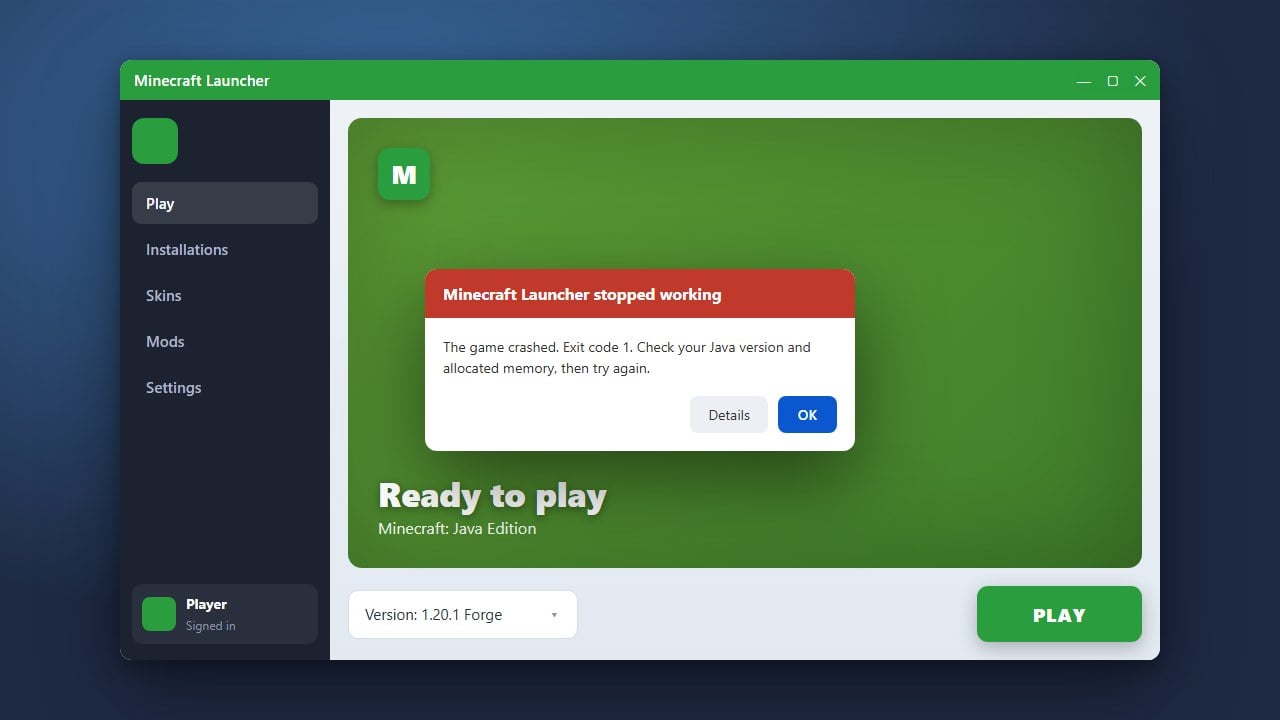
If your Minecraft Launcher refuses to update or gets stuck on an old version, you might miss out on playing with friends or joining the latest servers. This guide will walk you through simple methods to troubleshoot and fix update problems for both Java and Bedrock editions.
Always download the Minecraft Launcher from the official source to avoid malicious third-party files disguised as software updates.
Check Your Internet Connection and Firewall
A weak connection or strict firewall can block the launcher from downloading essential files. Make sure your internet is stable, and temporarily check that your antivirus or Windows Defender isn't blocking the Minecraft Launcher from accessing the internet.
If you encounter broader network problems while trying to connect, you can also consult our guide on How to Fix Connection Timed Out for additional network troubleshooting steps.
End Background Tasks and Restart
Sometimes background processes of the launcher get frozen and prevent new updates from applying. Open your Task Manager on Windows (or Activity Monitor on Mac) by pressing Ctrl + Shift + Esc, look for any running Minecraft processes, and end them.
Once all hidden instances are closed, reopen the Minecraft Launcher and see if it automatically starts downloading the pending update.
Update Through the Microsoft Store or Xbox App
For Windows users playing modern versions of Minecraft, the launcher is often tied directly to the Microsoft Store or Xbox app. Open the Microsoft Store, click on Library, and click Get updates to force the system to download the newest launcher version.
Keeping your system apps updated prevents compatibility bugs that mimic launcher errors, similar to issues addressed when dealing with How to Fix Minecraft Launcher Not Opening.
Clear Launcher Cache Data
Corrupted temporary files can cause update loops or complete failures. Press the Windows Key + R, type %localappdata%, and press Enter to open your local folder.
Locate the MinecraftLauncher folder and delete its contents or cache subfolders. This forces the launcher to fetch fresh installation files upon your next startup.
Uninstall and Reinstall the Minecraft Launcher
If the updater remains completely broken, a clean reinstallation is your best option. Uninstall the current Minecraft Launcher through your system settings or app manager.
Download the official, up-to-date installer directly from the official website and run it to install a completely fresh copy of the launcher.
Frequently Asked Questions
Why is my Minecraft Launcher stuck on downloading update?
This usually happens due to corrupted cache files, a blocked network connection, or permission issues. Clearing your local app data or reinstalling usually fixes it.
Will reinstalling the launcher delete my worlds?
No, your game worlds and saves are stored in a separate folder (usually under the .minecraft directory). However, it is always a good practice to back up important worlds before troubleshooting.