Minecraft stuttering occurs when your frame rate abruptly drops or freezes for a fraction of a second, even if your average FPS looks fine. This issue is typically caused by aggressive chunk loading, improper memory allocation, or graphics card misconfigurations across both Java Edition and Bedrock Edition.
On Java Edition, press F3 and monitor the top-right corner to see your memory usage. If stuttering happens every time the memory percentage resets from near 100% back down, your stutter is caused by Java garbage collection spikes.
Avoid allocating more than half of your total system RAM to Java Edition, as your operating system and background processes need adequate memory to avoid system-wide freezing.
Lower Render and Simulation Distance
High chunk rendering puts severe spikes on your CPU and GPU whenever you travel into new terrain. In Java Edition, navigate to Options > Video Settings and reduce your Render Distance to 10–14 chunks and Simulation Distance to 8–10 chunks.
In Bedrock Edition, open Settings > Video and drag the Render Distance slider lower. Bedrock renders distant chunks aggressively, so keeping this around 12 to 16 chunks will immediately reduce world-loading stutter. For more general framerate optimizations, check our guide on how to increase FPS in Minecraft.
Configure VSync and Frame Rate Limits
Mismatches between your monitor's refresh rate and Minecraft's internal frame limiter can introduce irregular frame timing and stuttering. In Java Edition, open Video Settings and set Max Framerate to match your monitor refresh rate (such as 60, 144, or 240 FPS), or choose VSync: ON if you experience tearing.
In Bedrock Edition, VSync is managed automatically in full screen on most platforms, but setting your display to exclusive fullscreen or enabling VSync in your graphics card control panel prevents frame pacing hitches.
Allocate the Optimal RAM Amount
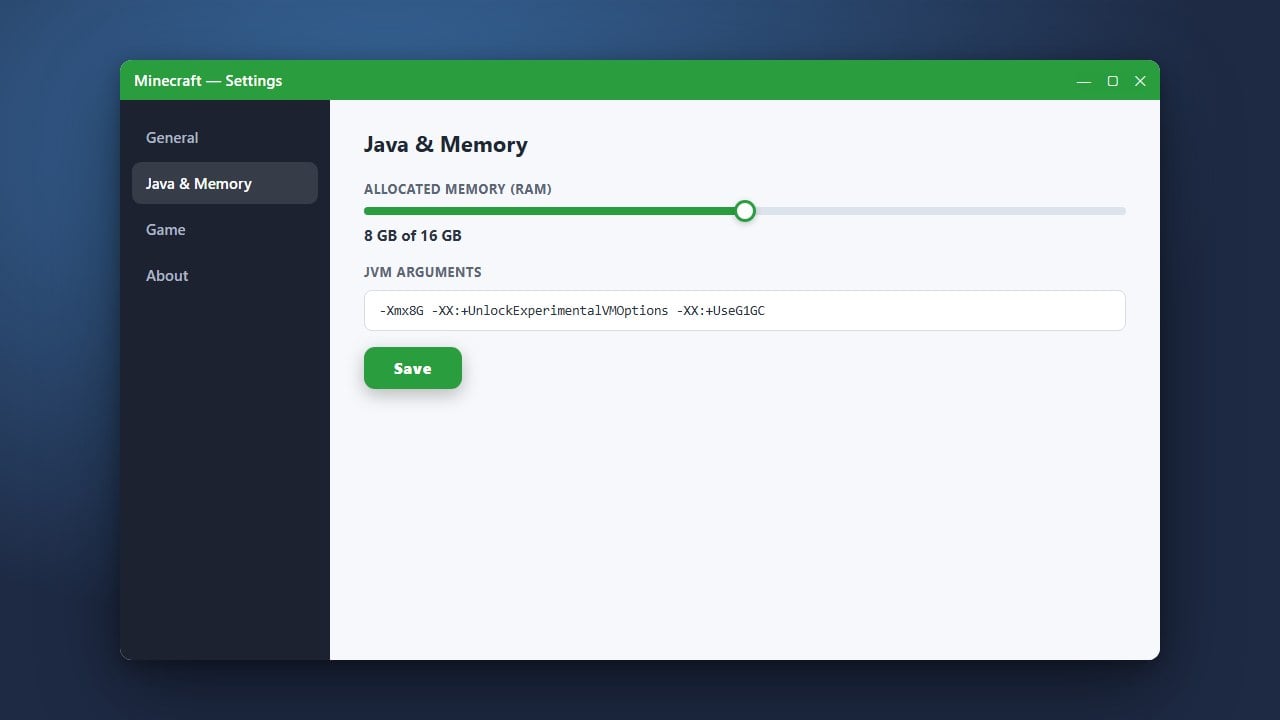
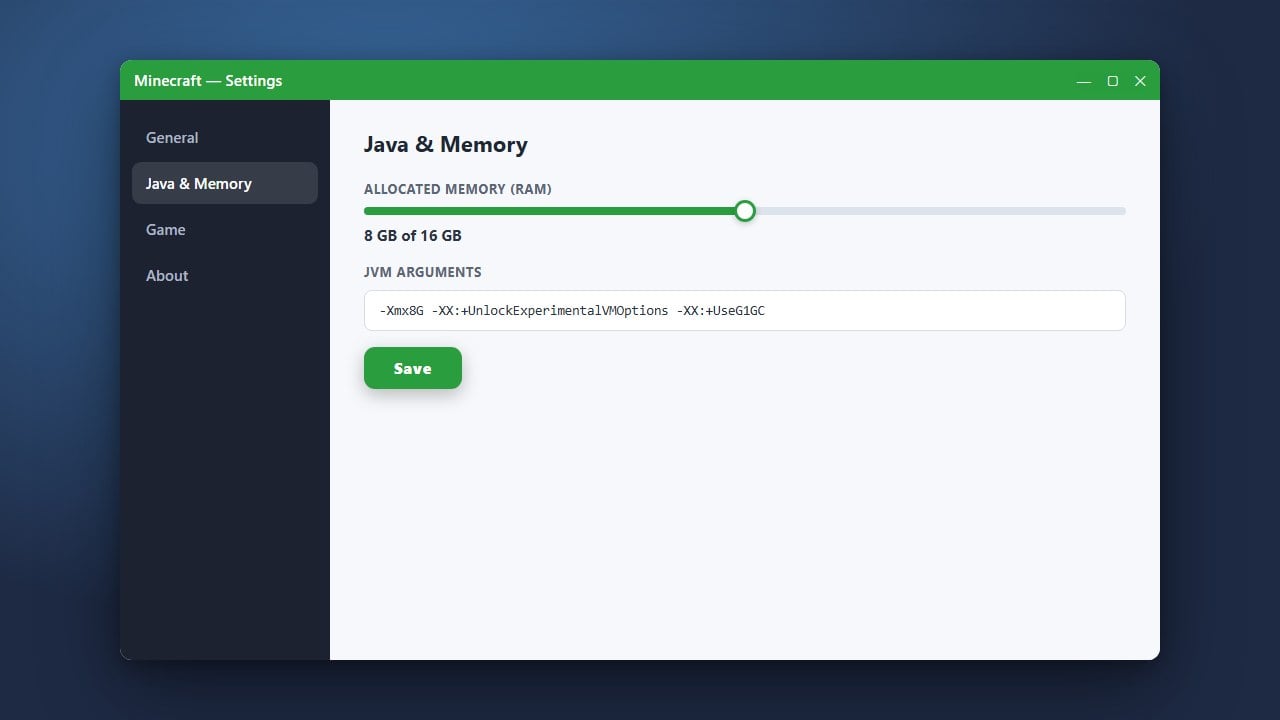
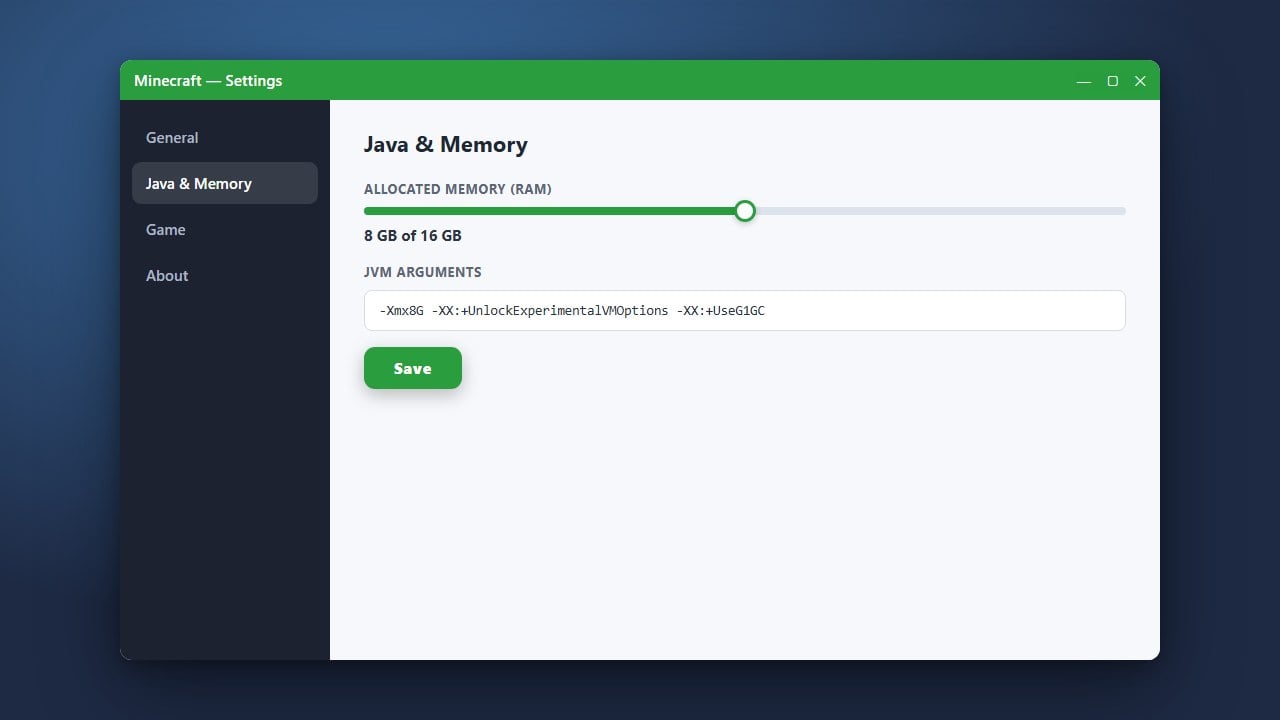
In Java Edition, allocating too little or too much memory can cause cyclic freezing due to Java's garbage collection cycles. By default, the launcher assigns 2 GB, which is often not enough for modern versions (1.21+), while assigning over 8 GB on an unmodded client can cause long periodic freezes.
Open the Minecraft Launcher, head to Installations, edit your profile, select More Options, and update -Xmx2G to -Xmx4G in the JVM Arguments field. Follow our walkthrough on how to allocate more RAM to Minecraft for detailed instructions.
Force Minecraft to Use Your Dedicated GPU
Laptops and desktop systems with integrated graphics often default to running Minecraft on the low-power integrated CPU chip, causing harsh performance stutter. On Windows, open Windows Settings > System > Display > Graphics.
Add Minecraft (or javaw.exe for Java Edition) to the list, select Options, and choose High performance to ensure your dedicated NVIDIA or AMD graphics card renders the game.
Install Modern Optimization Mods
For Java Edition, the default vanilla rendering engine suffers from noticeable stutter when loading chunks. Installing lightweight optimization mods such as Sodium or Lithium on the Fabric mod loader rebuilds the rendering pipeline and completely eliminates chunk-update micro-stutters.
If you encounter persistent tick lag or input delays alongside stuttering, consult our guide on how to fix Minecraft lag for network and engine tweaks.
Frequently Asked Questions
Why does Minecraft stutter on a high-end PC?
Modern high-end PCs often suffer from stuttering due to single-thread CPU bottlenecks during chunk generation, Java garbage collection running out of memory headroom, or the game defaulting to an integrated GPU rather than the dedicated card.
Is stuttering caused by server lag or my computer?
Visual stuttering and erratic frame pacing are caused by client-side hardware or video settings. If blocks reappear after breaking or mobs freeze in place while your camera movement remains smooth, the issue is server tick lag (TPS) rather than client stutter.