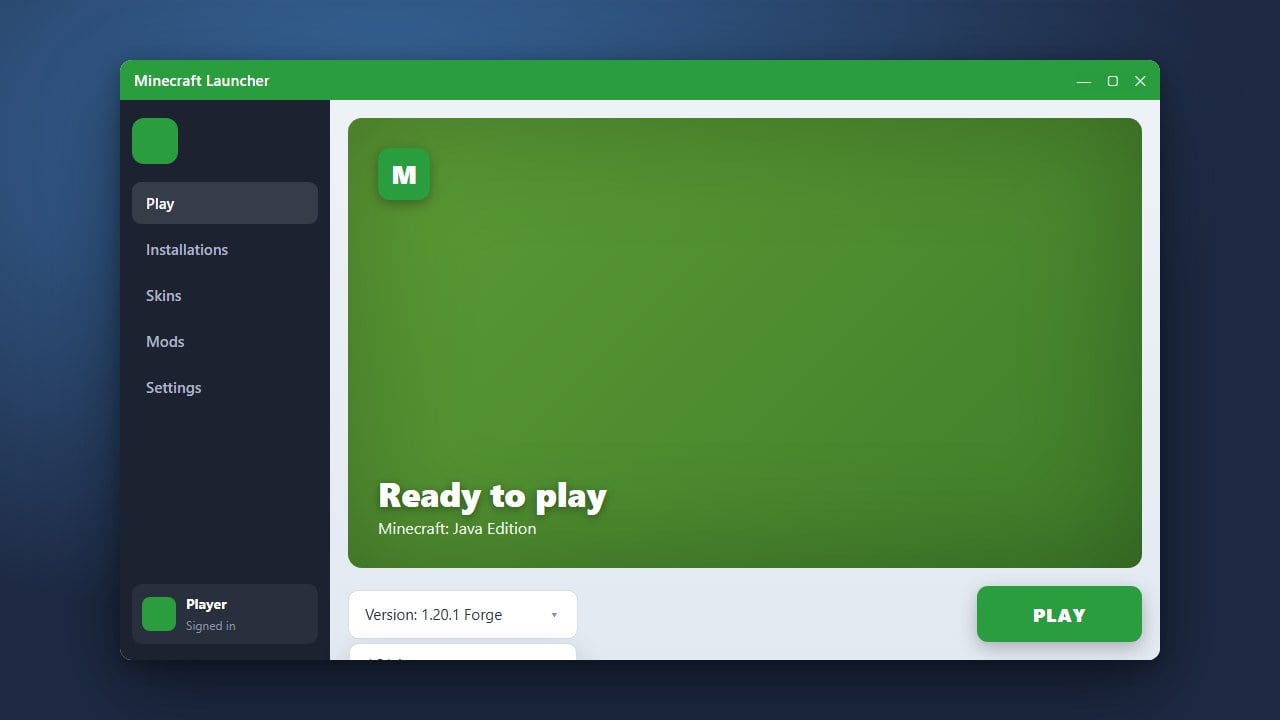
One of the best features of Minecraft Java Edition is the ability to roll back the clock and play almost any past release, from nostalgic Alpha builds to popular modding milestones like 1.7.10 and 1.12.2. With the official launcher, setting up older releases takes only a couple of minutes, though you should always isolate your game folders so your modern worlds remain safe.
Open the Minecraft Launcher and Go to Installations
Launch the official Minecraft Launcher on your PC or Mac. Ensure Minecraft: Java Edition is selected in the left sidebar, then click on the Installations tab located near the top of the window.
Enable Historical Versions
In the top-right corner of the Installations tab, look at the checkboxes under Versions. By default, only Releases is checked. If you want to play early Alpha or Beta releases, check the box labeled Historical. You can review the full timeline of releases in our Minecraft Version History guide.
Create a New Installation
Click the New installation button near the top left of the list. This opens a configuration screen where you can customize your profile name, select an icon, and choose settings for this specific version.
Select Your Desired Version
Click the Version drop-down menu and scroll down to pick the specific version you want to run. You will find standard legacy releases (such as release 1.8.9), snapshot builds, and historic builds (such as old_beta b1.7.3 or old_alpha).
Set a Dedicated Game Directory
Never leave the Game Directory set to default when playing old versions, as older builds can crash or corrupt modern world saves. Click Browse and create a separate folder inside your system—for instance, a subfolder named old-versions within your .minecraft directory. This guarantees your saves, keybinds, and options remain completely separate.
Save and Launch Your Game
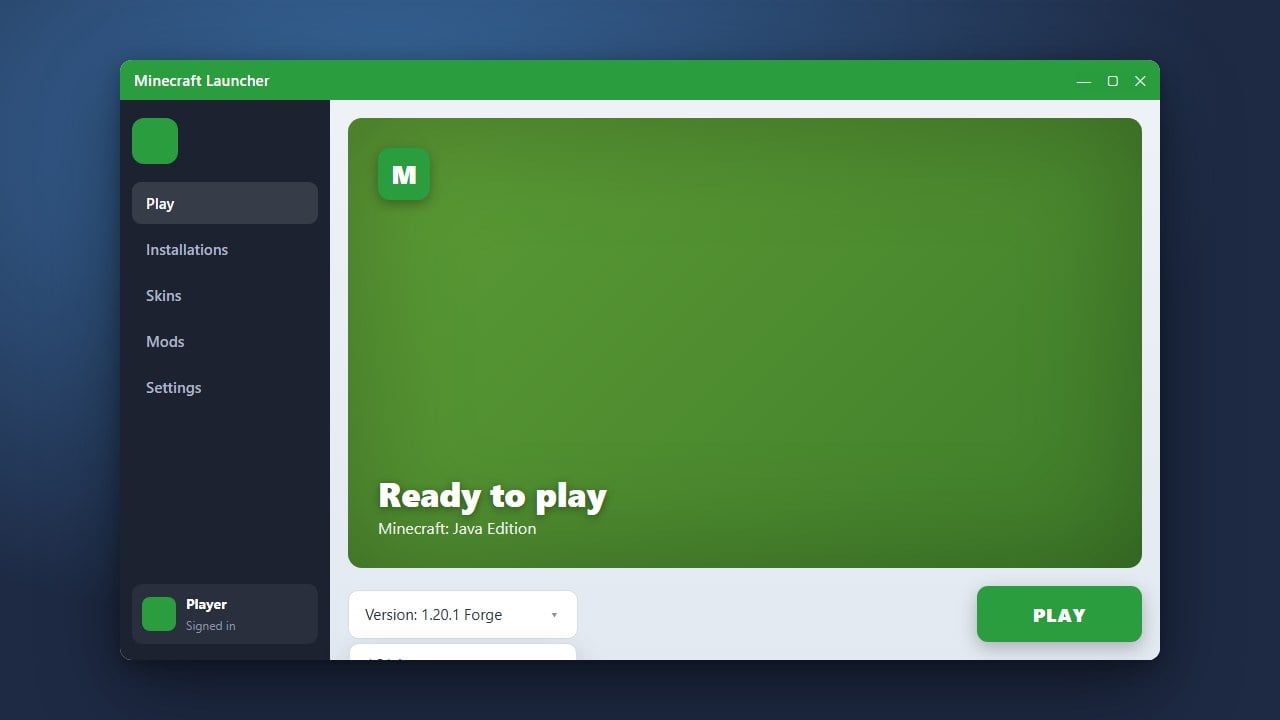
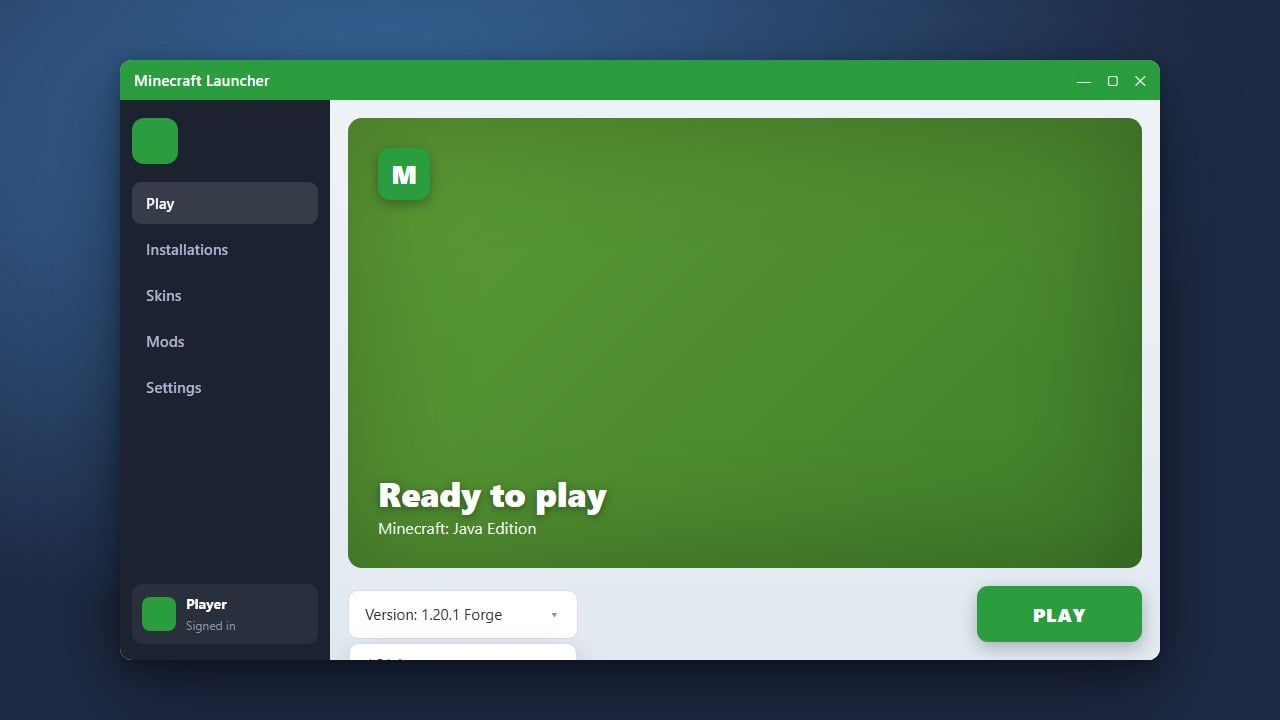
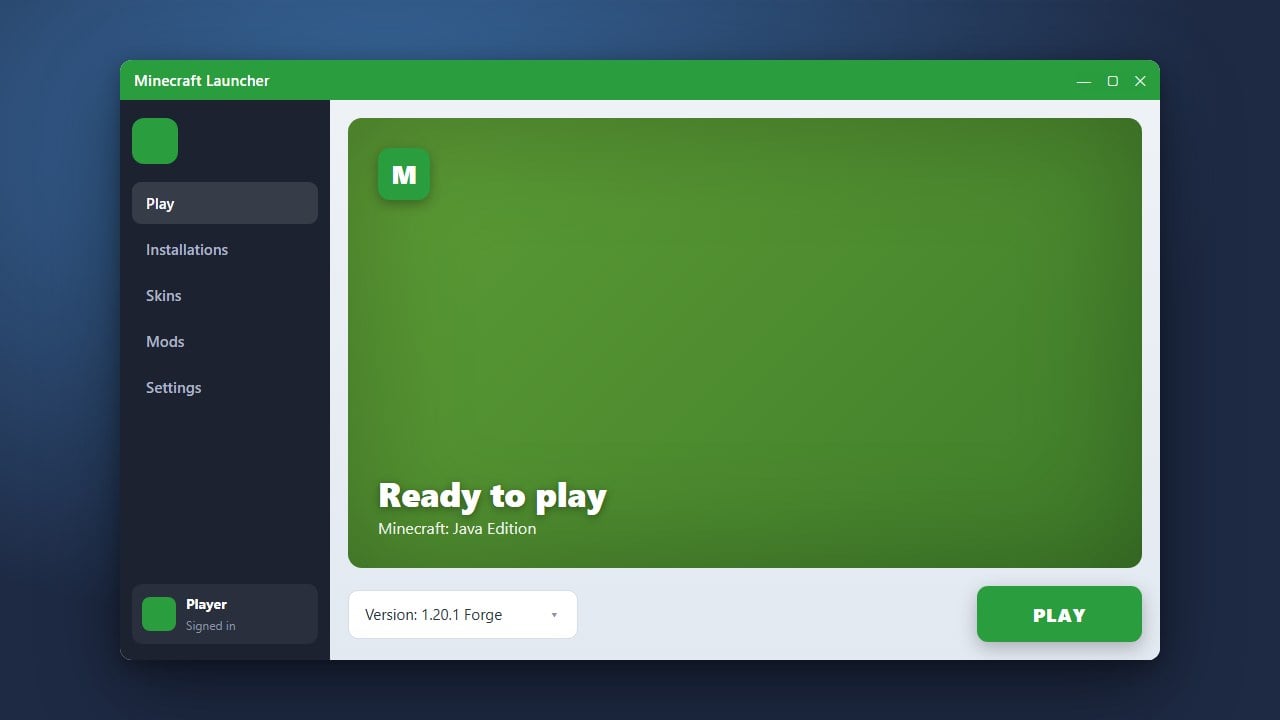
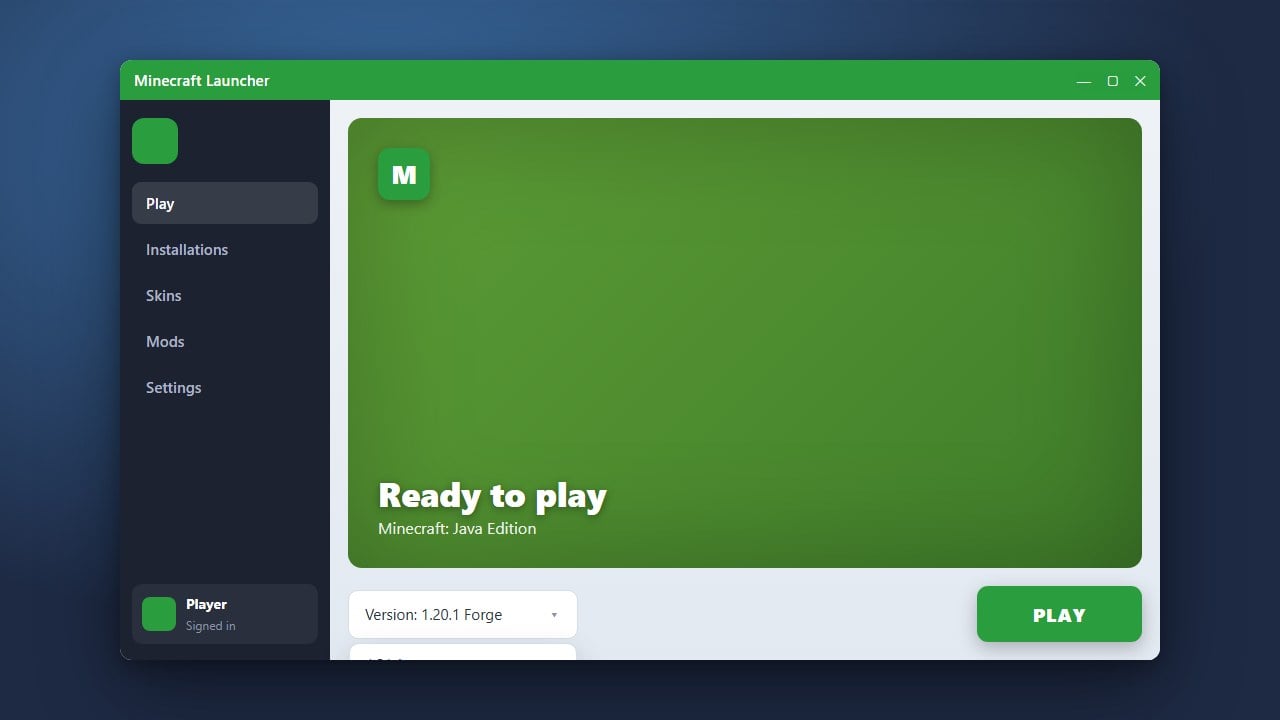
Click the green Create button in the bottom right. Return to the Play tab, click the version selector to the left of the green Play button, choose your newly created profile, and click Play. The launcher will download the required legacy files and launch your game.
Frequently Asked Questions
Why is there no sound when playing old Alpha or Beta versions?
Very early Minecraft builds fetched sound files from retired Amazon servers that are no longer online. You can restore audio to these versions by using community-made legacy resource packs or launching the version through community launchers that automatically supply archive asset indexes.
Can I play older versions on Bedrock Edition?
No, the official Bedrock Edition does not offer a built-in version switcher. Console and mobile platforms always run the latest version. PC players on Windows can only switch versions by joining preview betas or using third-party version management tools.
Can I install mods on older versions?
Yes. Many of the largest modding scenes exist on legacy versions like 1.7.10 and 1.12.2. You can install a compatible mod loader by consulting our tutorial on how to change your Minecraft version alongside the appropriate Forge or Fabric installer.