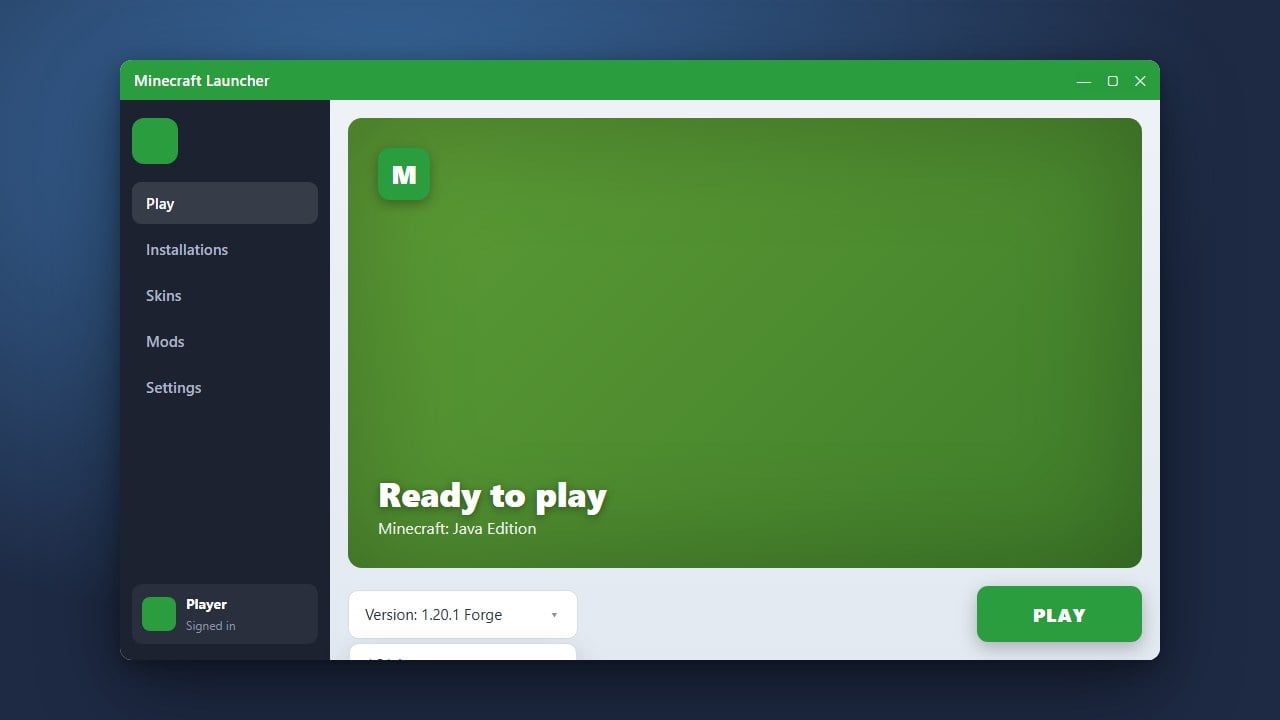
Switching your Minecraft Java Edition version is remarkably easy thanks to the launcher's built-in installation manager. Whether you need to match a server's version, test upcoming features, or revisit classic gameplay, you can configure and run any release alongside your main game in just a few clicks.
Never open an existing world in an older game version without preparing first. Downgrading a save file removes newer items, blocks, and entity data; always learn how to back up your world before switching versions.
If you want to experience pre-release features or test upcoming changes, check out our guide on how to install snapshots.
Open the Minecraft Launcher
Start the official Minecraft Launcher on your computer. Make sure you select Minecraft: Java Edition from the left-hand navigation panel. If you are unsure which build you currently have loaded, you can check our guide on how to check your Minecraft version.
Navigate to the Installations Tab
Click the Installations tab located near the top of the launcher window. On the right side of this screen, verify the checkboxes under Versions: keep Releases checked for official builds, or check Snapshots and Historical if you want to access testing snapshots or alpha and beta builds.
Create a New Installation
Click the New installation button marked with a plus icon. This opens the profile configuration screen where you can customize your launcher settings for the new version.
Select Your Target Version
Type a descriptive label into the Name box so you can easily identify this profile later. Next, click the Version drop-down menu and scroll to select the exact version you want to play, ranging from the latest updates to legacy builds.
Assign a Separate Game Directory
Under the Game Directory setting, click Browse and choose an empty folder dedicated to this profile. Isolating your game directory prevents newer world saves from accidentally loading in older versions, which can permanently corrupt your worlds.
Save and Launch the Profile
Click the green Create button in the bottom-right corner. Return to the Play tab, click the version drop-down menu to the left of the green Play button, choose your newly created profile, and click Play to download files and start the game.
Frequently Asked Questions
Can I change versions on Minecraft Bedrock Edition?
Bedrock Edition updates automatically through platform app stores (such as the Microsoft Store, Google Play, or console stores) and does not support switching between older release versions. Windows and mobile players can only switch between the current release and the preview testing build.
Why does the launcher show a safety warning when I click Play?
The launcher displays a safety warning whenever you launch older versions or snapshots because these builds may lack newer player safety tools or crash on modern systems. Check the confirmation box and click Play to proceed.