Major updates bring exciting structures, new mobs, and crafting mechanics to Minecraft, but getting into the newest release requires a quick update process depending on your platform. Whether you are running Java Edition on a PC or Bedrock Edition across consoles, mobile devices, and Windows, this guide shows you how to upgrade safely and dive right into the newest content.
Never open heavily modded Java worlds in a brand-new release until your mod loader (Forge, NeoForge, or Fabric) and all individual mods have released compatible updates.
If you want to test upcoming mechanics before the official update drops, check our guide on how to install snapshots for Java Edition or join the Preview program on Bedrock.
Back Up Your Existing Worlds
Before updating your game to a newer release, always create a safe copy of any worlds you care about. Major updates alter terrain generation, mob behaviors, and save data formats, which can occasionally corrupt existing builds if you ever need to downgrade.
You can create a copy directly from the world edit menu on Bedrock Edition, or follow our complete guide on how to back up your world on Java Edition by archiving your saves directory.
Update Bedrock Edition via Your Device Store
On Bedrock Edition (consoles, mobile, and Windows), game updates are handled directly by your platform's store rather than an in-game menu. If your game does not update automatically, open the Microsoft Store, PlayStation Store, Xbox Games & Apps menu, Nintendo eShop, or mobile app store, then check for pending updates and select Update.
Select the Latest Release in the Java Launcher
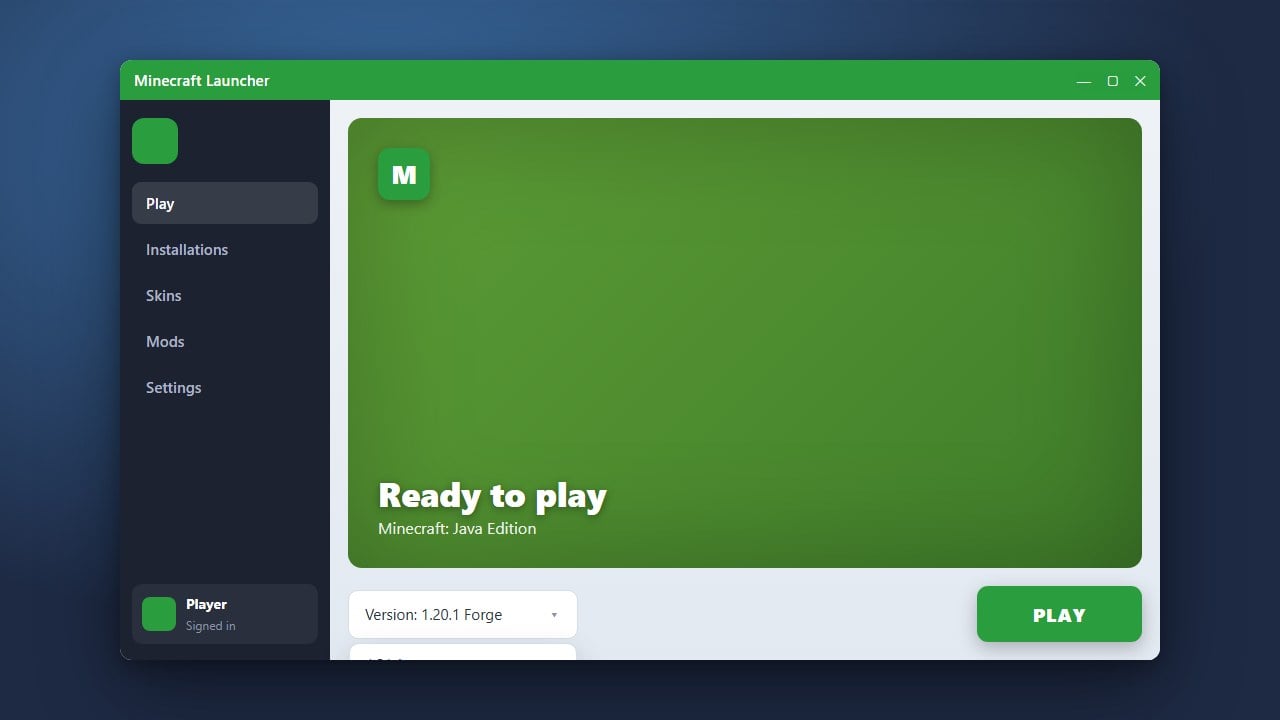
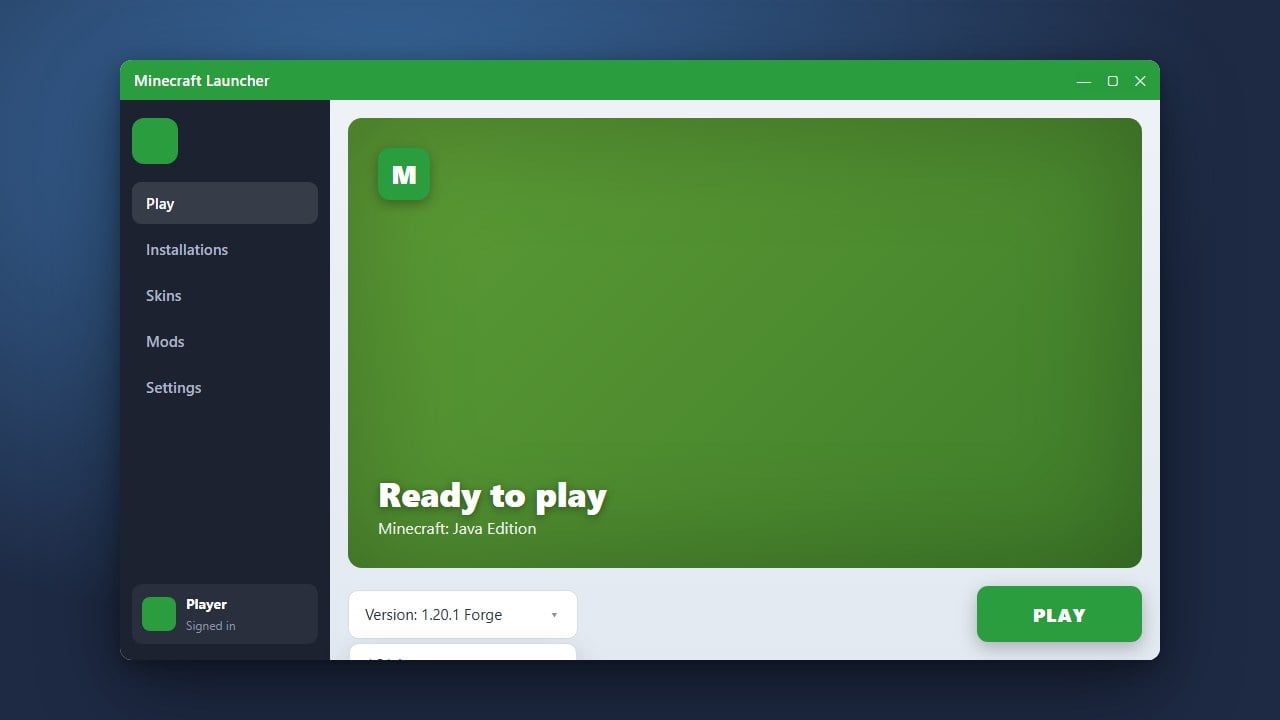
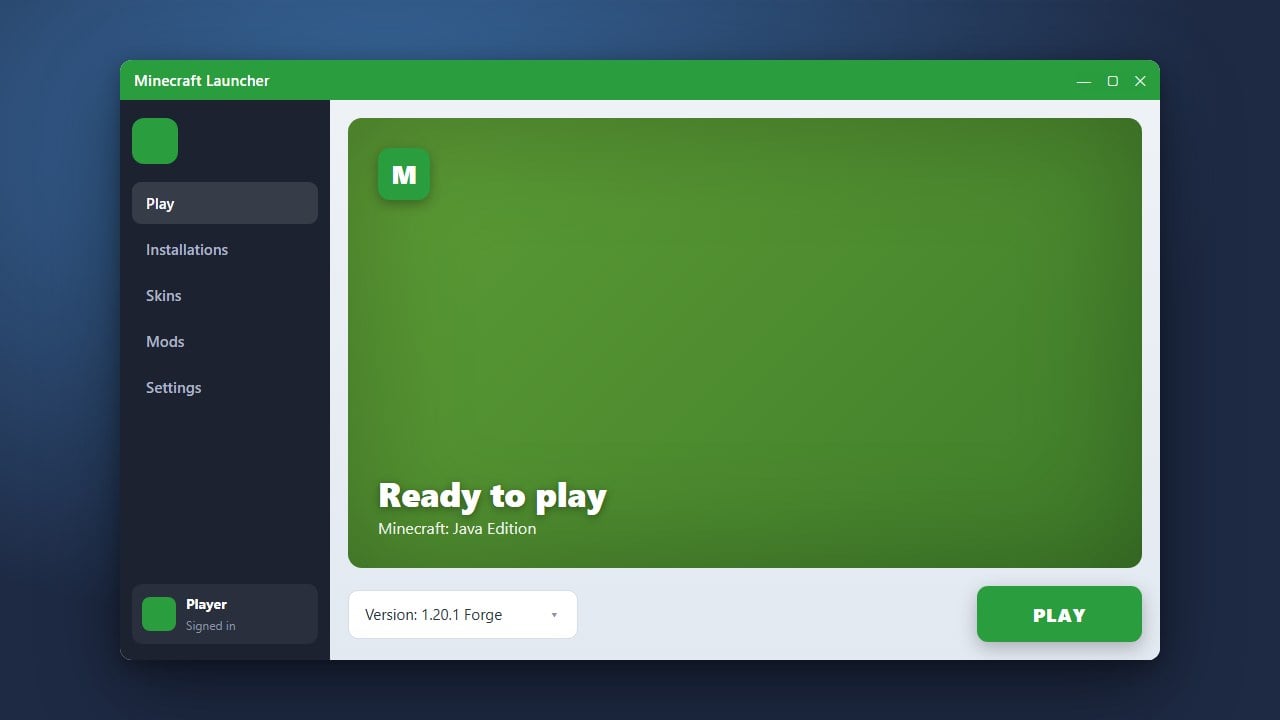
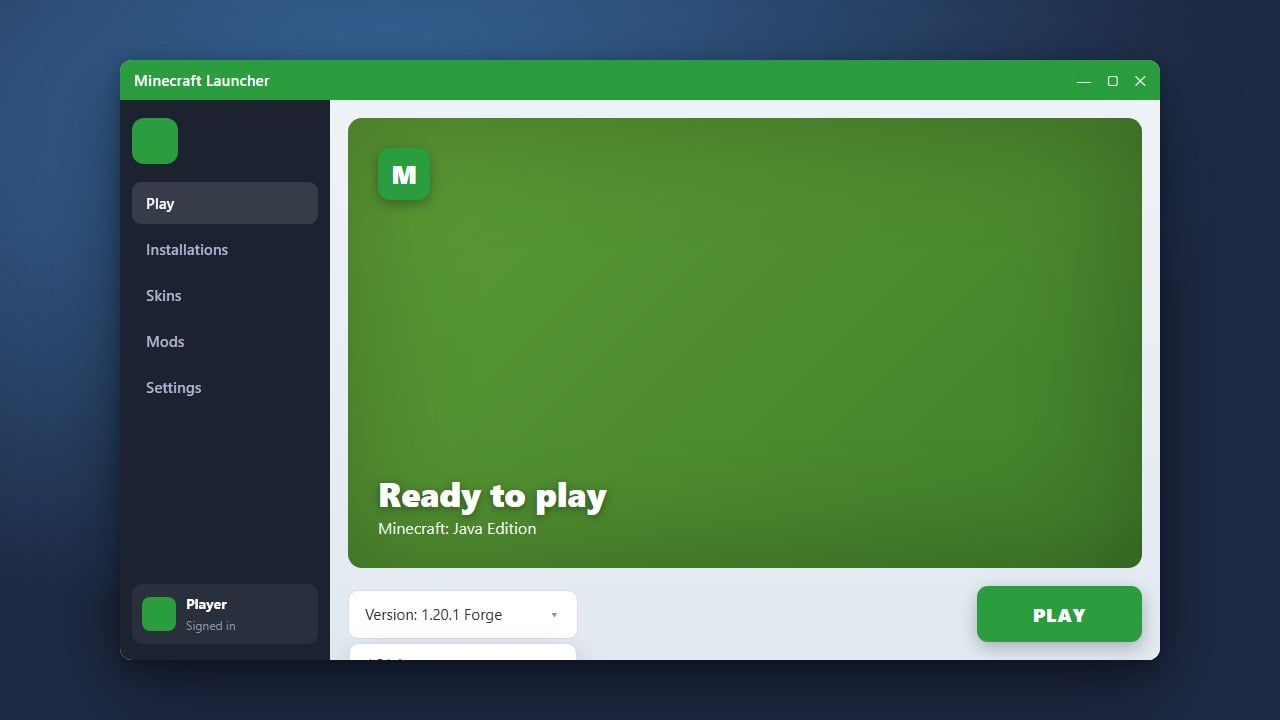
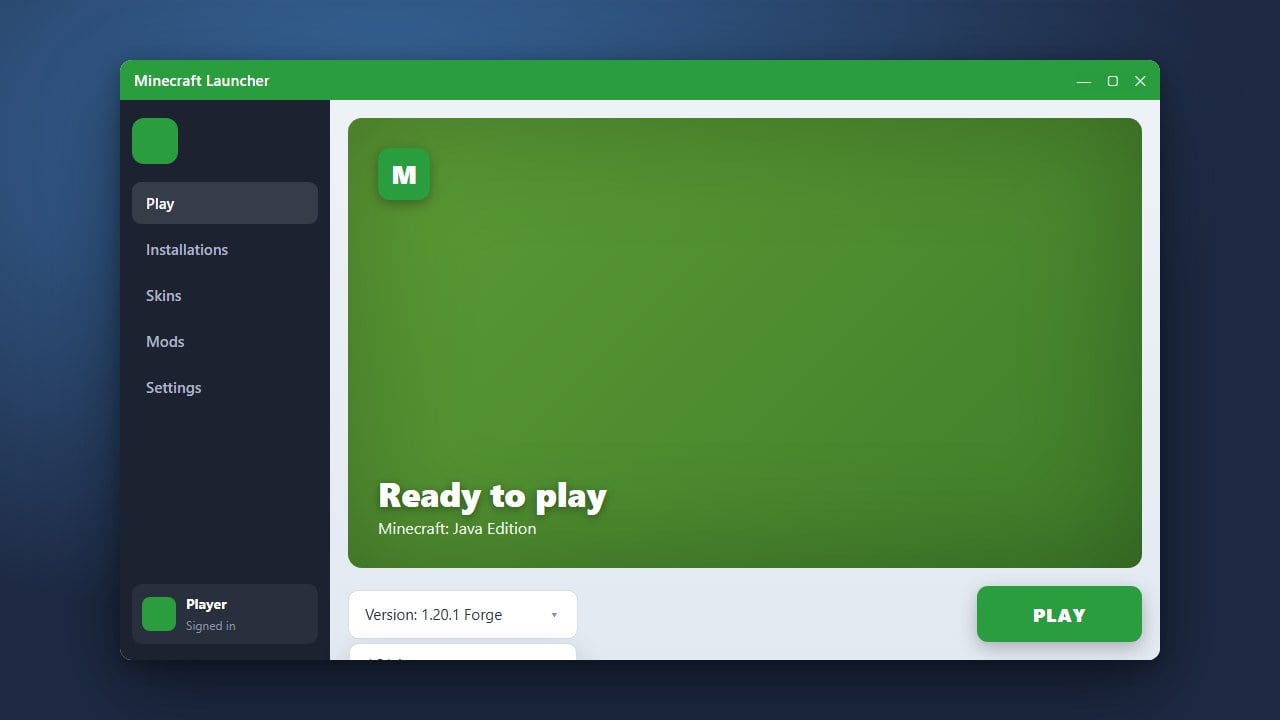
For Java Edition, open the official Minecraft Launcher and navigate to the Minecraft: Java Edition tab on the left. In most cases, the drop-down menu beside the green Play button will already show Latest release along with the newest version number.
If a modded profile or older version is selected instead, click the drop-down menu and choose Latest release. For more configuration options, read our guide on how to change your Minecraft version.
Launch the Game and Verify the Version
Click Play to download the required update files and launch Minecraft. Once the main menu loads, confirm that the update was successful by checking the version number displayed on the screen. On Java Edition, the version appears in the bottom-left corner; on Bedrock Edition, look in the bottom-right corner.
If you are unsure whether you are on the current build, consult our guide on how to check your version.
Generate New Chunks or Start a Fresh World
To experience new structures, trial chambers, or newly introduced blocks, create a brand-new world or travel into uncharted territory within your existing world. New content cannot generate in chunks you have already explored, so you must travel beyond your previously explored borders to generate freshly updated terrain.
Frequently Asked Questions
Can I load my old world in the new update?
Yes, Minecraft worlds can almost always be upgraded to newer versions. However, new terrain, biomes, and structures will only generate in completely unexplored chunks.
Why is my Bedrock Edition game not updating automatically?
Automatic store updates can be delayed by pending background downloads or platform queues. Manually visit your platform's app store or library, search for Minecraft, and select the manual update option.
Will my resource packs still work after updating?
Most basic texture packs will still work, although newly added blocks will use default textures. If the pack shows a red warning in Java Edition, you can usually still enable it, but updated versions from the creator will look best.