Playing the newest version of Minecraft lets you enjoy the latest features, blocks, and balance adjustments introduced in modern releases like 1.21. Whether you play on Java Edition or Bedrock Edition, jumping into the latest release requires only a few clicks in your launcher or platform store.
If you want to test upcoming game features before their official public release, check out preview builds using our tutorial on how to install snapshots.
Mods created for older versions will not work on newer releases until their authors release updated files for your mod loader.
Update Your Game or Launcher
On Bedrock Edition (Windows, consoles, iOS, and Android), updates generally download automatically through your platform app store, such as the Microsoft Store, PlayStation Store, or Google Play. If the game has not updated, open your platform store app, search for Minecraft, and select Update.
On Java Edition, simply open the official Minecraft Launcher while connected to the internet. The launcher will automatically fetch the latest release metadata and prepare any necessary client downloads.
Select the Latest Release Profile
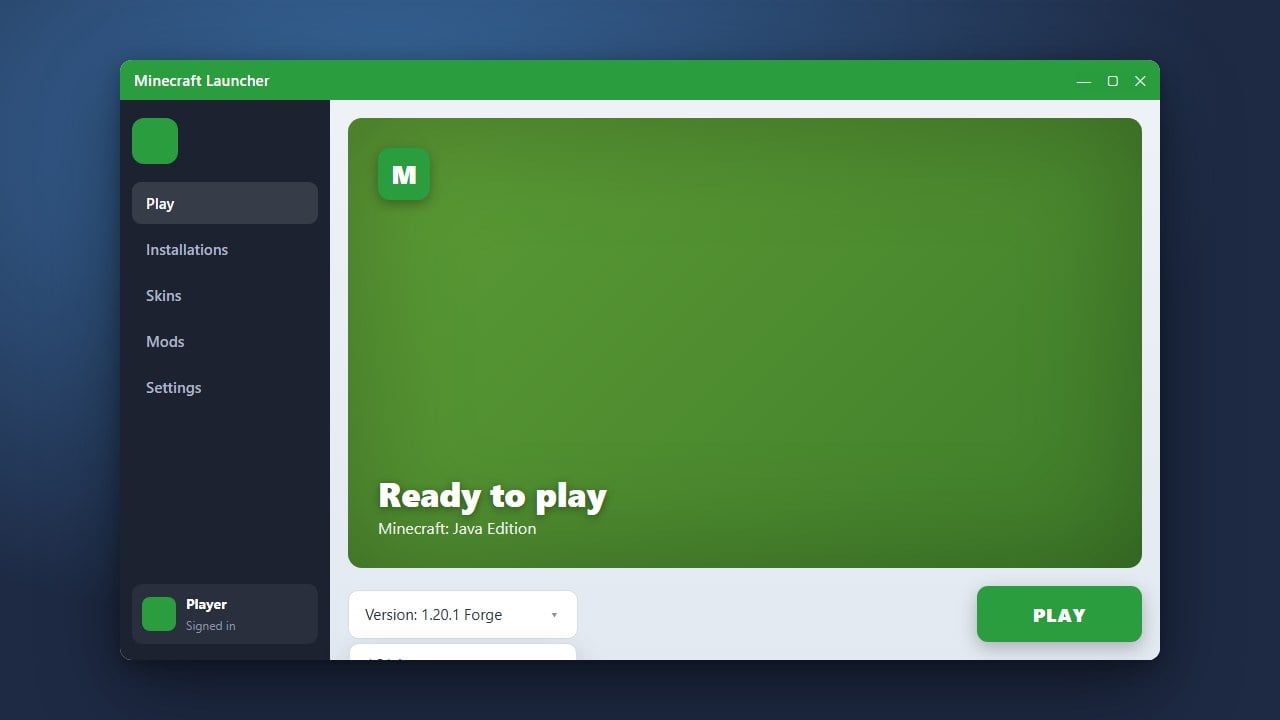
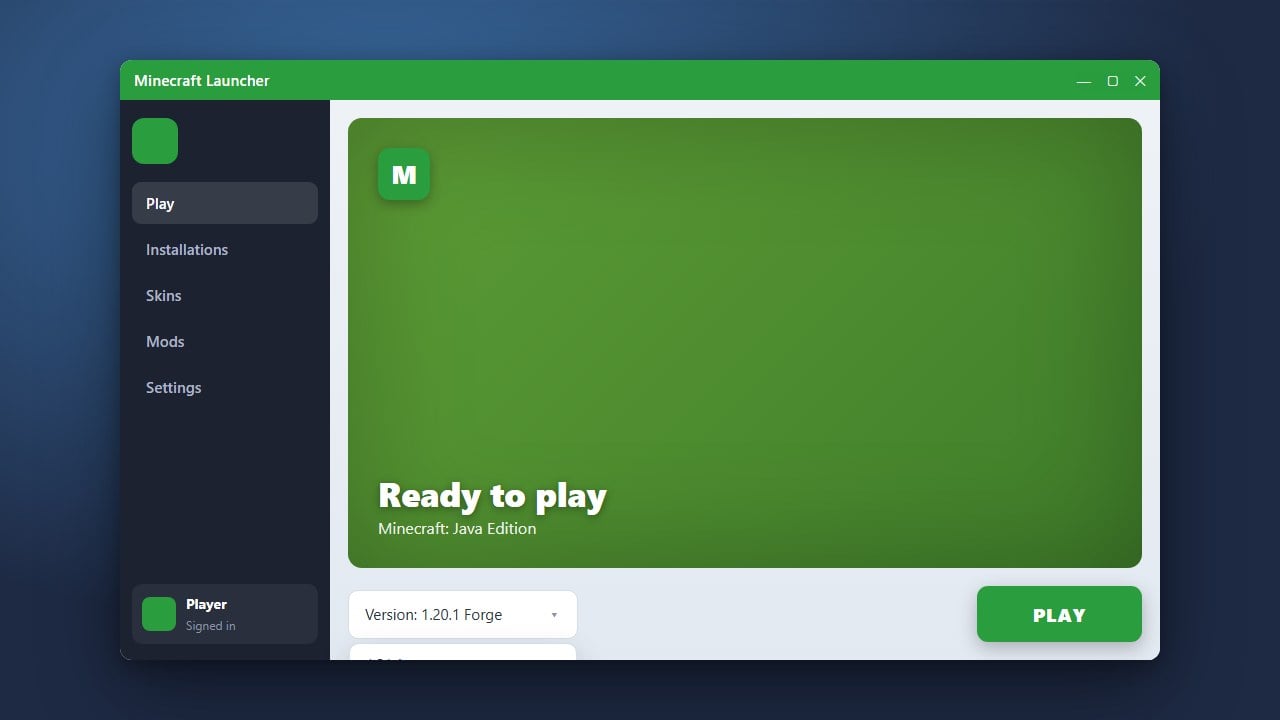
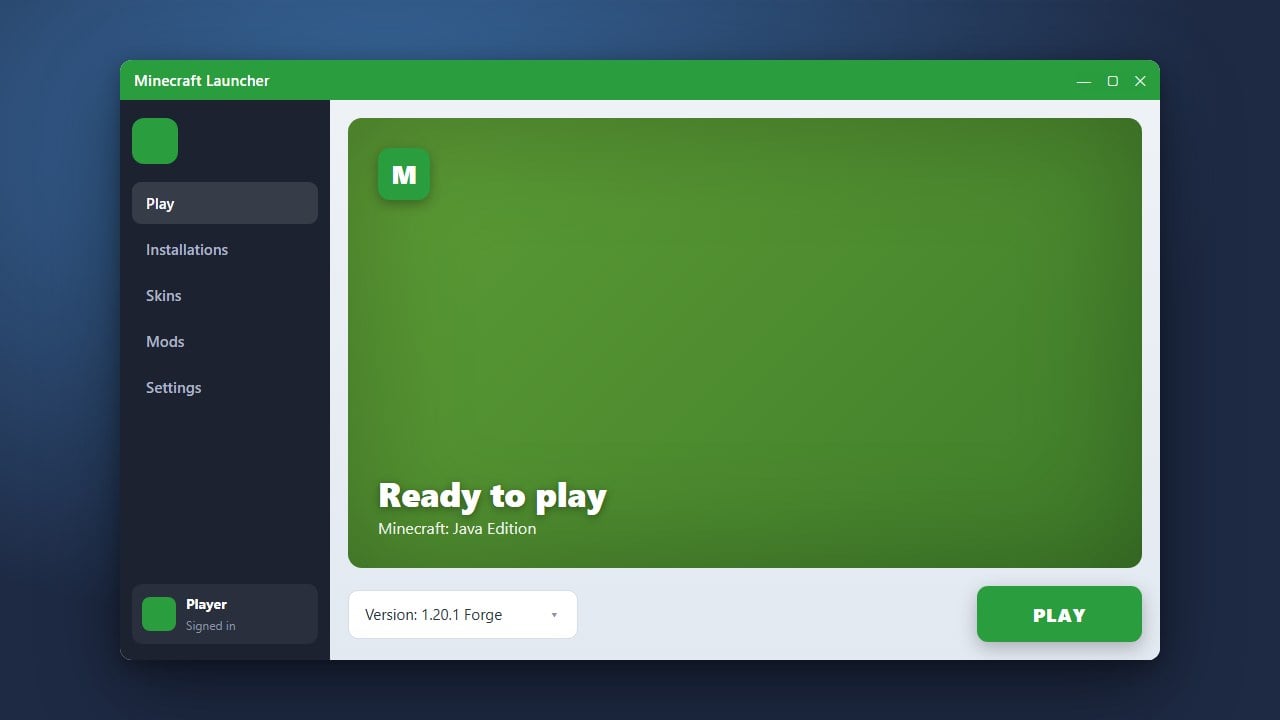
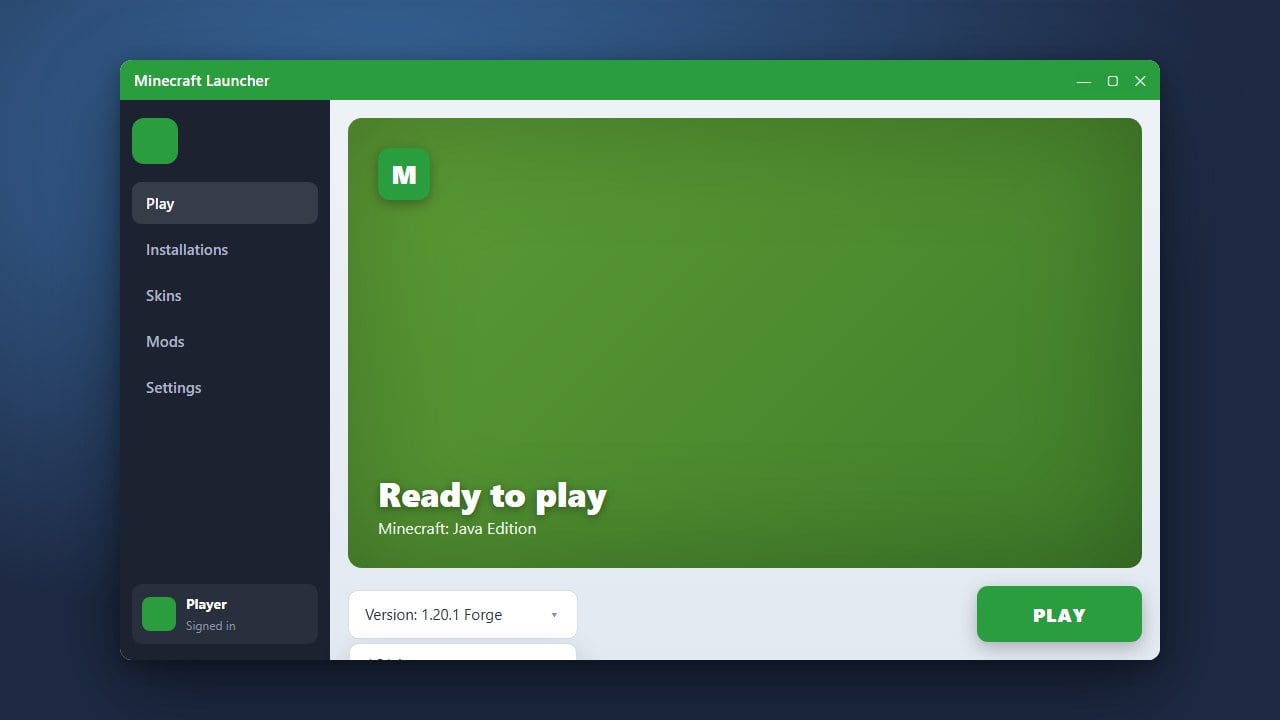
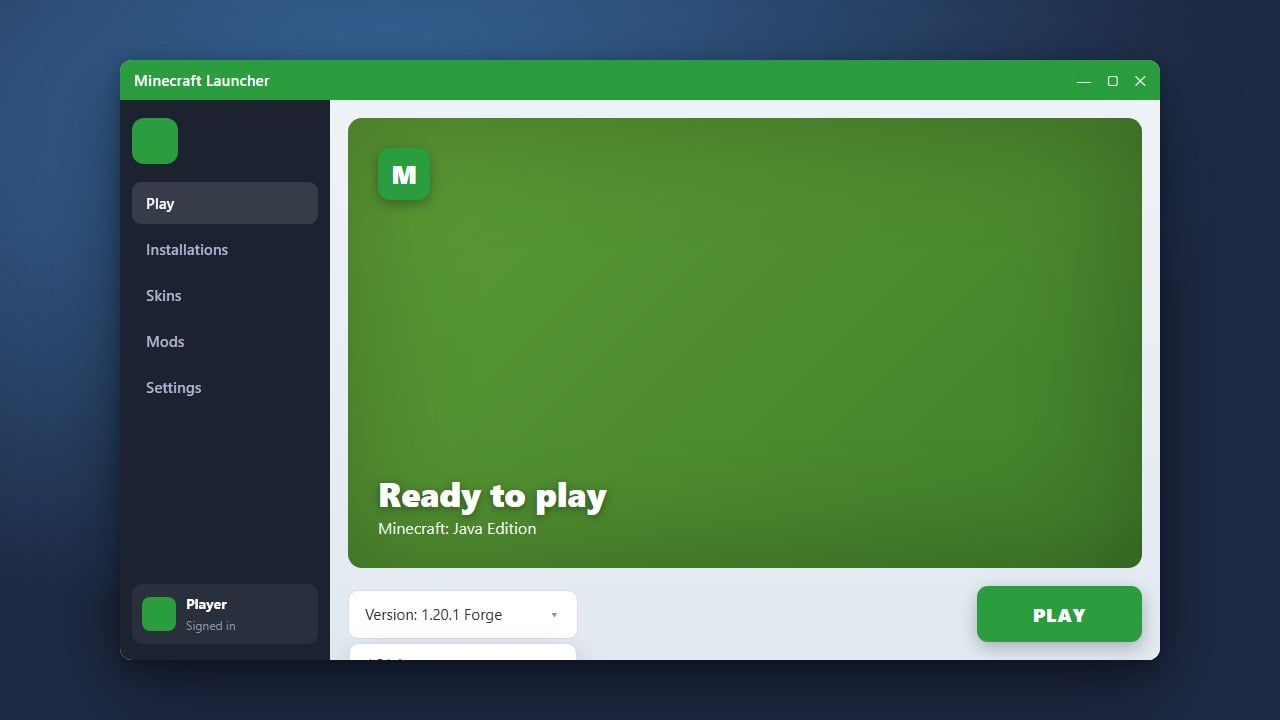
In the Java Edition launcher, click on the drop-down menu located directly to the left of the green Play button. Choose Latest release (such as 1.21.x) to ensure you load the newest official build. If you need custom installation settings, learn how to change your Minecraft version through the launcher's Installations tab.
Bedrock Edition automatically loads the newest installed version whenever you boot the game, so no launcher configuration profile is required.
Launch the Game and Verify Your Version
Click Play to launch the game. Look at the bottom-left corner of the title screen on Java Edition, or the bottom-right corner on Bedrock Edition, to confirm your active build numbers. For a detailed breakdown of where to find this info, check our guide on how to check your Minecraft version.
Back Up Existing Worlds Before Upgrading
If you plan to load an existing survival world into a newer version, remember that world format conversions are irreversible. Before opening older saves, make sure you know how to back up your world so you have a safe copy if unexpected corruption or terrain glitches occur.
Create a New World or Explore New Chunks
To experience newly added features like Trial Chambers or new mobs, start a brand-new world or travel into ungenerated chunks in an existing world. Features from new updates only generate in chunks your character has never loaded before.
Frequently Asked Questions
Why isn't my Bedrock Edition updating automatically?
Consoles and mobile devices may pause automatic updates when storage space is low or background downloads are disabled. Open your system's download queue or app store manually to trigger the download.
Can I play on older servers while running the new version?
Generally no. Java Edition requires your client version to match the server version unless the server uses protocol compatibility plugins like ViaVersion. Bedrock Edition requires players to match the server version exactly.