Knowing your exact Minecraft version is essential when joining multiplayer servers, installing mods, or reporting bugs. Fortunately, finding this number takes only a few seconds regardless of whether you play on Java Edition or Bedrock Edition. If you ever need to match game versions with friends or a server, you can also learn how to change your Minecraft version easily.
If you are testing experimental features, read our guide on how to install snapshots to understand how development version identifiers work.
Bedrock Edition patch numbers often differ slightly from Java Edition updates (for example, Bedrock 1.21.50 versus Java 1.21.4) even though both feature the same major content updates.
Check the Version in the Minecraft Launcher
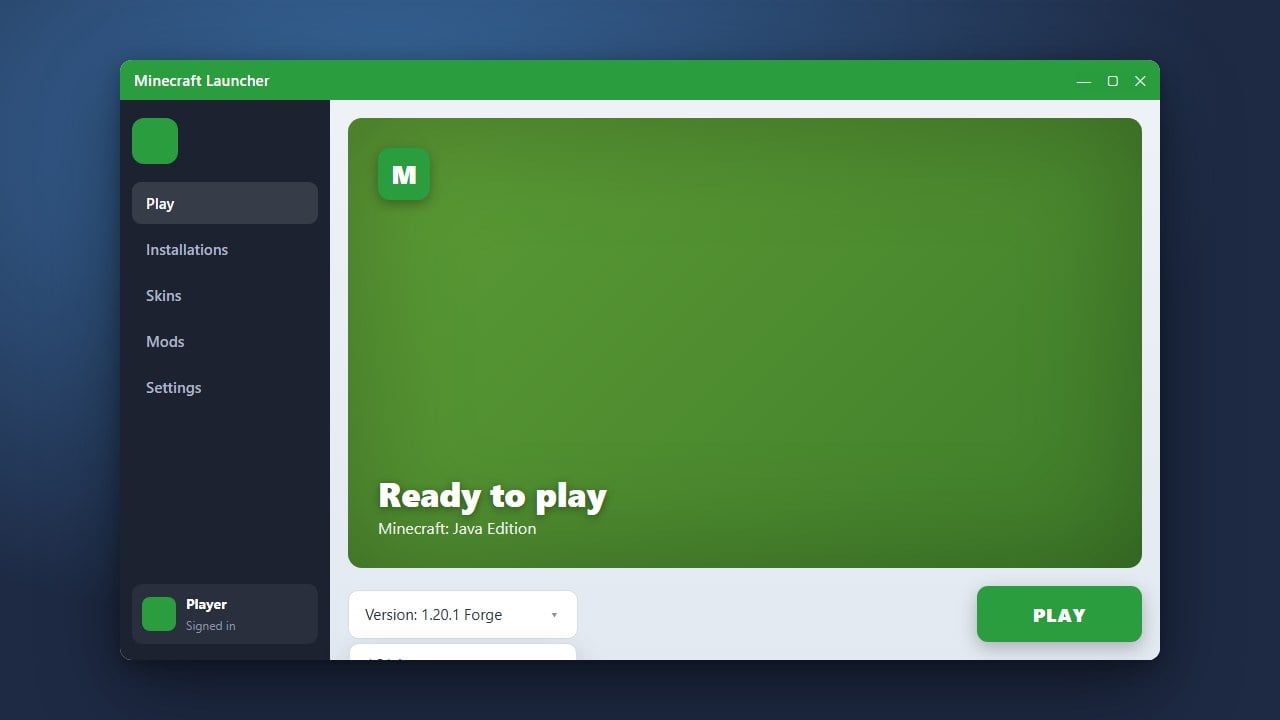
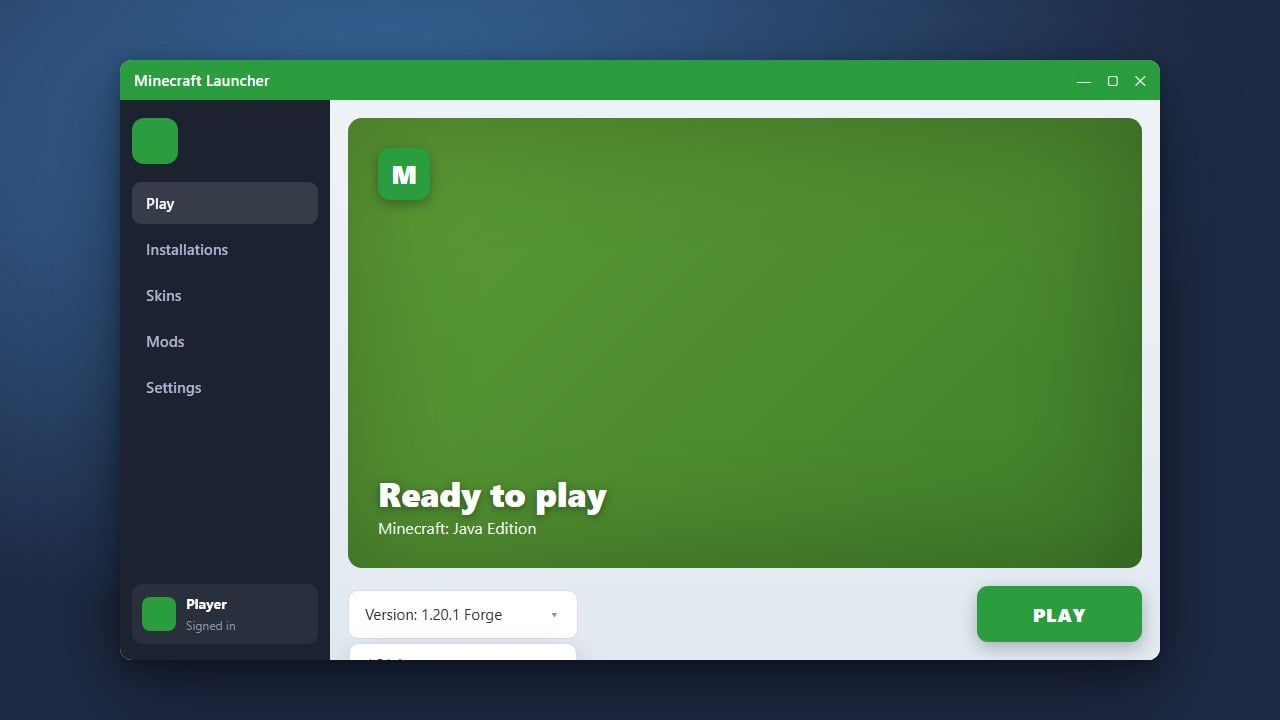
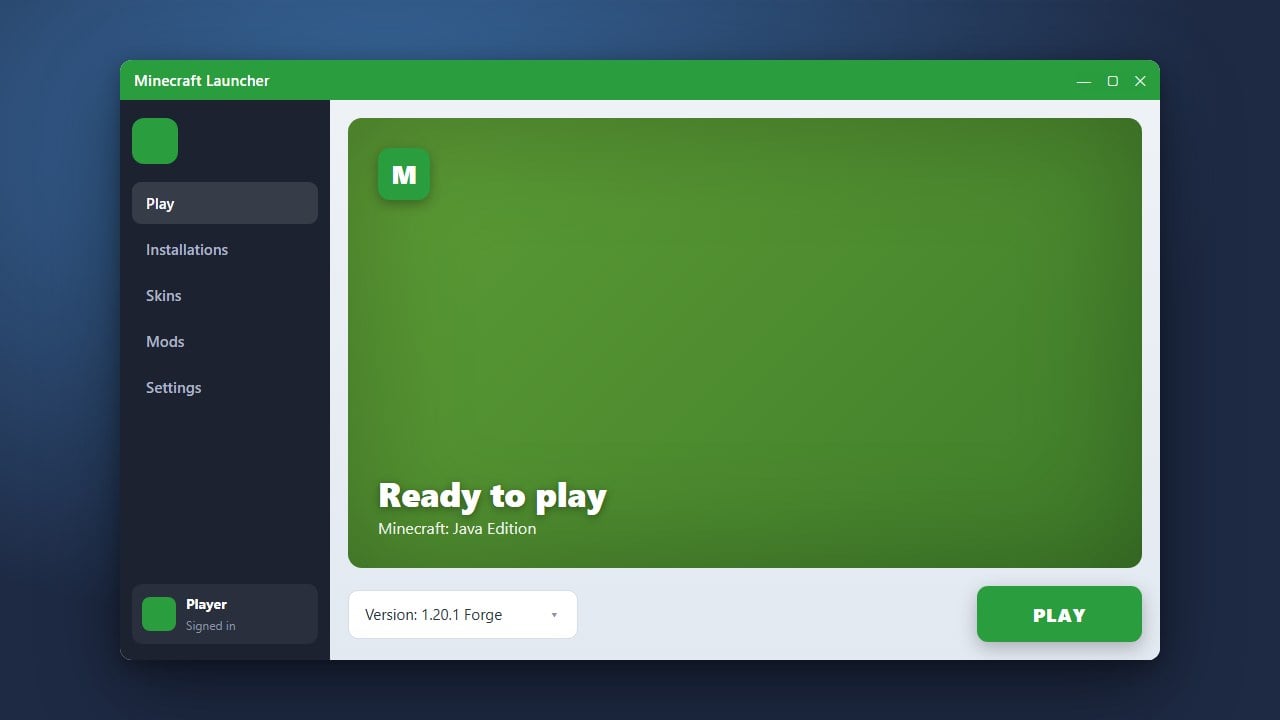
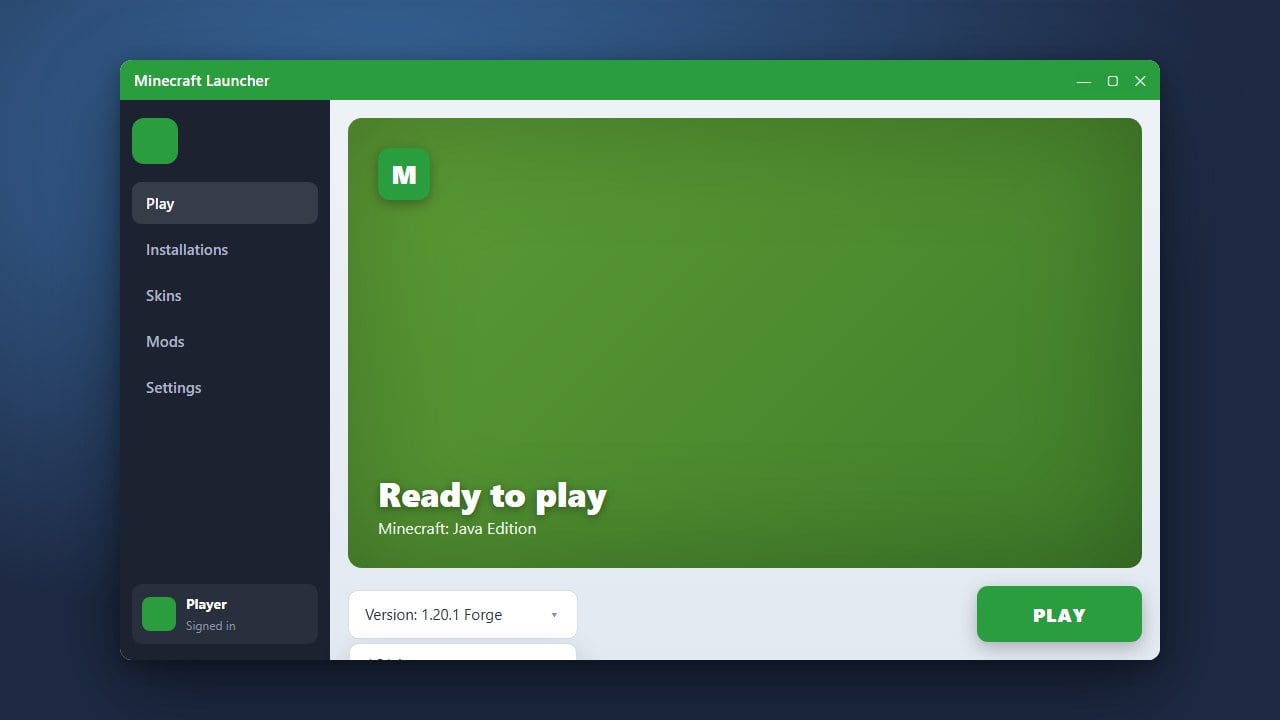
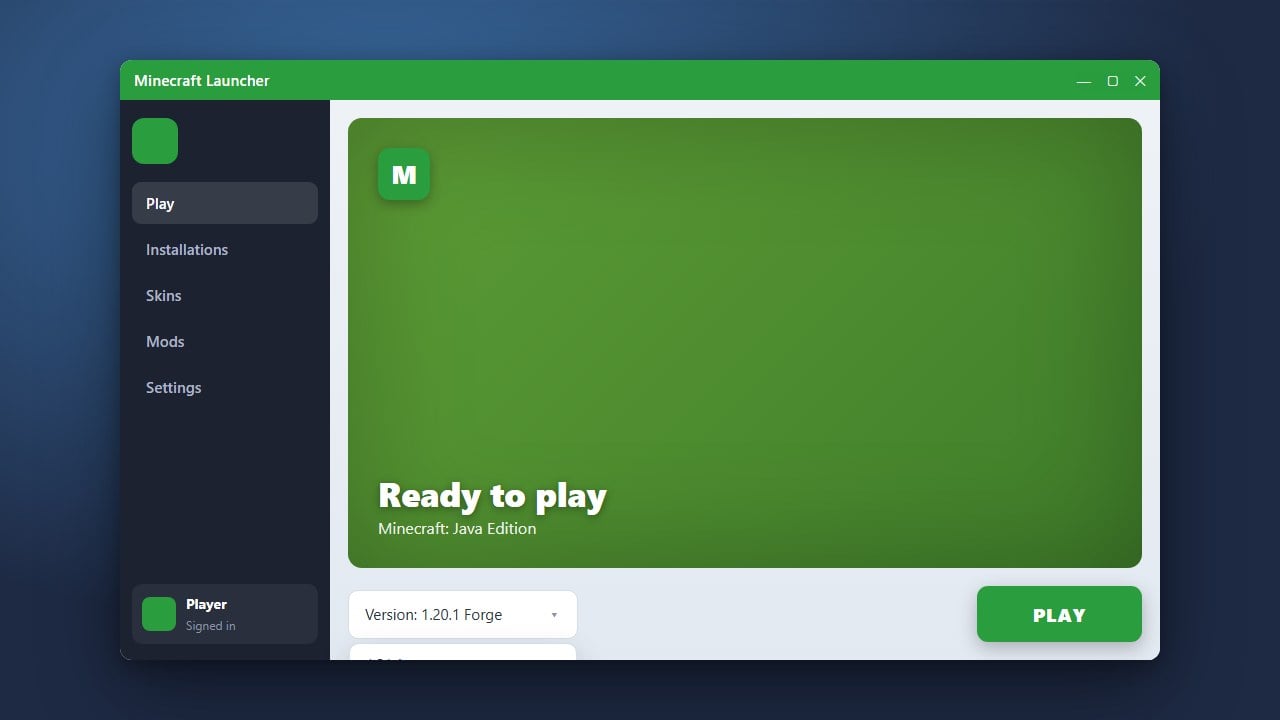
Open the official Minecraft Launcher on your PC. Select either Minecraft: Java Edition or Minecraft for Windows from the left sidebar. Look at the drop-down selector directly to the left of the green Play button; it displays your currently active installation name and version number, such as Latest release (1.21.4).
Find the Version on the Java Edition Main Menu
Launch Minecraft: Java Edition to reach the title screen. Look at the very bottom-left corner of the window. You will see text reading Minecraft [version] (for example, Minecraft 1.21.4). If you run modded profiles like Fabric or Forge, their respective build numbers appear in this corner as well.
Find the Version on the Bedrock Edition Main Menu
Start Minecraft on Windows, consoles, iOS, or Android devices. Once you arrive at the main title screen, look in the lower-right corner of your screen. Bedrock displays the exact patch number in small white lettering, such as v1.21.50.
View the Debug Screen In-Game (Java Edition)
If you are already inside a world or connected to a server on Java Edition, press F3 (or Fn + F3 on many laptops) to bring up the Debug overlay. The first line in the top-left corner displays your active game version along with current modding details. Press F3 again to hide the menu.
Check the Pause Screen (Bedrock Edition)
When playing in a Bedrock Edition world, press the pause button or hit Esc to bring up the Game Menu. Your current game version is permanently visible in the bottom-right corner of the pause screen, allowing you to verify it without leaving your game.
Frequently Asked Questions
Why does my server say outdated client or outdated server?
This warning indicates that your installed game version does not match the version required by the server. Check your current version on the main menu, then update or switch your client profile to match the server host.
How does Minecraft version numbering work?
Minecraft uses a three-part numbering system: the first number represents the base game (1), the second designates major content updates (such as 21), and the third tracks minor bug fixes. You can see how each update evolved in our Minecraft version history guide.