Welcome to the complete guide on installing mods using TLauncher for Minecraft Java Edition! Whether you want to add simple quality-of-life tweaks or massive content overhauls, this tutorial will walk you through setting up a modded profile, downloading compatible mods, and launching your game safely.
TLauncher has a history of bundling adware and raising privacy concerns, and it is frequently used to play Minecraft without purchasing it. We strongly recommend purchasing the official game from minecraft.net and using safer, open-source launchers like Prism Launcher or the Modrinth App.
If your game crashes on startup, check that all your mods match your exact Minecraft and mod loader version. You may also need to increase your memory allocation using guides like How to Allocate More RAM in TLauncher.
Open TLauncher and Select a Modded Version
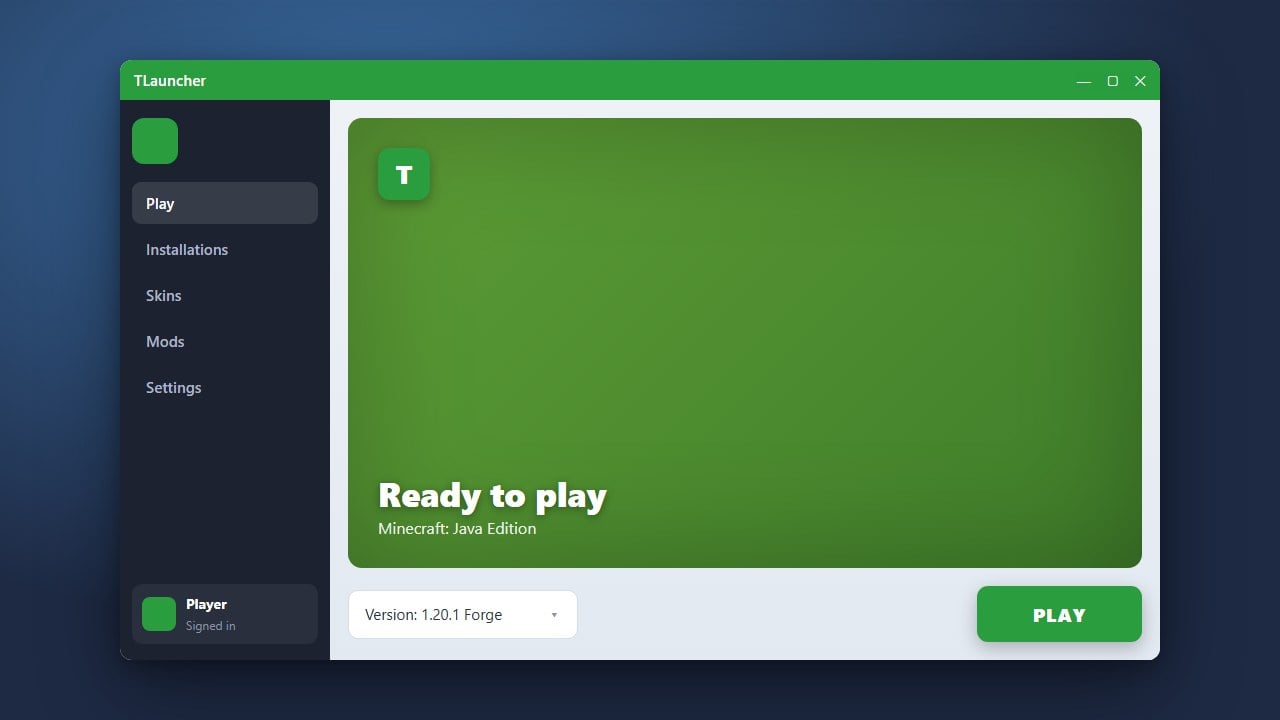
Launch TLauncher on your computer and look at the bottom version selection menu. Before adding any content, you need to create a profile that supports mods by selecting a version marked with Forge, Fabric, or NeoForge for your desired game version.
If you need help setting up your mod loader first, you can check out guides like How to Install Forge and Fabric with Legacy Launcher for similar installation concepts.
Access the Mods Folder
Once you have selected your mod loader version, click on the small folder icon (the mods folder button) located next to the version selection dropdown. This will open the directory where TLauncher stores all the game files for that specific profile.
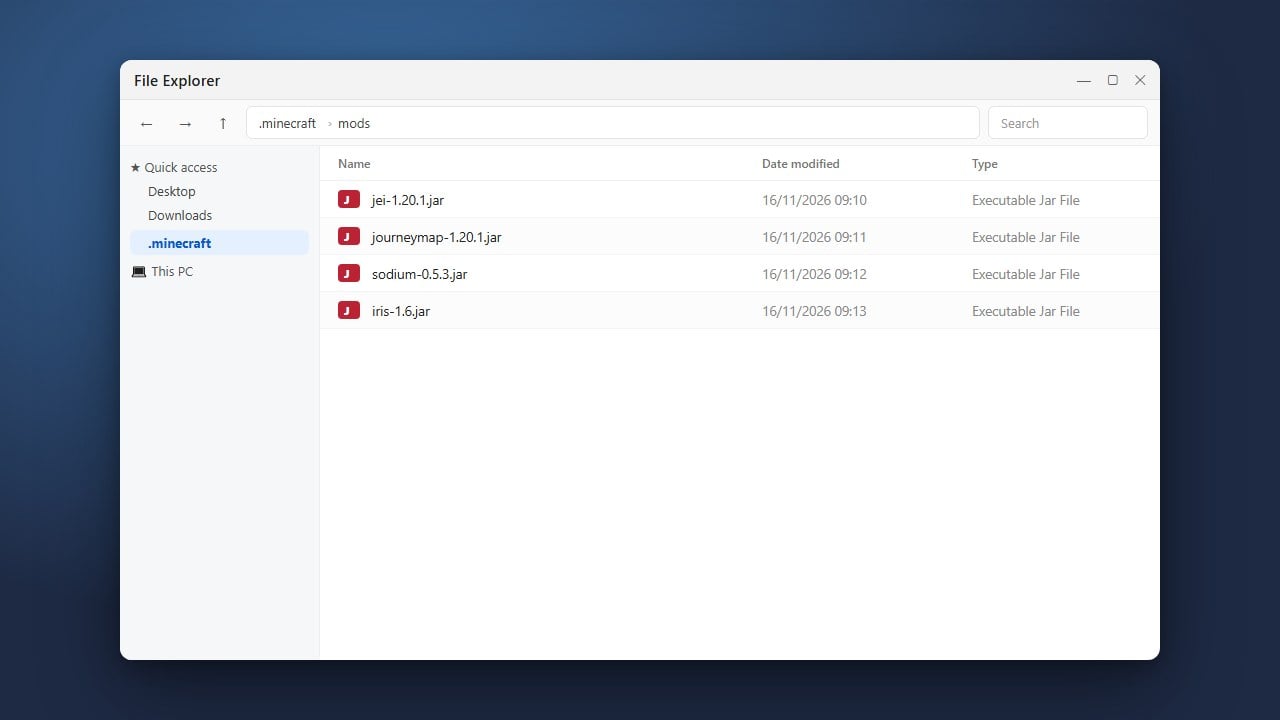
Inside your game directory, locate or create a folder named exactly mods. This is where all your downloaded .jar files will go.
Download Your Desired Mods
Head over to trusted websites like CurseForge or Modrinth to find the modifications you want to play. Make sure that every mod you download matches your exact Minecraft version (such as 1.21) and your chosen mod loader (Forge or Fabric).
Always verify that you are downloading the correct file type and avoid clicking on suspicious external links to keep your PC secure.
Place Mod Files into the Mods Folder
Drag and drop your downloaded mod files (.jar format) directly into the mods folder you opened in step two. Do not extract or unzip the files; they must remain as raw .jar archives so the game can read them properly.
If your mods require dependencies or core libraries specified by the mod author, make sure to drop those into the folder as well.
Launch the Game and Verify
Return to TLauncher and click the large Enter the Game button. TLauncher will boot up Minecraft using your modded profile, loading all the newly added contents automatically.
Once you reach the main menu, click on the Mods button to view the active list and verify that your newly installed modifications are recognized and enabled.
Frequently Asked Questions
Why is my mod not showing up in the game?
Ensure that the mod file is a .jar file, placed directly inside the mods folder, and matches your exact mod loader (Forge vs. Fabric) and Minecraft version.
Can I mix Forge and Fabric mods together?
No, Forge and Fabric mods are built for completely different mod loaders and cannot be run together in the same profile unless using specialized compatibility layers.