Playing older or newer Minecraft Java Edition versions in TLauncher is a quick process. Follow this easy guide to switch between game versions, snapshots, and modded releases seamlessly.
If you want to play with custom performance mods or allocate extra memory, you can also check out our guide on how to allocate more ram in tlauncher for better gameplay.
Open TLauncher
Launch TLauncher on your computer and make sure you are logged into your account. Wait for the main dashboard to fully load before proceeding.
Locate the Version Selection Menu
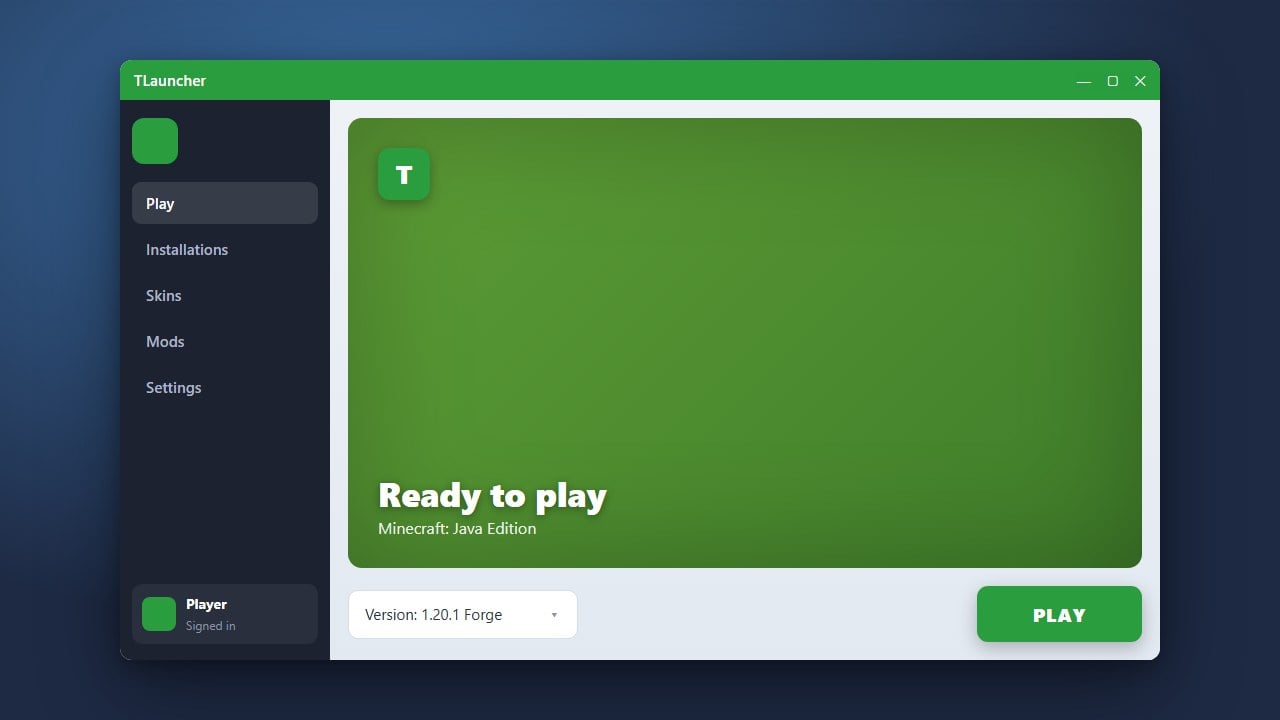
Look toward the bottom-left corner of the TLauncher window. You will see a dropdown menu that displays your currently selected Minecraft version.
Choose Your Desired Version
Click on the version dropdown menu to open the complete list of available game versions. Scroll through the list and select the specific release, snapshot, or modded version you want to play.
Install and Launch the Game
Click the large button at the bottom that says Install or Enter the Game. TLauncher will automatically download the required files for that version, and Minecraft will start up shortly after.
Frequently Asked Questions
Can I play older versions of Minecraft in TLauncher?
Yes, TLauncher supports almost all older Java Edition versions, including classic alpha and beta builds, all the way up to the latest updates.
Do I need an internet connection to change versions?
You need an internet connection the first time you select and install a new version so TLauncher can download the game files. Once installed, you can play offline.