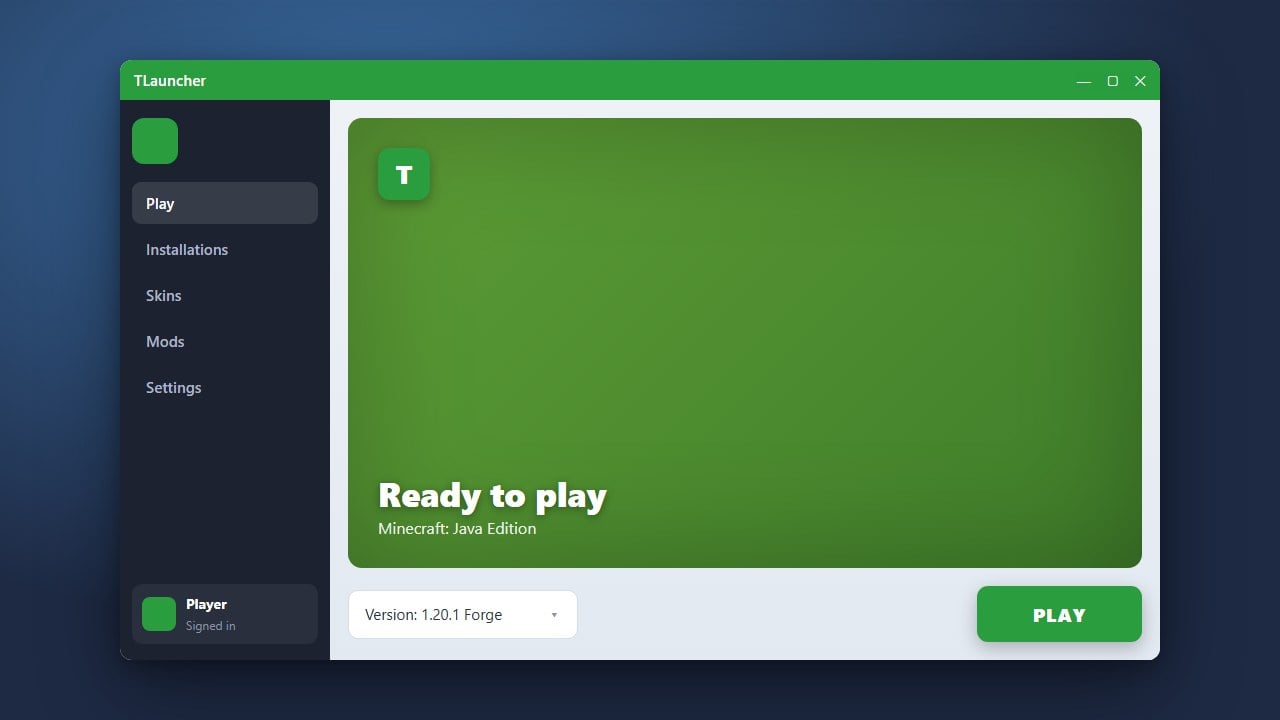
TLauncher is a popular third-party launcher for Minecraft Java Edition that allows players to manage game versions, install mods, and customize their experience. This guide will walk you through downloading, setting up, and managing the launcher safely.
Understand Official Requirements and Safety
Before downloading any third-party launcher, we strongly recommend purchasing the official game from minecraft.net to support the developers and ensure full access to official features. TLauncher has historically faced community scrutiny and raised privacy concerns regarding bundled software, adware, and account handling practices.
If you choose to use third-party tools, always download them from their verified official website and maintain good antivirus hygiene to protect your personal information.
Download and Install TLauncher
Go to the official TLauncher website and download the installer matching your operating system (Windows, macOS, or Linux). Run the downloaded setup file and follow the on-screen prompts to complete the installation process.
Make sure Java is installed and updated on your computer, as Minecraft Java Edition requires a compatible Java runtime environment to execute properly.
Configure Your Account Profile
Upon launching TLauncher, you will need to set up a profile name in the bottom left corner. You can type in any username for offline mode, or check the accounts box to log in with your official Minecraft/Microsoft account credentials if you own the game.
Logging in with a legitimate account allows you to play on official online servers that enforce online-mode authentication.
Select and Install Your Minecraft Version
At the bottom of the main TLauncher dashboard, use the version dropdown menu to select the exact Minecraft version you want to play, ranging from older releases up to the latest Java Edition updates. You can also pick specialized modded versions like Forge or Fabric directly from this list.
Once your preferred version is selected, click the large Install or Play button to download the necessary game files.
Adjust RAM and Settings
If you experience lag or performance drops, you can optimize your setup by reviewing our guide on How to Allocate More RAM in TLauncher. Proper memory allocation ensures smoother gameplay, especially when loading heavy modification packs.
You can access settings via the small gear icon near the bottom right to tweak window resolutions, directory paths, and Java arguments.
Frequently Asked Questions
Can I play on official multiplayer servers using TLauncher?
You can only join online-mode (official) servers if you log into TLauncher using a legitimate, purchased Microsoft/Minecraft account. Playing on offline accounts restricts you to offline or cracked servers.
Is TLauncher safe to use?
While many players use it without issue, security researchers and community members have raised concerns regarding TLauncher's telemetry, adware bundles in older installers, and how it handles user credentials. Always exercise caution and protect your personal data.