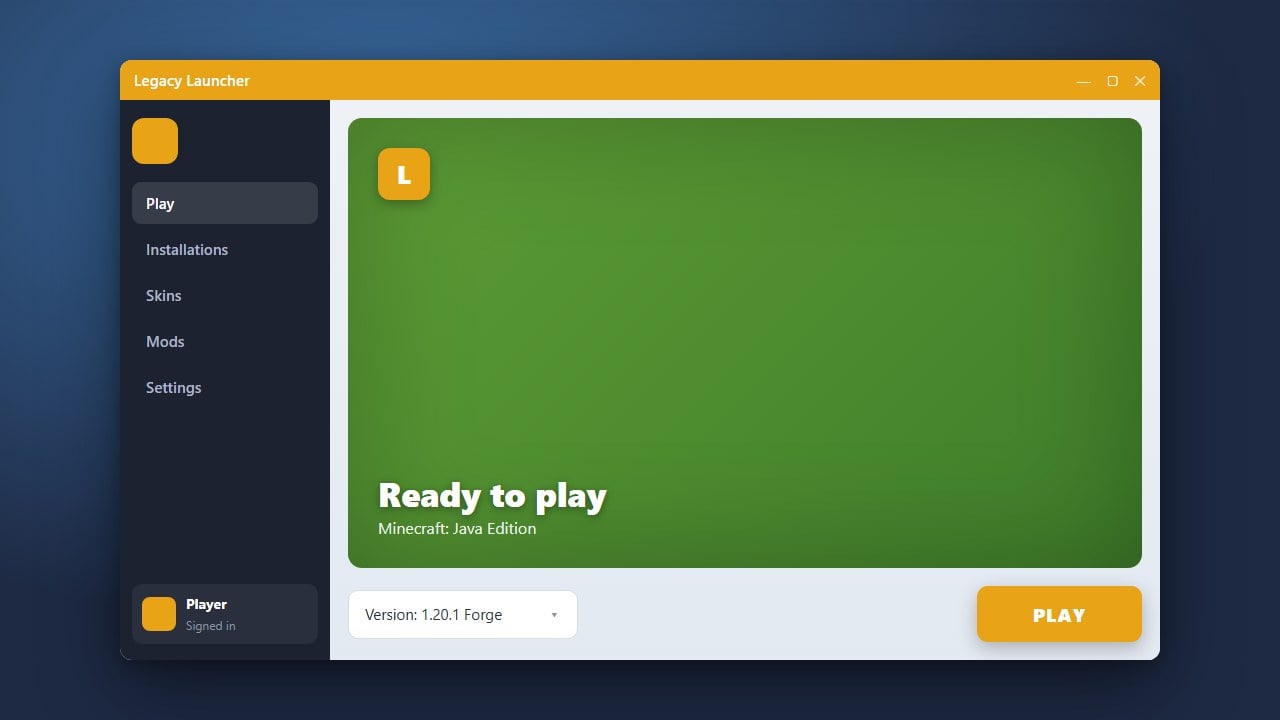
Legacy Launcher is a popular alternative launcher for Minecraft Java Edition that lets players manage different versions, skins, and modding profiles easily. Before getting started, we always recommend purchasing and supporting the official game directly from minecraft.net. Please note that third-party launchers can sometimes present security or privacy risks regarding your credentials, so always download files from official and verified sources.
Be cautious when entering login credentials into third-party launchers. Never share your Microsoft or Minecraft account password with untrusted software to keep your account secure.
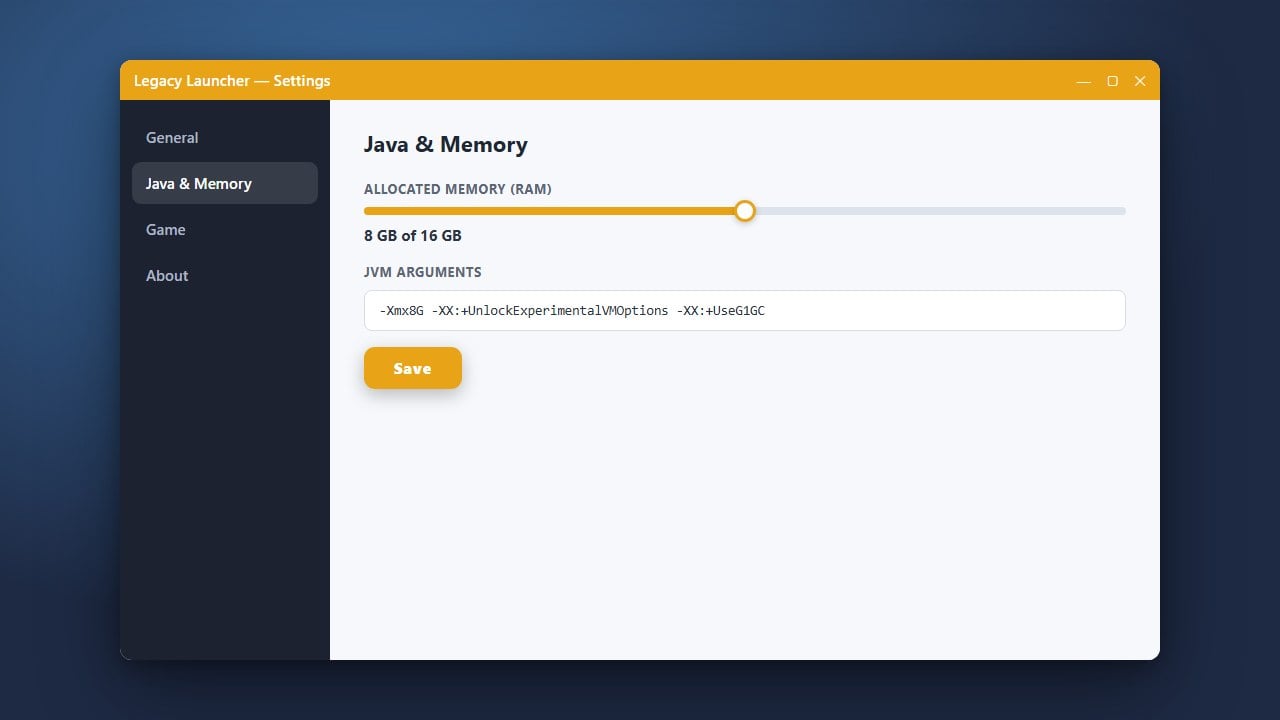
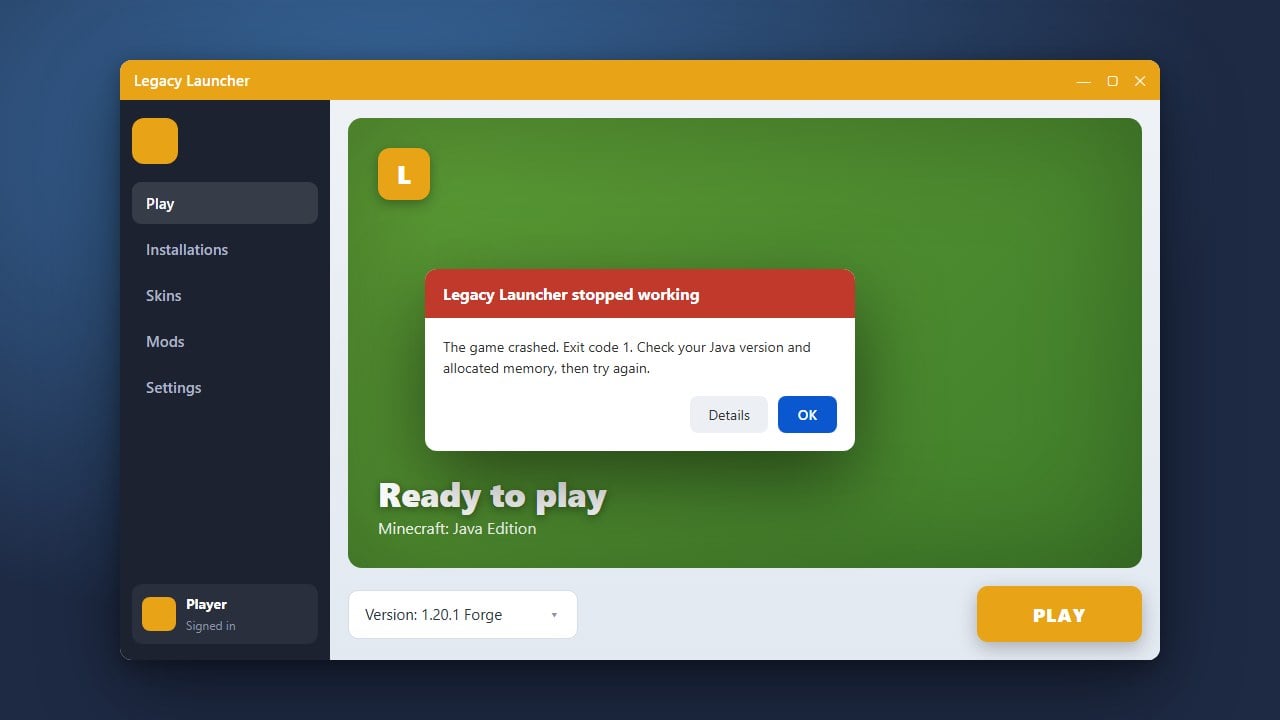
If your game lags or crashes due to running out of memory, you can easily adjust your performance settings by reading how to allocate more RAM in Legacy Launcher.
Check System Requirements and Java
Before installing Legacy Launcher, ensure that you have the correct version of Java installed on your computer for Minecraft Java Edition 1.21+. Most modern launchers bundle their own Java runtime, but having a clean system environment helps prevent startup errors.
Download the Launcher Installer
Go to the official Legacy Launcher website and click the download button suited for your operating system (Windows, macOS, or Linux). Save the installer file to a familiar folder on your computer, such as your Downloads folder.
Run the Setup Wizard
Locate the downloaded installation file and double-click it to run the setup wizard. Follow the on-screen prompts provided by the installer to complete the application installation on your hard drive.
Launch and Configure Your Profile
Open Legacy Launcher from your desktop shortcut or applications menu. Once the dashboard opens, enter your account details or choose the offline/skin setup option depending on how you intend to connect to the game servers.
Select Your Minecraft Version
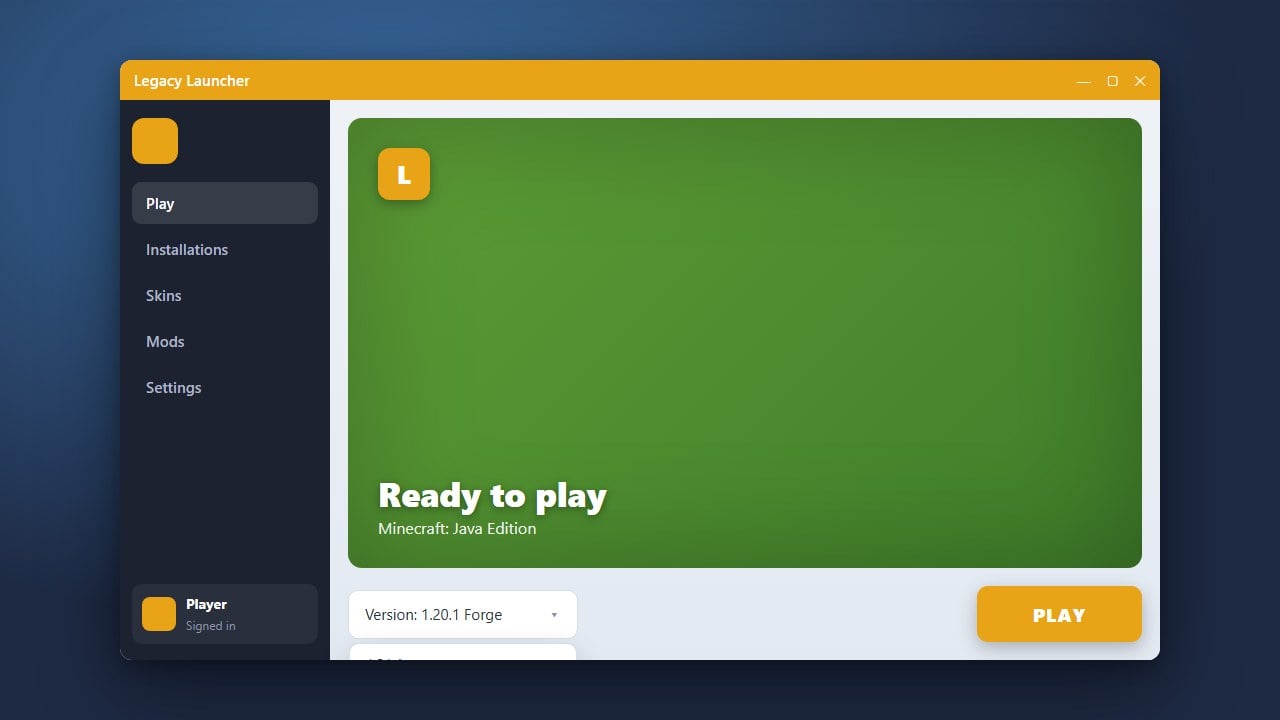
Navigate to the version selection menu within the launcher interface to choose your preferred game version, such as the latest Java Edition update. You can also follow our guide on how to change the Minecraft version in Legacy Launcher if you need to play on older releases.
Start Playing Minecraft
Click the large Play button to download necessary game assets and start Minecraft. If you want to customize your gameplay further with performance mods or resource packs, you can check out how to install Forge and Fabric with Legacy Launcher for seamless modding support.
Frequently Asked Questions
Is Legacy Launcher free to use?
Yes, downloading and using the launcher interface is free, but playing online multiplayer on official servers still requires a valid, purchased Minecraft Java Edition account.
Can I install mods using Legacy Launcher?
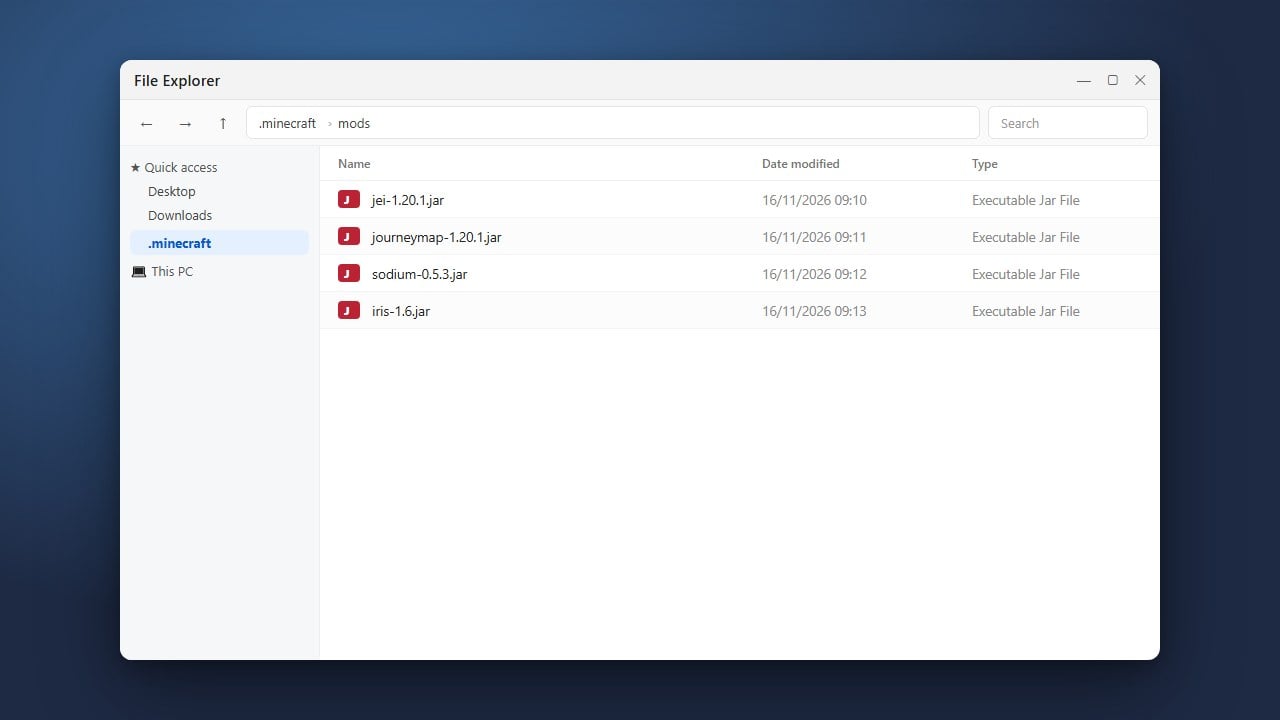
Yes, Legacy Launcher supports installing mod loaders like Forge and Fabric so you can easily run your favorite modifications and client-side add-ons.