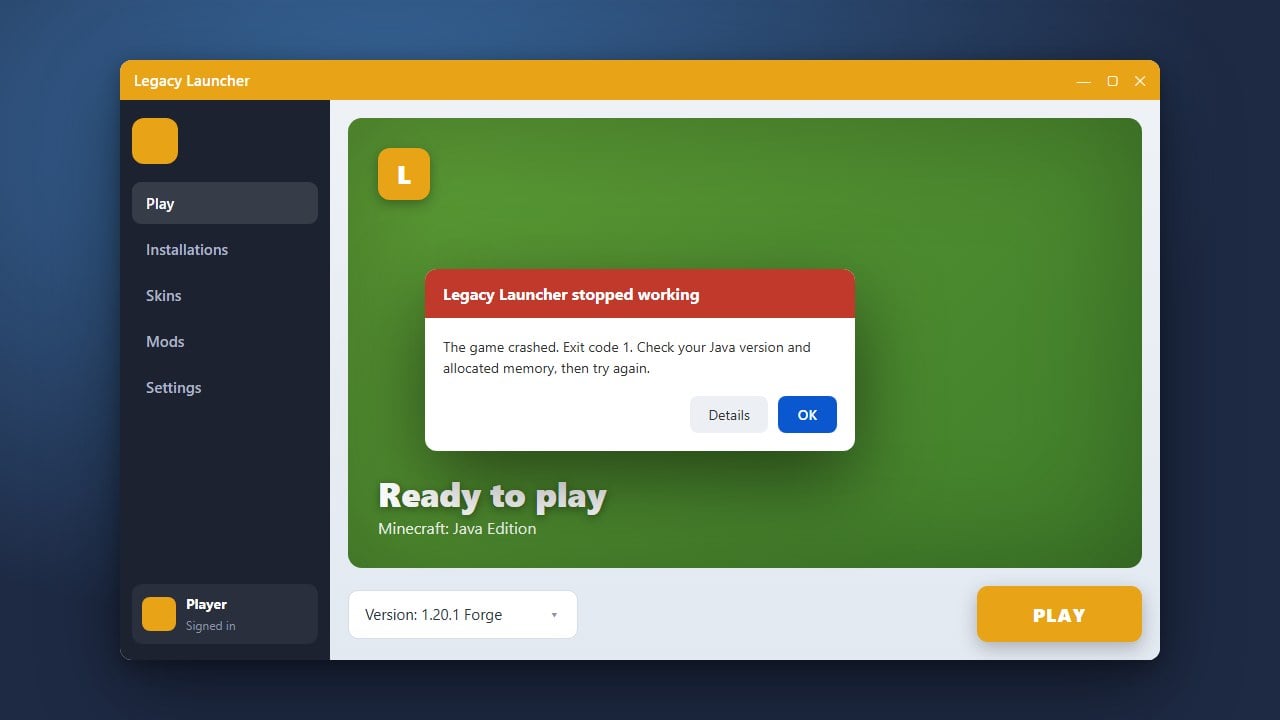
If Legacy Launcher is refusing to open, crashing immediately on startup, or failing to load your game instances, you can usually fix it by addressing Java environment conflicts or corrupted local files. This guide will walk you through the troubleshooting steps to get your launcher working again on Minecraft Java Edition 1.21+. Note: Legacy Launcher is frequently used for offline play or bypassing official account authentication; we strongly recommend purchasing the official game through minecraft.net to ensure full feature access, security, and developer support. Unofficial third-party launchers can sometimes carry privacy or account safety risks.
Check for Background Processes
Sometimes Legacy Launcher is already running as a background task, which prevents a new window from opening. Open your Task Manager (Ctrl + Shift + Esc on Windows) or Activity Monitor on macOS.
Look for any lingering Java or Legacy Launcher processes, right-click them, and choose End Task. Once all background instances are closed, try launching the application again.
Update Your Java Runtime
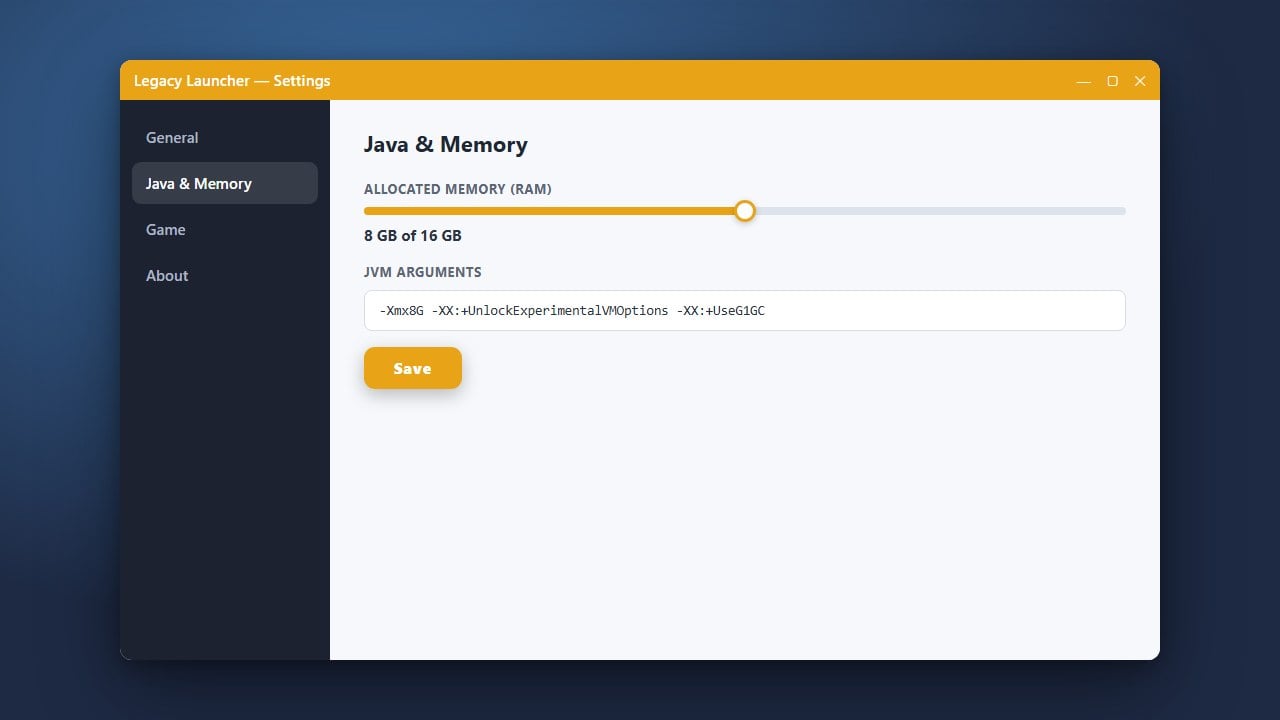
Legacy Launcher requires the correct Java version to execute properly on your system. Modern Minecraft versions like 1.21 require Java 21 to run correctly.
Ensure you have the appropriate Java Development Kit (JDK) or Java Runtime Environment (JRE) installed for your operating system. If your Java installation is outdated or corrupted, the launcher will often fail silently without showing an error message.
Clear Corrupted Launcher Cache
Corrupted configuration files or temporary cache data can frequently stop the launcher from booting up. Navigate to your user directory and locate the launcher's hidden configuration folder (usually found in %appdata% on Windows).
Back up any important worlds or configuration files you wish to keep, then delete or rename the launcher's cache and temporary folders to force it to generate a fresh, clean set of files upon your next startup.
Run the Launcher as Administrator
Permission issues can prevent Legacy Launcher from writing necessary files or accessing system resources. Right-click the launcher executable file and select Run as administrator on Windows.
If this resolves the issue, you can permanently set the application to always run with administrative privileges by adjusting its compatibility properties in the file properties menu.
Reinstall Legacy Launcher
If the application files are severely damaged or missing critical components, a clean reinstallation is often the fastest solution. Completely uninstall the current version from your system.
Download the latest official installation package from a trusted source, and make sure your antivirus or firewall software isn't accidentally blocking the new executable from downloading necessary components during setup.
Frequently Asked Questions
Why does Legacy Launcher close immediately after opening?
This is usually caused by an outdated Java version, a corrupted cache file, or a conflicting background process that is already utilizing the required system ports and files.
Is Legacy Launcher safe to use?
While many players use third-party launchers, they operate outside of official Mojang and Microsoft support. Unofficial clients can carry account safety risks and privacy concerns, which is why official channels are always recommended.