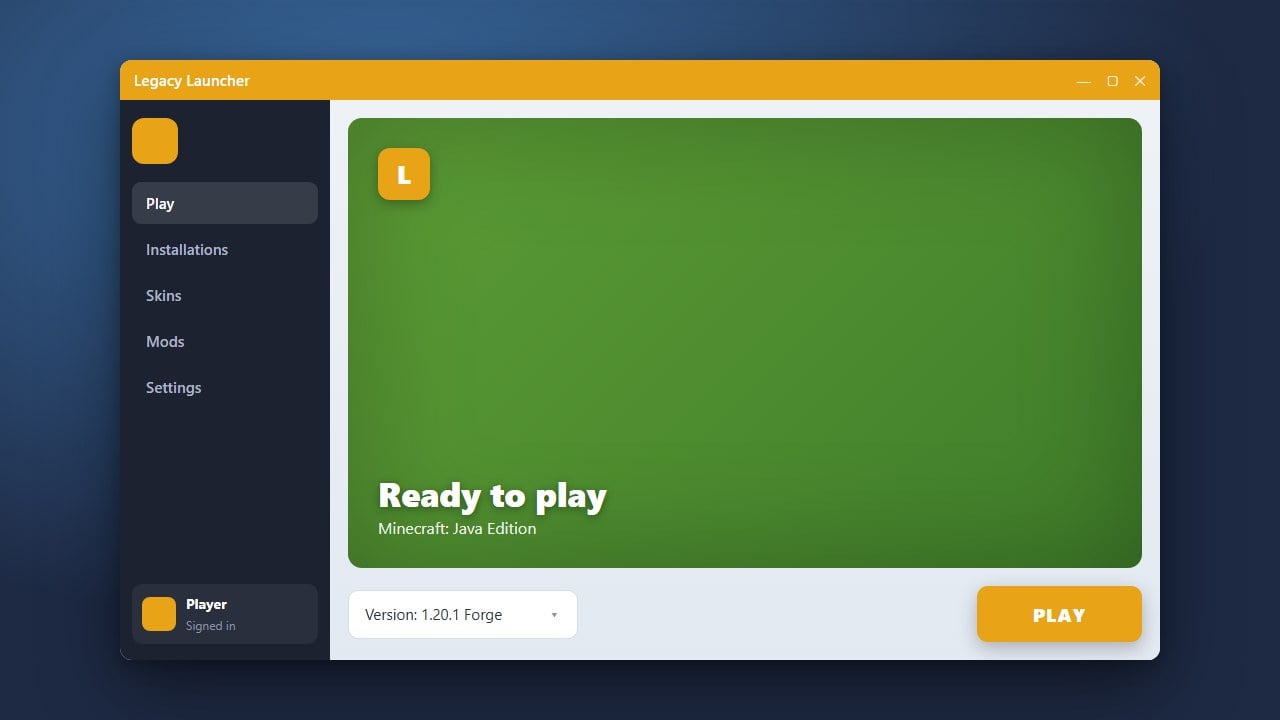
Keeping your Minecraft launchers up to date ensures you have access to the latest Java Edition patches, security updates, and performance fixes. This guide walks you through updating Legacy Launcher step-by-step.
Always purchase a legitimate copy of Minecraft from minecraft.net. Third-party cracked launchers or unofficial clients can pose severe security, privacy, and account safety risks.
If you want to play custom game versions or test out different builds after updating, check out our guide on How to Change the Minecraft Version in Legacy Launcher.
Back Up Your Important Files
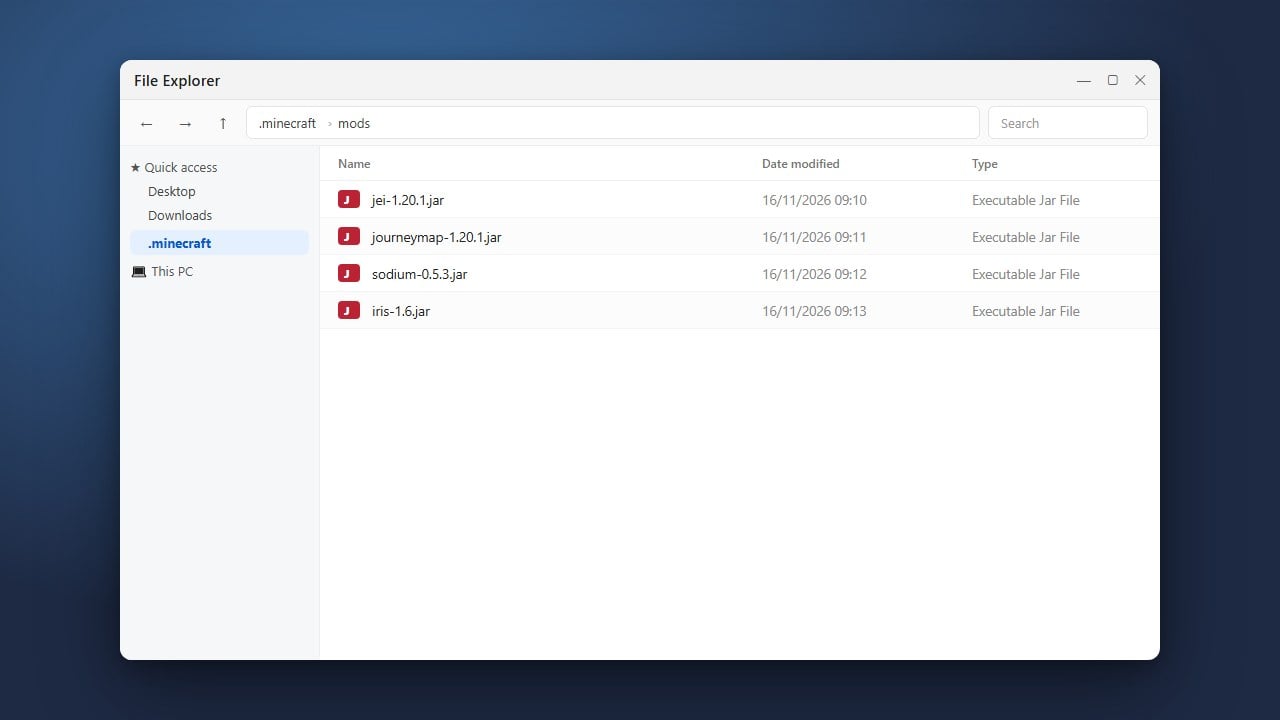
Before making any changes to your launcher or game files, it is always a good idea to protect your worlds and configurations. Navigate to your Minecraft directory and copy your saves folder to a safe location on your computer.
Taking this extra precaution ensures that you will not lose any progress if an unexpected error occurs during the update process.
Open Legacy Launcher
Launch the application from your desktop shortcut or your operating system's application menu. Allow the launcher a moment to load its initial interface and check for active internet connectivity.
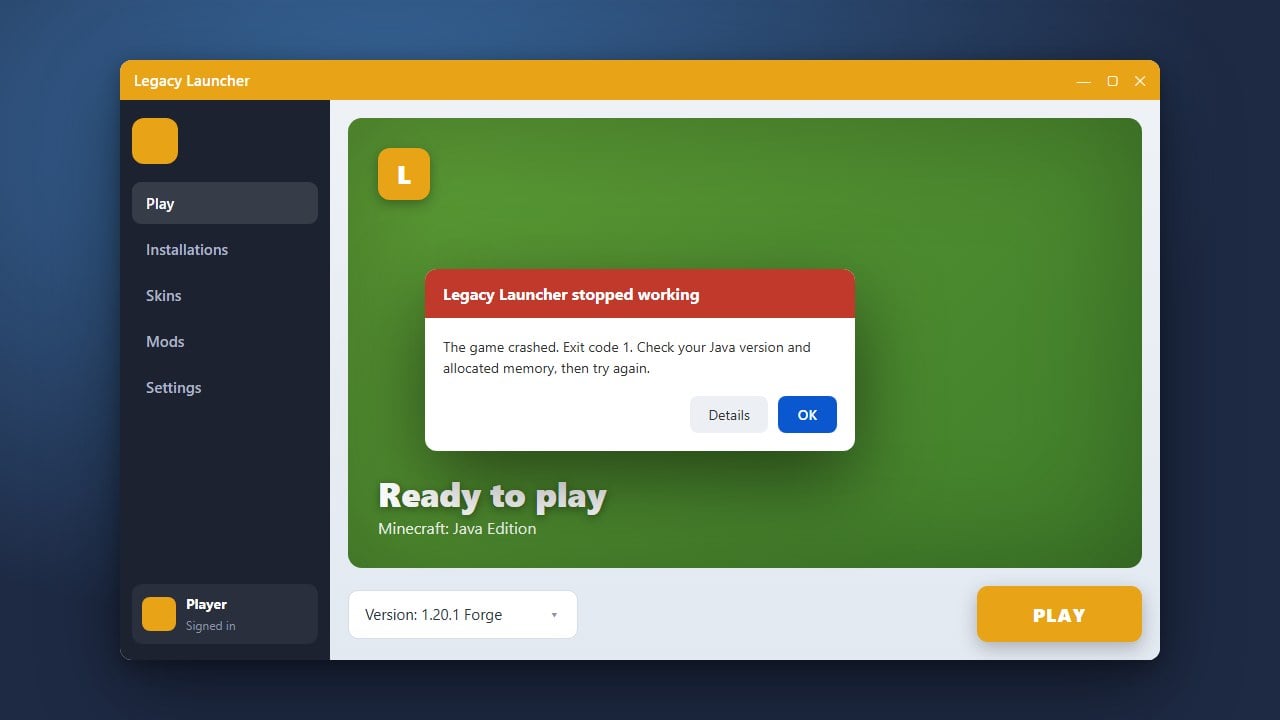
If you encounter any unexpected startup errors while opening the app, you may want to consult our guide on How to Fix Legacy Launcher Not Launching before proceeding further.
Check for Available Updates
Most modern versions of the launcher will automatically check for software updates upon startup. Look for an update notification banner, a prompt near the play button, or visit the settings menu to manually check for newer software builds.
If an update is found, click the confirmation prompt to begin downloading the latest files directly from the official source.
Download and Install the Update
Allow the download to finish completely. Depending on your internet connection speed, this should only take a brief moment. Once downloaded, the launcher will typically prompt you to restart or apply the patch automatically.
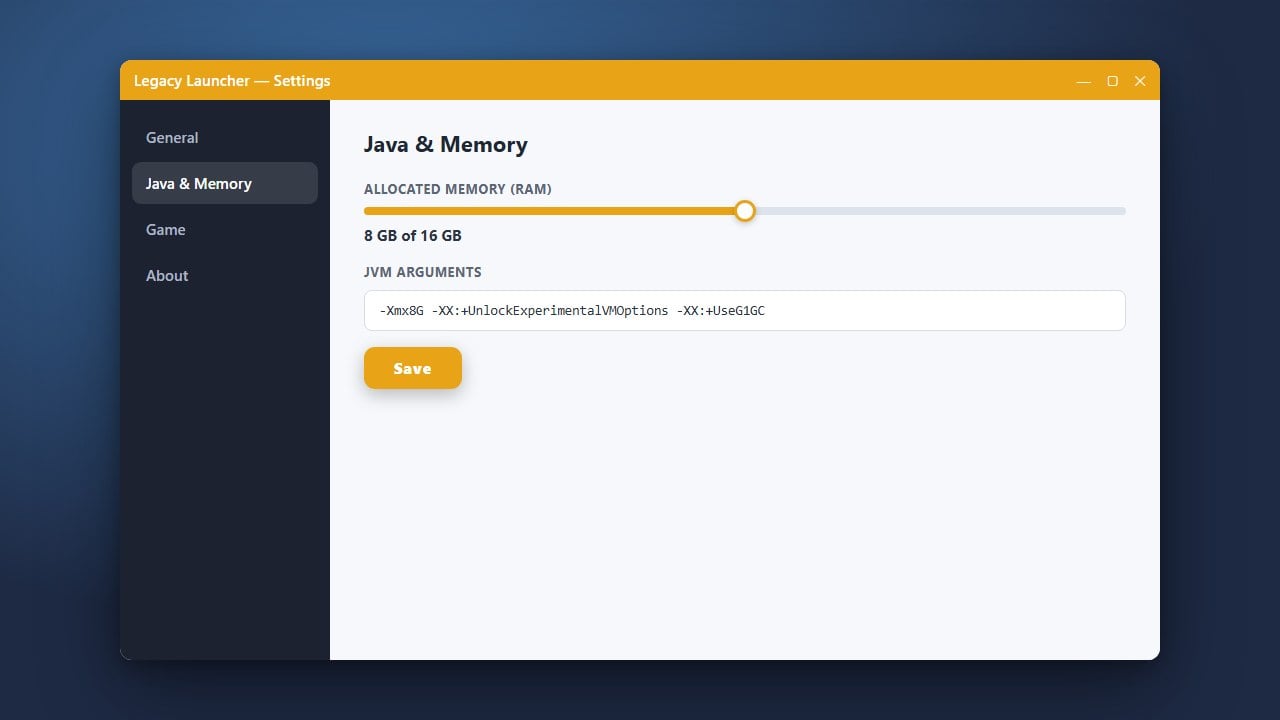
If you prefer managing your game installations manually or wish to tweak performance parameters, you can also review guides such as How to Allocate More RAM in Legacy Launcher to optimize your gameplay experience.
Restart and Verify Your Version
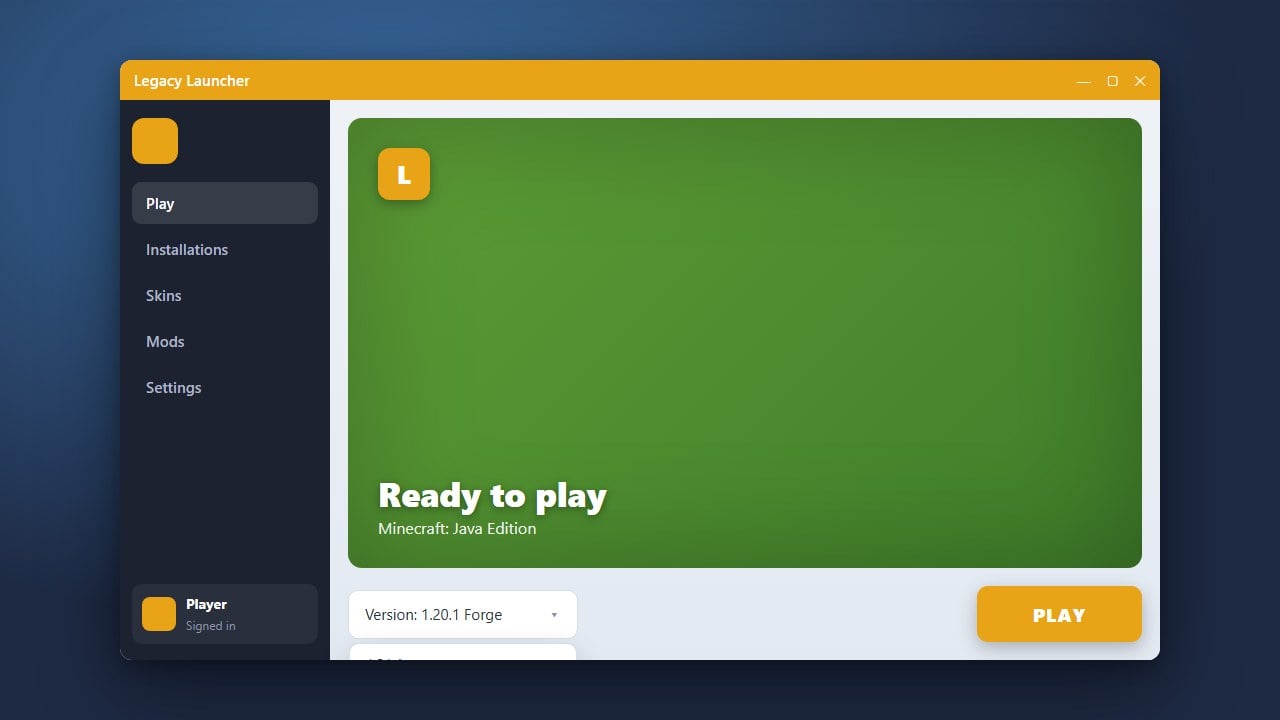
Close the launcher completely and open it up once more to ensure the new version has been successfully applied. Check the bottom corner of the interface or the settings menu to confirm that the build number matches the latest release.
You are now ready to launch Minecraft Java Edition and enjoy your updated client!
Frequently Asked Questions
Do I lose my worlds when I update Legacy Launcher?
Normally, updating the launcher application does not affect your local game saves or resource packs stored in the main Minecraft directory. However, creating a backup before major updates is always recommended.
Why is my launcher failing to download the update?
Connection timeouts are usually caused by strict firewall settings, antivirus software blocking the download, or temporary network issues. Ensure your network connection is stable and add an exception for the launcher if necessary.