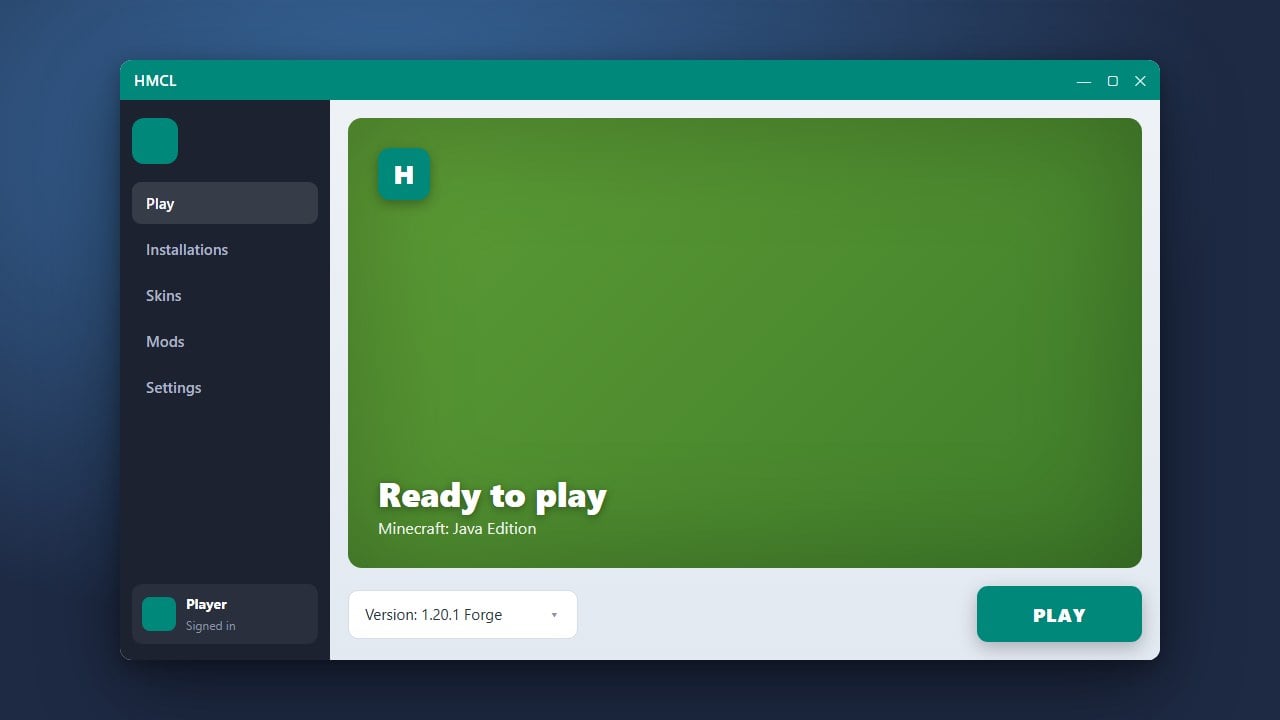
If you are switching to another client or simply want to clean up your computer, this guide will walk you through the process of completely uninstalling HMCL (Hello Minecraft! Launcher) from your Java Edition setup. Remember that using alternative launchers does not replace purchasing the official game; we always recommend getting genuine copies from minecraft.net to ensure account security and official support.
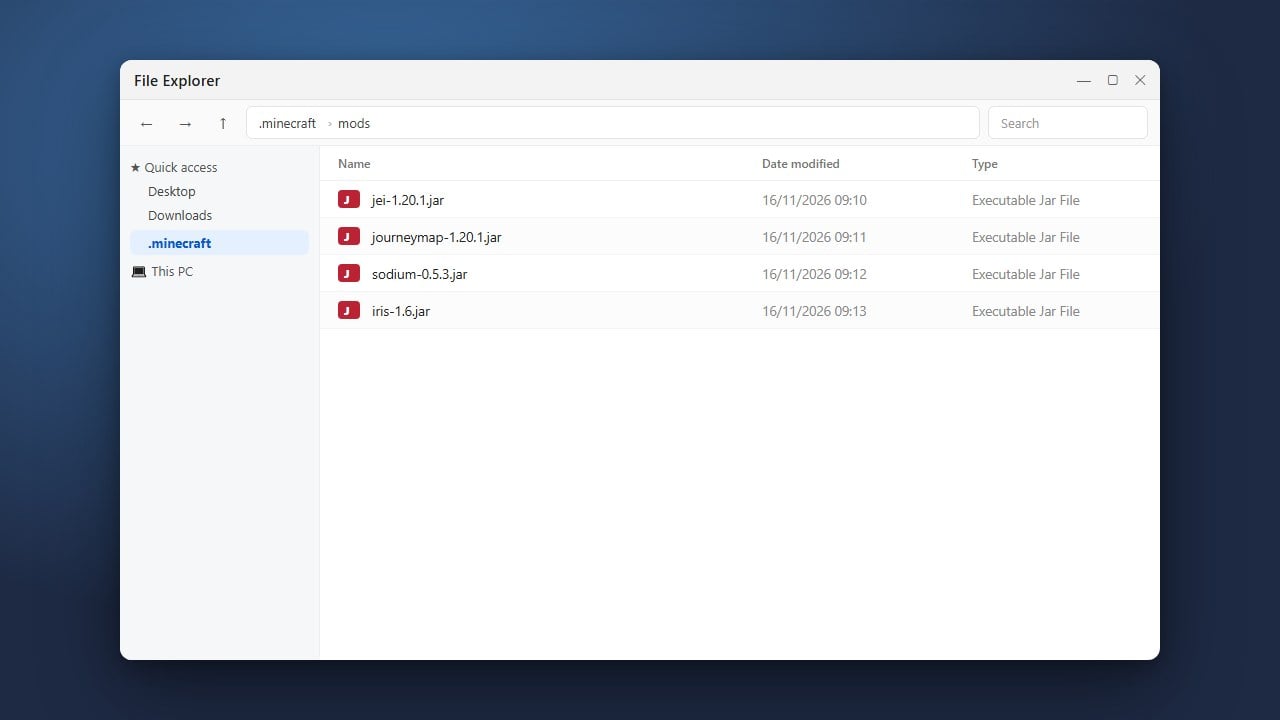
Be careful not to delete your default .minecraft folder unless you want to erase all of your standard Minecraft saves, resource packs, and global screenshots from the official launcher.
Close HMCL and Background Processes
Before deleting any files, make sure that HMCL is completely closed. If the application is running in the background, your operating system might block you from deleting its executable or data files.
Check your system tray in the bottom right corner of Windows (or your operating system's equivalent task manager) to ensure no instances of the launcher are active.
Delete the HMCL Executable File
HMCL is usually run as a standalone .exe file on Windows rather than going through a traditional installer. Locate the folder where you originally saved the launcher.
Right-click the HMCL executable file and select Delete, or move it directly to your Recycle Bin. If you want to learn more about how the launcher works or if you ever reinstall it later, you can review guides like How to Download and Install HMCL.
Remove the HMCL Application Data Folder
HMCL stores configuration settings, logs, and sometimes localized profiles inside a hidden application data folder. Press Win + R on your keyboard to open the Run dialog box.
Type %appdata% and press Enter. Inside the folder that opens, look for a folder named hmcl and delete it completely to wipe all launcher preferences.
Clean Up Game Instances and Optional Files
If HMCL was configured to store game versions, mods, and worlds inside its own custom directory rather than the default Minecraft folder, those files will remain on your drive.
Navigate to your HMCL installation directory and check for any custom version or instance folders. If you no longer need those worlds or mod setups, delete them as well. For help managing other clients in the future, check out How to Install Forge and Fabric with HMCL.
Empty Your Recycle Bin
To finish the uninstallation process and reclaim your disk space, go to your desktop, right-click the Recycle Bin, and select Empty Recycle Bin.
Your computer is now completely free of the HMCL application and its primary configuration files.
Frequently Asked Questions
Will uninstalling HMCL delete my Minecraft worlds?
If your worlds were saved inside HMCL's custom instance folders, deleting those directories will remove your worlds. Always back up your saves folder before deleting launcher data files.
Do I need a special uninstaller tool to remove HMCL?
No special uninstaller is required. Because HMCL runs as a portable application, simply deleting the executable file and its configuration folder in %appdata% completely removes it.