Changing your Minecraft version in HMCL (Hello Minecraft! Launcher) is a simple process whether you want to play the latest snapshots, older updates, or set up a modded profile. Follow this step-by-step guide to get your preferred version up and running in no time.
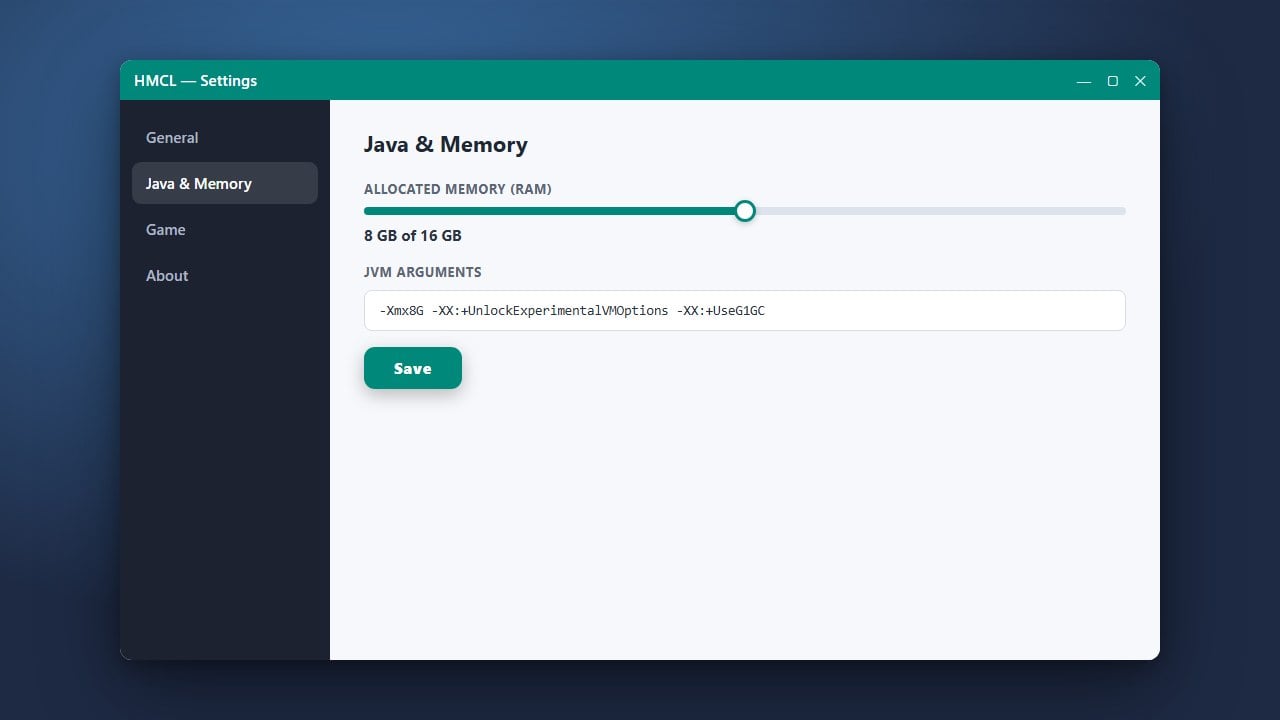
If you plan on playing with performance mods or heavy modpacks, you may also want to read our tutorial on How to Allocate More RAM in HMCL to prevent lag and stuttering.
Open HMCL and Select Your Profile
Launch HMCL on your computer and make sure you are logged into your account. If you need assistance getting started with the launcher, check out our guide on How to Download and Install HMCL before proceeding.
Navigate to the Versions Tab
On the main dashboard of the launcher, click on the Versions or Game Management tab. This area lets you view, add, delete, and configure all the Minecraft versions installed on your system.
Add a New Version
Click on the Add Version (or plus icon) button to open the version download menu. From here, you can browse through official release versions, snapshots, and even mod loaders like Forge or Fabric depending on your gameplay goals.
Choose Your Desired Version
Scroll through the list or use the dropdown filter to find the exact Minecraft version you want to play. Once you locate it, click on it and confirm the download so HMCL can fetch the necessary game files from the official servers.
Save and Launch the Game
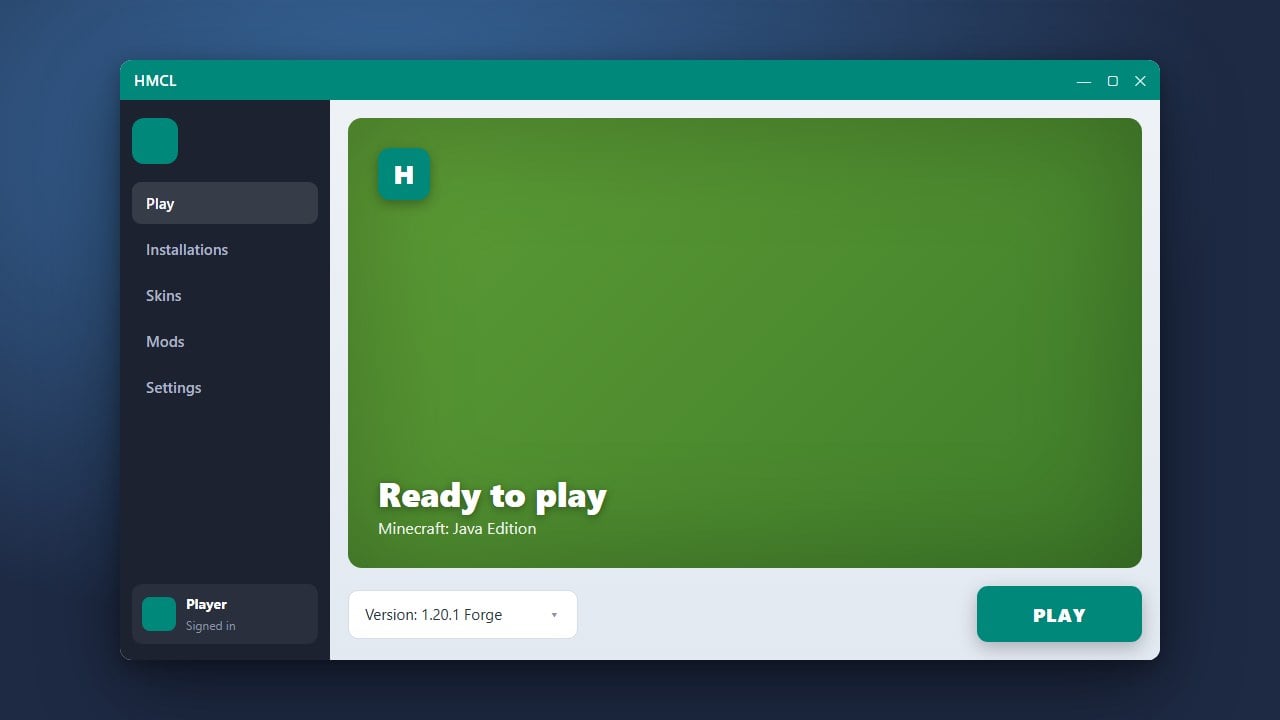
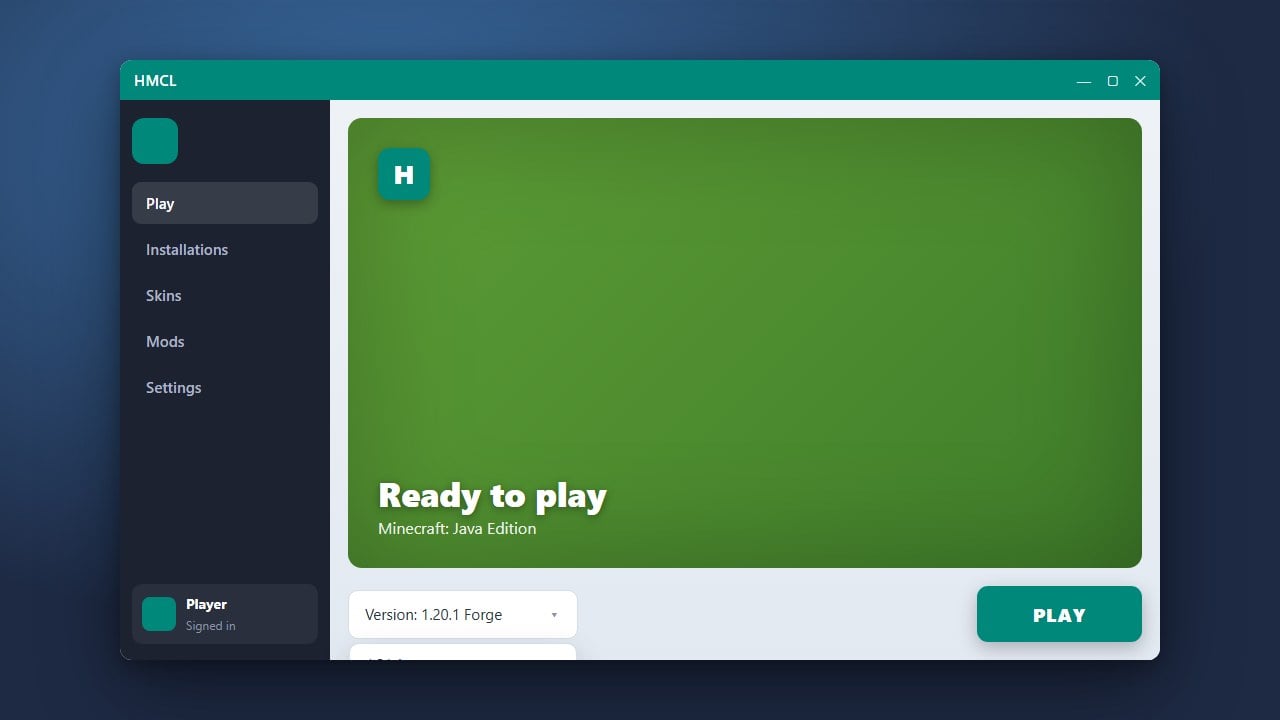
After the download finishes, return to the home screen of the launcher, select your newly added version from the version dropdown menu, and click Launch to start playing Minecraft.
Frequently Asked Questions
Can I play older Minecraft versions in HMCL?
Yes! HMCL allows you to download and play almost every official release and snapshot dating back to the early days of Java Edition.
Where are my game files stored?
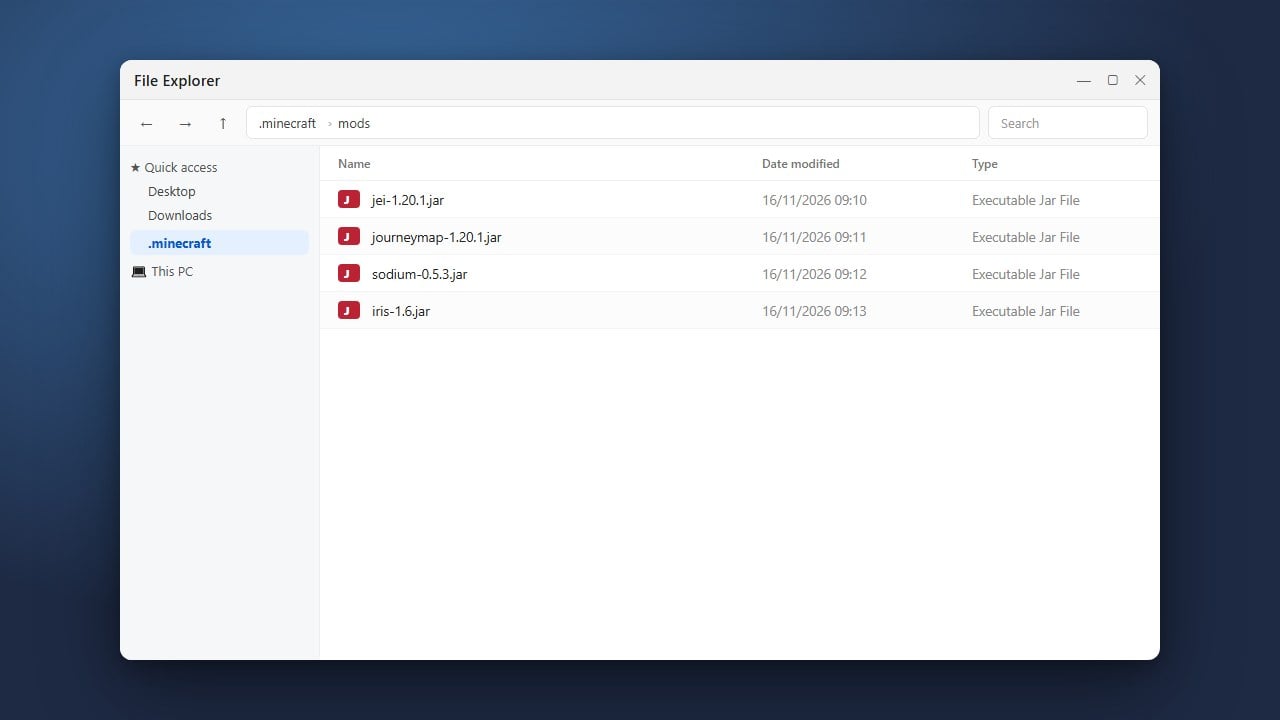
HMCL typically manages versions within its own designated game directory, which you can customize in the global settings if you prefer a custom .minecraft folder location.