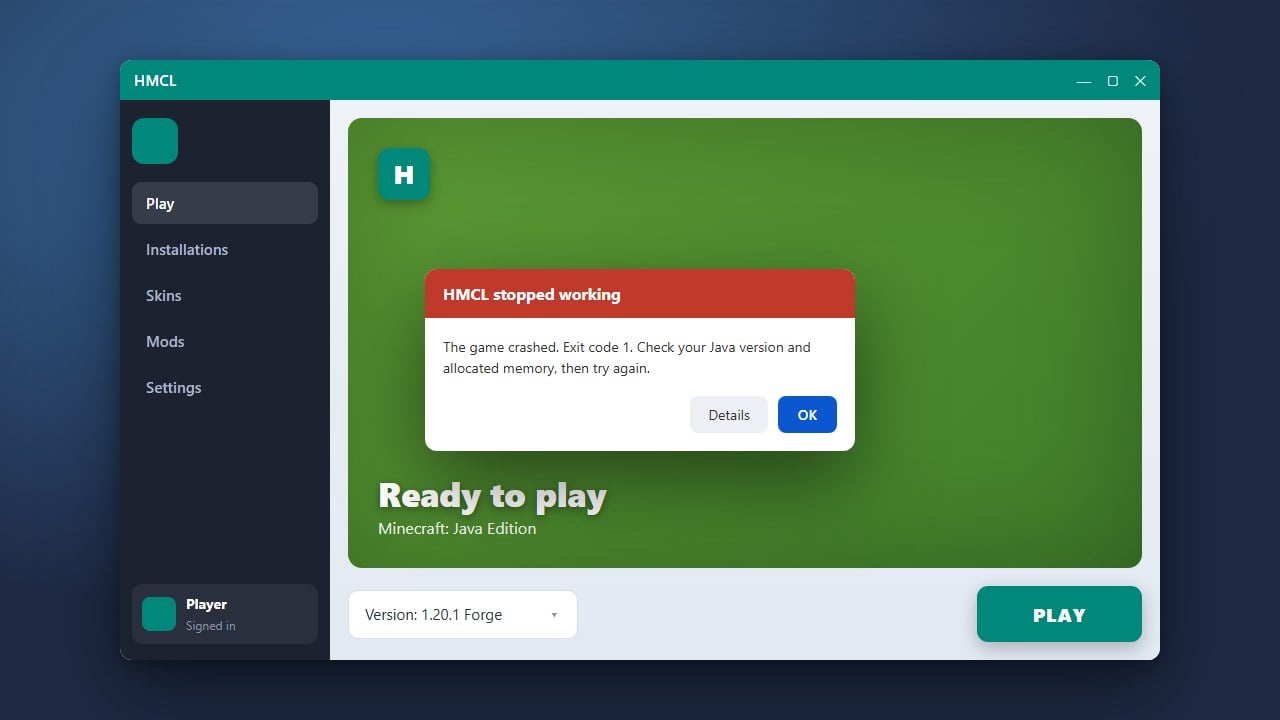
If Hello Minecraft! Launcher (HMCL) is failing to open, crashing on startup, or refusing to start your game in Minecraft Java Edition, don't panic. This troubleshooting guide will walk you through the most common fixes so you can get back to playing quickly. Always ensure you have purchased a legal copy of the game from minecraft.net, and be cautious using third-party launchers with offline modes to protect your personal account security.
Be careful when downloading HMCL from unofficial mirrors. Always download the client directly from its official GitHub repository to avoid modified executable files containing adware or malware.
If your version settings or modded loaders seem misconfigured after a crash, you can check How to Install Forge and Fabric with HMCL to properly re-setup your instance profiles.
Check and Update Your Java Runtime
HMCL requires a compatible Java version to run correctly. Minecraft Java Edition versions 1.17 and above require Java 17, while newer versions like 1.20.5 and 1.21 require Java 21.
Make sure you have the correct Java Development Kit (JDK) or Java Runtime Environment (JRE) installed on your system, and verify that HMCL is pointing to the right Java executable in its global settings.
Run HMCL as Administrator
Sometimes Windows restricts the launcher from creating necessary temporary files or accessing required directories. Right-click your HMCL executable or shortcut and select Run as administrator.
If this successfully opens the application, you may want to set it to always run with administrative privileges via its file properties.
Adjust or Free Up Allocated RAM
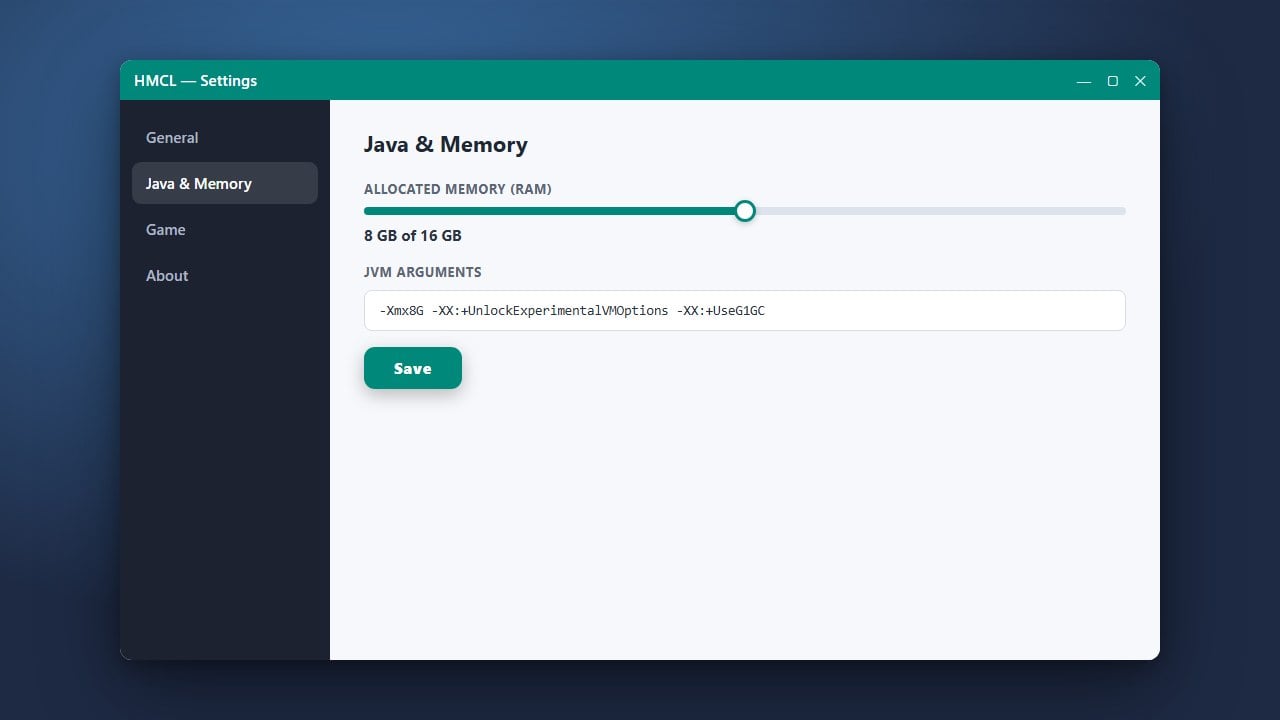
If the launcher opens but crashes immediately when starting a game instance, improper memory allocation could be the culprit. You can learn more about managing memory by reviewing How to Allocate More RAM in HMCL.
Ensure you have not allocated more RAM than your physical computer actually possesses, leaving enough headroom for your operating system.
Clear Corrupted Launcher Cache
Corrupted configuration or cache files inside the HMCL application directory can prevent it from booting up. Navigate to your HMCL folder, locate the configuration or settings files, and safely clear out outdated temporary data.
Alternatively, downloading the latest fresh executable jar or exe build from the official HMCL repository can replace any missing system files.
Reinstall or Switch Launchers
If HMCL remains completely broken despite troubleshooting, you might need to completely remove the corrupted installation files and download a fresh copy. Make sure to back up any important local worlds or profiles before doing a clean wipe.
If you continue experiencing persistent issues, you can also explore alternative clients by checking out How to Download and Install HMCL or trying another trusted launcher option.
Frequently Asked Questions
Why does HMCL close instantly after double-clicking?
This usually happens because your computer lacks the required Java version, or Java is not properly added to your system's environmental path variables. Try launching HMCL via command prompt (java -jar hmcl.jar) to view the exact error log.
Can I use HMCL without buying Minecraft?
HMCL supports offline offline-mode features, but playing online on official servers and syncing skins requires a legitimate, paid Microsoft or Mojang account purchased directly through official channels.