Updating your Minecraft launcher ensures you have access to the newest features, bug fixes, and compatibility improvements. If you use alternative launchers like HMCL for Java Edition, it is always recommended to purchase and play through the official game from minecraft.net to ensure full security, official support, and complete privacy for your Microsoft account.
If automatic updates fail due to network restrictions, you can always download the latest official .jar or .exe file directly from the developer's repository and replace your old executable.
Open the HMCL Launcher
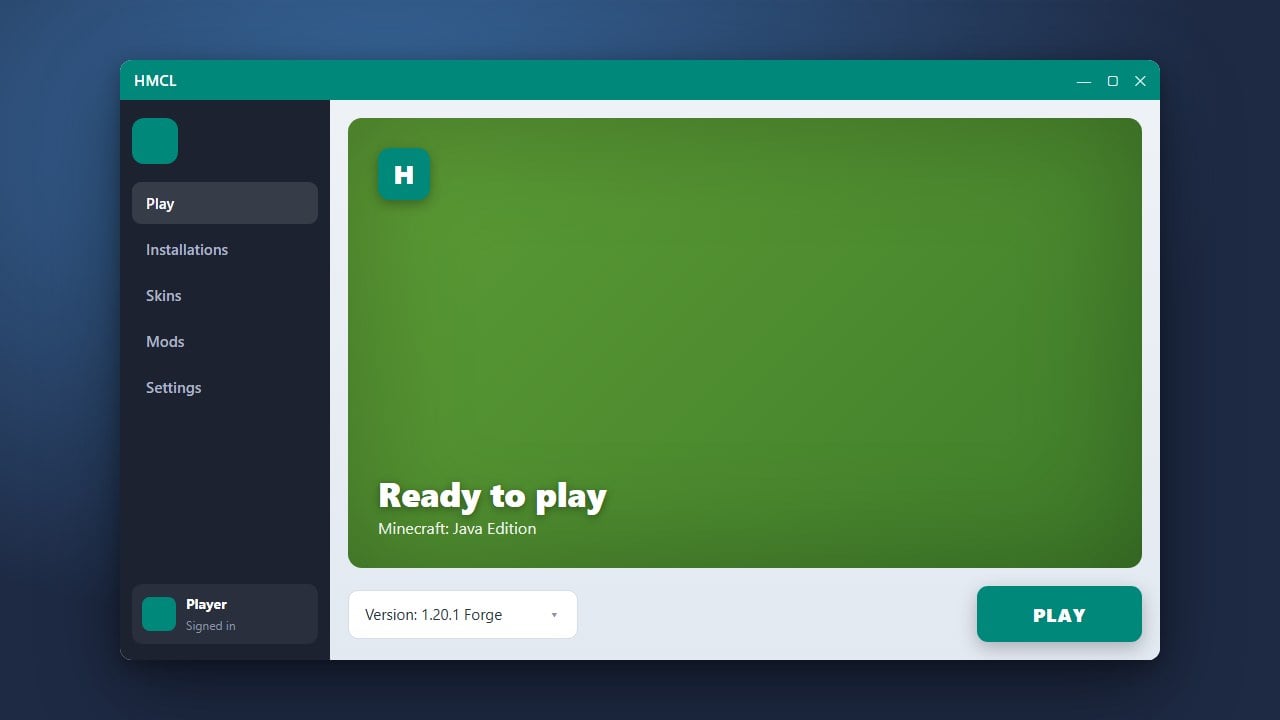
Start by launching HMCL on your computer just like you normally would to play Minecraft Java Edition.
Make sure your computer is connected to the internet so the launcher can check for available updates.
Navigate to the Settings Menu
Once the launcher dashboard appears, look for the Settings icon (usually represented by a gear symbol) located in the side menu or the top corner of the interface.
Click on it to open the application settings and configuration options.
Check for Updates
Within the settings menu, find the About or General tab where the current launcher version is displayed.
Click on the Check for Updates button to prompt HMCL to scan for newer releases.
Download and Install the New Version
If a newer version of HMCL is available, a prompt will appear displaying the changelog and a download option.
Click Download and allow the launcher to fetch the latest files. Once downloaded, approve the prompt to restart and apply the update.
Frequently Asked Questions
Will updating HMCL delete my Minecraft worlds?
No, updating the launcher only updates the application interface and tools. Your worlds, mods, and configurations stored in your game directory will remain untouched.
Can I use HMCL without a paid Minecraft account?
HMCL supports offline modes and third-party login options, but we strongly recommend logging in with a genuine, purchased Microsoft account. Playing through the official minecraft.net launcher guarantees the highest level of security and protects your personal data from potential privacy risks associated with unverified login methods.