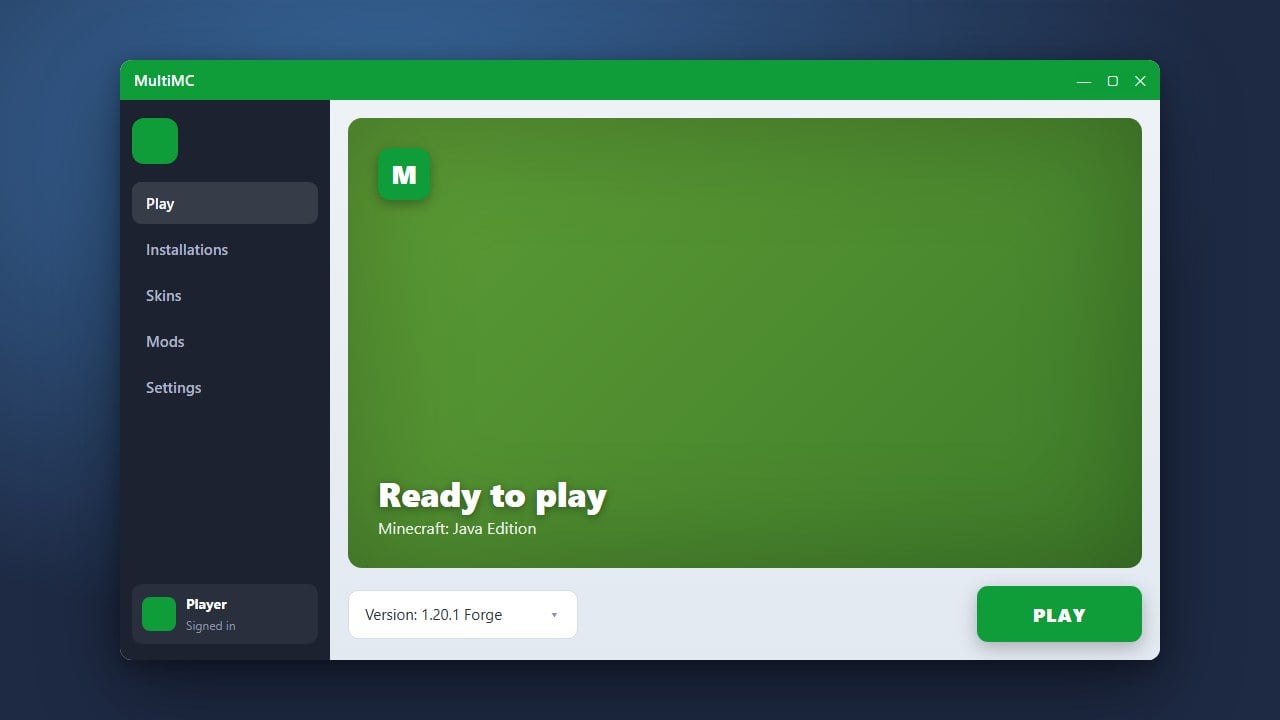
MultiMC is a powerful, free, open-source custom launcher for Minecraft Java Edition that allows you to easily manage multiple installations, instances, and mod packs. Please note that MultiMC requires a genuine, paid Minecraft account to log in and play; if you do not own the game yet, please purchase it directly from minecraft.net.
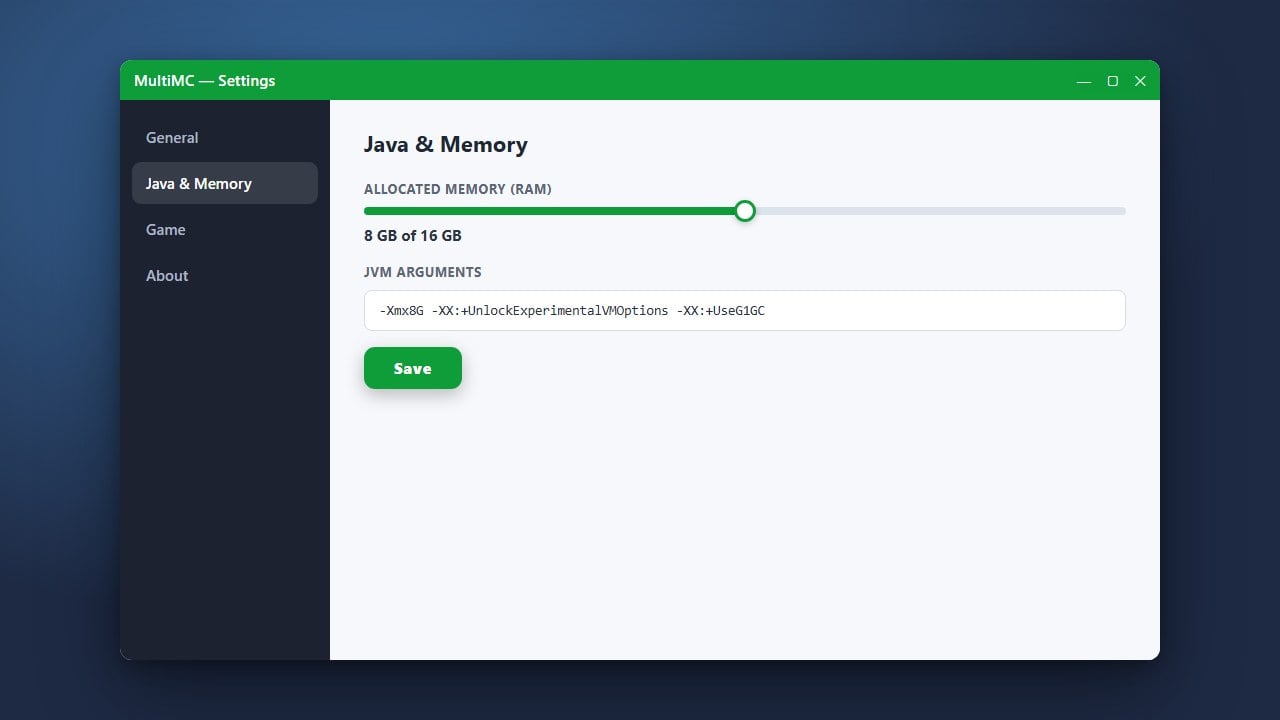
Once you have your instance set up, you may want to check out our guide on How to Allocate More RAM in MultiMC to improve your in-game performance.
Never input your Microsoft credentials into unofficial third-party launchers that promise free copies of the game, as this can put your personal account security at severe risk.
Download MultiMC
Go to the official MultiMC website and download the installer package that matches your operating system (Windows, macOS, or Linux). Always download software from its official source to ensure your computer remains safe and free of malicious adware.
Install and Open the Launcher
Extract or run the downloaded installer following the prompts on your screen. Once the installation is complete, launch MultiMC for the first time to begin the initial setup wizard.
Configure Java
During the setup wizard, MultiMC will ask you to select a Java version. Make sure you have a compatible Java runtime installed (such as Java 17 or Java 21 for modern versions like Minecraft 1.21) and point MultiMC to your Java executable.
Add Your Microsoft Account
In the top-right corner of the MultiMC window, click on Manage Accounts and select Add Microsoft. Follow the secure browser authentication steps to log in with your official Minecraft-owning Microsoft account.
Create Your First Instance
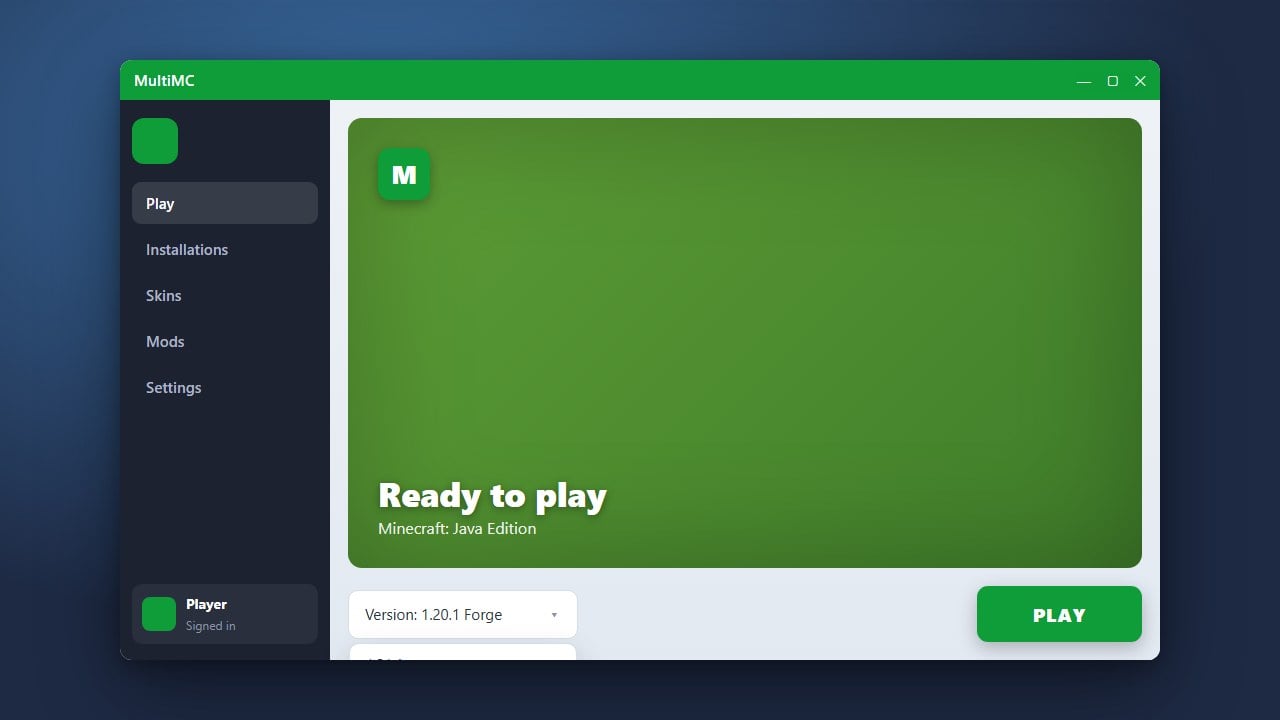
Click the Add Instance button in the top left. Choose your desired Minecraft version, and optionally select a mod loader like Fabric or Forge. Give your instance a name, and it will appear on your main dashboard ready to play.
Frequently Asked Questions
Is MultiMC free to use?
Yes, MultiMC is completely free and open-source software. However, it requires a legitimate, paid Minecraft Java Edition account to access and play the game.
Can I install mods using MultiMC?
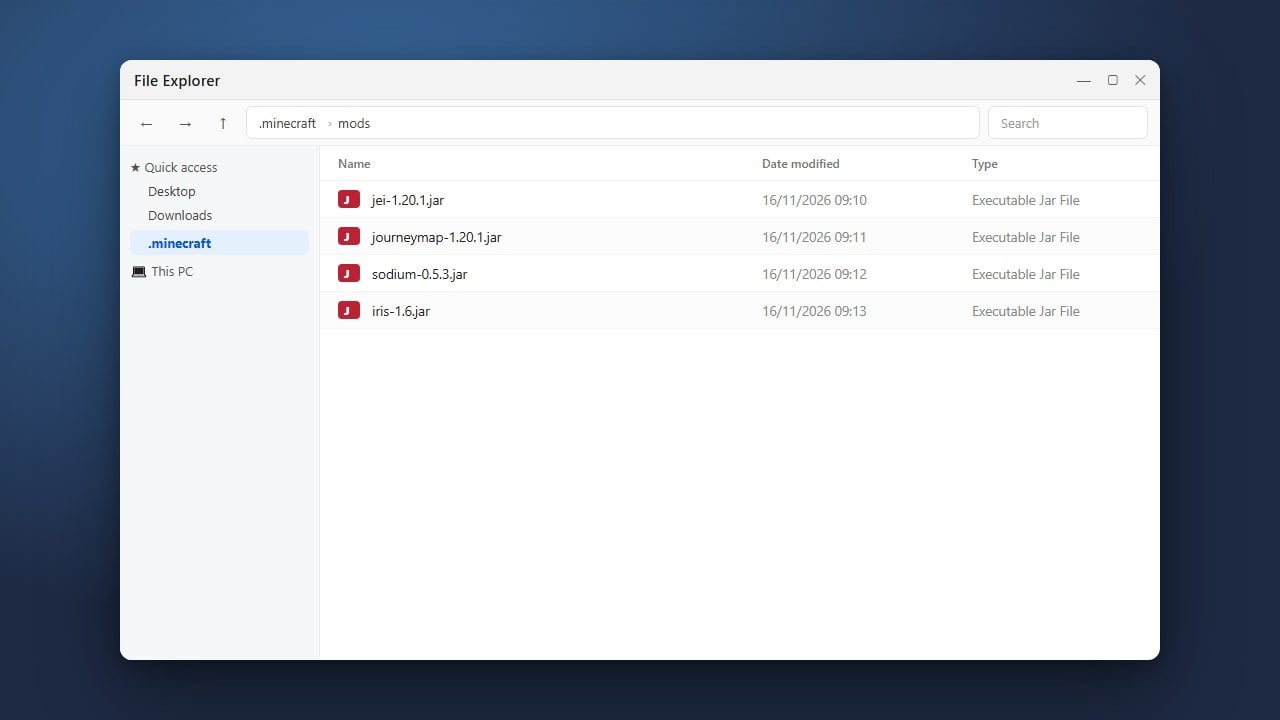
Absolutely! MultiMC makes managing mods very straightforward. You can easily add Fabric, Forge, or Quilt during instance creation, and then drop mod files straight into the instance loader folder.