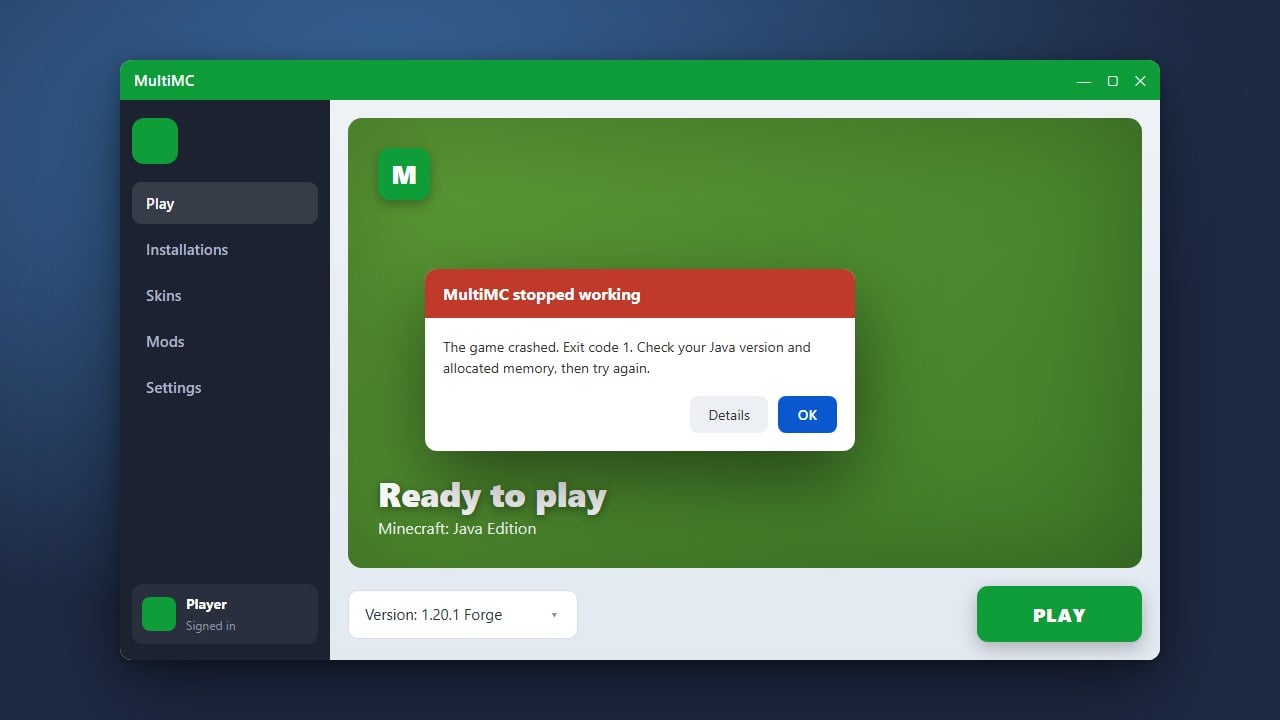
If MultiMC is refusing to open or your Minecraft instances fail to start, it can be frustrating. Fortunately, most launching issues come down to outdated Java installations, misconfigured RAM, or corrupted configuration files. This guide will help you diagnose the root cause and get MultiMC running smoothly again on Minecraft Java Edition.
Update Java to the Correct Version
Minecraft Java Edition requires specific versions of Java depending on the game version you are trying to play. For modern versions like Minecraft 1.21, you need Java 21, while older versions like 1.16 through 1.17 require Java 16, and 1.12.2 or older uses Java 8.
Go to your MultiMC settings, navigate to the Java tab, and ensure that a compatible Java runtime is selected and correctly pointed to on your system.
Check and Adjust RAM Allocation
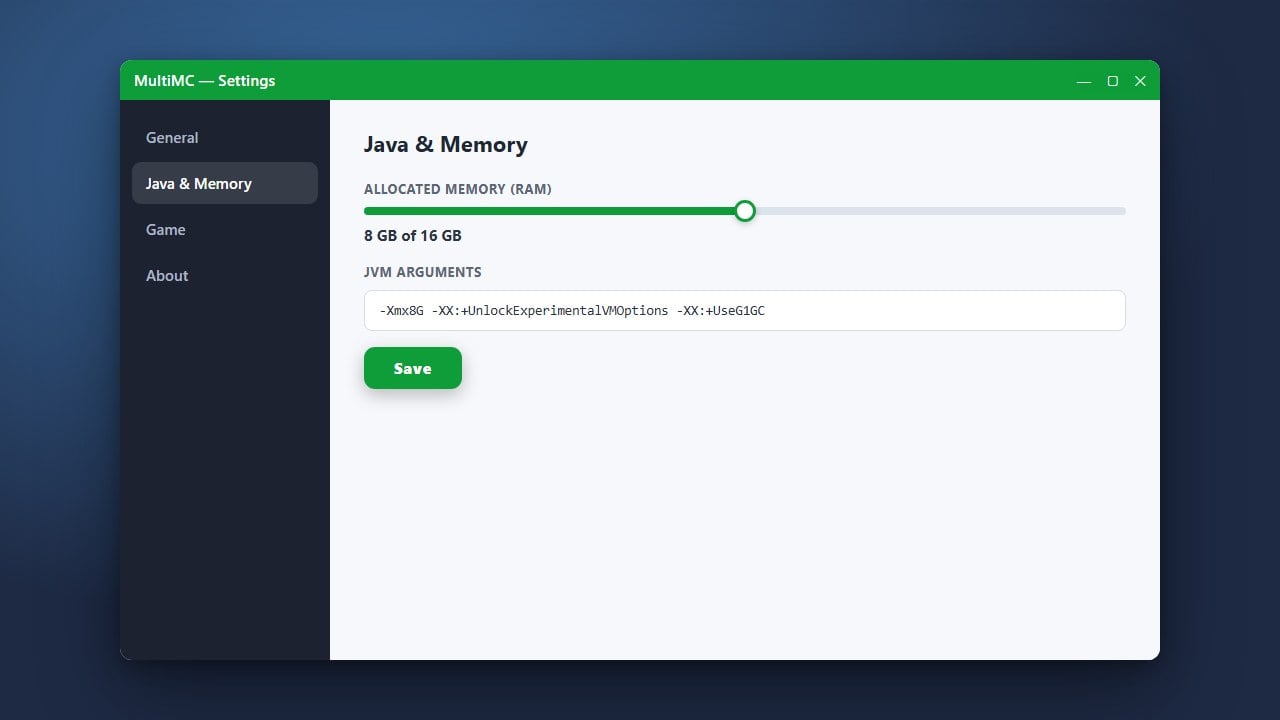
Allocating too little or too much memory can cause the Java Virtual Machine to crash immediately upon launch. If you are unsure how to configure this properly, check out our guide on how to allocate more RAM in MultiMC to set safe and balanced limits for your system.
Re-add Your Minecraft Account
Authentication tokens frequently expire or become invalid, preventing MultiMC from communicating with Microsoft and Mojang servers. Open MultiMC, go to Settings, click on the Accounts tab, remove your existing account, and then click Add Microsoft to log back in securely.
Inspect the MultiMC Log Files
When a game instance crashes or the launcher fails silently, the console window provides exact error codes. Try launching your instance again, and when it fails, click the Paste button in the console window to upload your log. Reviewing the error stack trace will usually reveal if a broken mod or missing library is causing the failure.
Update or Reinstall MultiMC
Running an outdated version of the launcher can cause compatibility issues with recent operating system updates or Minecraft account changes. Download the freshest stable release from the official MultiMC website, and if necessary, perform a clean installation by backing up your instances folder and setting up the launcher fresh.
Frequently Asked Questions
Why does MultiMC close immediately after clicking launch?
This is usually caused by an incompatible Java version or a corrupted configuration file. Check the MultiMC console log to see the exact error code being thrown by Java.
Do I need to buy Minecraft to use MultiMC?
Yes. MultiMC is simply an open-source launcher and does not provide free access to the game. You must sign in with a genuine Microsoft account that owns Minecraft Java Edition.