Updating your Minecraft Java Edition mods is essential when moving to a new game version or getting the latest bug fixes. Keeping your mods up to date ensures compatibility, better performance, and access to new features. Follow this simple guide to update your mods safely.
Back Up Your World
Before updating any mods, it is crucial to protect your progress. Always create a backup of your world saves so you can restore them if a mod update causes a crash or corruption.
Check out our guide on how to back up your world to secure your game files safely.
Locate Your Mods Folder
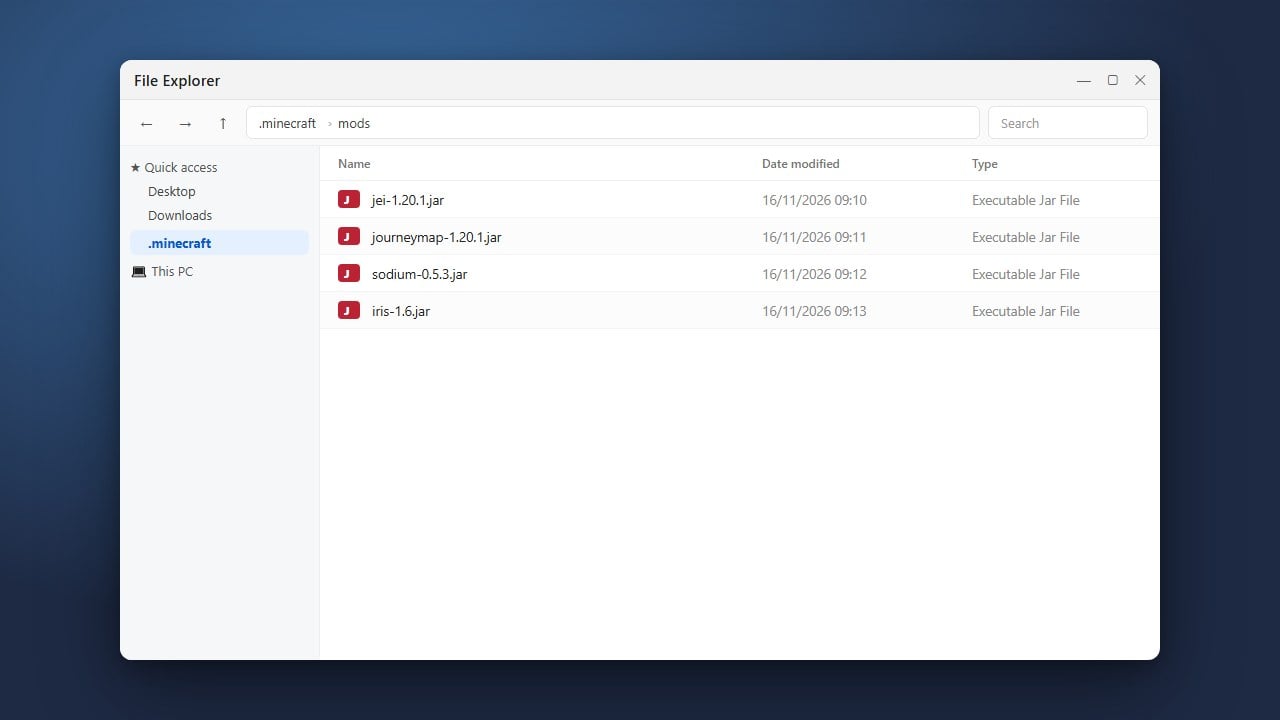
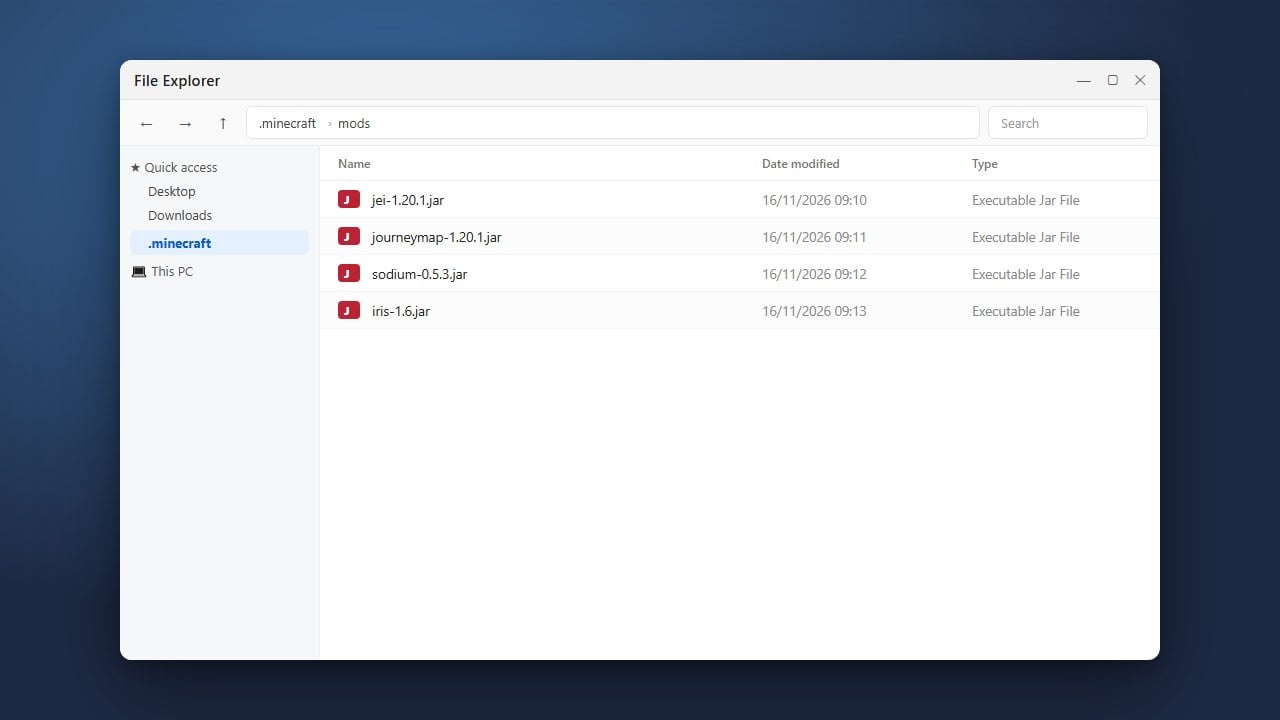
Open your file explorer and navigate to your Minecraft directory. If you are unsure where to find it, read how to find your .minecraft folder for quick instructions.
Open your mods folder where all your active .jar files are currently stored.
Check Your Mod Loader and Game Version
Make sure you know which mod loader you are using, such as Forge, NeoForge, or Fabric. Also, confirm the exact Minecraft version you are targeting.
Mod updates must match both your specific mod loader and your current Minecraft version to work properly.
Download Updated Mod Files
Go to trusted mod sources like CurseForge or Modrinth and search for each of your installed mods. Download the new versions that match your target Minecraft version.
Pay close attention to required dependencies, such as the Fabric API, which may also need to be updated.
Replace Old Mod Files
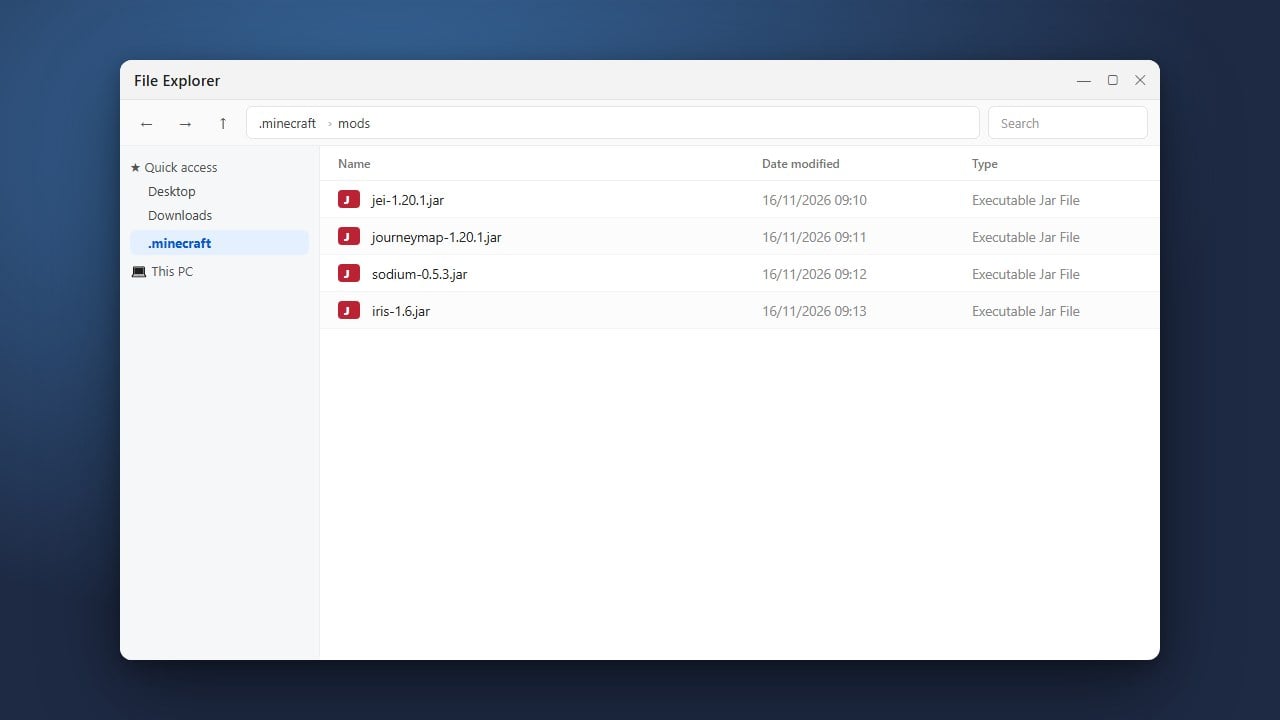
Drag and drop the newly downloaded .jar files into your mods folder. When your operating system asks what to do with duplicate filenames, make sure to delete or remove the old, outdated mod files.
Having both an old and a new version of the same mod in your folder at the same time will cause game crashes.
Launch and Test Your Game
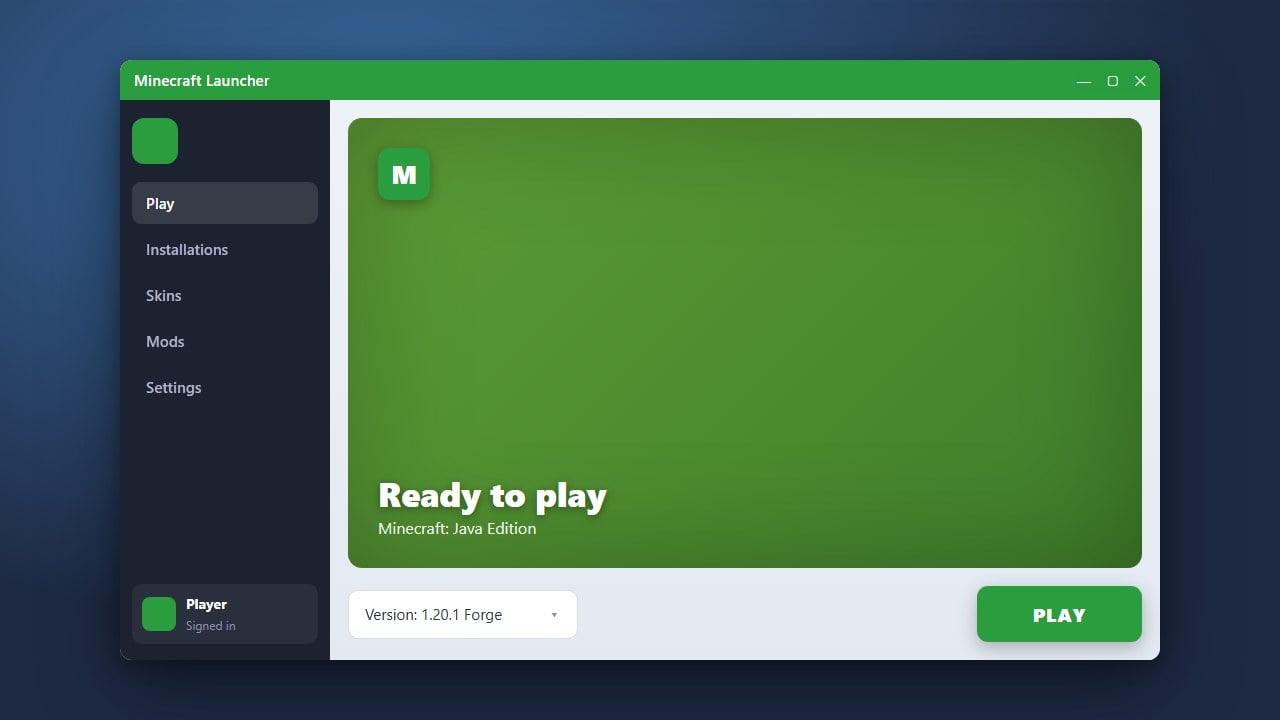
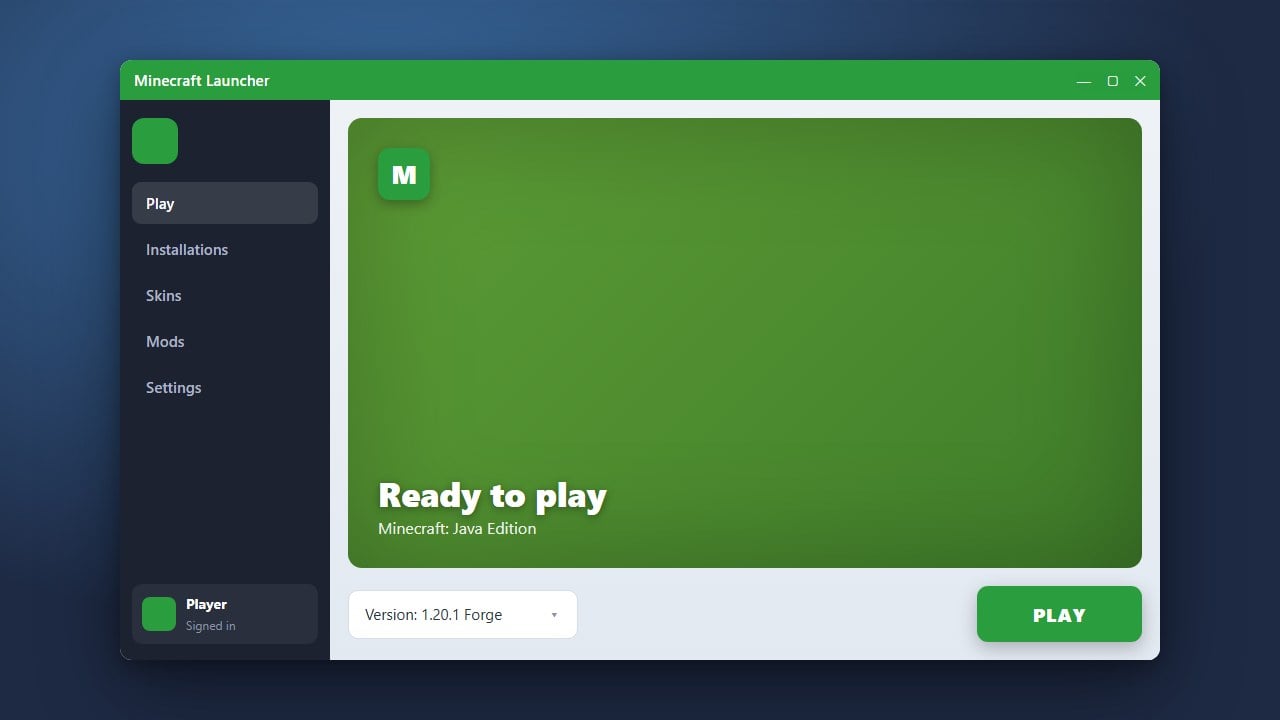
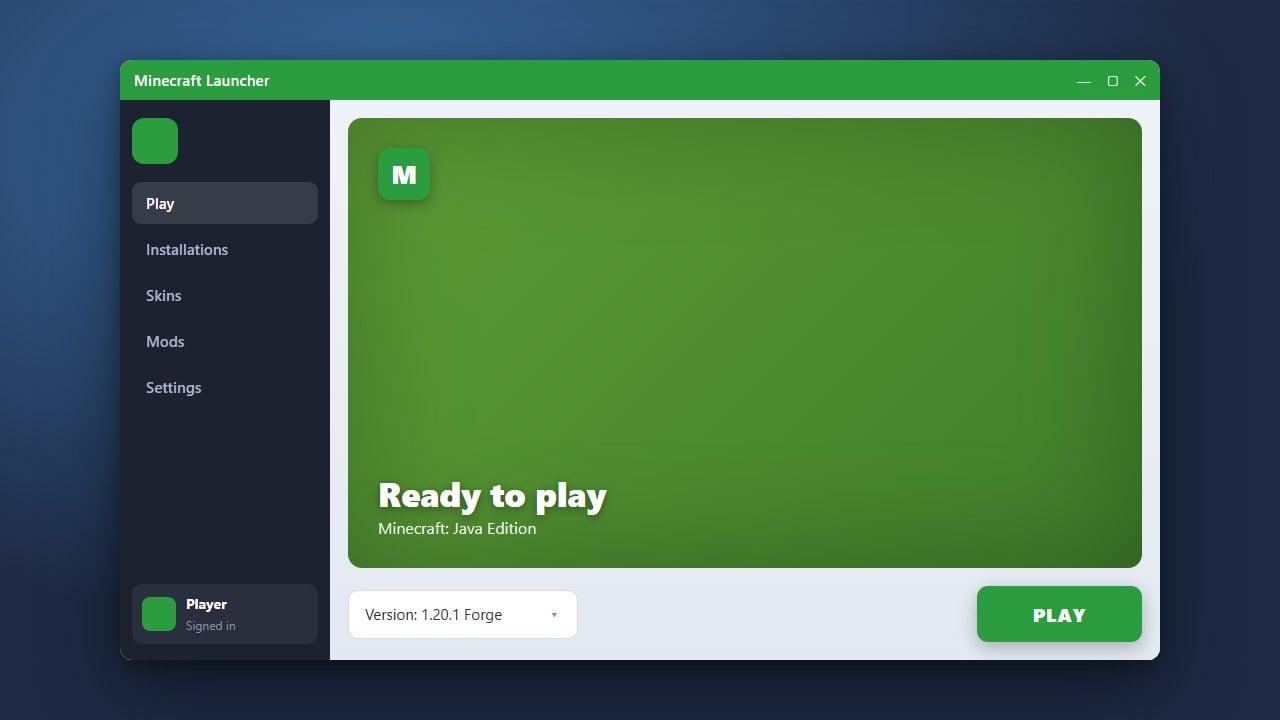
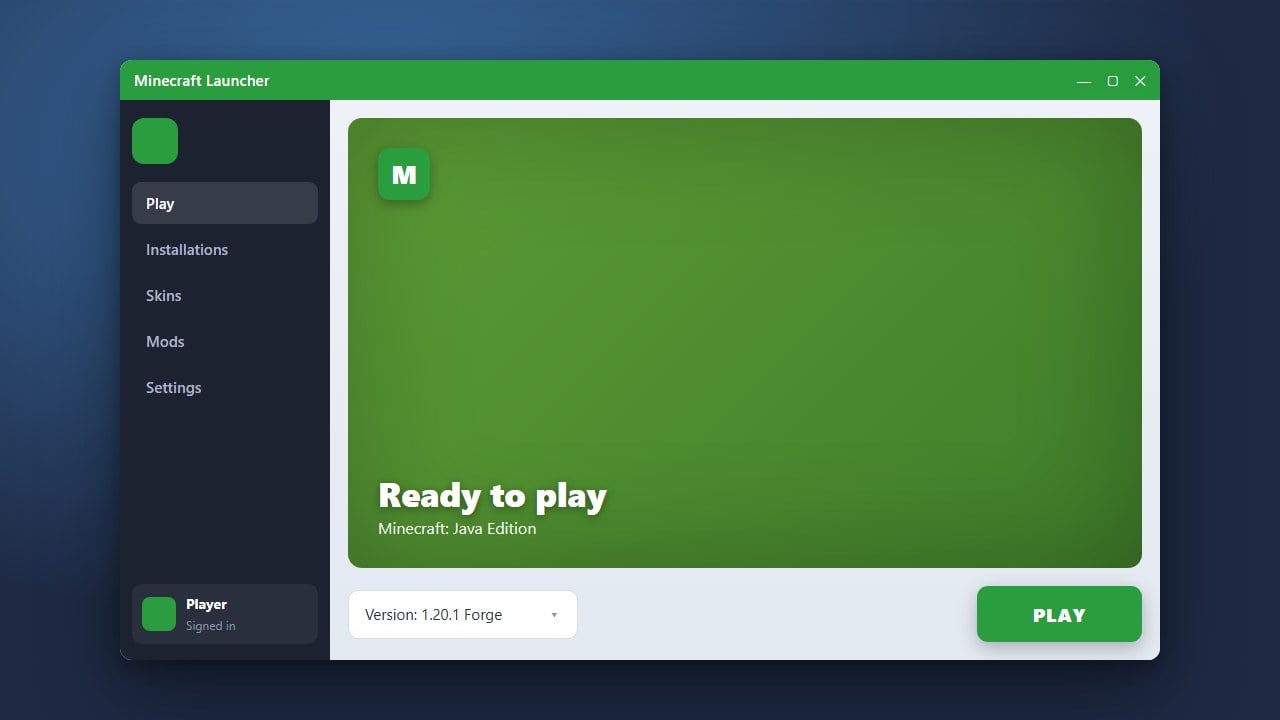
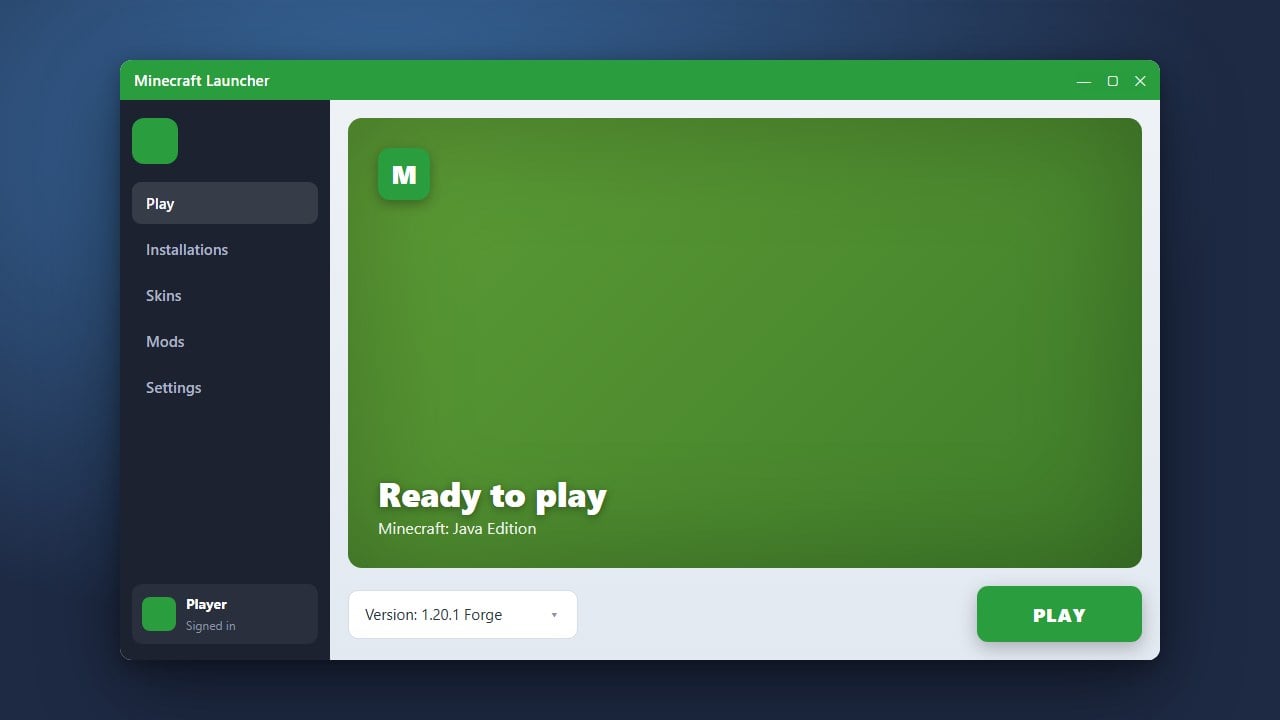
Open the Minecraft Launcher, select your modded profile, and click Play. Check your mod menu inside the game to verify that all mods show their updated version numbers.
If your game fails to launch, consult our guide on how to fix Minecraft crashes to troubleshoot any remaining version conflicts.
Frequently Asked Questions
Will updating mods delete my saved game?
Normally, updating mods will not delete your saved game. However, major version changes can occasionally alter block IDs or item data. This is why making a world backup before updating is always recommended.
What should I do if a mod hasn't been updated for the latest Minecraft version?
If a specific mod has not been updated yet, you can either play on the older Minecraft version where the mod works, or temporarily remove the outdated mod from your mods folder until the creator releases an update.