Troubleshooting why your modifications fail to load can be frustrating, especially when Minecraft crashes or ignores your additions entirely. This guide walks you through checking versions, verifying mod loaders, and spotting missing files so you can get back to playing.
1. Verify Your Minecraft and Mod Versions
The number one reason mods fail to load is a version mismatch. Check your Minecraft version and make sure every mod you downloaded matches it exactly—for example, a mod built for version 1.20.4 will not load on version 1.21. If you need to switch versions, refer to How to Change Your Minecraft Version to align your game with your files.
Double-check the file extensions as well. Java Edition mods should always end in .jar. If you accidentally downloaded a compressed zip file, you may need to open it and extract the actual mod file inside.
2. Confirm the Correct Mod Loader is Installed
Mods require a compatible mod loader to function, and they are not interchangeable. If you downloaded a Forge mod, it will not load if you launch the game using the Fabric profile. Make sure you have properly installed the correct loader as outlined in How to Install Minecraft Forge or How to Install Fabric.
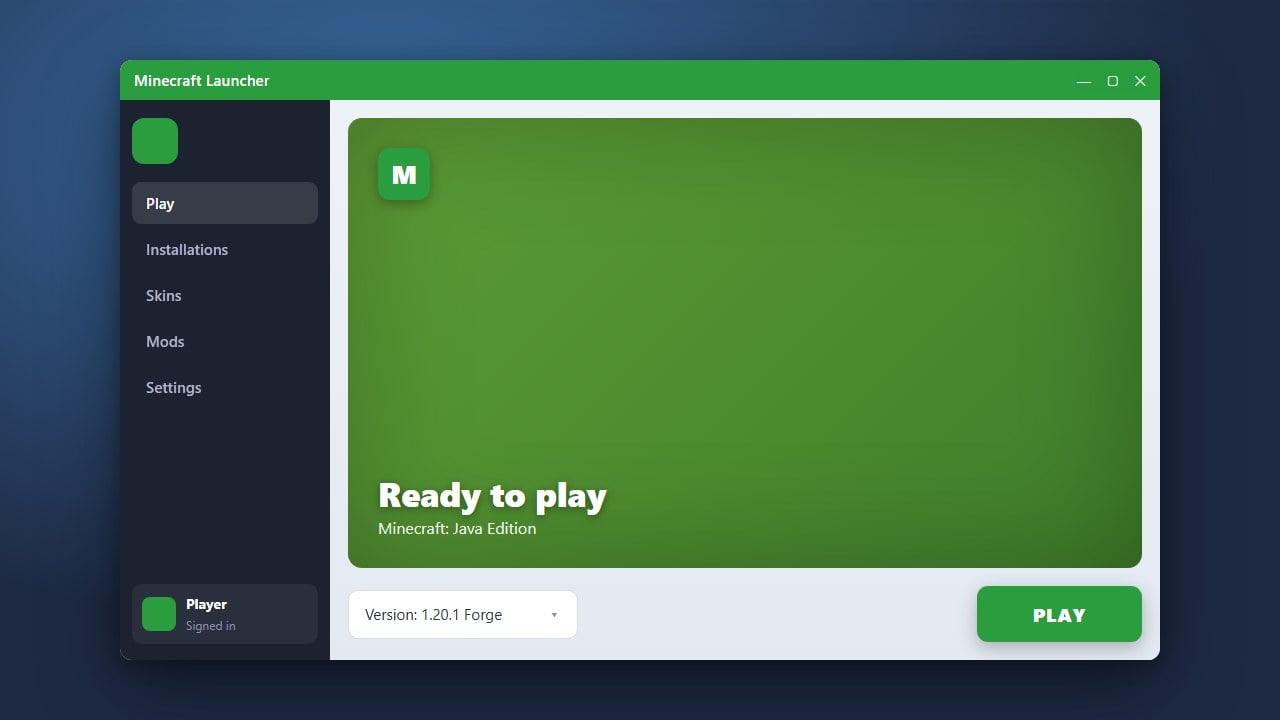
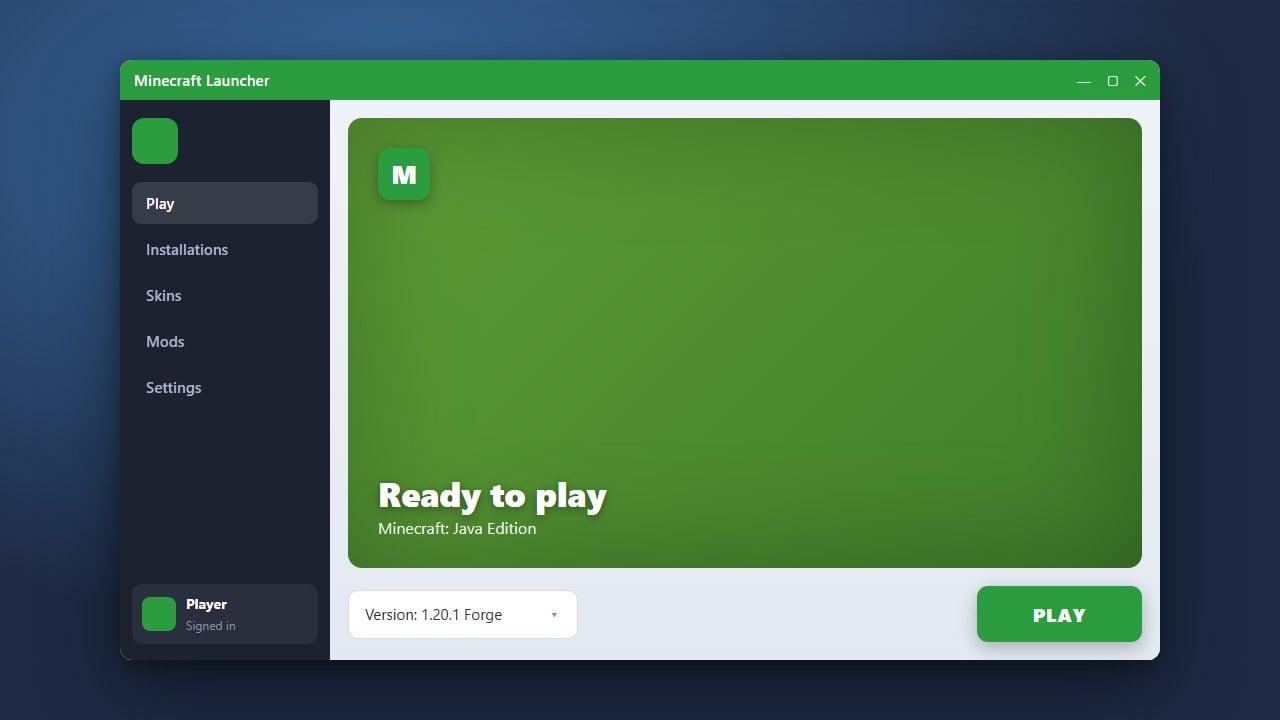
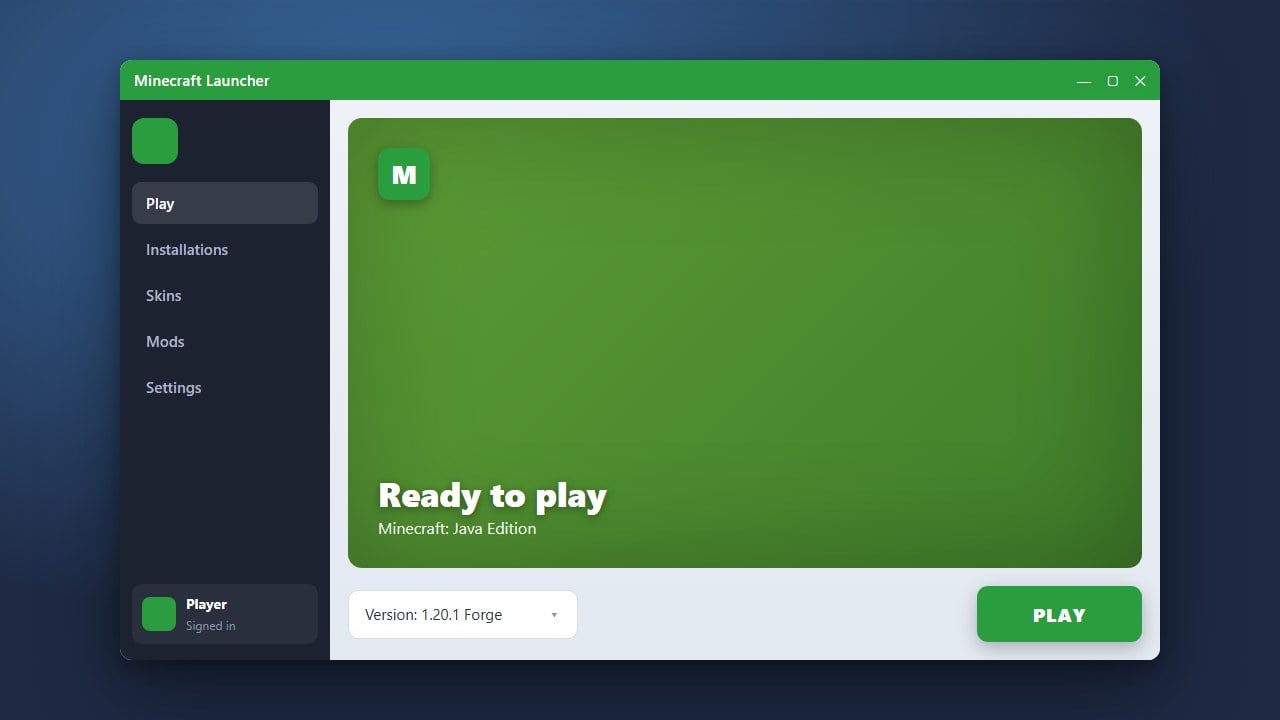
When launching the Minecraft Launcher, always ensure you select the specific installation profile created by your mod loader rather than the default vanilla release.
3. Check for Missing Dependencies and Core APIs
Many modern mods rely on supporting libraries and core APIs to run. If a required dependency is missing from your folder, the primary mod will refuse to load. For instance, most Fabric mods require you to also download and install the Fabric API.
Read the download page of each mod carefully to check if it lists any required libraries. If a dependency is missing, download the correct version for your game and place it alongside your other files.
4. Place Files in the Correct Mods Folder
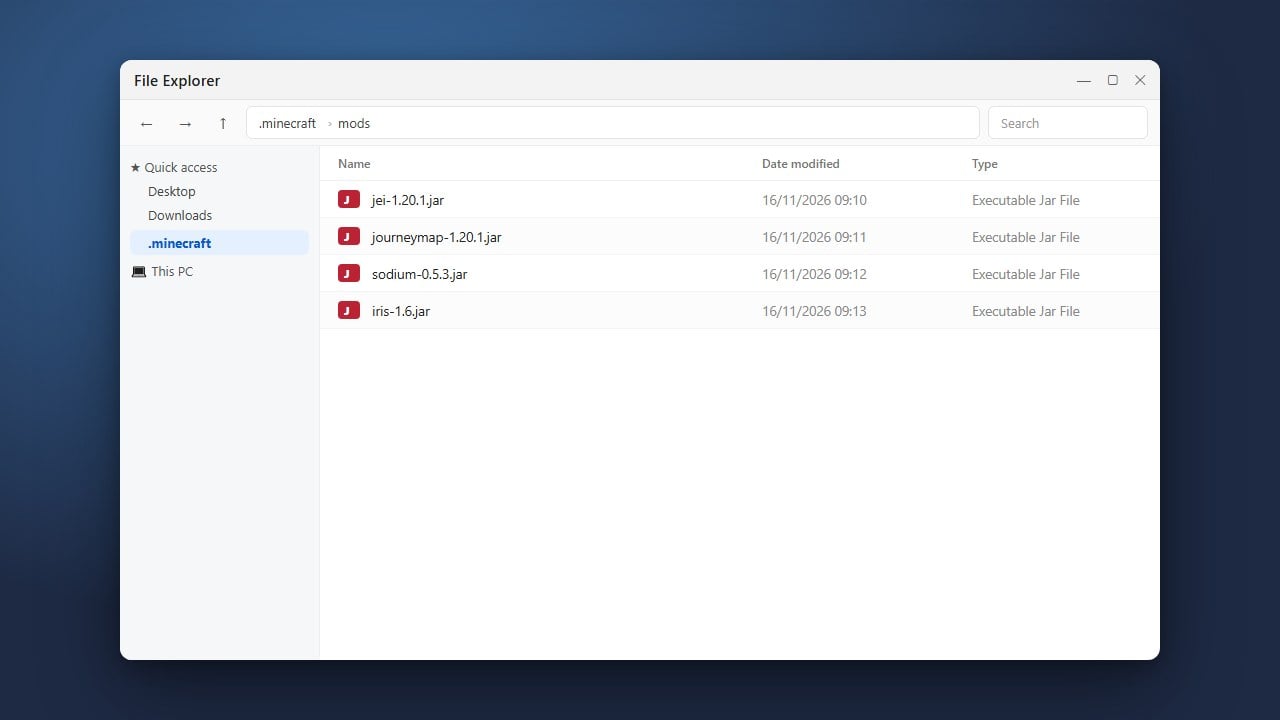
Even if you have all the right files, Minecraft will ignore them if they are placed in the wrong directory. Navigate to your game directory—if you are unsure where it is located, check How to Find Your .minecraft Folder for quick instructions.
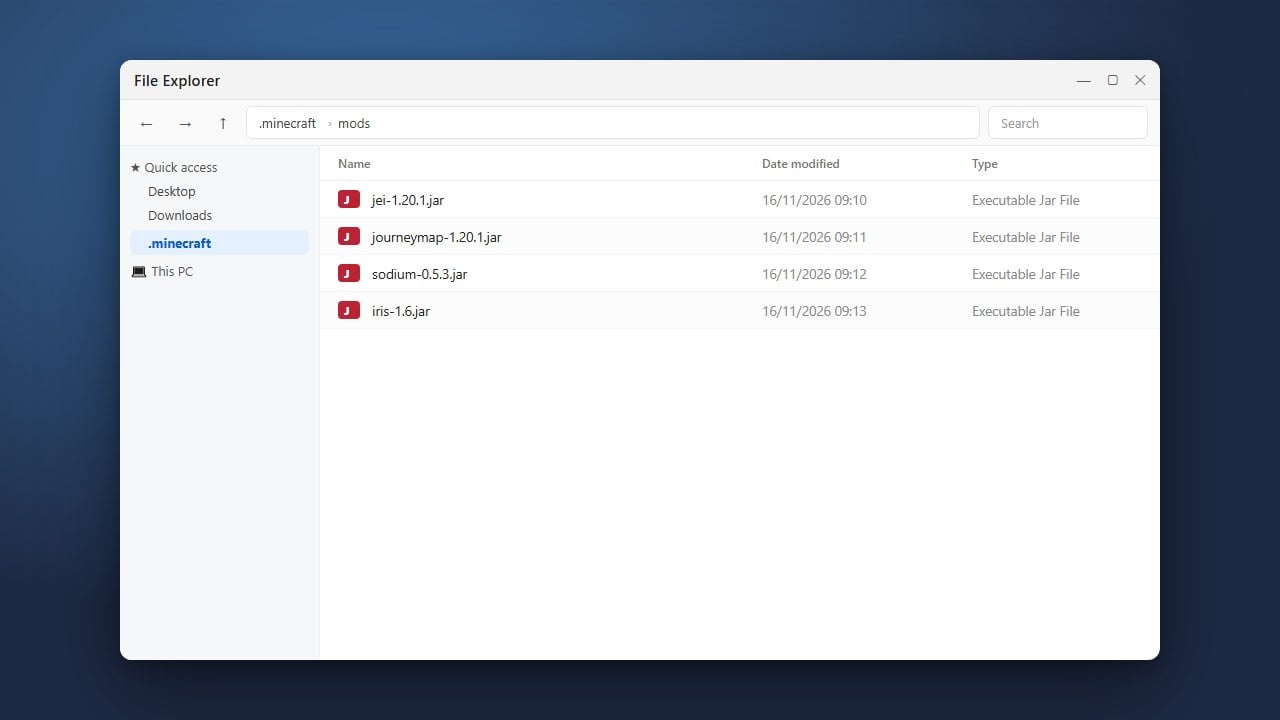
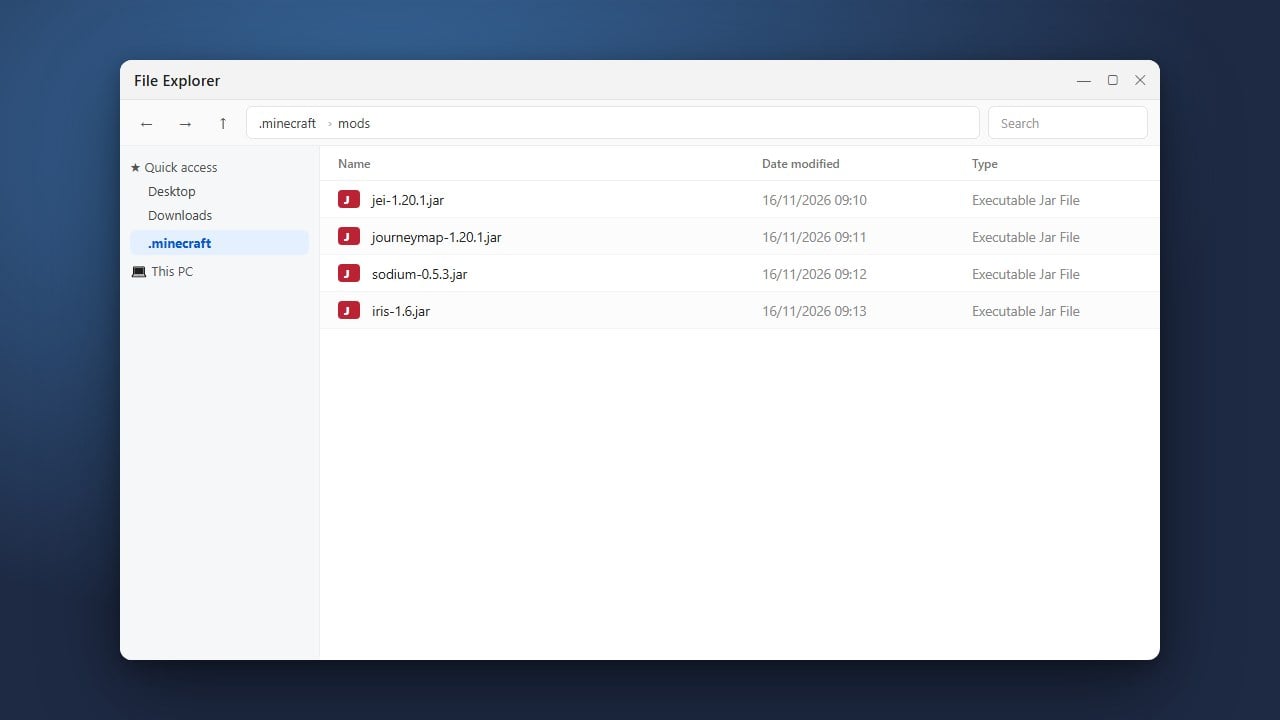
Inside your main directory, locate or create a folder named mods all in lowercase. Drop your downloaded .jar files directly into this specific folder, not inside subfolders or resource pack directories.
5. Inspect Crash Logs and Error Messages
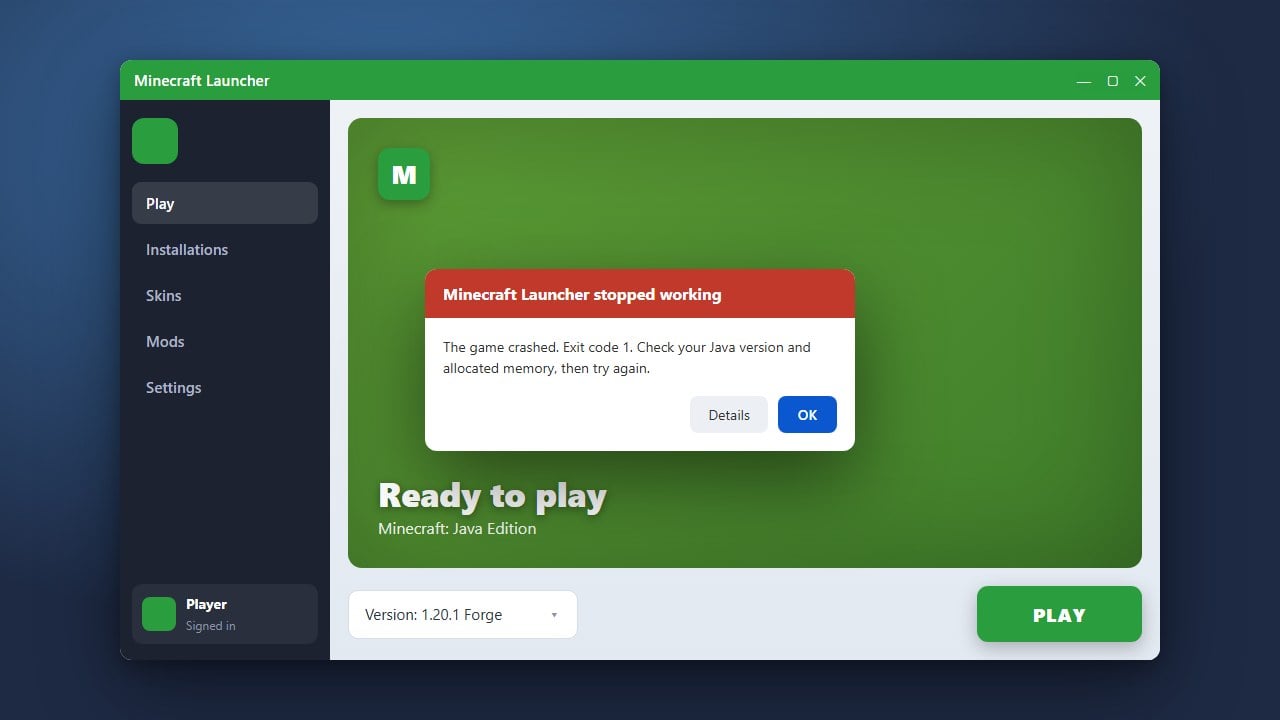
If your game launches to a crash report or error screen, the logs will usually tell you exactly which mod failed to load. Open your logs folder and look at the latest.txt file for red error lines mentioning specific mod IDs.
You can also consult How to Fix Minecraft Crashes or How to Fix Exit Code 1 for deeper insights into reading error logs and resolving startup failures.
Frequently Asked Questions
Why are my mods showing up as zip files?
Some web browsers automatically extract .jar files or save them as archives. Ensure your file ends in .jar and is placed directly into the mods folder without being unzipped.
Can I use Forge mods on a Fabric mod loader?
No. Forge and Fabric are entirely separate mod loaders. You must download the specific edition of the mod that matches the loader you are currently using.
Where should I put my mod files?
All Java Edition mods must go inside the mods folder located inside your main game directory. If the folder does not exist, you can create one manually.