Installing mods in Minecraft Java Edition is a great way to add new blocks, items, dimensions, and gameplay features to your game. This easy guide will walk you through everything you need to know to get started with modded Minecraft.
Install a Mod Loader
Before you can run most mods in Minecraft Java Edition, you need to install a mod loader. The two most popular choices are Forge and Fabric. If you aren't sure which one to pick, check out our guide on Forge vs Fabric: Which Mod Loader Should You Use? for help making your decision.
Download and run the installer for your chosen mod loader, making sure to select the correct Minecraft version that matches the mods you want to play.
Download Your Desired Mods
Next, find and download the mods you want to add to your game. Always download mods from trusted sources to keep your computer safe. Make sure that every mod you download matches the exact Minecraft version and mod loader (Forge or Fabric) that you installed in the previous step.
Keep the downloaded .jar files in your browser's download folder or move them to your desktop for easy access.
Open Your Minecraft Folder
You need to place your downloaded mod files inside your game directory. If you are not sure where this is located, read our guide on How to Find Your .minecraft Folder for quick shortcuts on Windows and Mac.
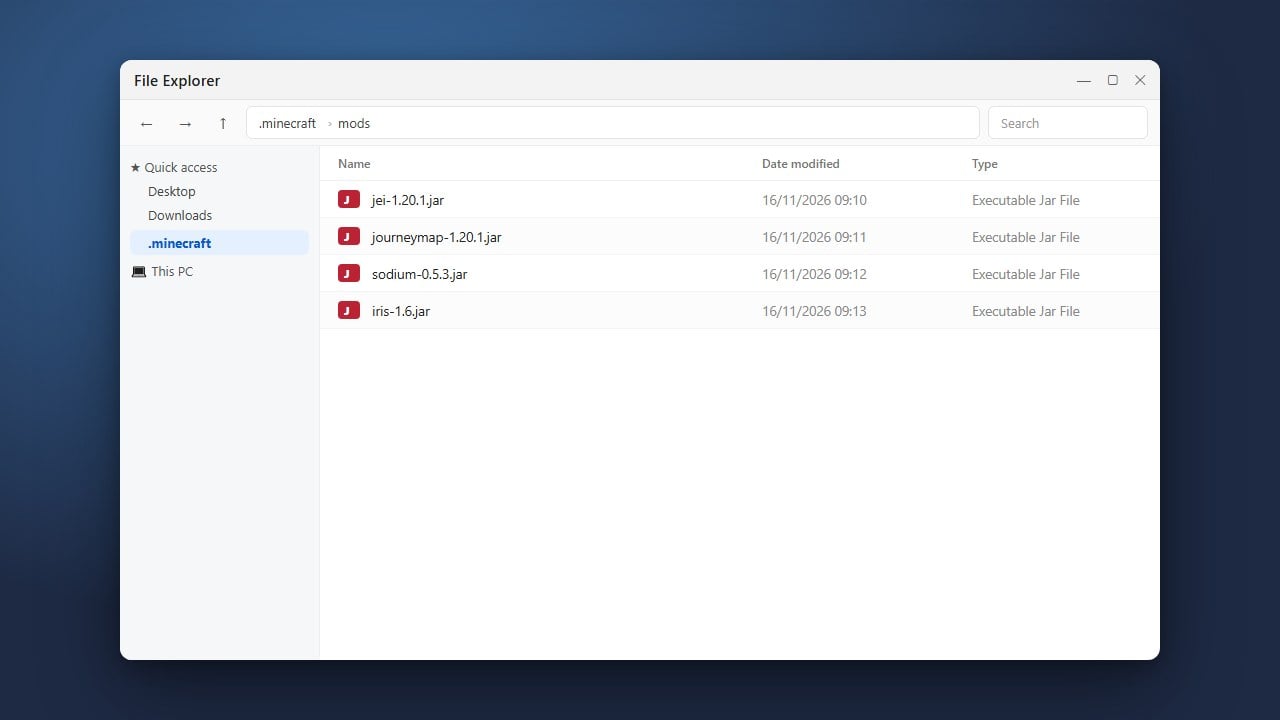
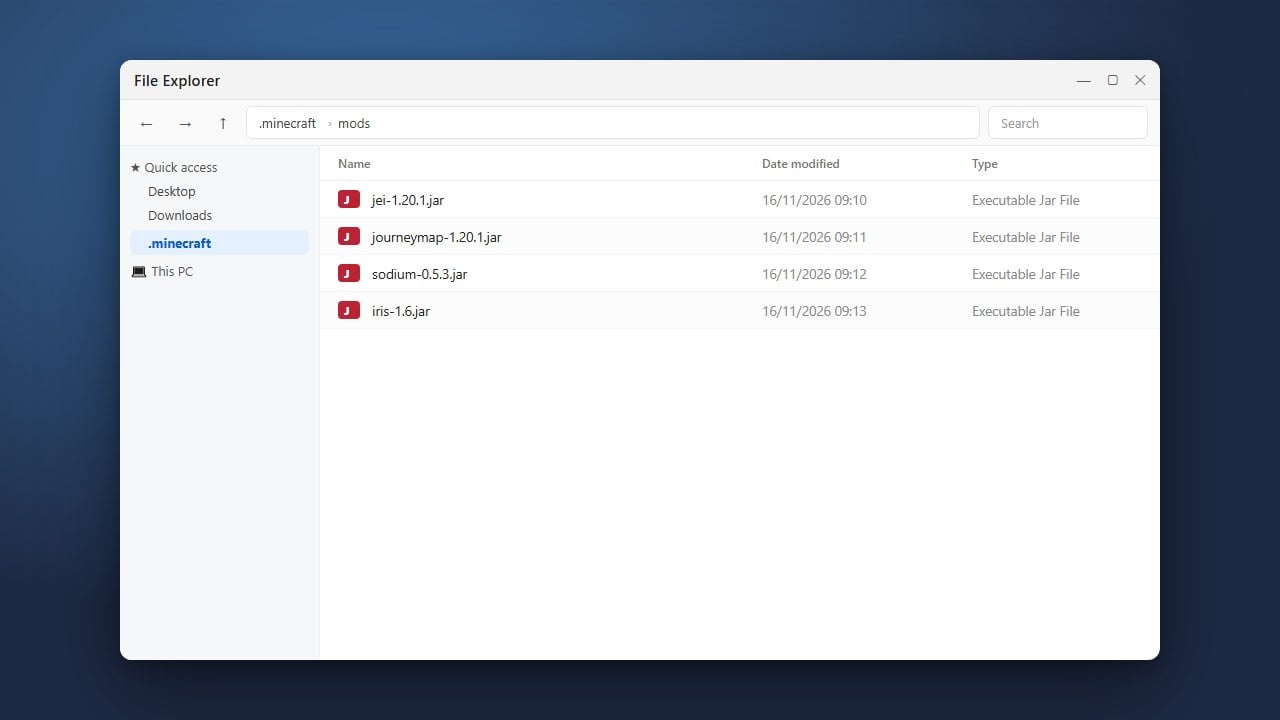
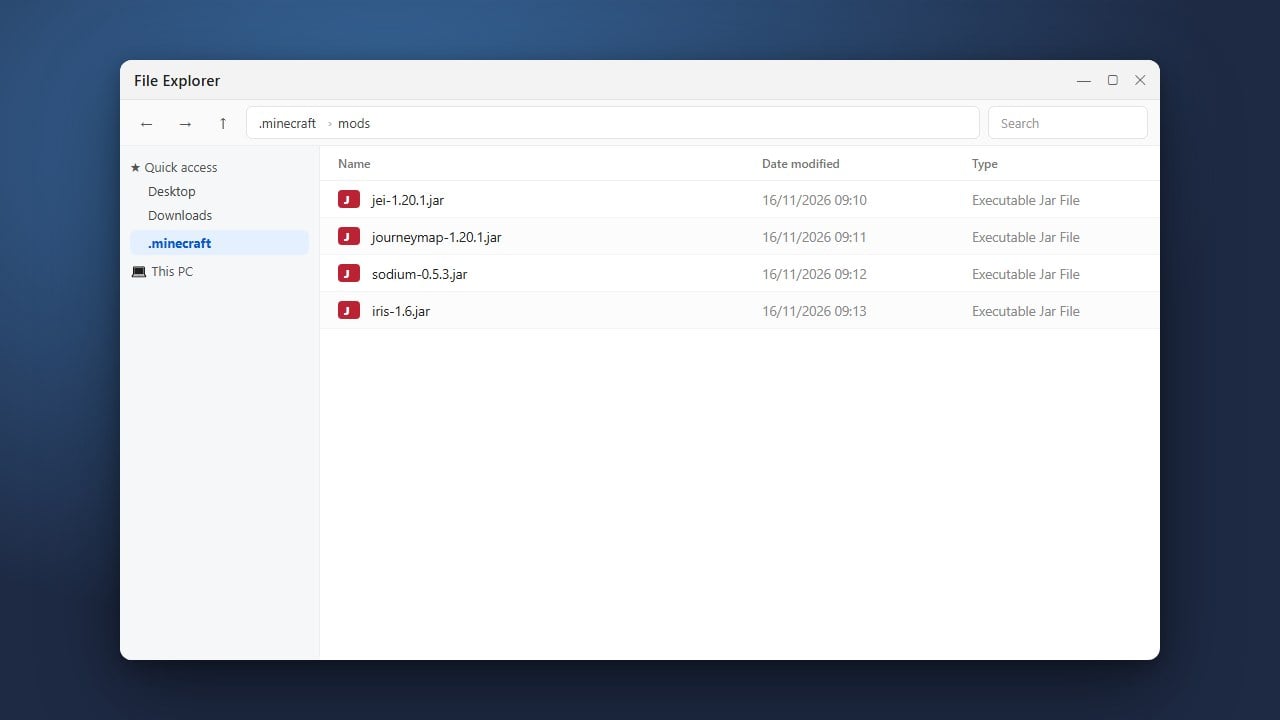
Once you have the main .minecraft folder open, look inside for a folder named mods. If you do not see one, you can easily create a new folder and name it mods all in lowercase letters.
Move Your Mod Files
Drag and drop your downloaded mod .jar files directly into the mods folder you opened in the previous step. Do not extract or unzip the files; they must remain as .jar files for Minecraft to read them correctly.
If any mods require additional libraries or API files—such as the Fabric API—make sure those are placed into the mods folder as well.
Launch Minecraft and Play
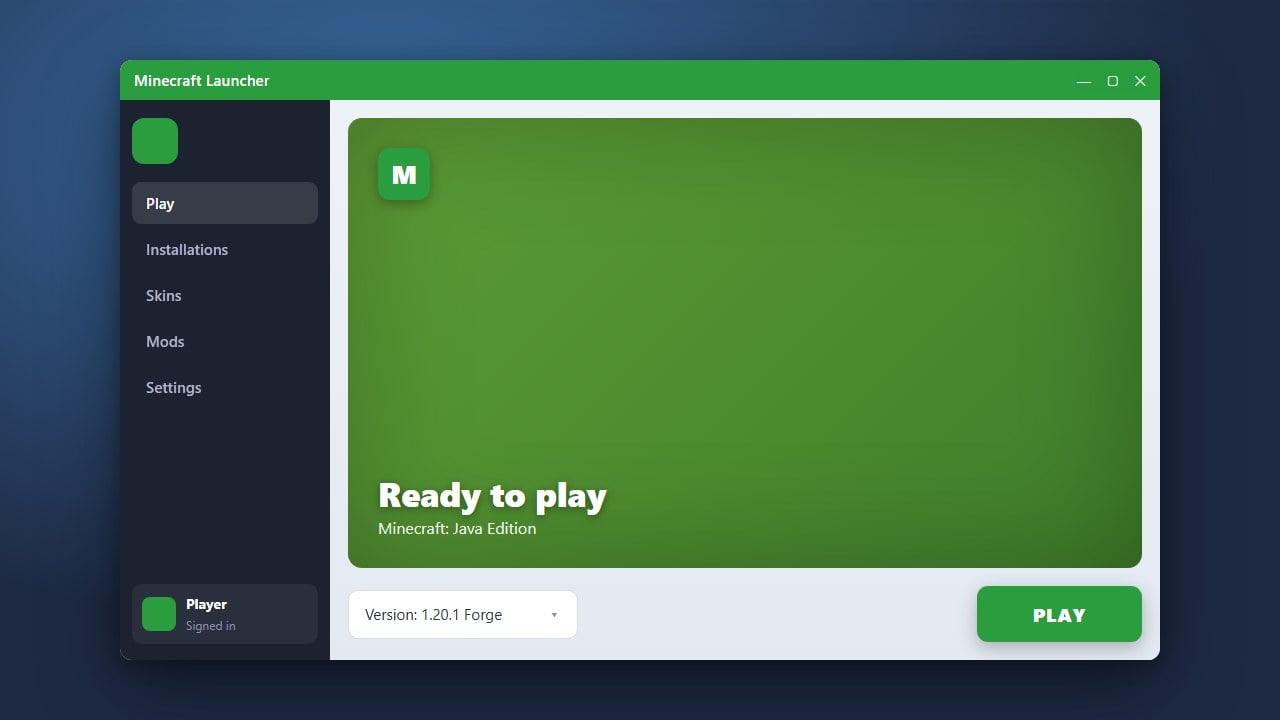
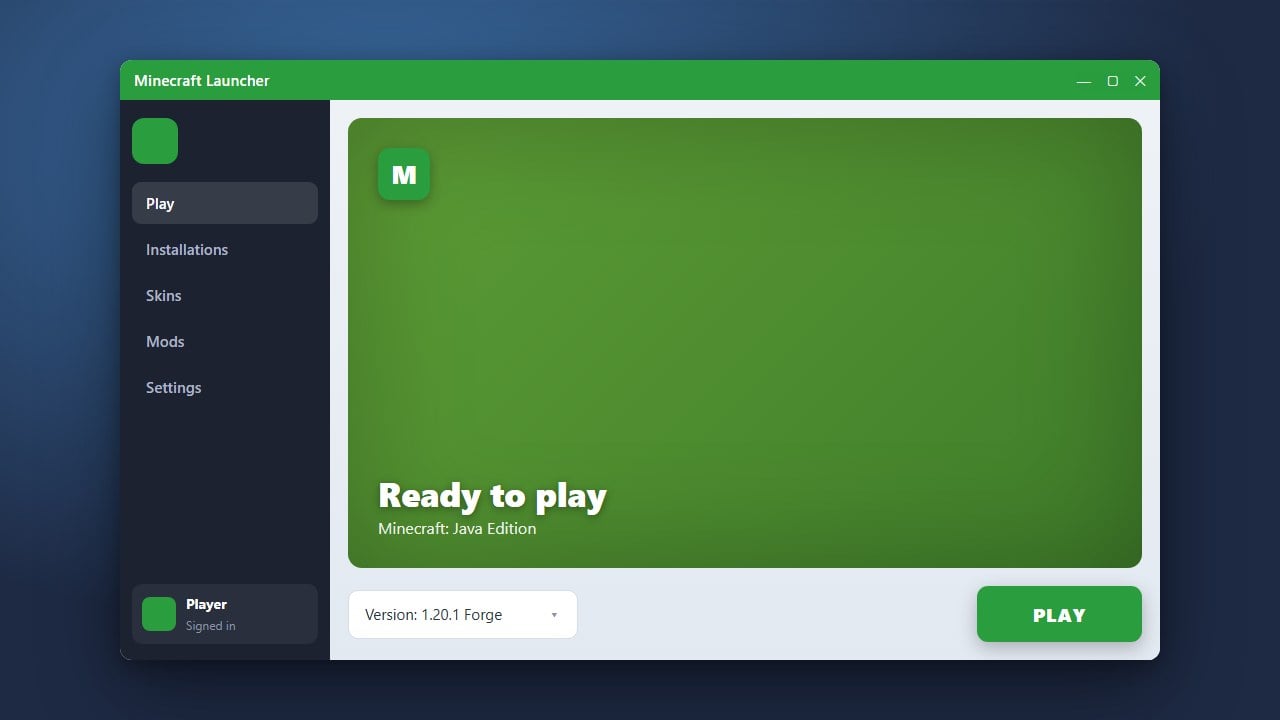
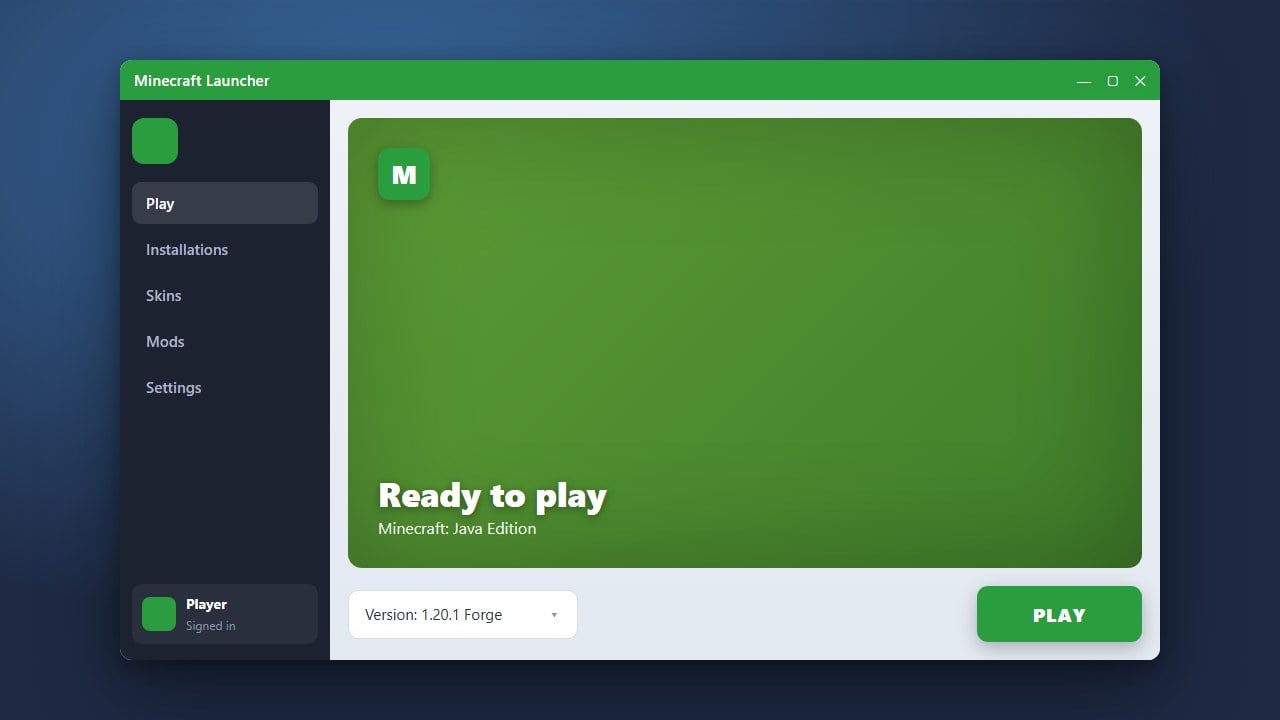
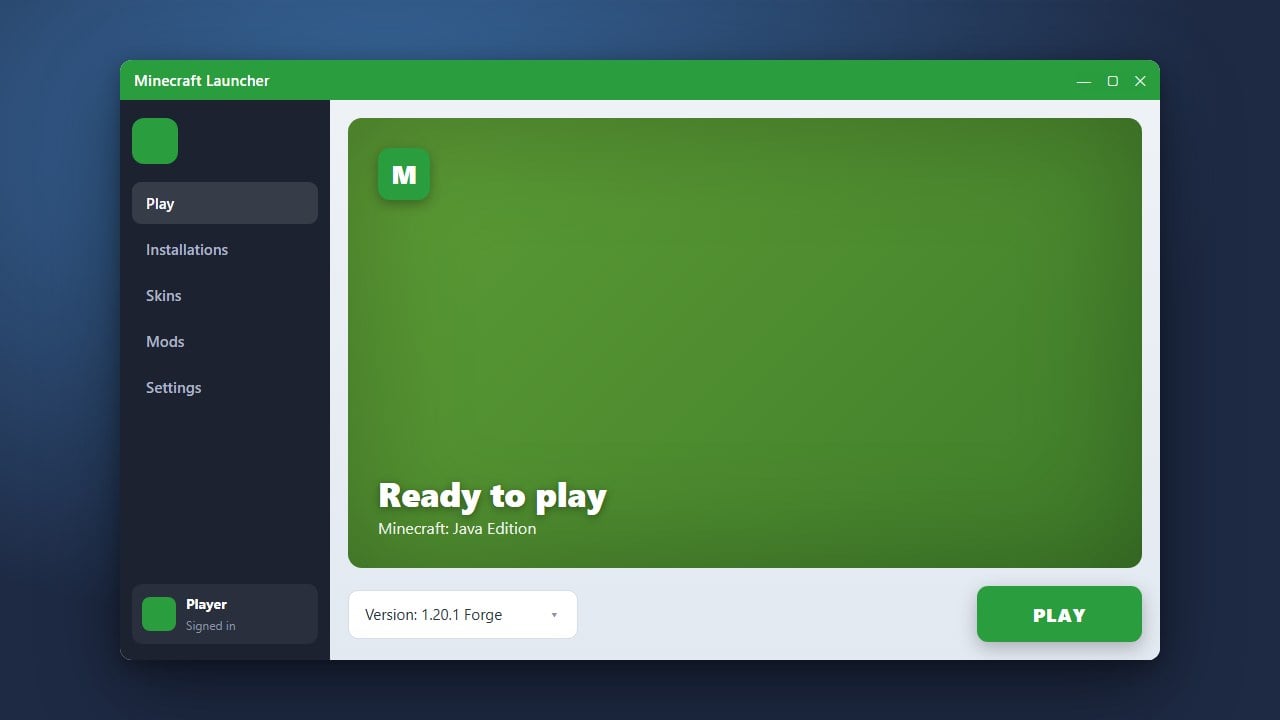
Open the official Minecraft Launcher and select your modded profile from the dropdown menu next to the Play button (it should be named after Forge or Fabric and your game version). Click Play to launch your game.
Once the game opens, click the Mods button on the main menu to verify that your newly installed mods are loaded and active. If you run into any issues getting your game to start up, take a look at our troubleshooting tips in How to Fix Mods Not Loading.
Frequently Asked Questions
Can I install mods on Minecraft Bedrock Edition?
This guide is specifically for Java Edition. If you play on mobile, console, or Windows via the Microsoft Store, check out our guide on How to Install Add-ons (Bedrock) instead.
Why is my game crashing after installing a mod?
Crashes usually happen when a mod is outdated, missing a required dependency like a core API, or conflicting with another mod you installed. Double-check all version numbers and read the crash log for more clues.