Installing zip file mods in Minecraft can seem tricky if you are new to custom content. Whether you are playing Java Edition or Bedrock Edition, this guide will walk you through downloading, locating, and placing your zip files correctly so you can start playing right away.
Check Your Minecraft Edition and Requirements
Before doing anything else, make sure your zip file matches your game version and edition (Java or Bedrock). For Java Edition mods, you will usually need a mod loader installed first, such as How to Install Forge or Fabric.
Check the mod creator's download page to see if any helper libraries are required for the zip file to work properly.
Download the Mod Zip File
Download your chosen mod zip file from a trusted source. Make sure you save it to an easily accessible location on your computer, such as your Desktop or Downloads folder.
Do not extract or unzip the file unless the mod's specific instructions explicitly tell you to do so. Most Java mods and Bedrock add-ons need to stay in their .zip or .mcpack format.
Locate Your Minecraft Folder
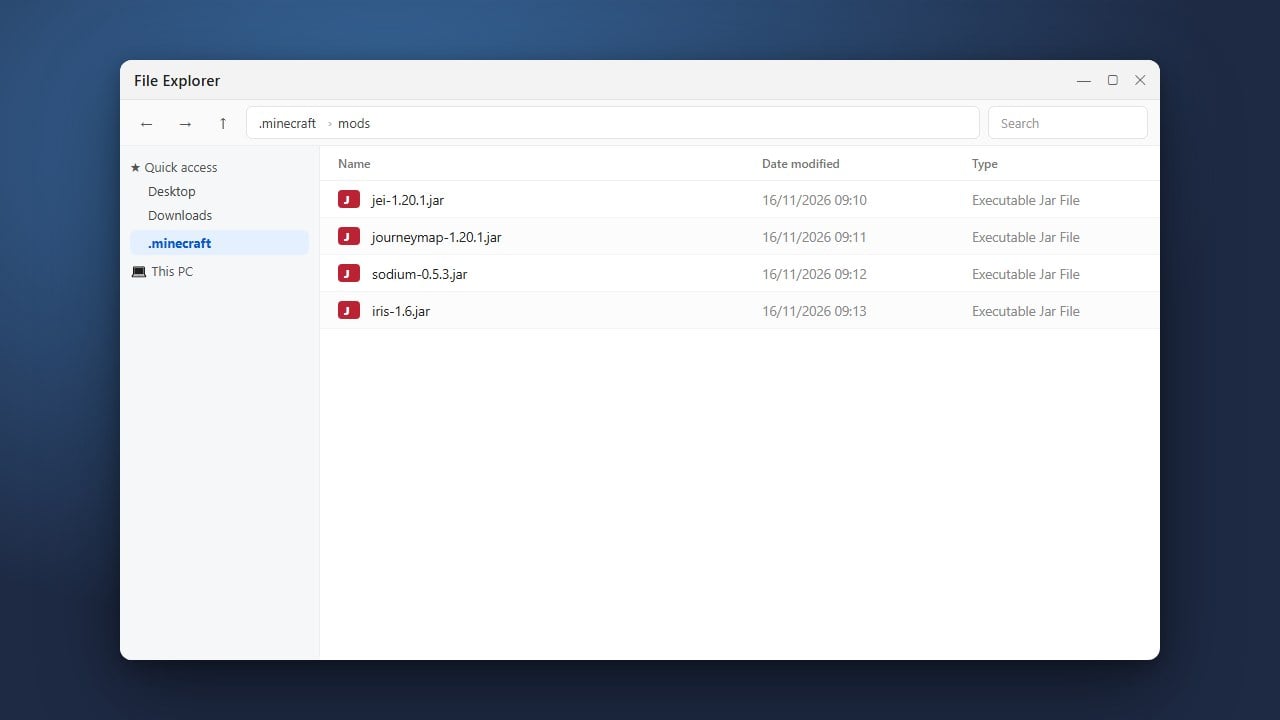
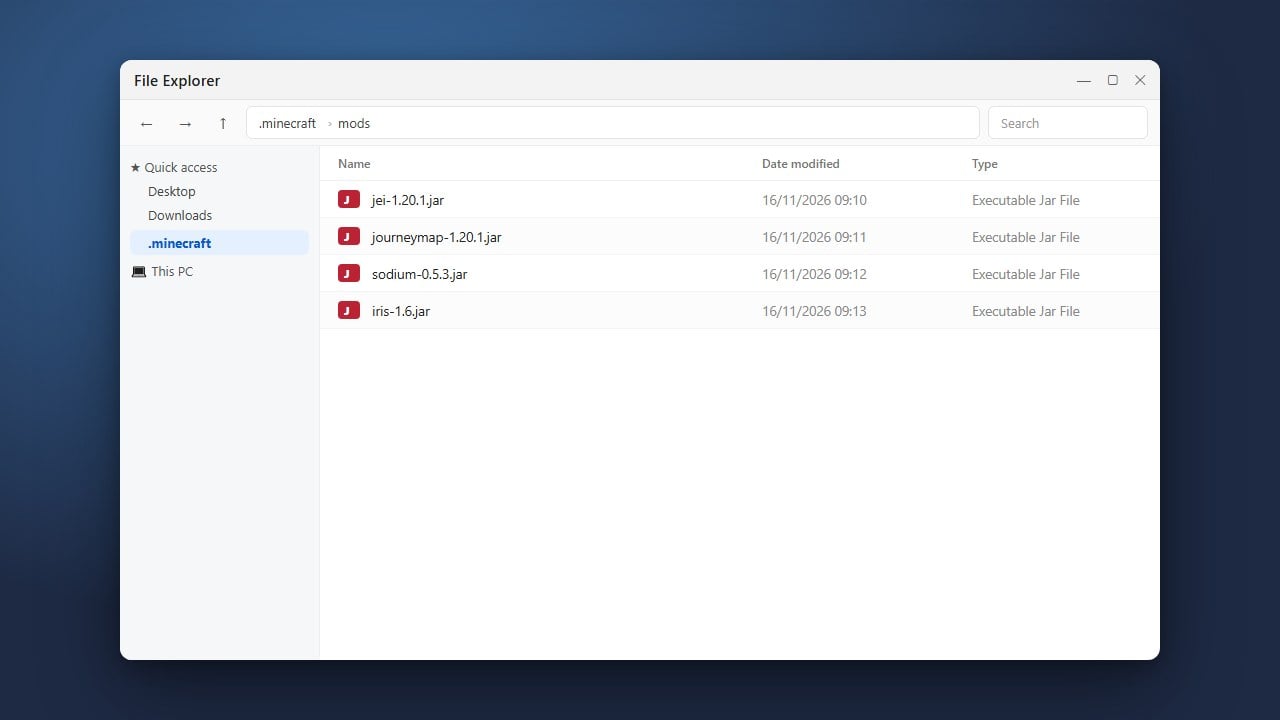
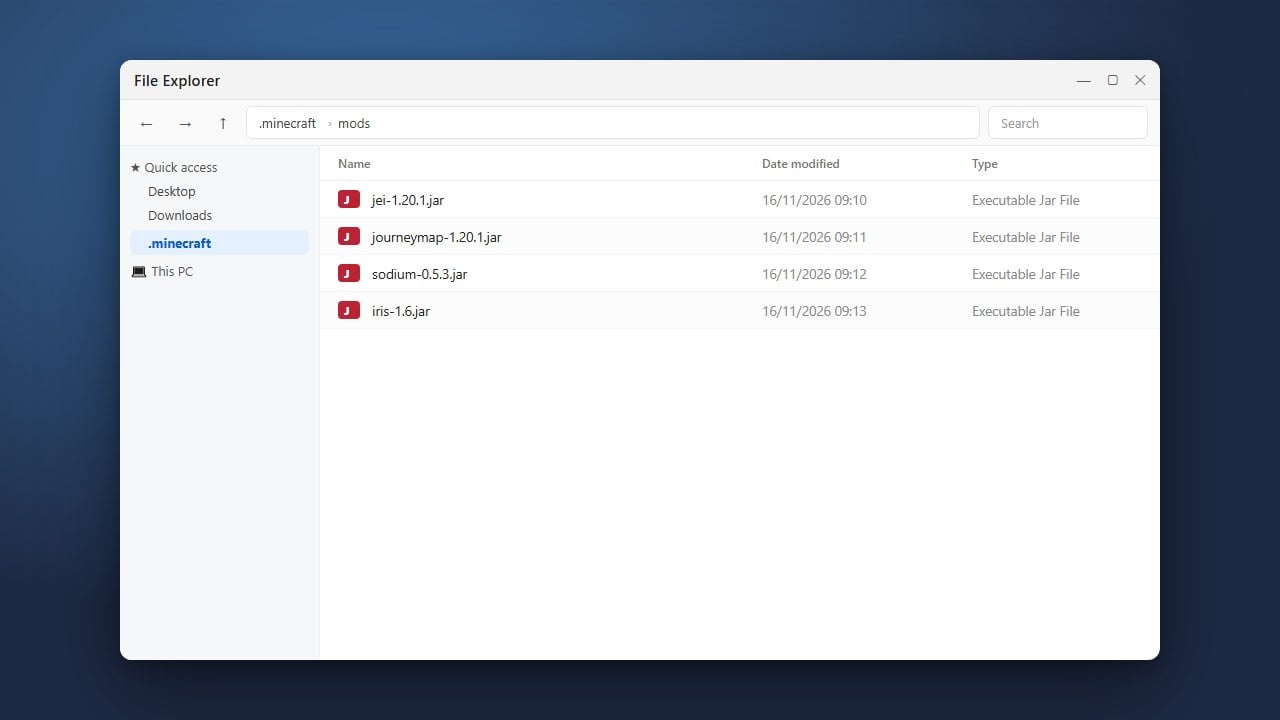
Open up your game directory depending on your platform. If you need help finding where your game files live, take a look at How to Find Your .minecraft Folder for shortcuts and instructions.
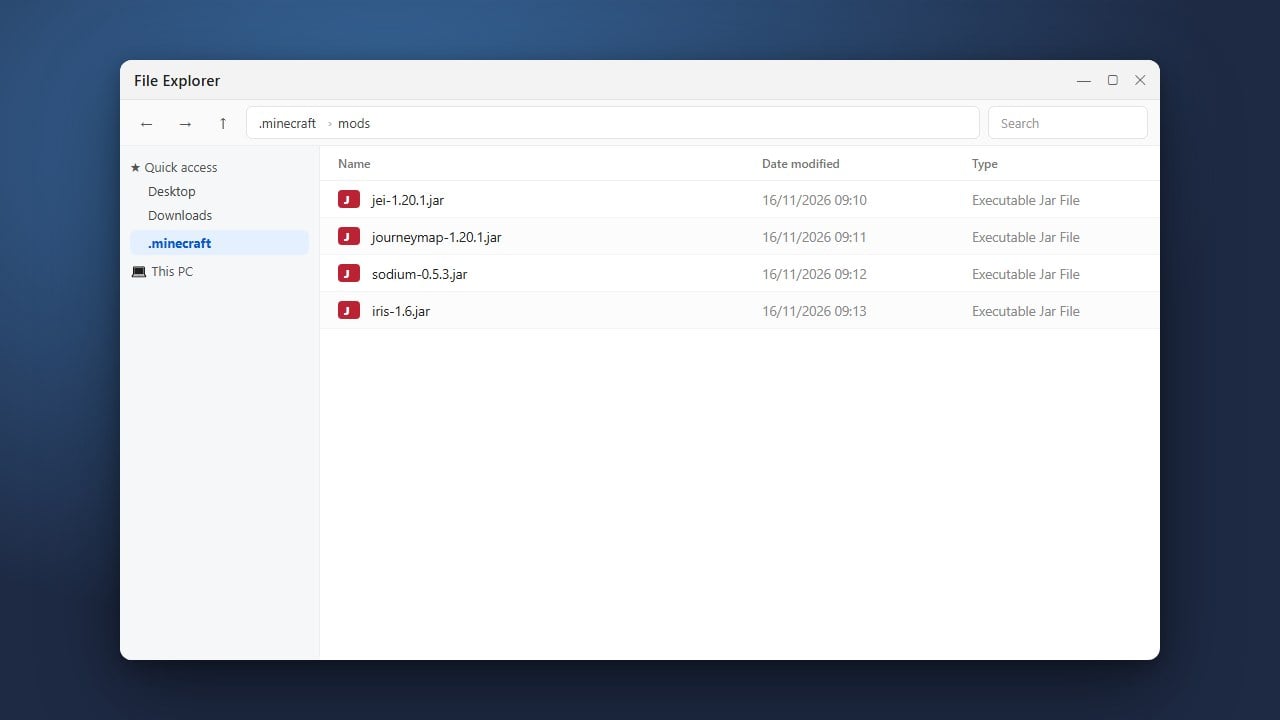
For Java Edition, you will place content into the mods folder. For Bedrock Edition, zip files or resource packs go into your specific development or game resource folders.
Place the Zip File in the Correct Folder
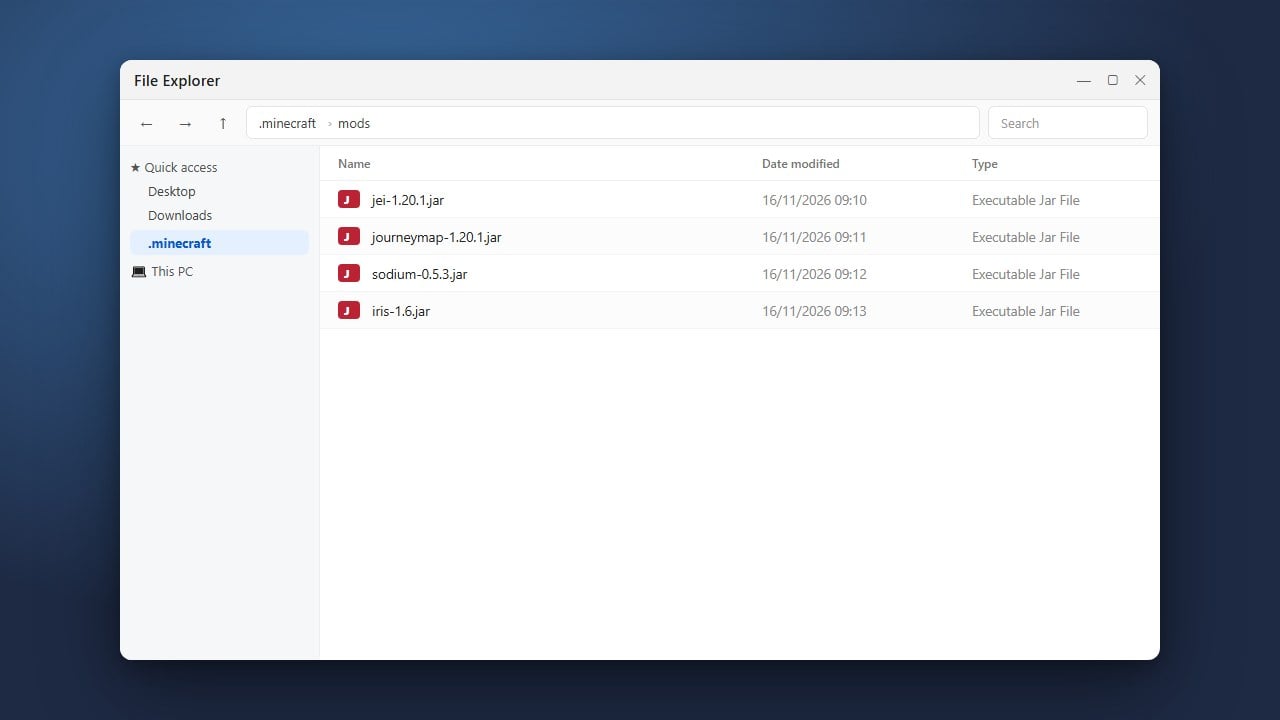
Drag and drop your downloaded mod zip file directly into the appropriate folder. For standard Java mods, drop the file straight into your mods directory without opening it.
If you are installing Bedrock add-ons, you may need to follow guidelines similar to How to Install Add-ons (Bedrock) to ensure the game recognizes your files.
Launch Minecraft and Test
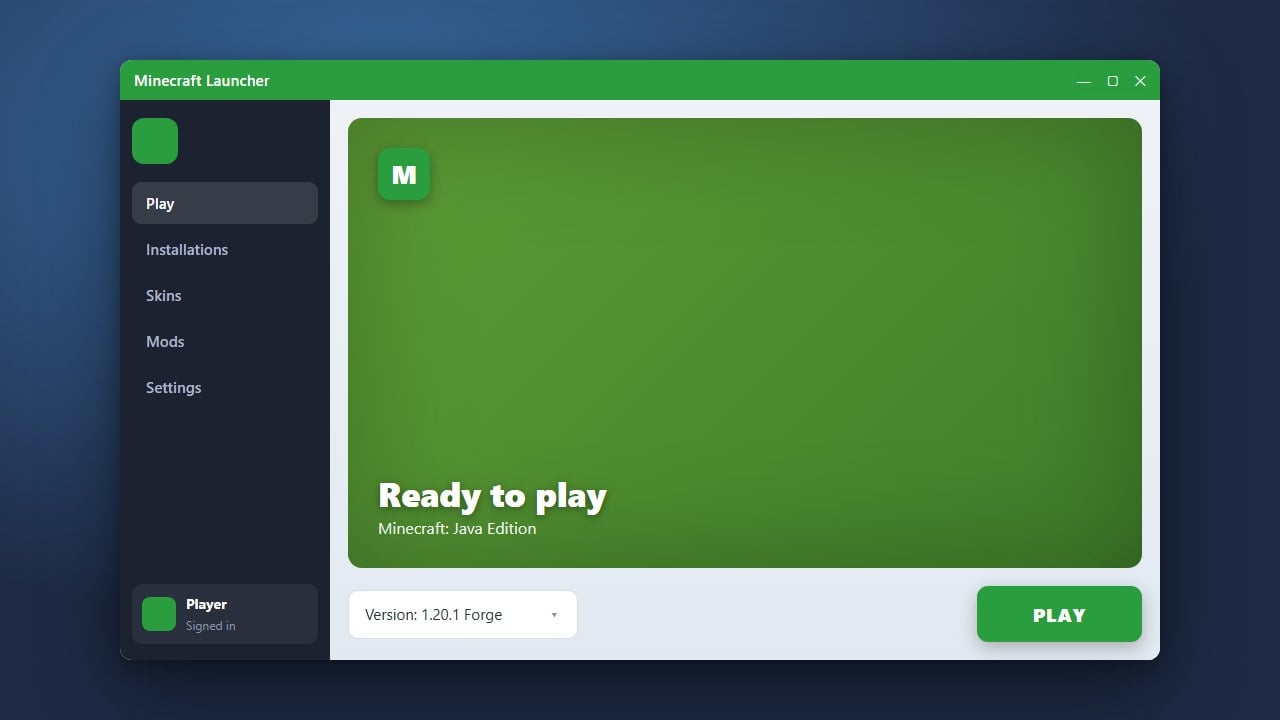
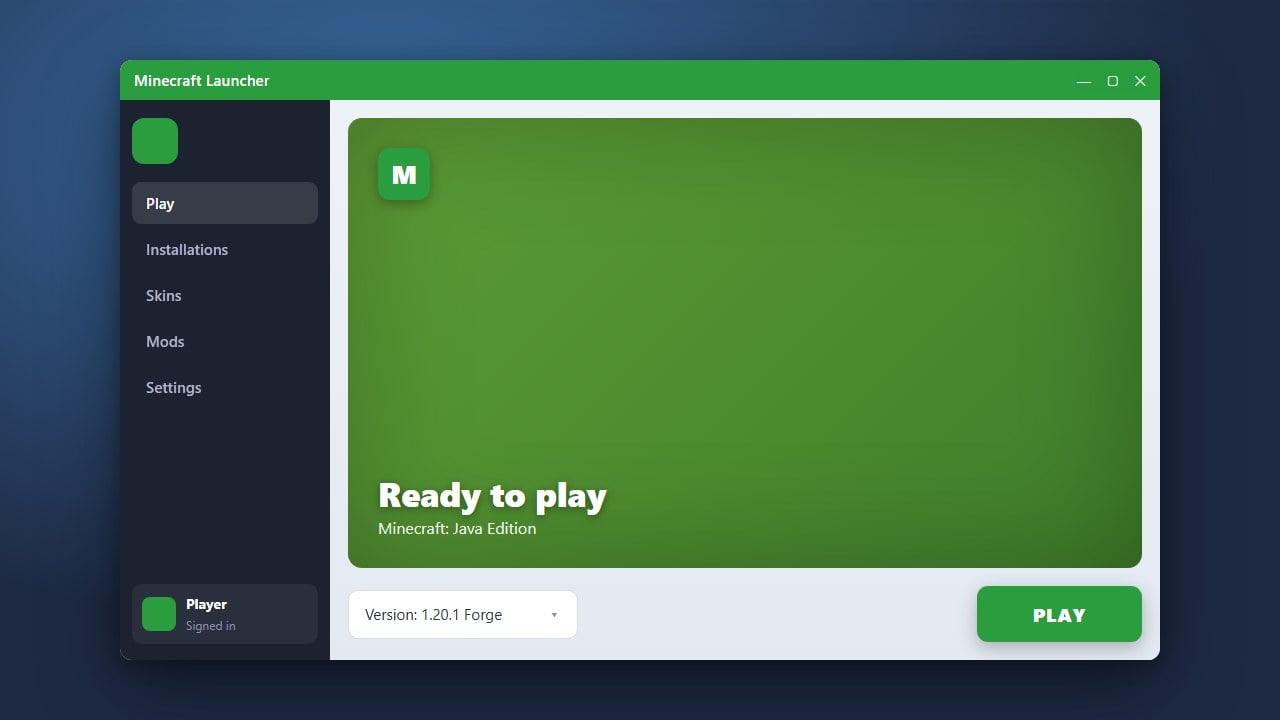
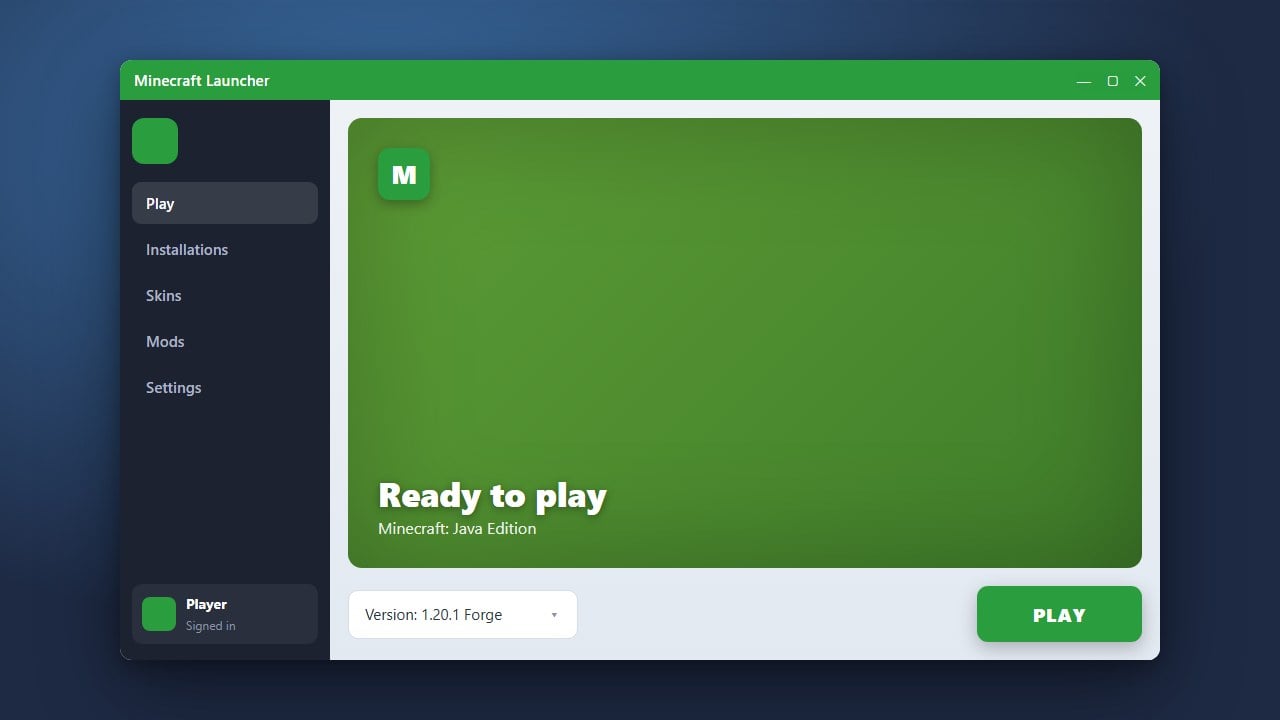
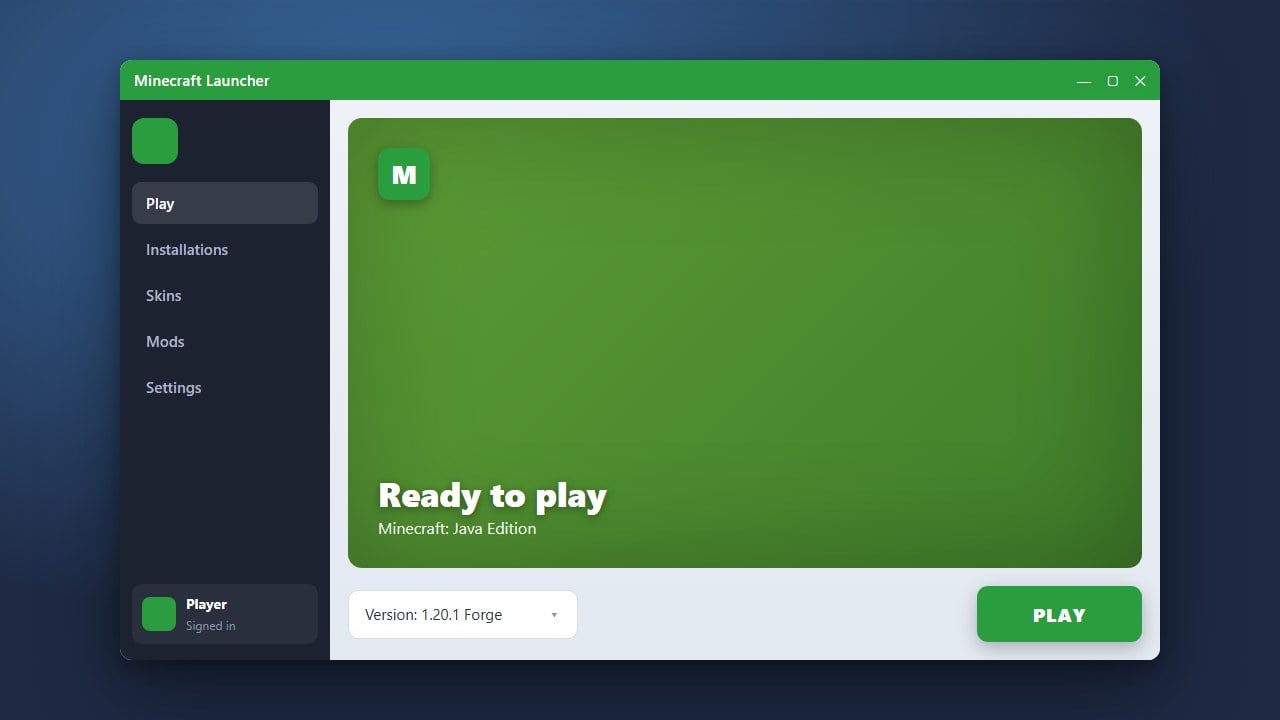
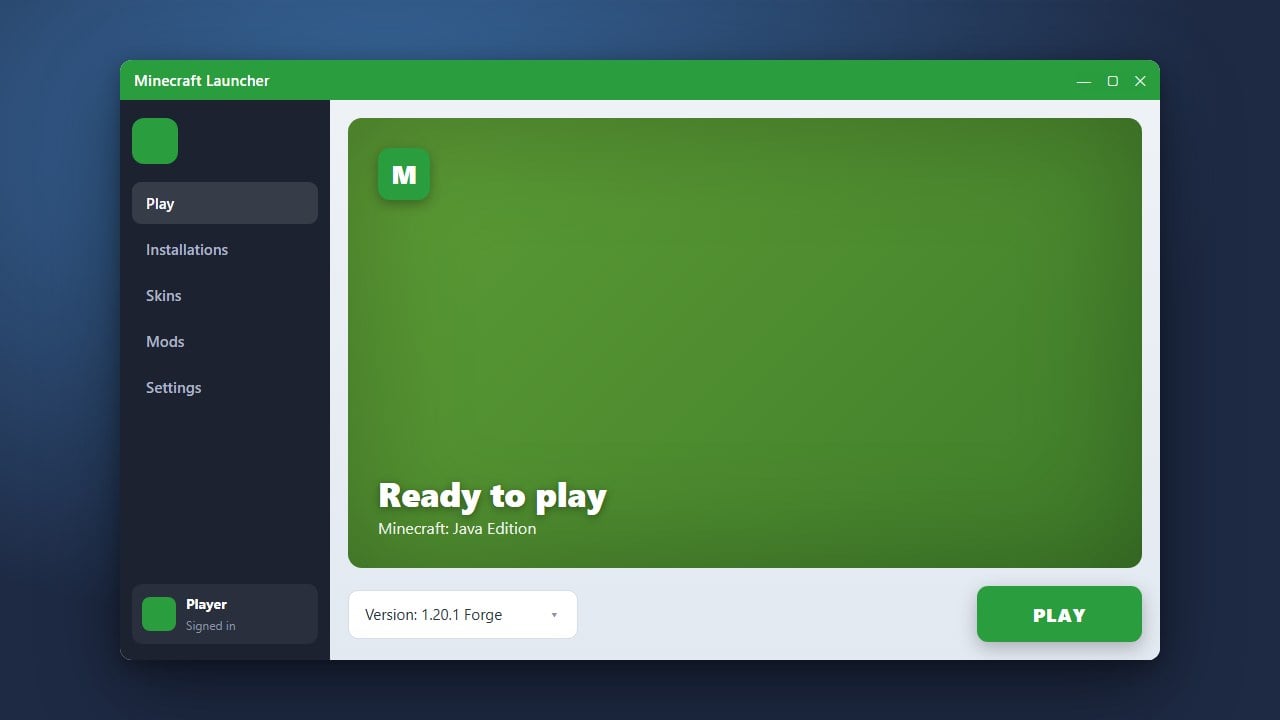
Open your Minecraft Launcher, select the correct profile or modded installation matching your mod version, and click Play. Create a new test world to verify that everything loads correctly.
If you run into issues where the game crashes or fails to recognize the files, check out How to Fix Mods Not Loading for quick troubleshooting steps.
Frequently Asked Questions
Do I need to unzip mod files before putting them in Minecraft?
Most of the time, no! Java mods and Bedrock add-on archives should remain as .zip files. Only extract them if the mod author's official instructions specifically tell you to do so.
Why is my zip file mod not showing up in the game?
This usually happens if you placed the file in the wrong folder, forgot to install a required mod loader like Forge or Fabric, or downloaded a mod for a different game version.