The Essential Mod transforms the Minecraft Java Edition experience by adding smooth, Bedrock-style multiplayer hosting to your singleplayer worlds alongside a built-in friends list, direct messaging, custom cosmetics, and advanced screenshot tools. If you haven't set it up yet, check our guide on how to install Essential Mod before jumping into the features below.
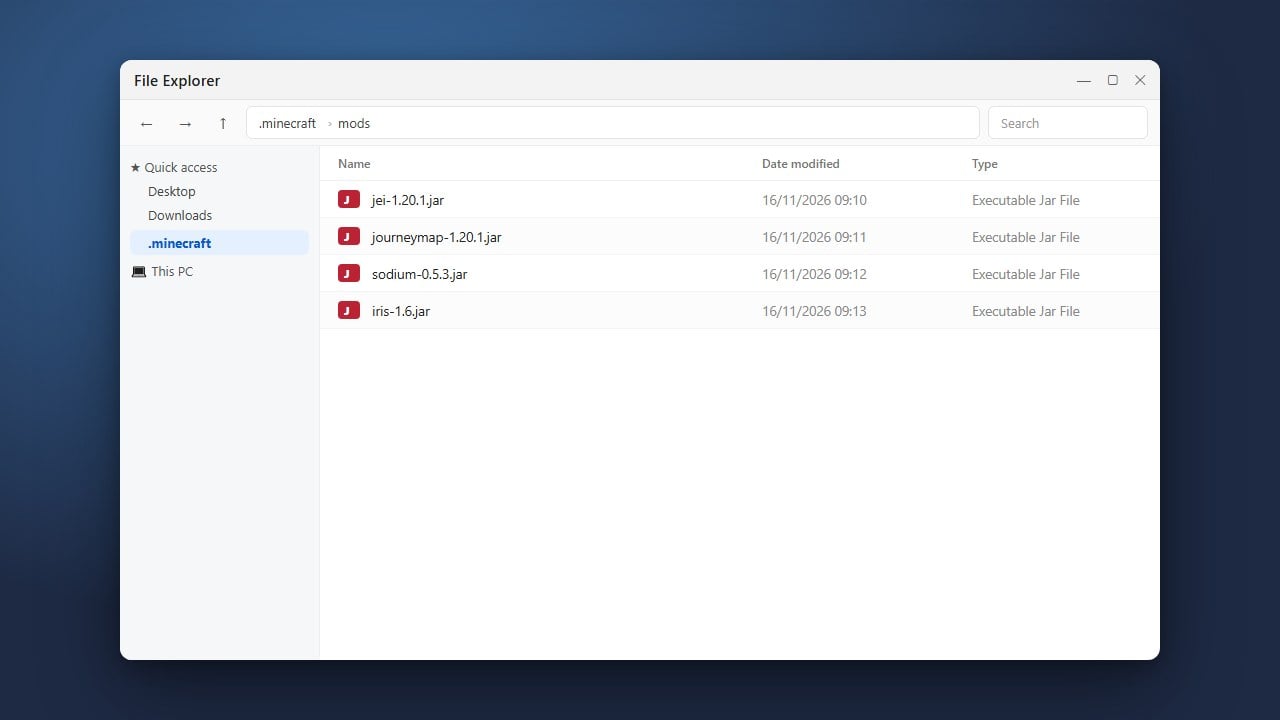
If you are playing a heavily modded world, all invited friends must have the exact same mods and config files installed on their game to join successfully.
The host player must remain logged into the world. If the host leaves or closes Minecraft, all connected guests will be disconnected automatically.
Access the Essential Main Menu
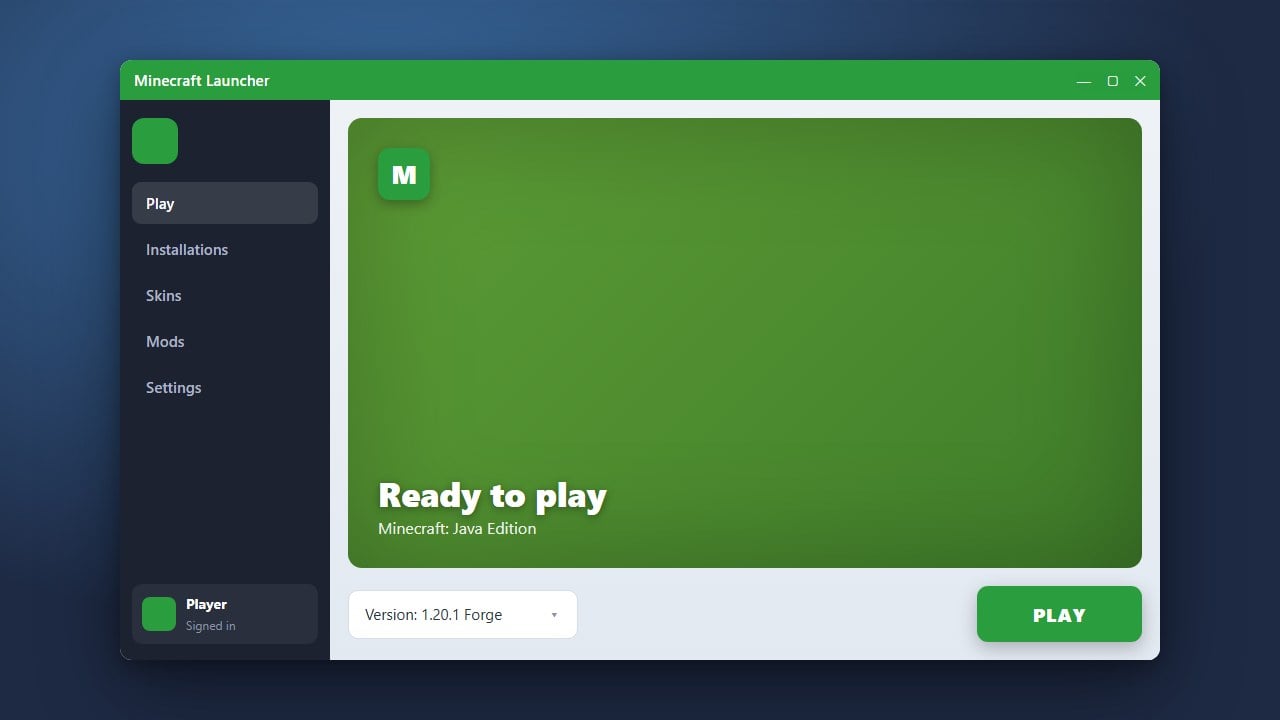
Launch Minecraft using your modded profile. On the title screen, you will immediately notice the Essential overlay integrated into the default layout. Along the top or side of your screen, you can click on dedicated buttons for Social (your friends list), Wardrobe (skins and cosmetics), Pictures (screenshots), and Essential Settings.
Add and Manage Your Friends
Click the Social icon on the main menu or press the default social keybind in-game. Select Add Friend, type your friend's exact Minecraft username, and send the request. Once they accept, you can view their online status, see which world or server they are playing on, and send them direct text messages across game sessions.
Host Your World for Friends
Load into any of your standard singleplayer worlds. Press Escape to open the pause menu, then click Invite Friends on the right side of the screen. You can choose whether to enable cheats, change the game mode, and select which friends can join.
Essential uses peer-to-peer networking to connect your friends directly to your game without requiring port forwarding or a dedicated server. Before hosting a world with custom builds, it is always wise to know how to back up your world to keep your progress safe.
Customize Your Character in the Wardrobe
From the main menu or the pause screen, click Wardrobe. Here you can equip community cosmetics, custom capes, hats, and wings visible to all other Essential users. You can also quickly switch between standard Java Edition skins from your library without reopening the launcher or browser.
Capture and Share Screenshots
Press F2 to take a screenshot as normal. Essential replaces the default chat notification with an interactive prompt allowing you to favorite, copy, or edit the image directly. Open the Pictures menu from the title screen to browse your gallery, crop photos, or instantly generate a shareable link for your friends.
Frequently Asked Questions
Does my friend also need Essential Mod to join my world?
Yes. Both the player hosting the world and any friends joining must have the Essential Mod installed on the same Minecraft version.
Can Bedrock Edition players join an Essential Mod world?
No. Essential Mod is strictly built for Minecraft Java Edition (Forge, NeoForge, and Fabric). While it mimics Bedrock Edition's seamless invite system, it cannot bridge connections with Bedrock players on consoles or mobile devices.
Do I need to pay for hosting singleplayer worlds with Essential?
No, the peer-to-peer multiplayer hosting feature is completely free to use. Only specific cosmetic wardrobe items carry an optional purchase cost.