Encountering a mod error screen or sudden crash can quickly derail your Minecraft session, whether you are launching a custom Java profile or loading a new Bedrock add-on. Most mod errors stem from mismatched game versions, missing dependency libraries, insufficient RAM, or conflicting files. Follow this troubleshooting guide to identify the source of the problem and get your game working properly again.
Read the Error Screen or Crash Log
When a mod error occurs, Minecraft or your launcher will usually provide a specific code or explanation. In Java Edition, read the launcher popup or inspect the text file located in the crash-reports folder within your game directory. You can easily locate this by following our guide on How to Find Your .minecraft Folder.
Search the report for lines beginning with Caused by: or mod ID names. In Bedrock Edition, check the top of your screen for import error popups or pack validation warnings under your resource pack settings.
Verify Game and Mod Loader Compatibility
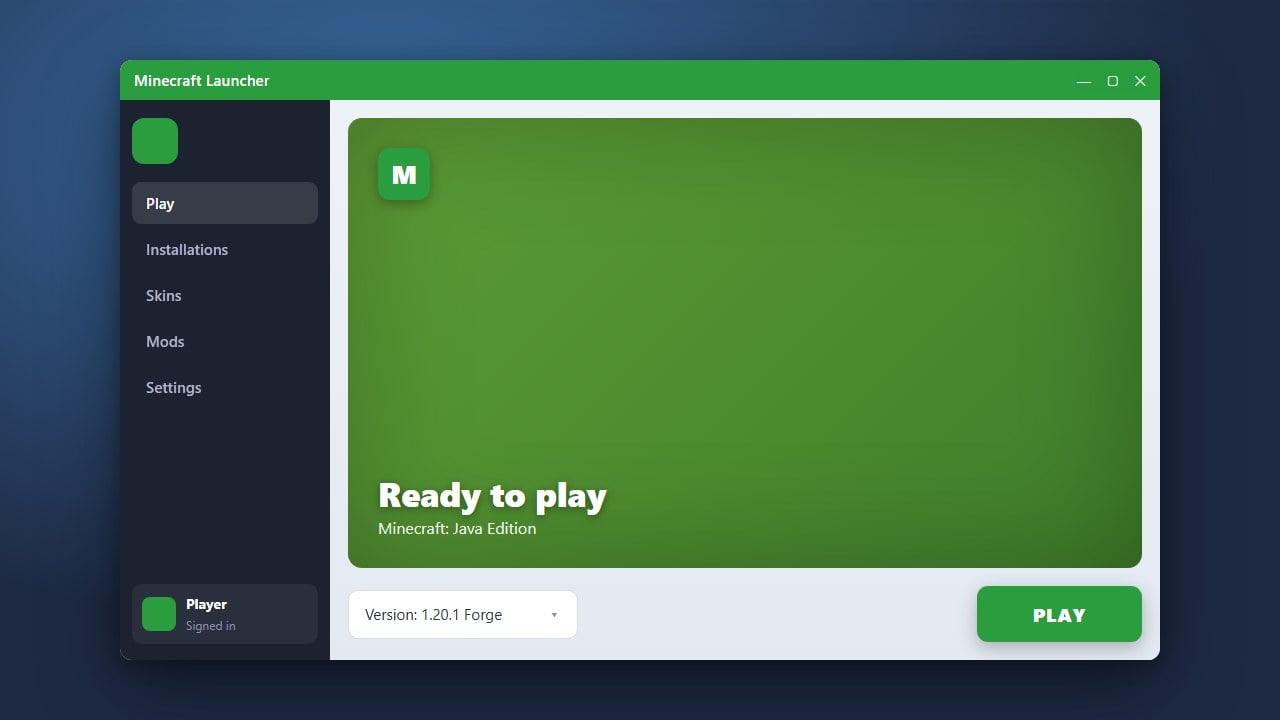
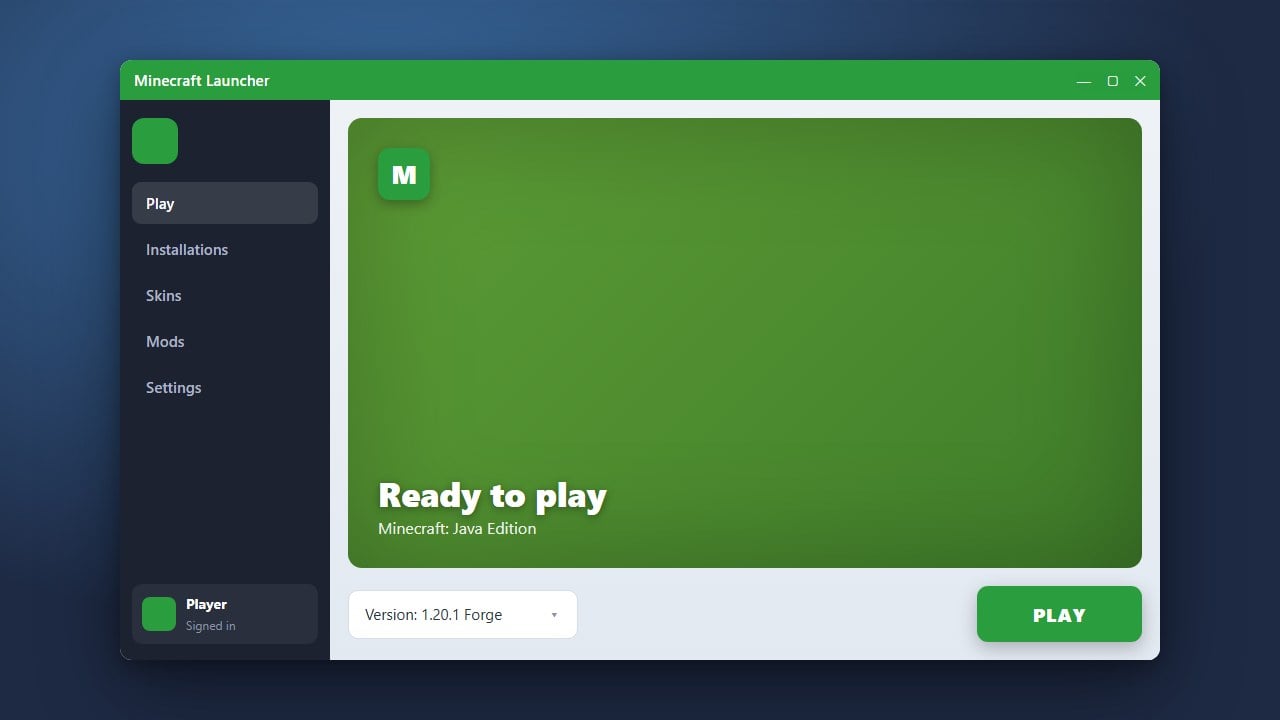
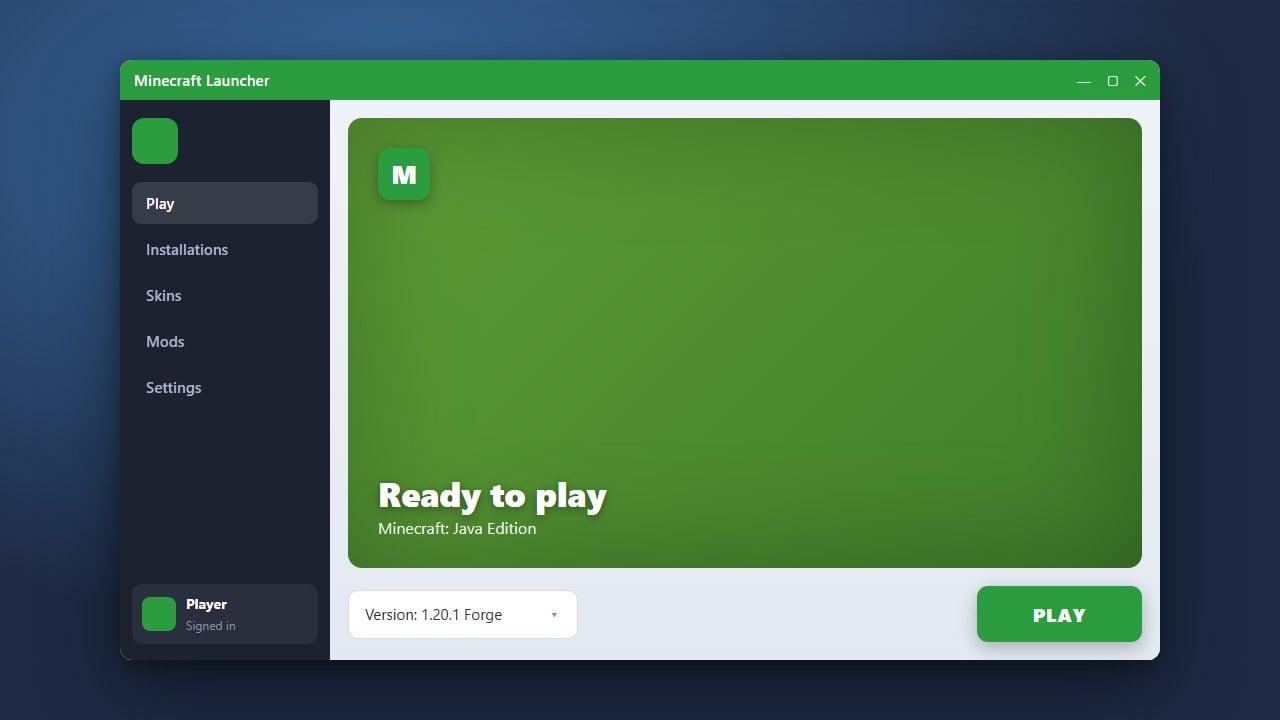
Mods are strictly built for specific Minecraft versions and loader platforms. In Java Edition, confirm that your mods match your loader (Fabric, Forge, NeoForge, or Quilt) and your current game version (such as 1.21). Running a Fabric mod on Forge or using a 1.20.4 mod on 1.21 will almost always trigger an immediate error.
In Bedrock Edition, ensure downloaded .mcaddon or .mcpack files are updated for the latest version of the game, as older script APIs often break after major updates.
Install Missing Dependencies and APIs
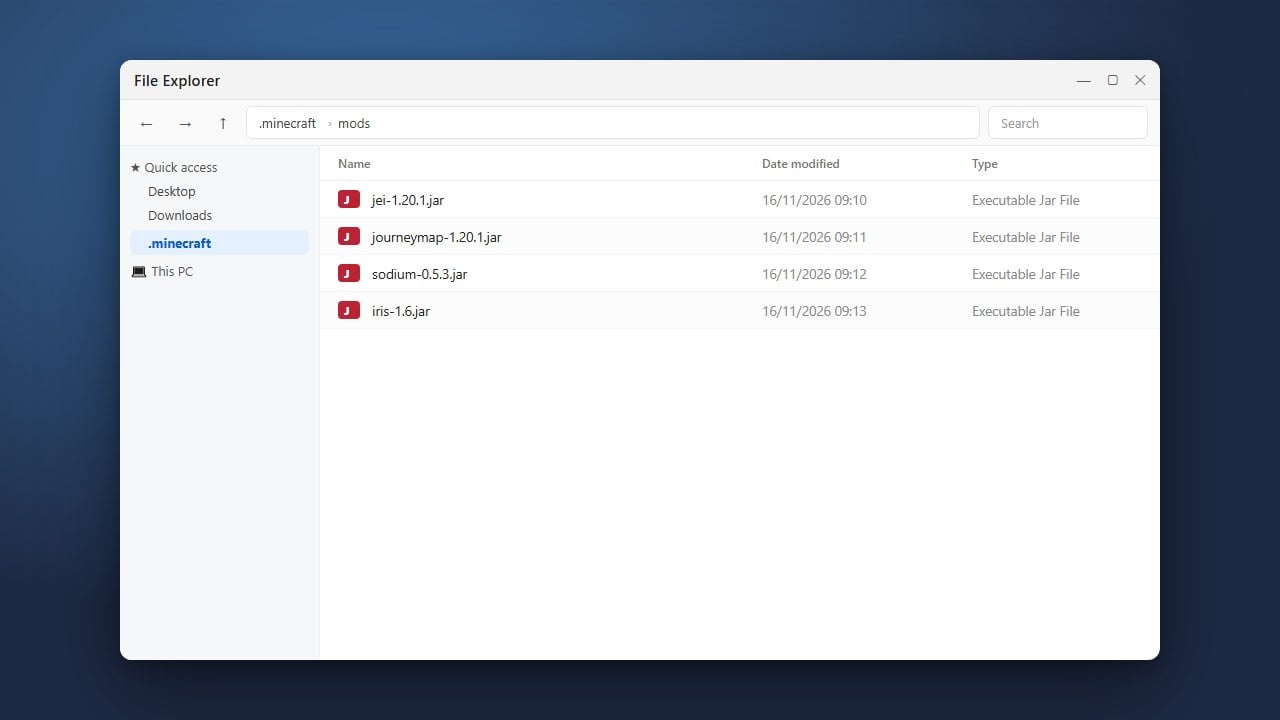
Many mods do not function on their own and require core library mods to run. If your crash report or loading screen complains about a missing requirement (for example, "Requires mod X version Y or higher"), you must download and install that library file into your mods folder.
For instance, nearly all modern Fabric mods require you to have Fabric API installed alongside them. Always check the description page where you downloaded the mod to review its required dependencies.
Allocate More Memory to Java Edition
A frequent cause of crashes during game startup or world generation is running out of available memory, commonly shown as java.lang.OutOfMemoryError. The standard Minecraft launcher defaults to 2 GB of RAM, which is often not enough when running several mods.
Open your launcher installation settings, edit your modded profile, and increase the allocated memory to 4 GB or 6 GB depending on your system's hardware. You can check our tutorial on How to Allocate More RAM to Minecraft for detailed instructions.
Enable Experimental Toggles for Bedrock Add-ons
In Bedrock Edition, custom entities, blocks, and behaviors usually depend on experimental game features. If an add-on is active but items are invisible, missing textures, or failing to work, the required world experiments may be turned off.
Before loading your world, click the pencil icon next to it to open World Settings. Scroll down to Experiments in the Game tab and enable options like Beta APIs and other experimental gameplay toggles requested by the add-on creator.
Isolate Conflicting Files Using the 50/50 Method
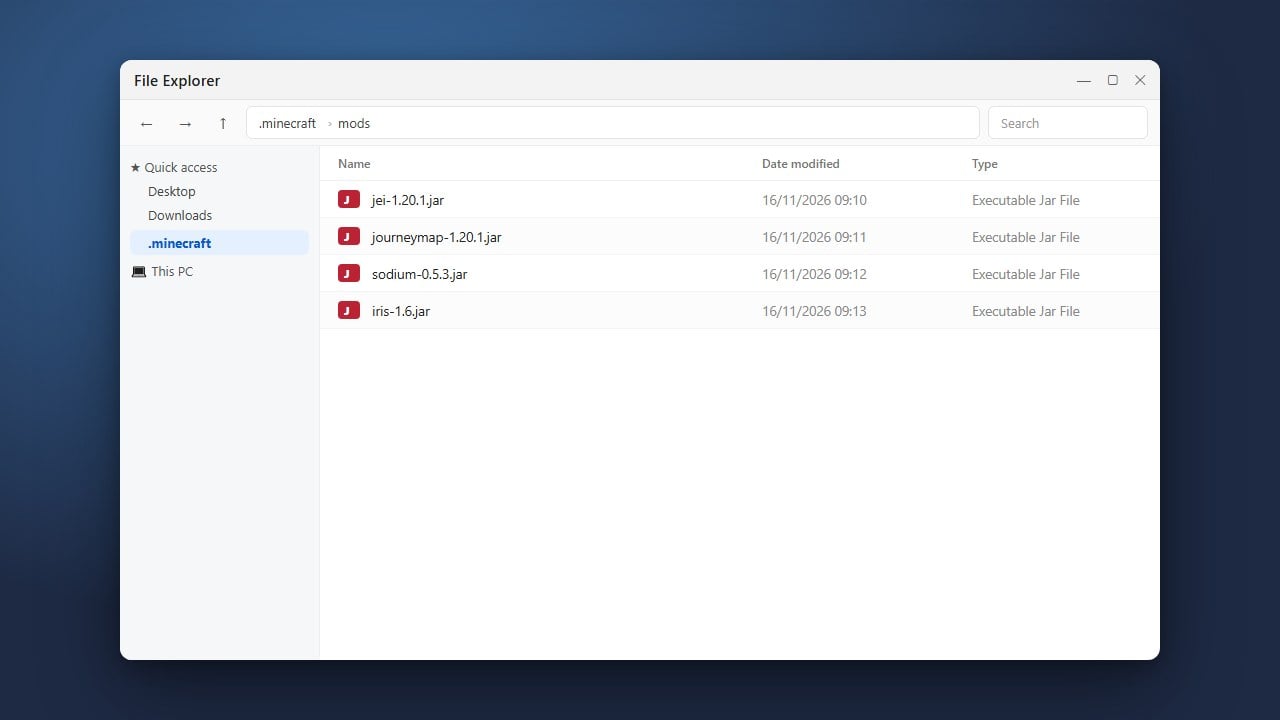
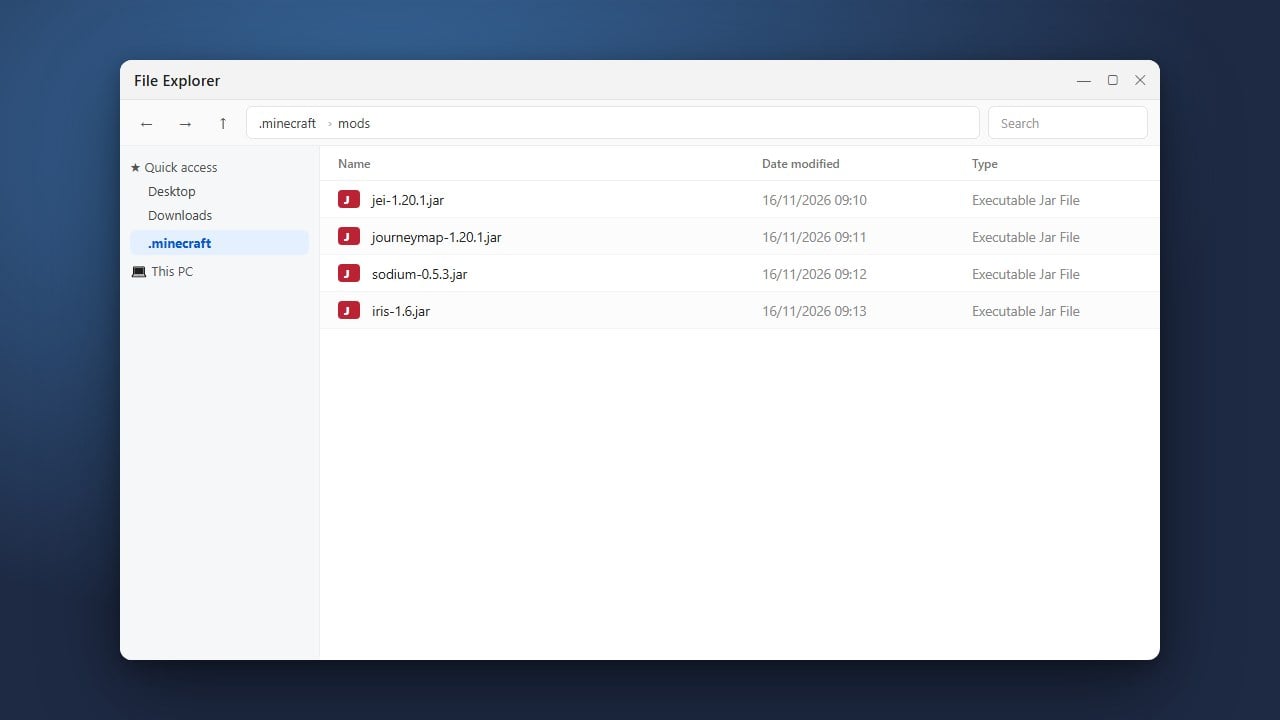
If the game continues to crash without naming a specific culprit, two mods are likely conflicting with each other. To find the broken file quickly, move half of your mods out of the mods folder into a temporary folder on your desktop, then launch the game.
If the error disappears, the offending mod is in the half you removed; if the error persists, it is in the active half. Continue splitting the problematic group in half until you pinpoint the exact mod causing the problem.
Frequently Asked Questions
What does 'Incompatible mod set found' mean?
This error appears in Fabric and NeoForge when one or more mods require a different version of Minecraft, a different loader version, or a library mod that you have not yet installed. Read the list displayed on the screen to see which exact file needs updating or downloading.
Can I run Forge and Fabric mods together in the same profile?
No. Forge, NeoForge, and Fabric are separate mod loaders with completely different architectures. A single Minecraft profile can only run one loader at a time, and its mods must strictly match that specific loader.
Why does my Bedrock add-on show a red exclamation mark in my resource pack menu?
A red exclamation mark indicates a missing dependency, an incompatible pack version, or missing behavior pack counterpart. Click the pack to read the validation description, ensure you installed both the Resource and Behavior pack components, and confirm your game is fully updated.