Few things are more frustrating than launching a Minecraft modpack only to be met with a frozen screen or an instant crash to the desktop. Whether you are dealing with a heavy Java Edition modpack or conflicting add-ons on Bedrock Edition, resolving the issue usually comes down to fixing memory limits, corrupted configs, or incompatible mods.
saves folder before reinstalling or updating a modpack so you do not accidentally overwrite your singleplayer worlds.Check Your Crash Report and Logs
When a modpack crashes on Java Edition, Minecraft generates a crash report in your instance folder under crash-reports. Open the latest text file and look near the top for lines that say Caused by: or list a specific mod name. If your launcher does not show the log directly, consult our guide on how to find your .minecraft folder to inspect the logs folder.
Allocate More RAM to the Modpack
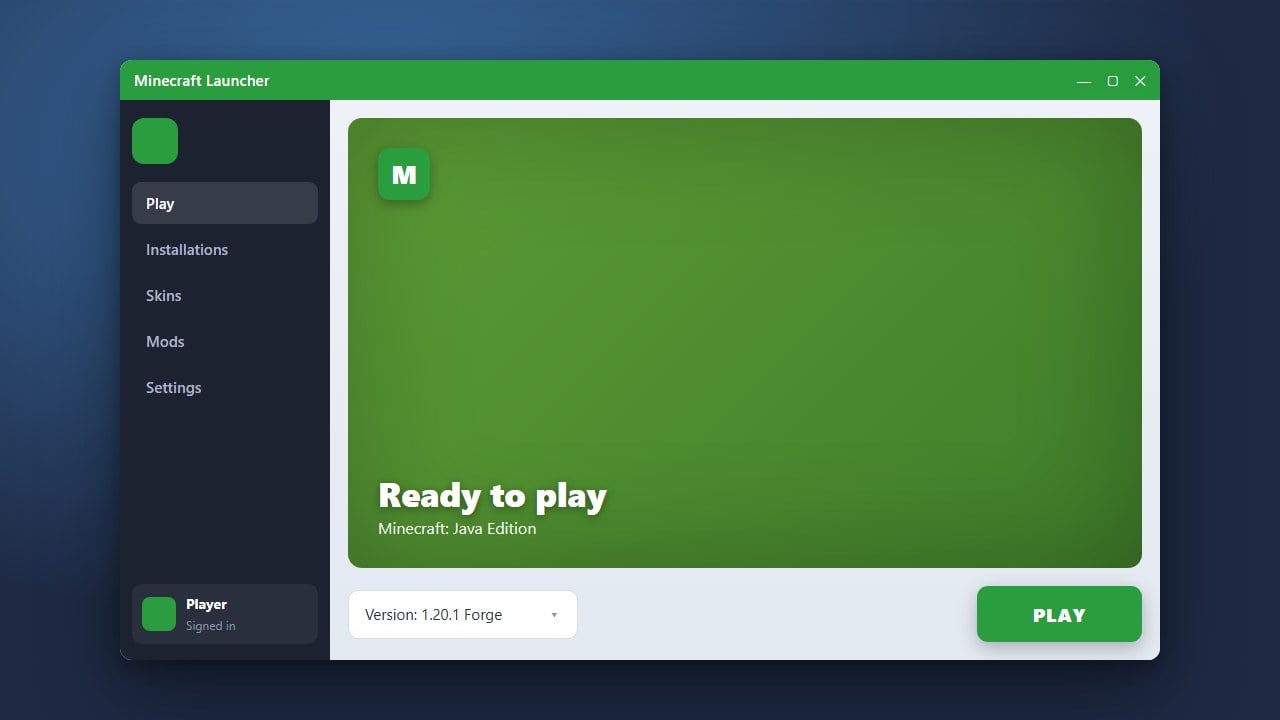
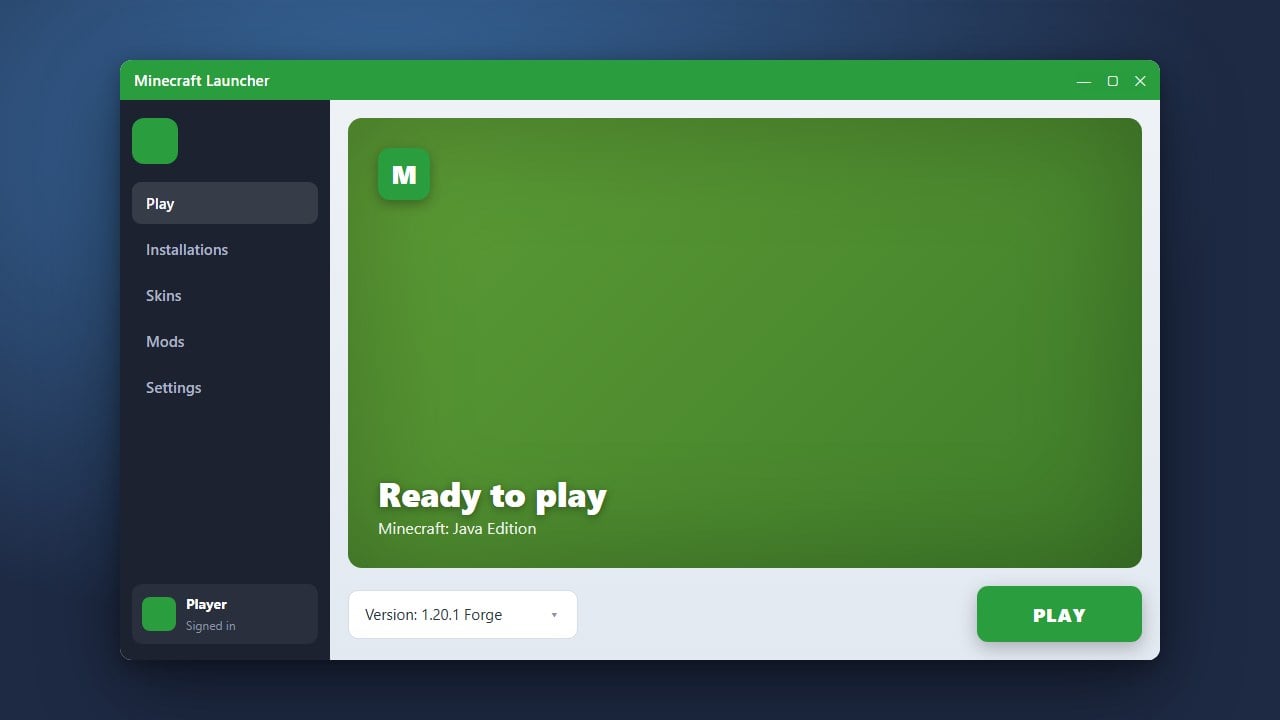
Insufficient memory is the most common reason large modpacks fail to launch or crash during world generation. The default Minecraft launcher assigns only 2 GB of RAM, but modern modpacks on Java Edition 1.21+ typically require 6 GB to 8 GB to run smoothly. Open your launcher settings and raise the memory allocation slider to match your modpack's requirements.
Be sure not to assign all of your system's memory, as your operating system needs headroom to function. Follow our detailed walkthrough on how to allocate more RAM to Minecraft to configure this properly.
Remove Incompatible Shaders and Extra Mods
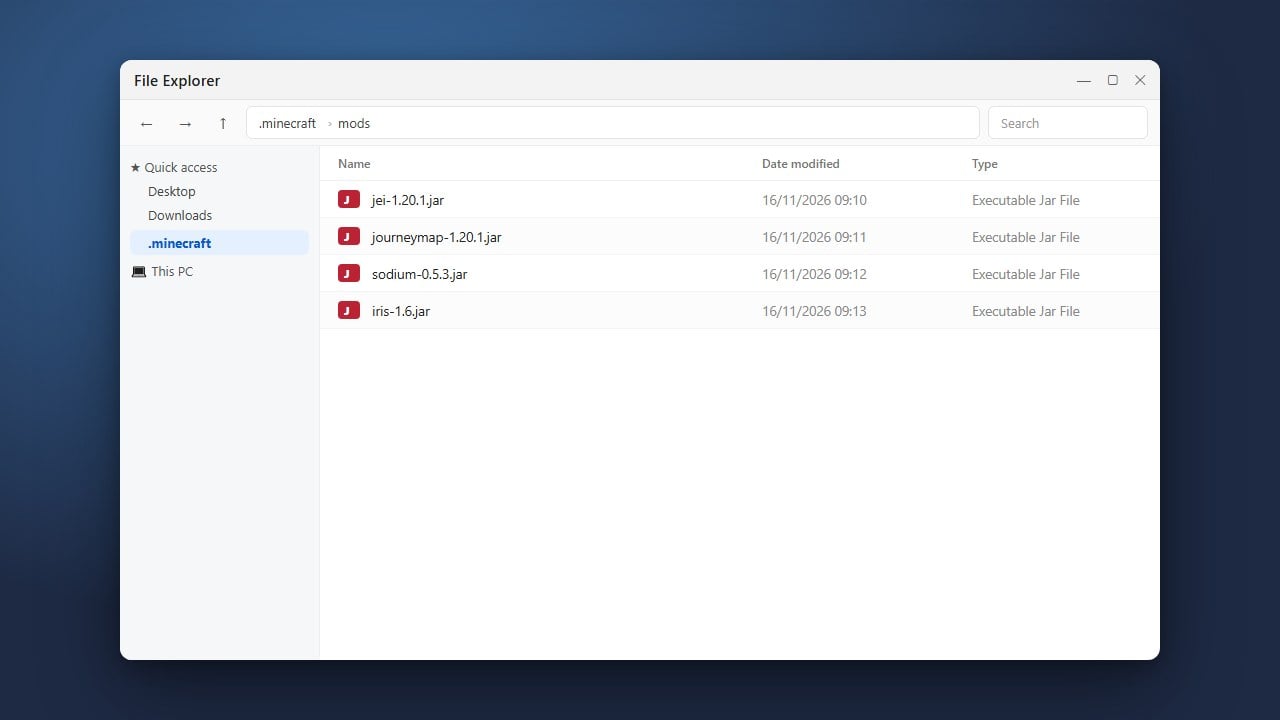
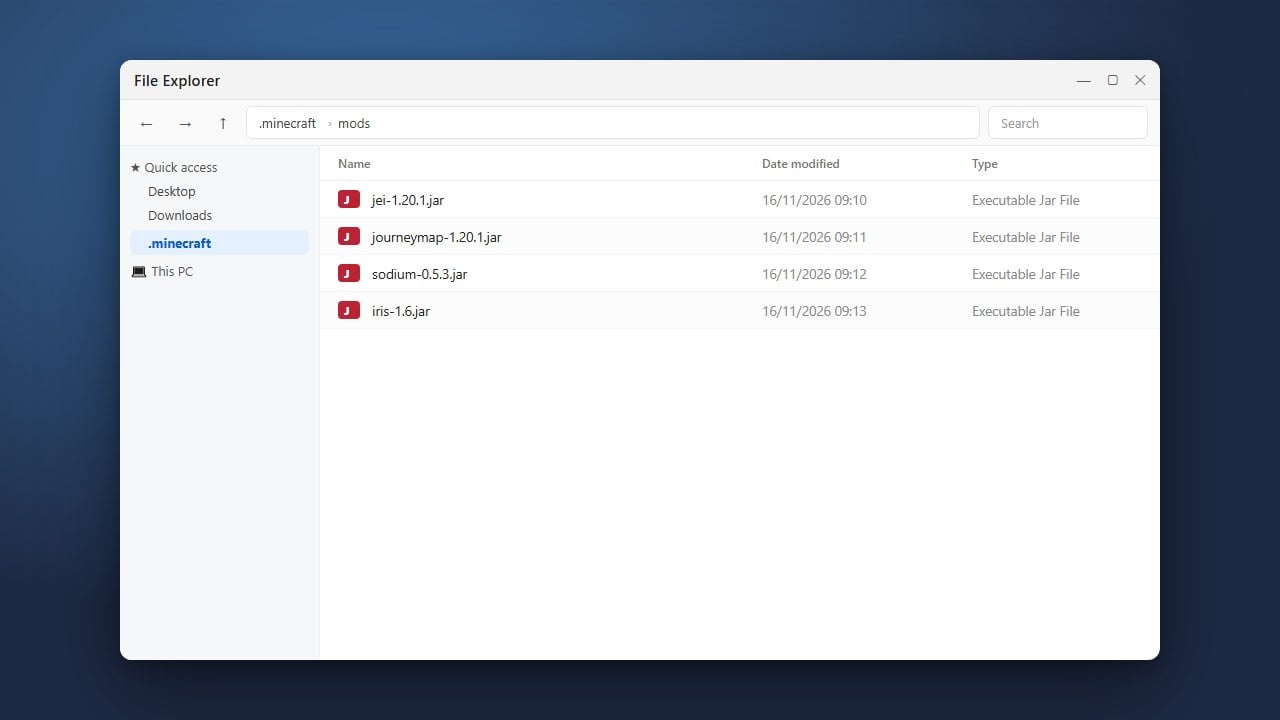
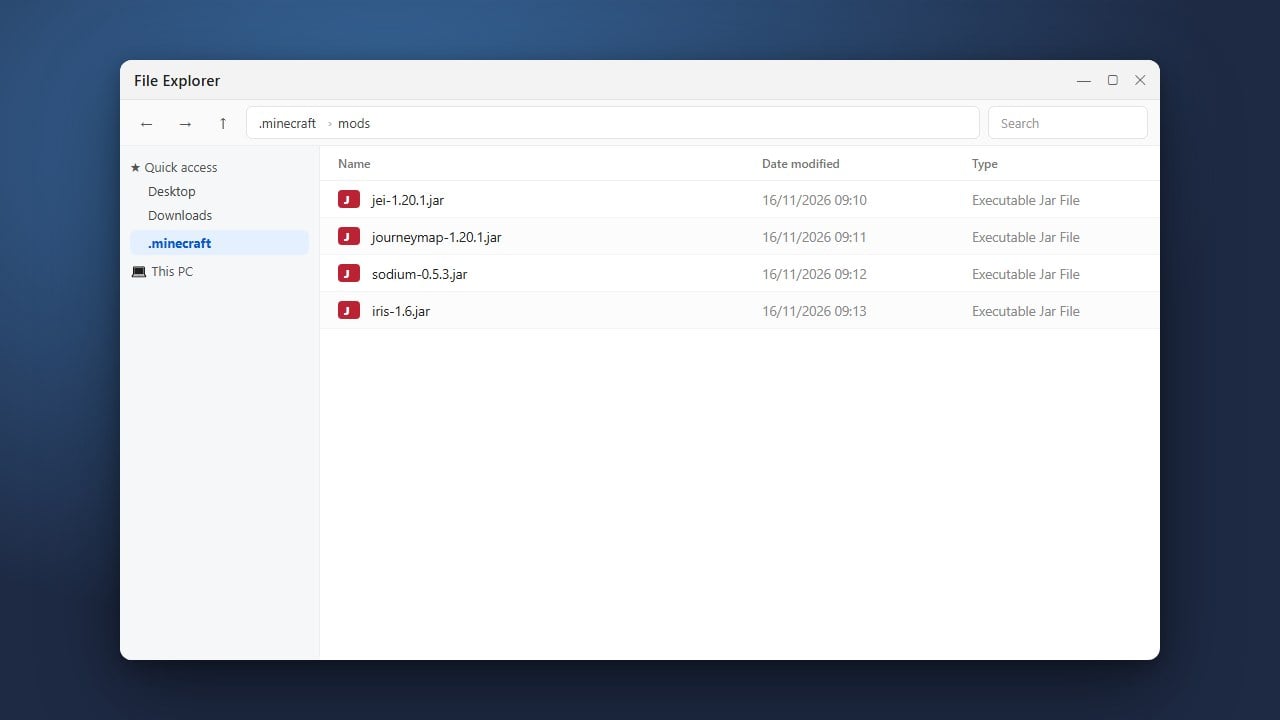
Adding extra mods or incompatible shader packs to a curated modpack often leads to instant crashes. Modern packs frequently use rendering engines like Sodium or Iris that conflict with older tools like OptiFine. If you manually added any mods or resource packs to the pack, remove them and try launching the original configuration again.
Repair or Reinstall the Modpack Profile
Corrupted configuration files or interrupted downloads can prevent a modpack from booting. If you use a dedicated launcher such as CurseForge, Modrinth, or Prism Launcher, navigate to your modpack profile settings and select Repair Profile or reinstall the pack version. This replaces broken libraries without touching your saved worlds.
Resolve Add-on Conflicts on Bedrock Edition
On Bedrock Edition, modpacks are usually loaded as bundled world templates or multiple active behavior packs. If a world crashes on loading, go to the world edit screen, click Behavior Packs and Resource Packs, and disable newly added packs one by one to find the culprit. Also check under Experiments to ensure required gameplay toggles are enabled.
Frequently Asked Questions
Why does my modpack crash with Exit Code 1?
Exit Code 1 is a general crash indicator on Java Edition that means Java encountered a fatal error. It is most often caused by missing library dependencies, outdated graphics drivers, or an incompatible mod. Check the latest.log or crash-reports file to see the exact mod name triggering the shutdown.
Can I update individual mods inside a pre-made modpack?
It is generally not recommended to update individual mods in a pre-made pack. Modpack developers configure specific versions to work together, and updating a single mod can break custom recipes, quests, or compatibility patches.
Why does my modpack freeze on the loading screen?
Freezing during the initial load usually means the game is running out of memory while loading textures and models. Increasing your allocated RAM or giving the game several uninterrupted minutes to compile assets will often resolve this issue.