Getting Minecraft running on your computer is quick and straightforward. With the modern Minecraft Launcher, a single PC purchase gives you access to both Minecraft: Java Edition and Minecraft: Bedrock Edition (Minecraft for Windows). Follow this guide to set up the launcher, download the latest game files, and jump right into your new world.
The Minecraft Launcher includes its own built-in Java runtime environment, so you do not need to install Java manually just to play vanilla Java Edition.
If the Microsoft Store gives you download errors, download the Windows Legacy Launcher (Windows 7/8 installer) from Minecraft.net; it works cleanly on Windows 10 and 11 without using the Microsoft Store.
Purchase or Verify Your Minecraft License
Visit the official Minecraft website or the Microsoft Store to buy the Minecraft: Java & Bedrock Edition for PC bundle. If you already purchased either edition in the past or have an active Xbox Game Pass for PC subscription, your Microsoft account already owns both versions.
Download the Minecraft Launcher
Navigate to minecraft.net/download or open the Microsoft Store app in Windows 10 or 11. Click the download button for the Windows launcher installer to save the setup file to your computer.
Run the Installer File
Open the downloaded MinecraftInstaller.exe file from your downloads folder. Follow the on-screen wizard prompts, accept the terms, and click Install to set up the launcher on your PC.
Sign In with Your Microsoft Account
Open the Minecraft Launcher from your Start menu or desktop shortcut. Select Microsoft Login and sign in using the exact Microsoft account credentials you used to purchase the game.
Choose Your Edition and Click Play
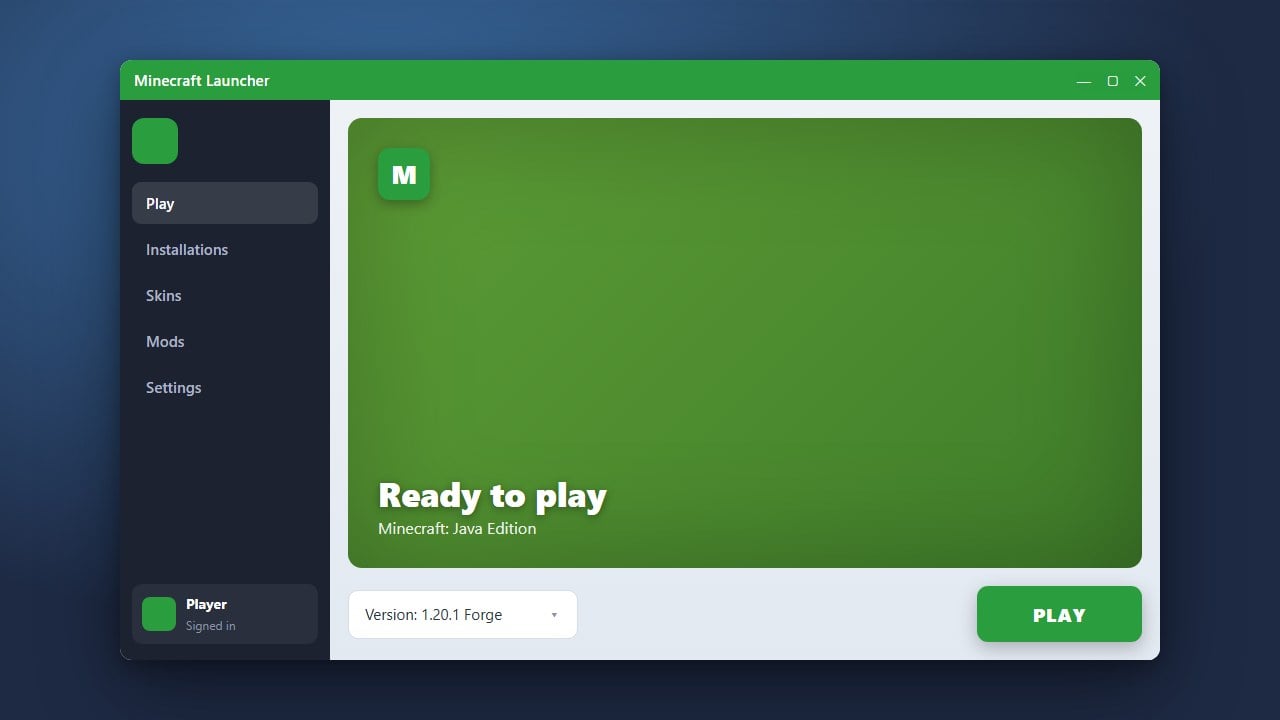
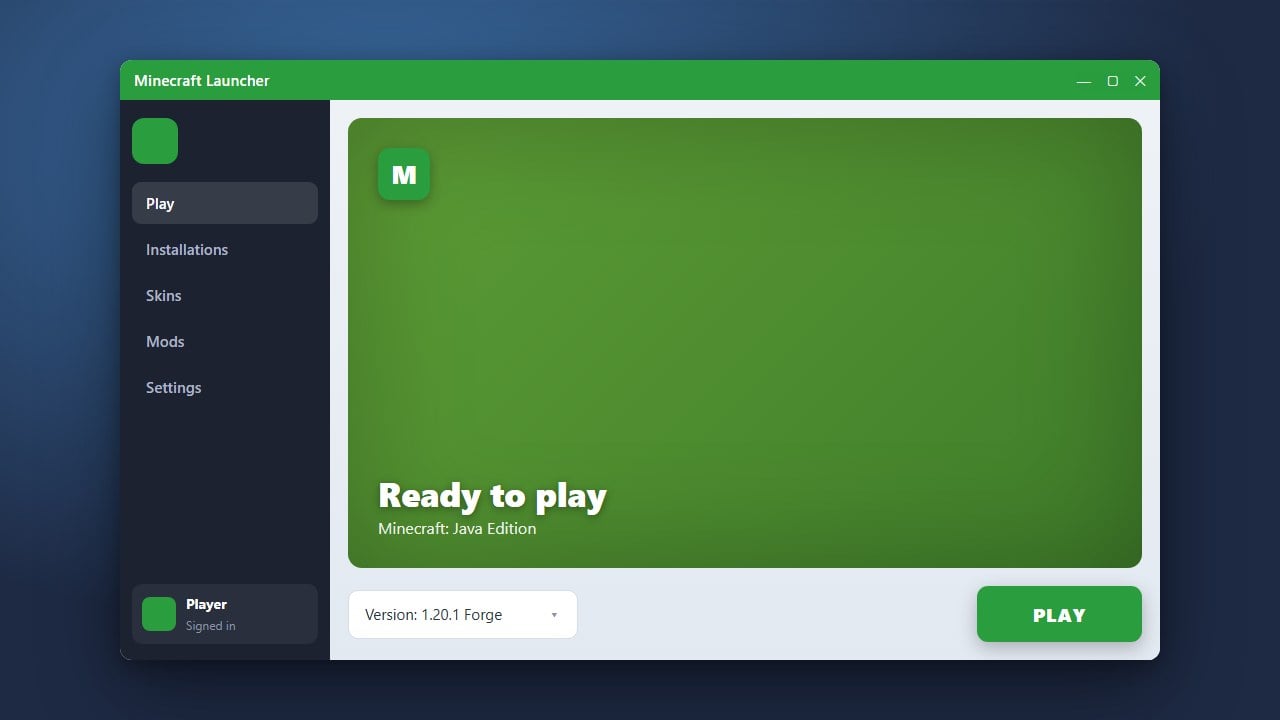
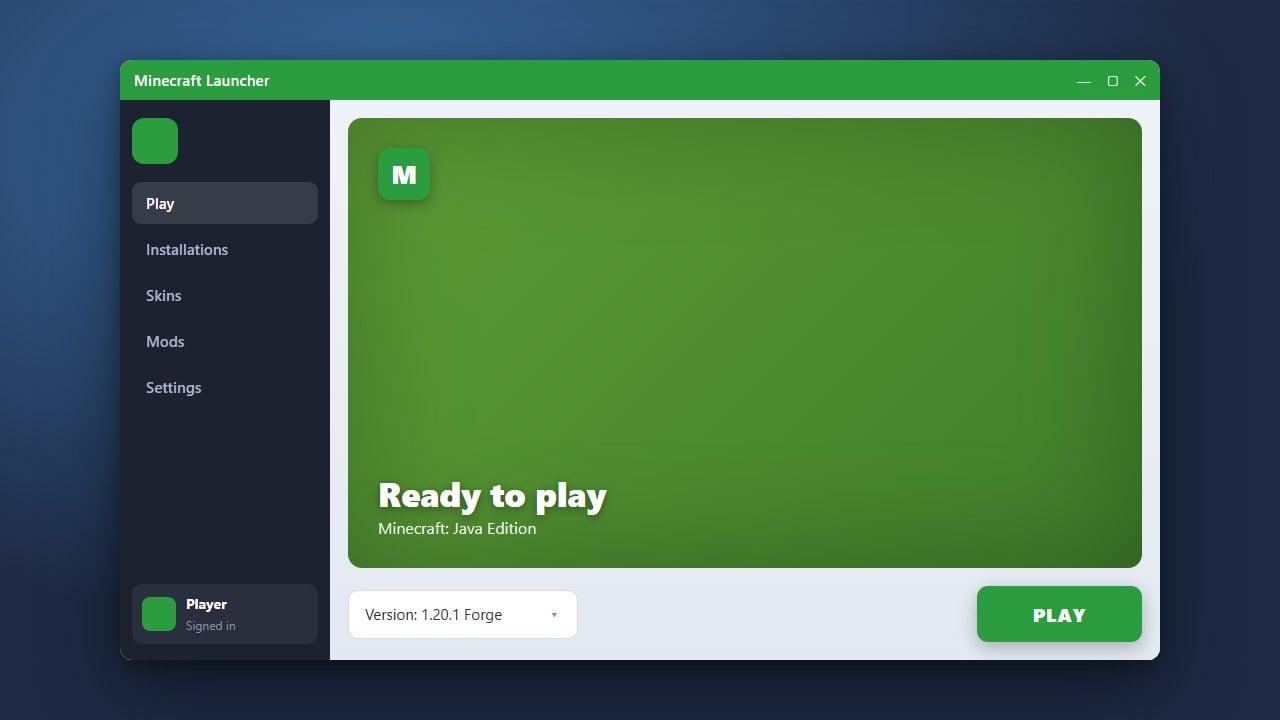
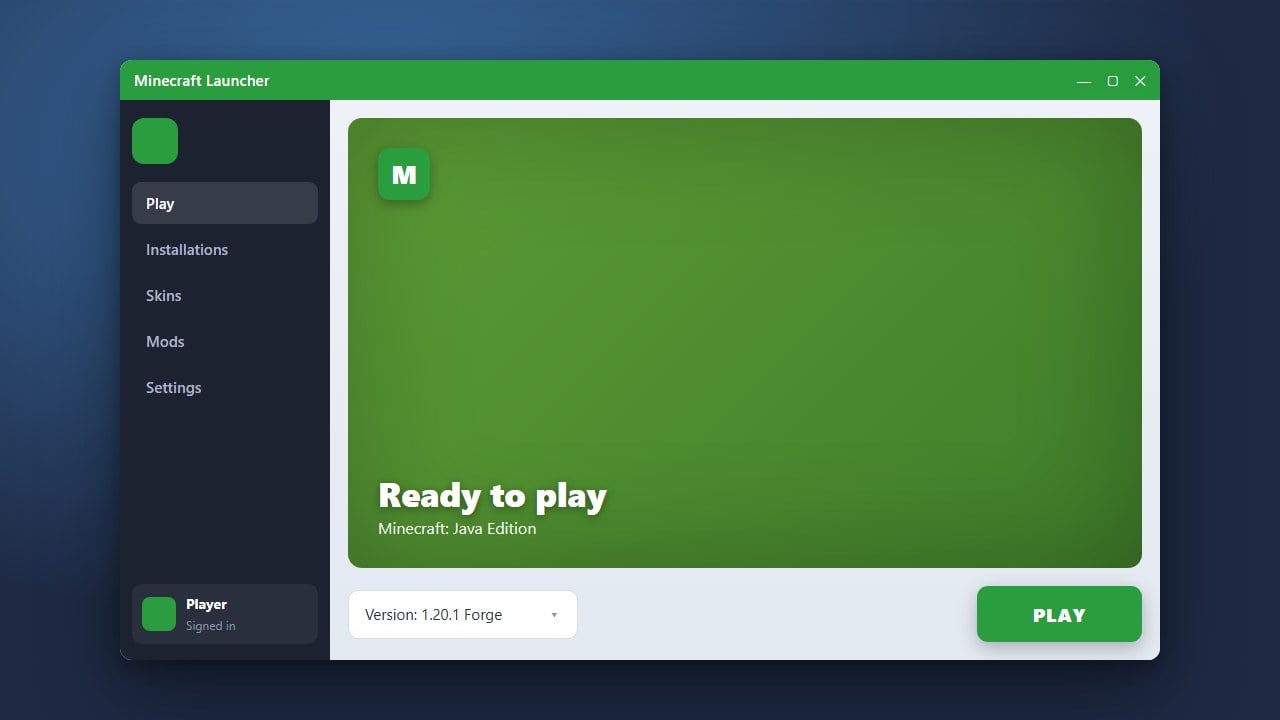
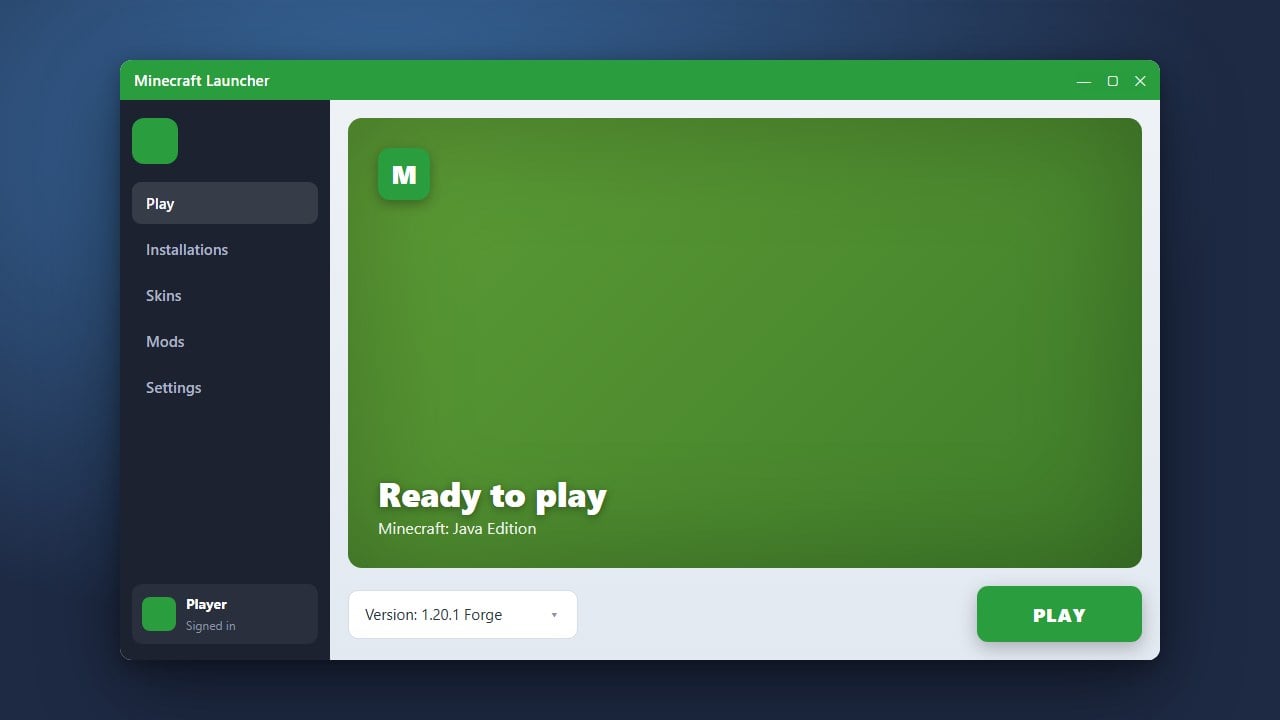
In the left sidebar of the launcher, select either Minecraft: Java Edition or Minecraft for Windows (Bedrock). Click the green Play button to begin downloading the core game files and start Minecraft.
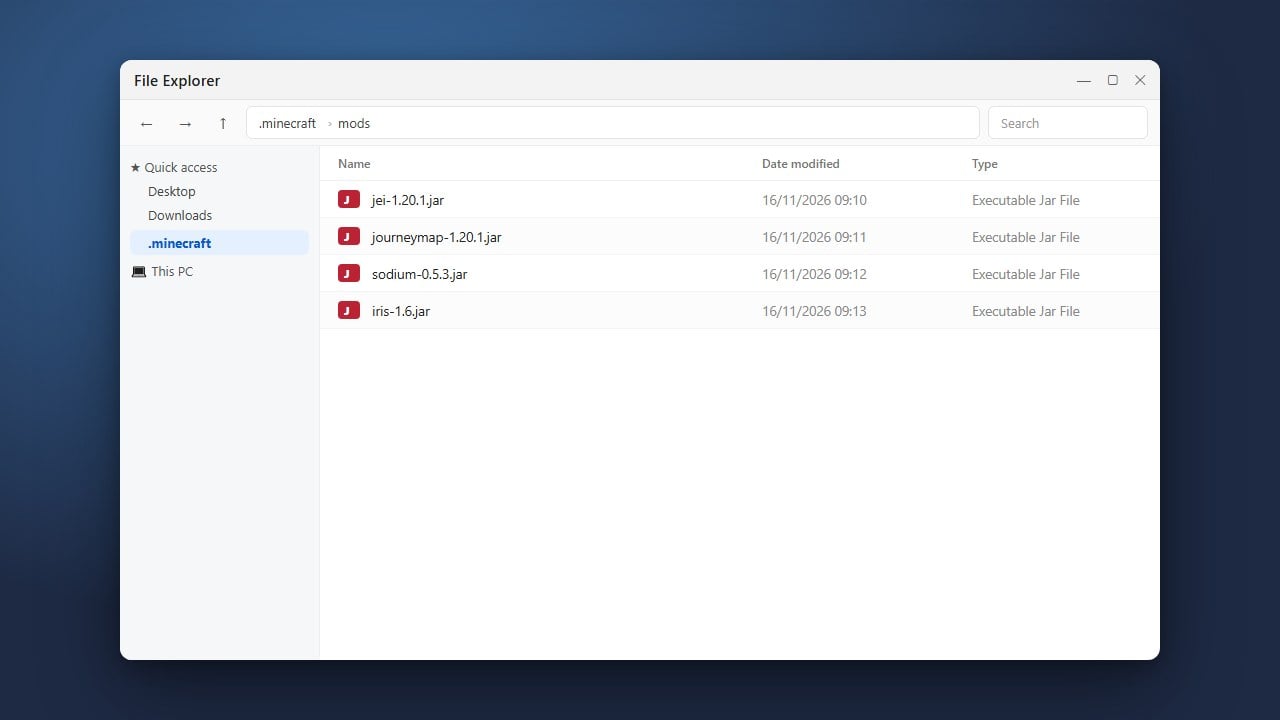
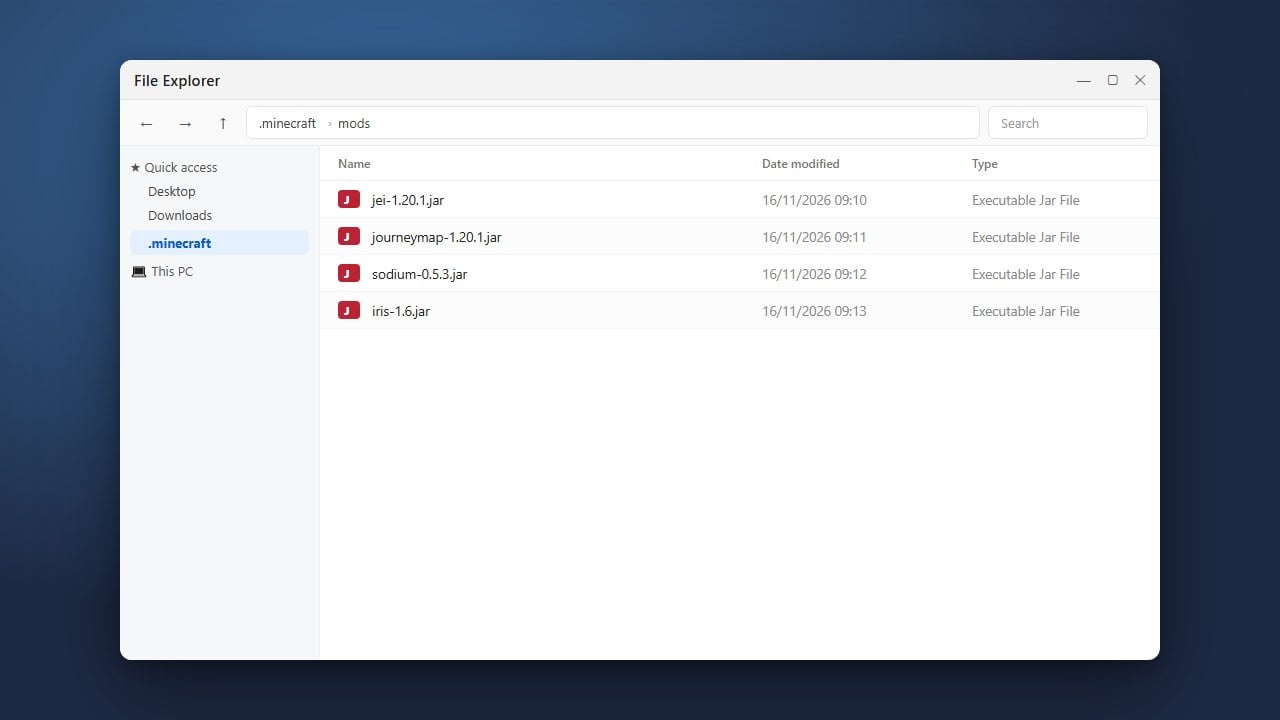
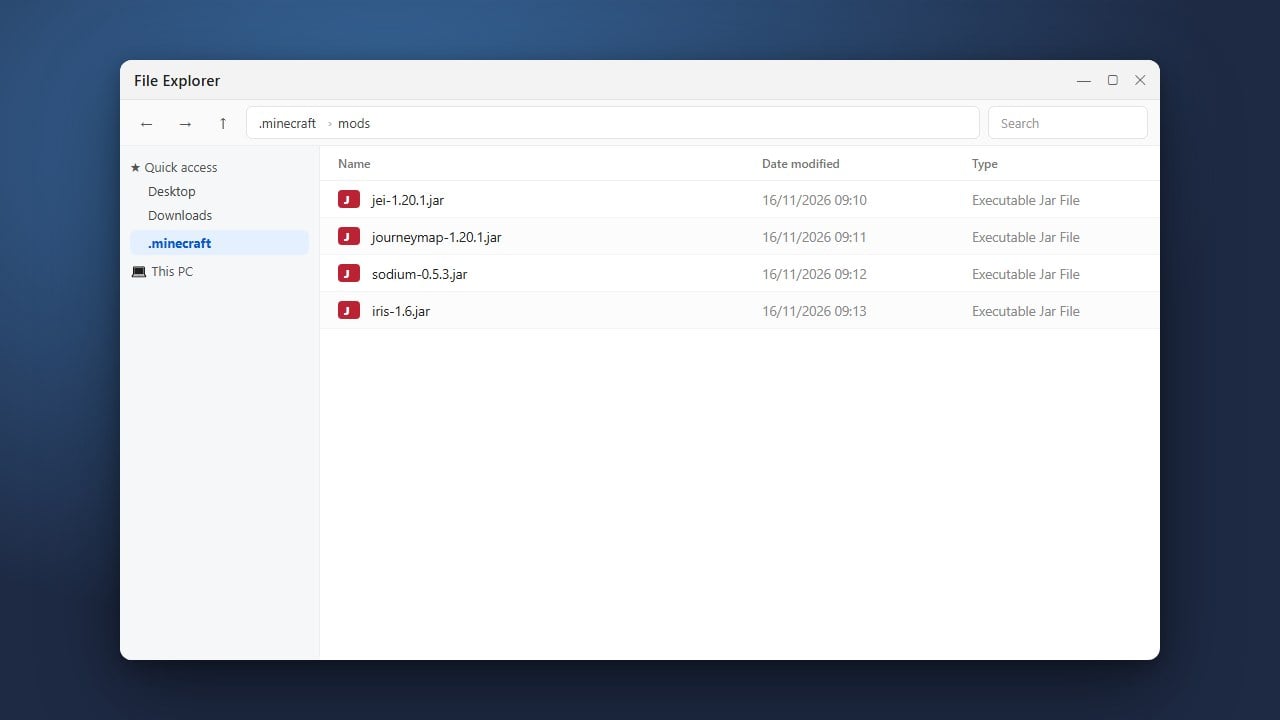
Once installed, Java players can manage their files with our guide on how to find your .minecraft folder, or expand gameplay by learning how to install Minecraft mods.
Frequently Asked Questions
Do I have to buy Java and Bedrock separately on PC?
No. Both versions are bundled together on PC. Purchasing the PC bundle grants you access to both Java Edition and Bedrock Edition under the same Microsoft account.
Can Java and Bedrock players play multiplayer together?
Not by default. Java Edition and Bedrock Edition use different multiplayer network protocols and cannot join the same standard worlds unless the server uses third-party compatibility tools like GeyserMC.
Can I install Minecraft on a secondary hard drive?
Yes. In the Minecraft Launcher for Java Edition, go to the Installations tab, click the three dots next to your profile, select Edit, and specify a custom folder in the Game Directory field.