Modifying Minecraft is one of the best ways to refresh your gameplay, whether you want breathtaking graphics, quality-of-life tweaks, or entirely new dimensions. While Java Edition uses third-party mod loaders to run .jar files, Bedrock Edition uses official Add-ons in .mcaddon or .mcpack formats. This guide covers how to install modifications on both editions quickly and safely.
Many modern Java mods running on Fabric also require the Fabric API mod placed inside your mods folder to work properly.
Never run Forge mods on a Fabric installation or vice versa; mod loaders are incompatible with each other's files and will crash your game upon launch.
Check Your Edition and Version
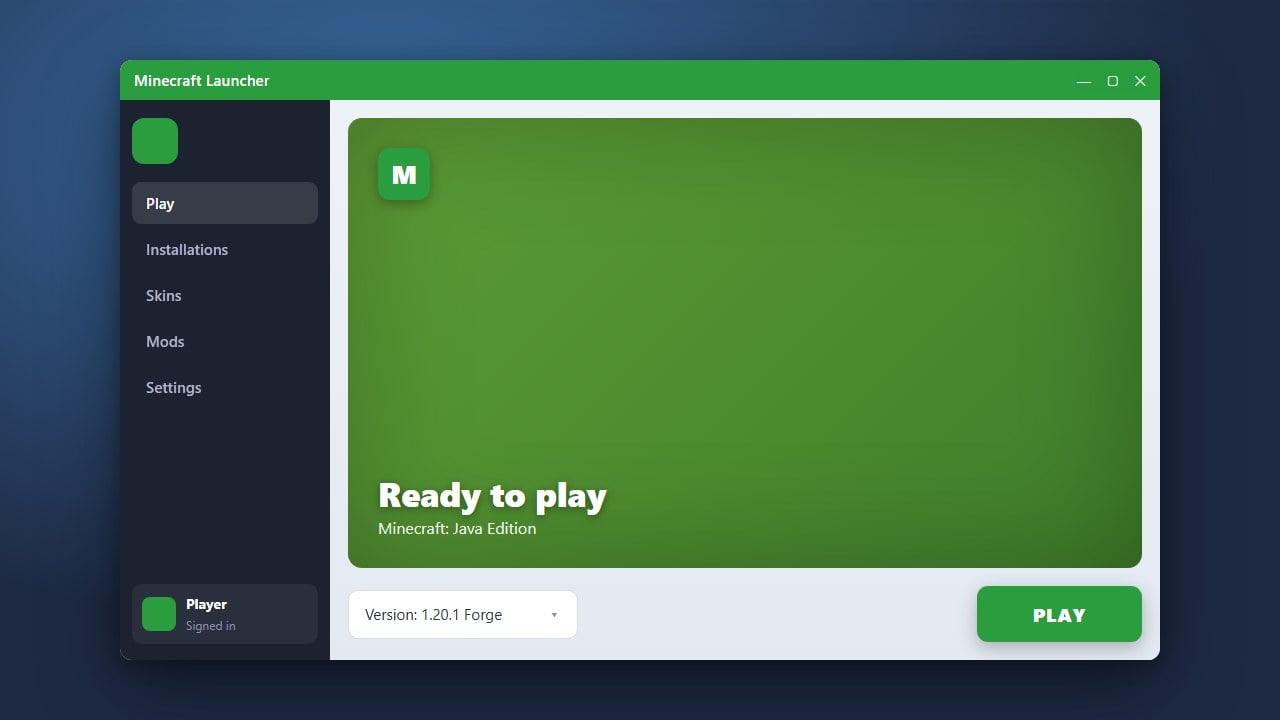
Open the Minecraft Launcher to verify whether you are running Java Edition or Bedrock Edition, and make note of your current game version (such as 1.21). Mod files are built strictly for specific editions and game versions, so matching them correctly prevents crashes before you even begin.
Install a Mod Loader (Java Edition Only)
If you are on Java Edition, vanilla Minecraft cannot read mod files directly. You must install a mod loader such as Fabric, Forge, or NeoForge. Run the downloaded loader installer, select Install Client, and ensure it targets your Minecraft directory.
Bedrock Edition players can skip this step entirely, as Bedrock has native support for Add-ons and does not require an external mod loader.
Download Your Mods or Add-ons
Always download files from reputable community platforms like CurseForge or Modrinth. For Java Edition, download .jar files that match both your exact Minecraft version and your installed loader. For Bedrock Edition, look for .mcaddon or .mcpack files designed for your current release.
Place Your Mod Files in the Correct Location
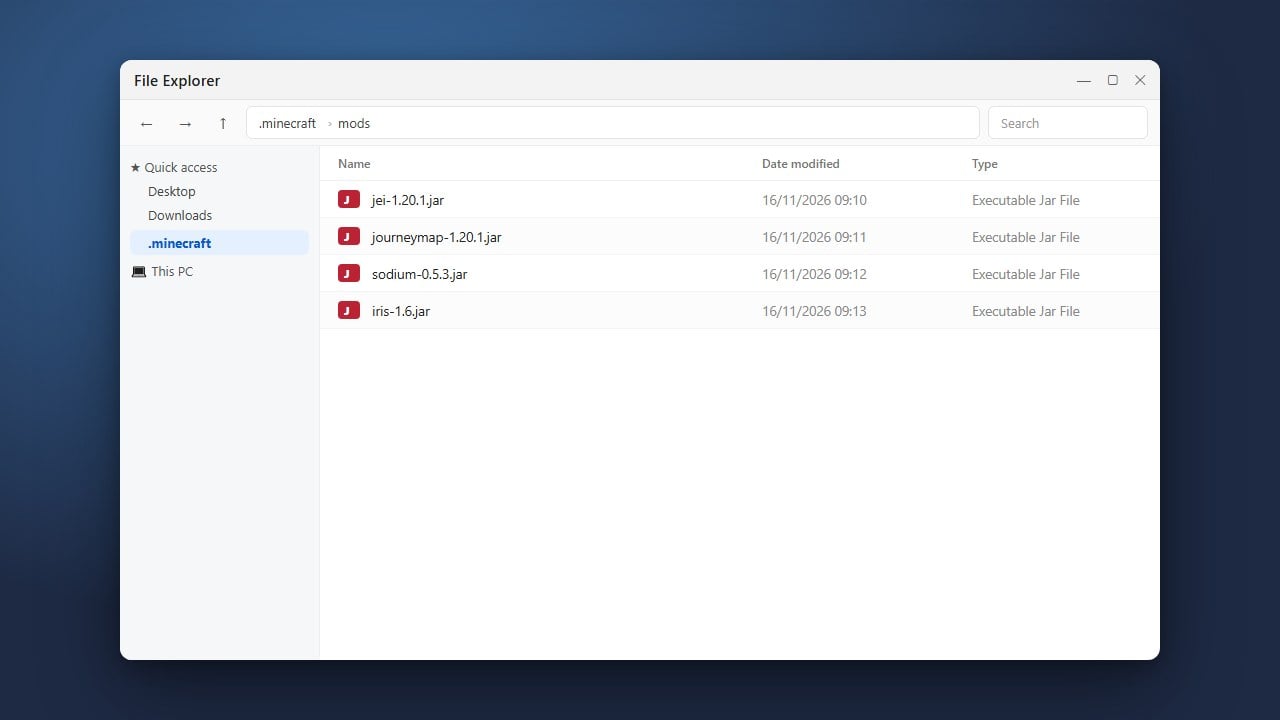
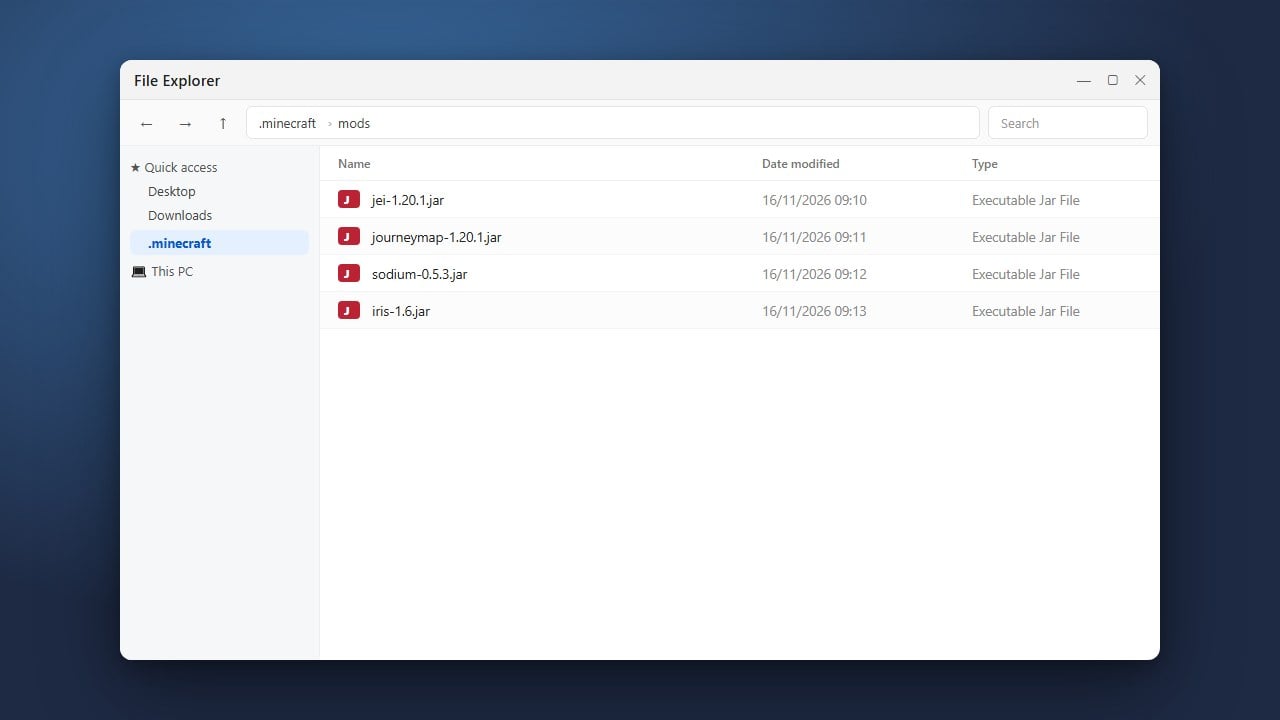
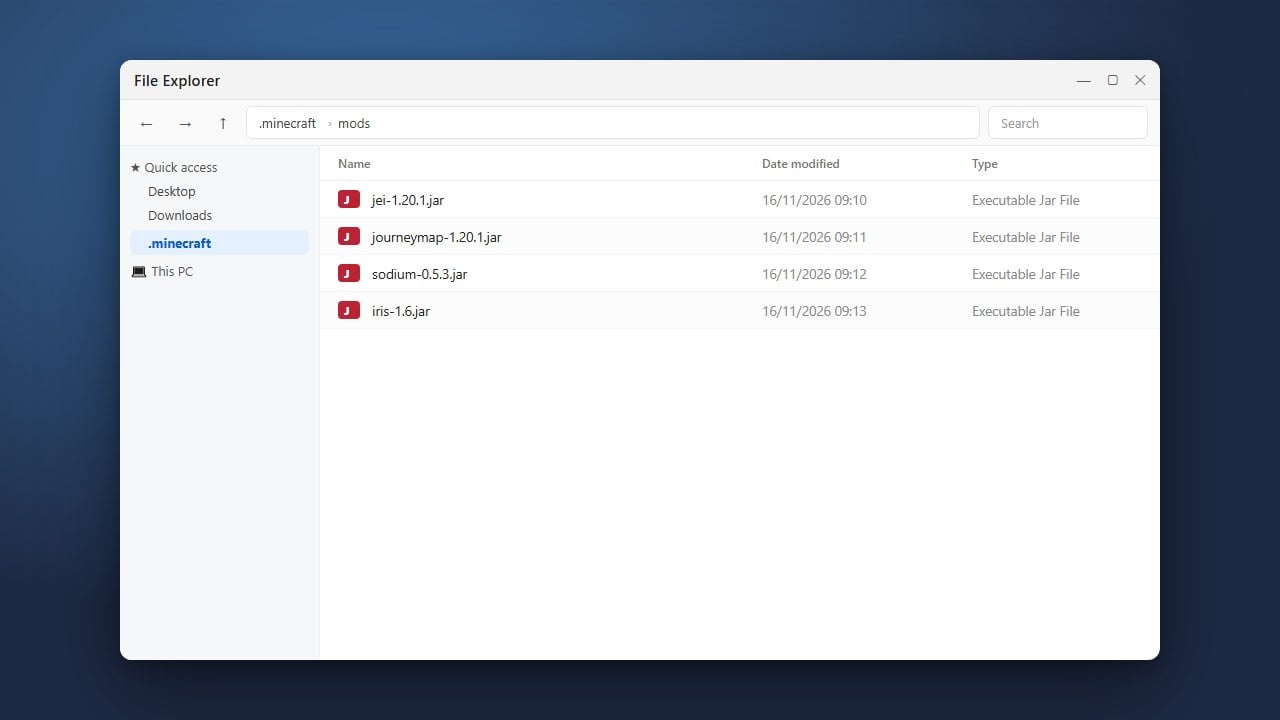
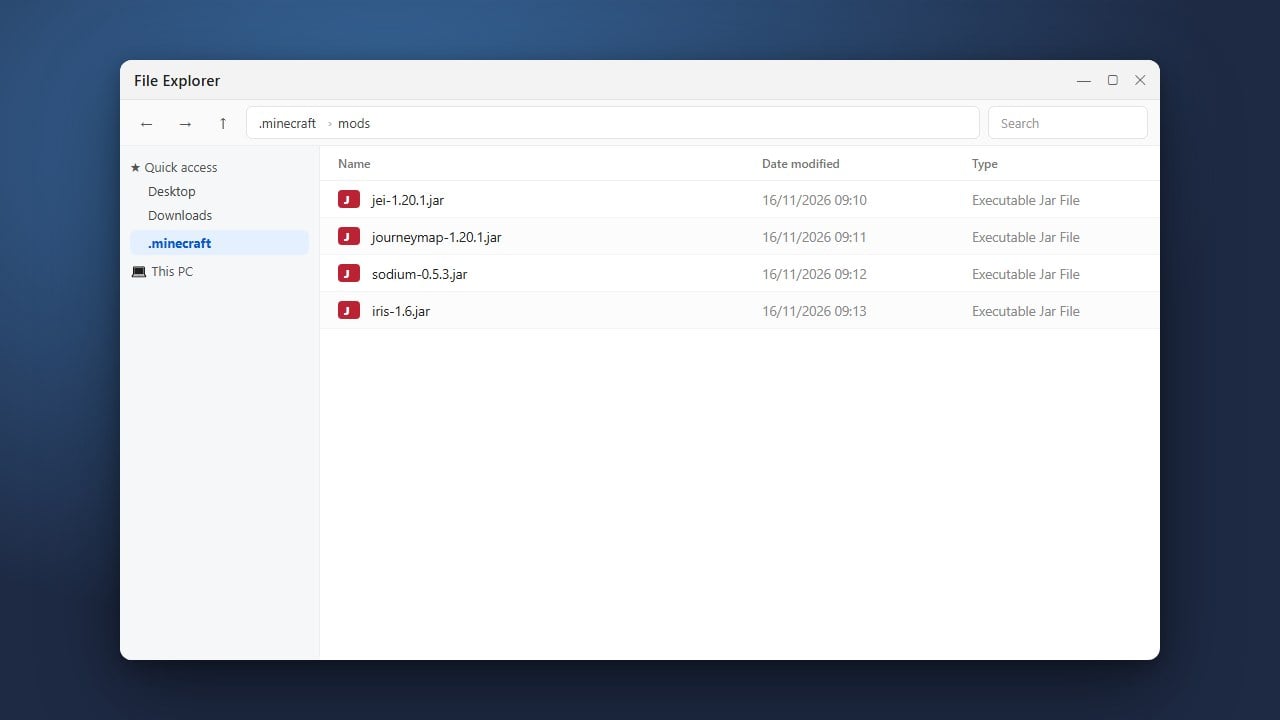
For Java Edition, press Win + R, type %appdata%\.minecraft, and press Enter to open your game directory. If you cannot locate it, see our guide on how to find your .minecraft folder. Open the mods folder (create one in all lowercase if it does not exist) and drop your downloaded .jar files inside.
For Bedrock Edition, simply double-click or tap the downloaded .mcaddon or .mcpack file. Minecraft will launch automatically and import the content directly into your game.
Launch the Game and Enable Your Content
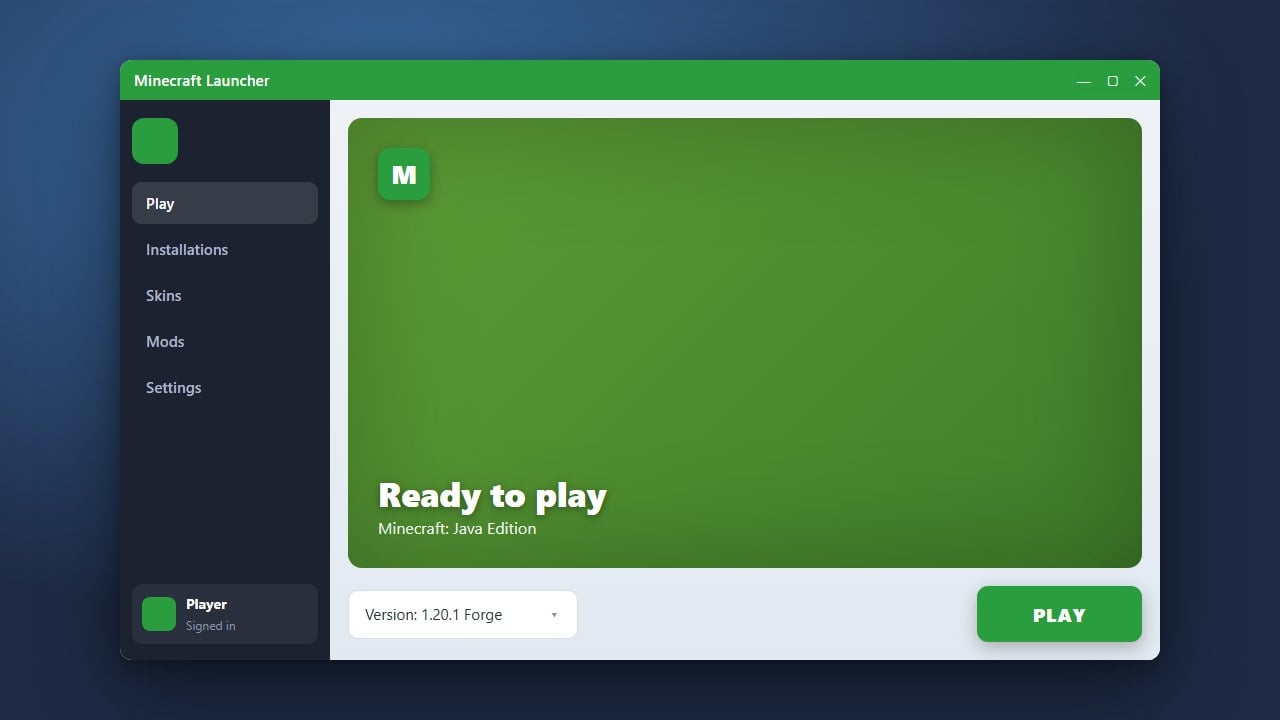
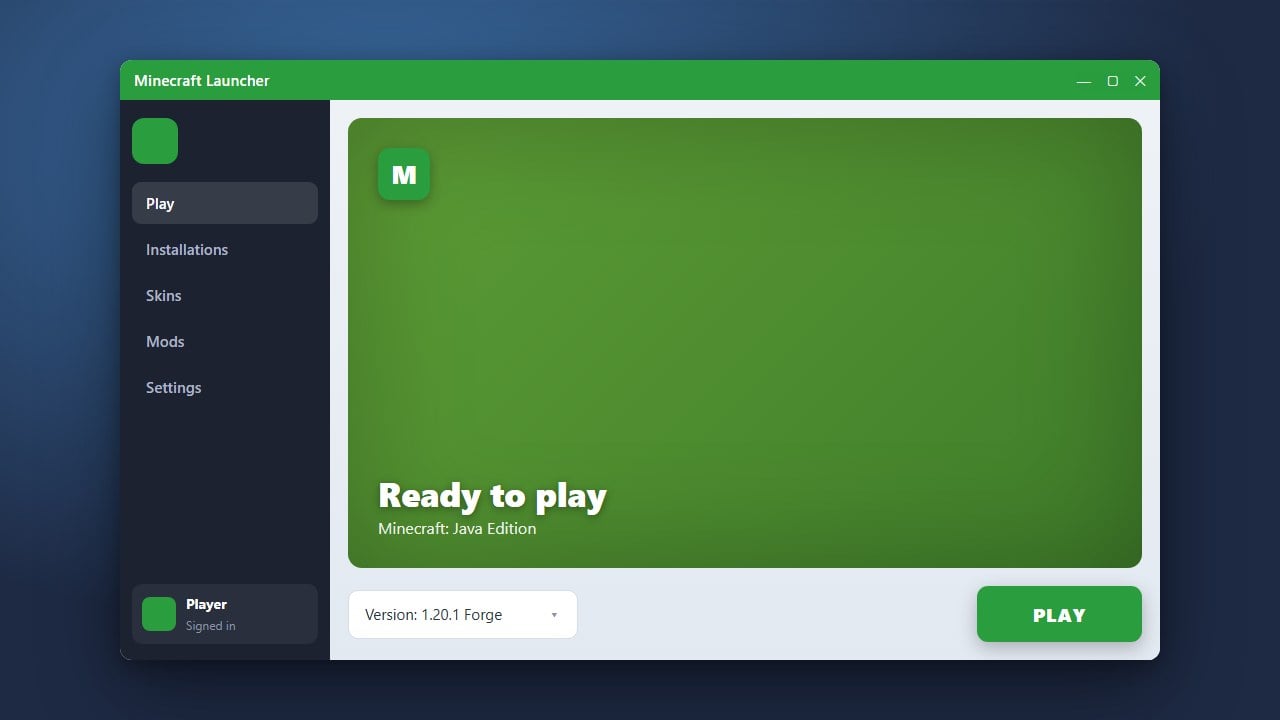
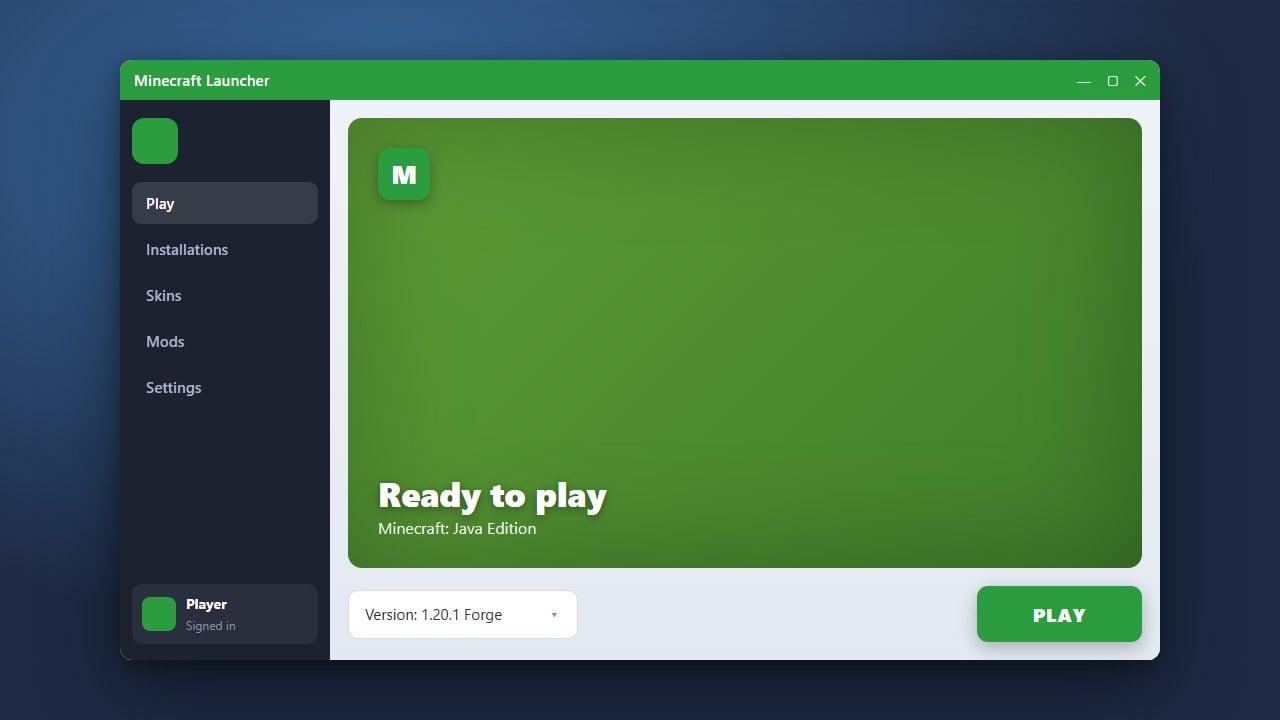
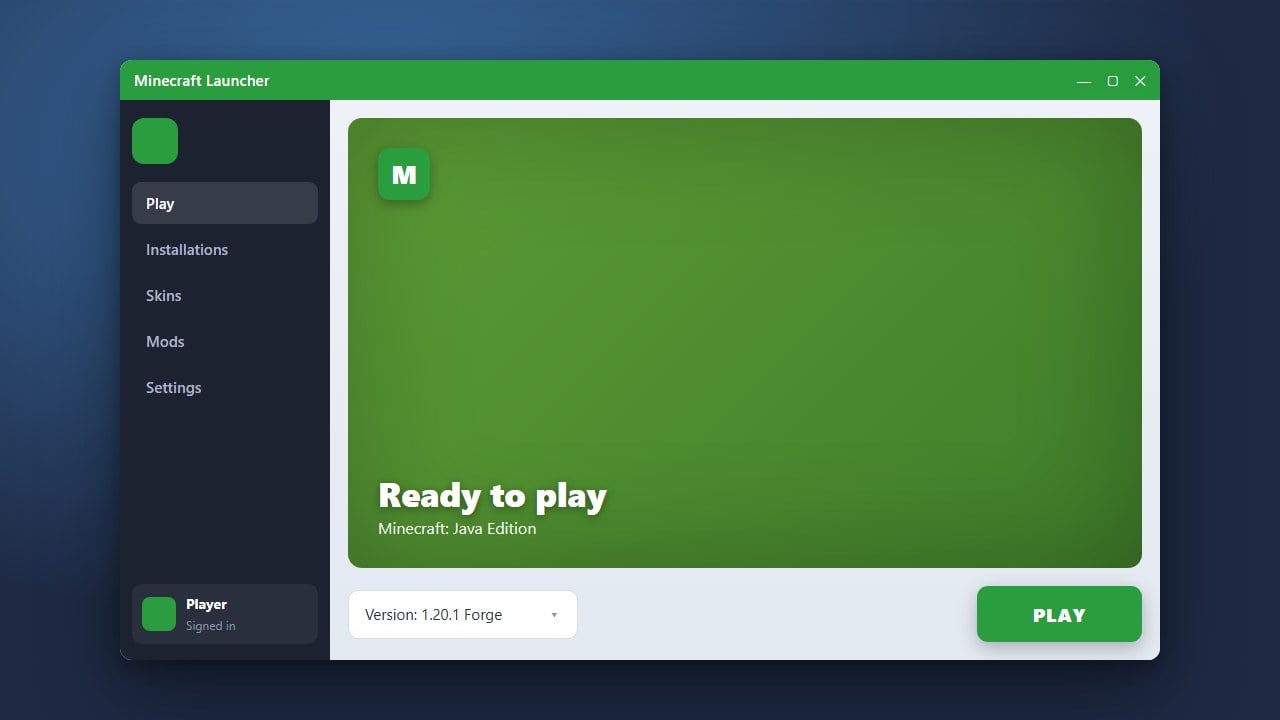
On Java Edition, open the Minecraft Launcher, select your mod loader profile from the drop-down menu near the play button, and start the game. You can check the in-game Mods menu to ensure everything loaded properly.
On Bedrock Edition, open the settings of an existing world or create a new one, scroll down to Resource Packs and Behavior Packs, and click Activate on your new Add-on before entering the world.
Frequently Asked Questions
Why is my game crashing after adding a mod?
Crashes are usually caused by version mismatches, missing dependency libraries, or conflicting mods. If your game fails to launch, check our guide on how to fix mods not loading to diagnose the issue.
Can I install Java mods on Minecraft Bedrock Edition?
No. Java Edition mods are written in Java and compiled as .jar files, which Bedrock Edition cannot execute. Bedrock players must use native Add-ons formatted as .mcaddon or .mcpack files.