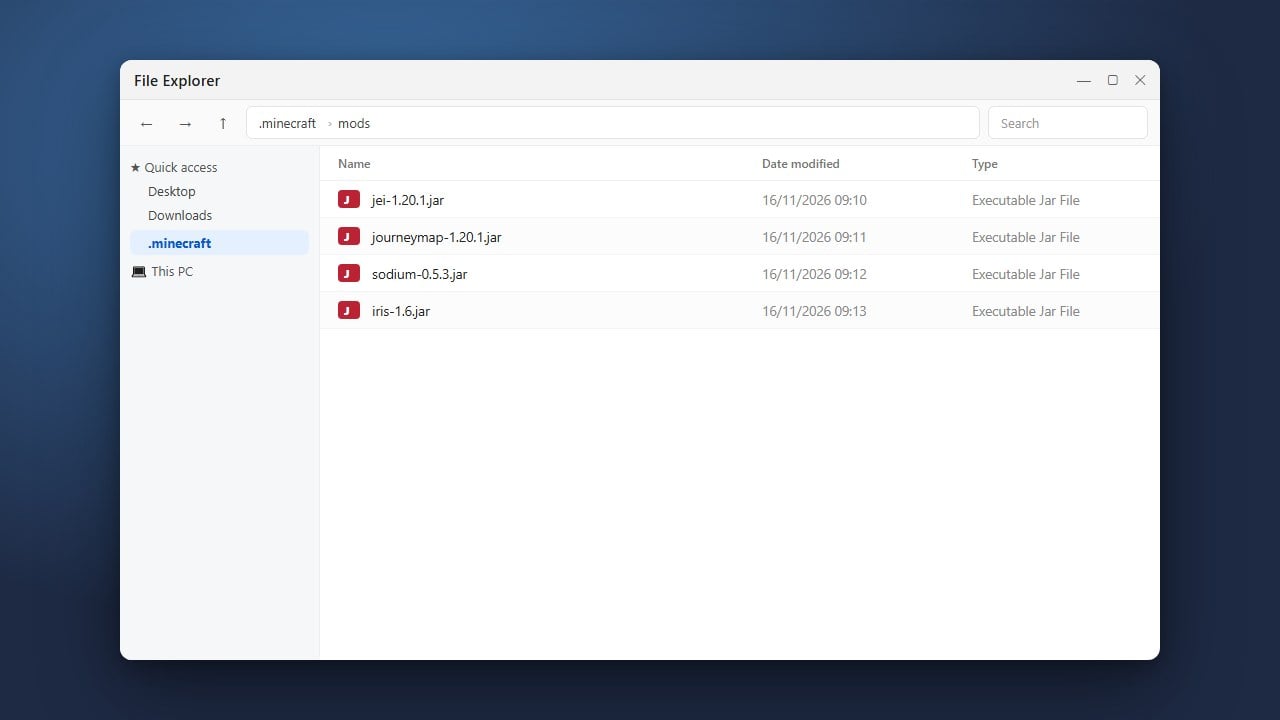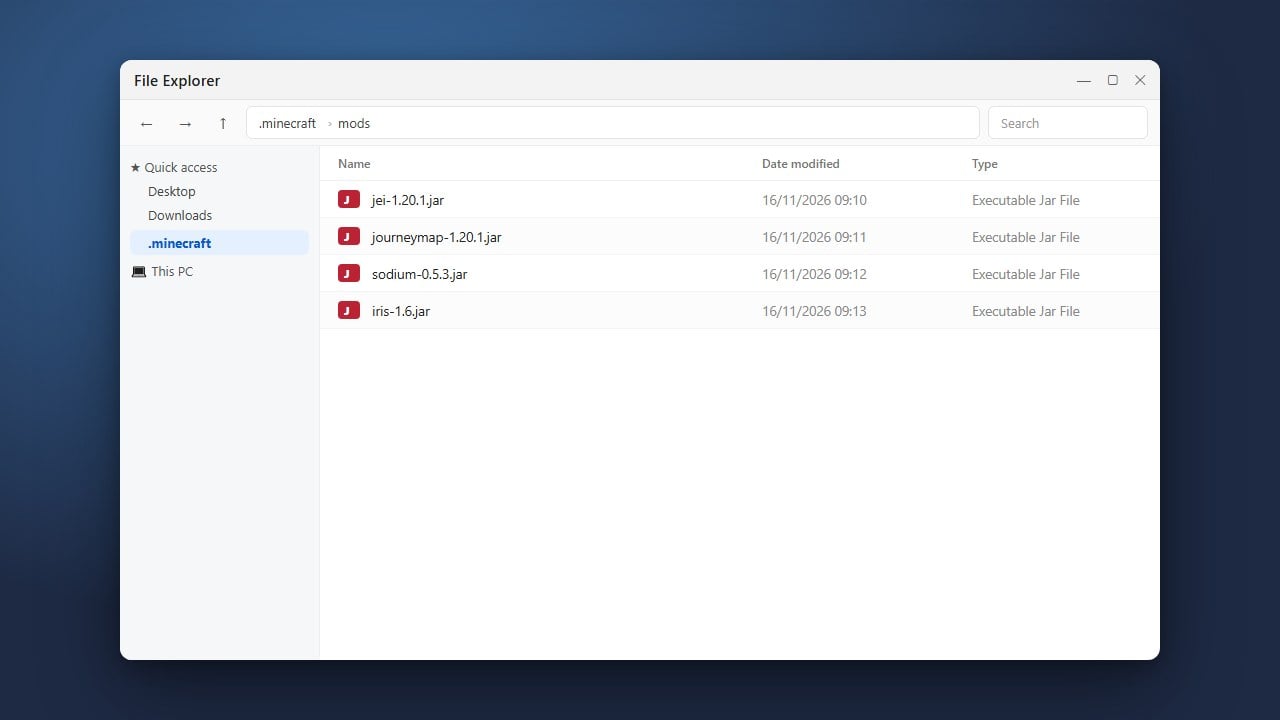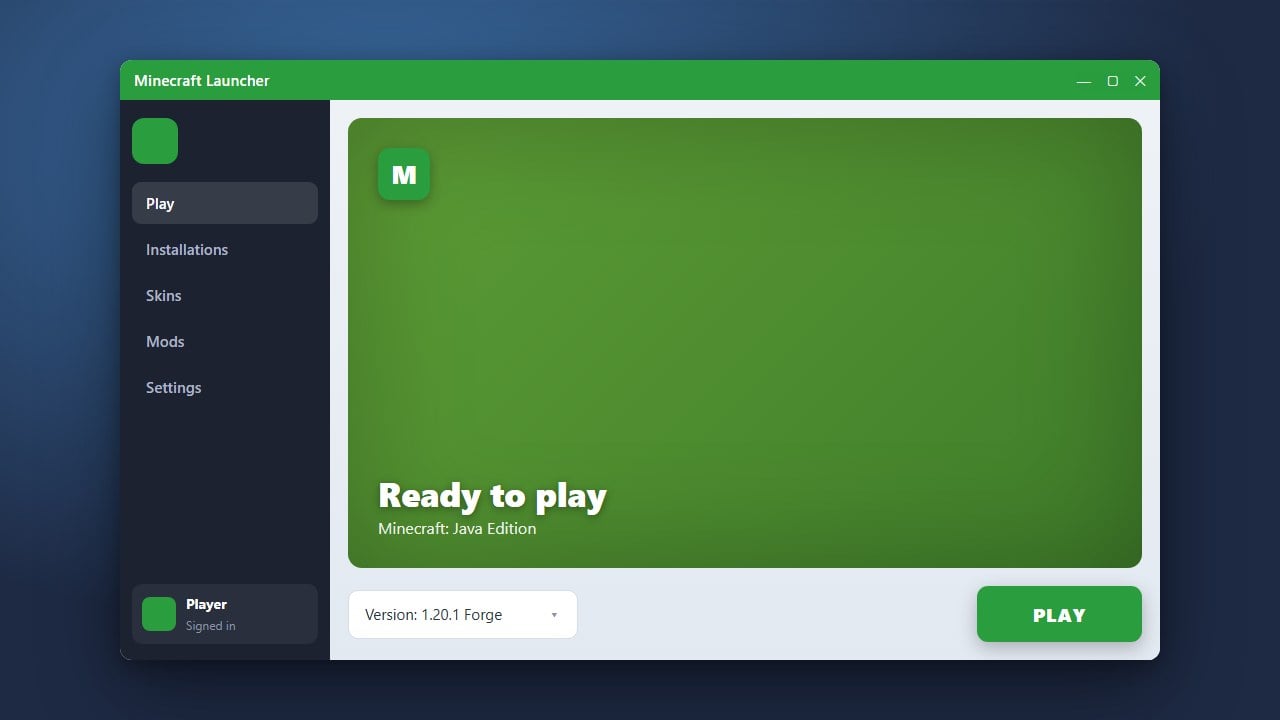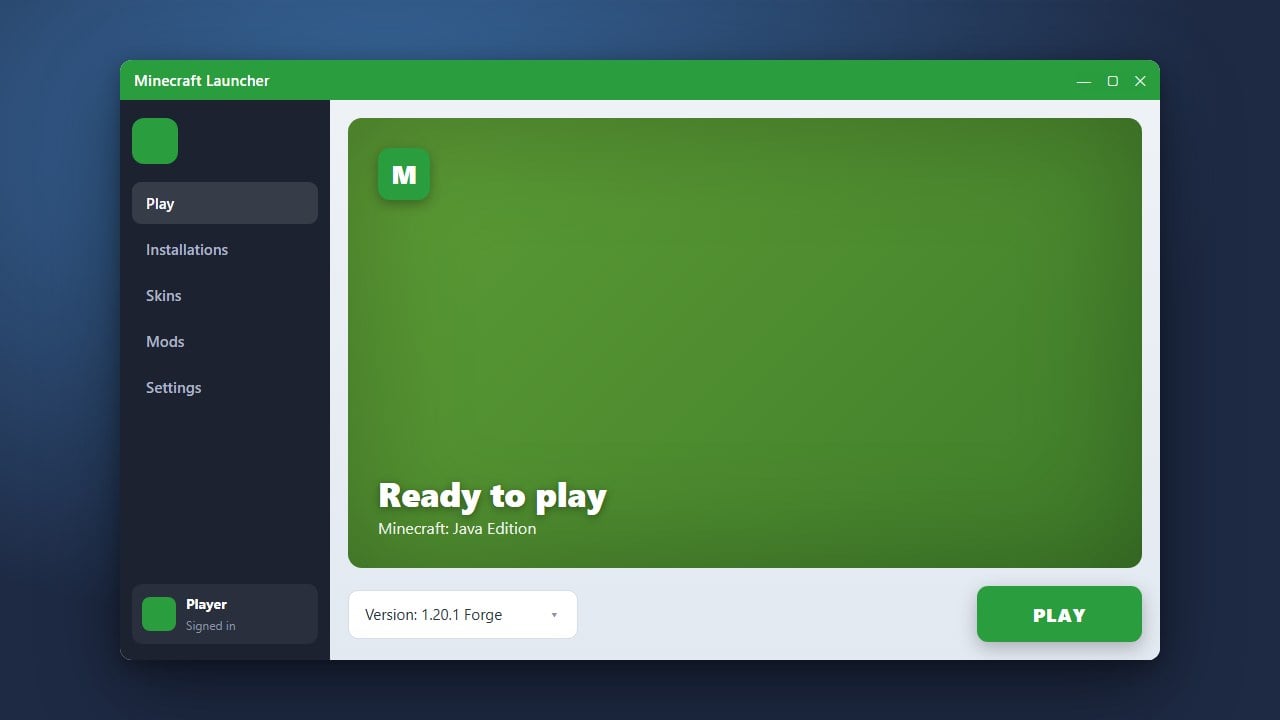
While the official Minecraft Launcher comes with an embedded Java runtime to play the base game, running standalone .jar installers for mod loaders or third-party tools requires having Java installed directly on your operating system. For modern Minecraft (versions 1.20.5 and 1.21+), you need Java 21 installed to launch tools, set up servers, or run mod installers like Forge and Fabric.
.jar files still open with WinRAR or 7-Zip after installing Java, right-click the file, choose Open with > Choose another app, and set Java as the default handler.Determine Which Java Version You Need
Modern Minecraft releases depend on specific Java versions. Minecraft 1.20.5, 1.21, and newer require Java 21. If you are playing versions 1.18 through 1.20.4, you need Java 17, while legacy versions (1.16.5 and older) require Java 8.
For the best compatibility with current versions, install Java 21 LTS (Long Term Support).
Download Java from a Trusted Source
Visit a reputable OpenJDK provider such as Adoptium (Eclipse Temurin) at adoptium.net or Oracle's official Java download page. Adoptium is widely recommended by the Minecraft modding community because it is free, open-source, and pre-configured for developer tools.
Select Java 21 (LTS), choose your operating system (Windows, macOS, or Linux), and download the standard installer (an .msi file for Windows or a .pkg file for macOS).
Run the Java Setup Wizard
Open the downloaded installer file to start the setup wizard. On Windows, make sure the installation options for Set JAVA_HOME variable and JavaSoft (Oracle) registry keys are enabled if prompted, as these ensure other programs can automatically detect Java.
Click Next and follow the on-screen prompts until the installation completes, then click Finish.
Verify Your Java Installation
To confirm that Java is correctly installed and recognized by your system, open your terminal. On Windows, press Win + R, type cmd, and press Enter. On macOS, open the Terminal app from Applications.
Type java -version and press Enter. The console should display your installed version, such as openjdk version "21.0.x".
Open Mod Installers with Java
Now that Java is installed, you can execute downloadable .jar files. Right-click any mod loader installer—such as NeoForge or OptiFine—select Open with, and choose Java(TM) Platform SE binary.
If double-clicking a .jar file opens an archive tool like WinRAR or 7-Zip instead, run a free community tool named Jarfix on Windows to automatically restore the proper file association.
Frequently Asked Questions
Do I need to install Java just to play regular Minecraft?
No. The modern Minecraft Launcher bundles its own internal Java runtime, so unmodded vanilla Minecraft works out of the box without any manual Java installation.
Can I have multiple Java versions installed at the same time?
Yes, you can install Java 8, 17, and 21 side-by-side on your computer. Custom launchers like Prism or CurseForge allow you to pick which installed Java runtime each individual profile should use.
What should I do if the installer fails to open when double-clicked?
On Windows, file associations for .jar files are often hijacked by archivers like WinRAR. Downloading and running the lightweight, free utility Jarfix will immediately repair this connection so .jar files run with Java again.