While the full game requires a purchase, Mojang provides an official free trial that lets you test modern Minecraft on your PC without spending anything. By following this guide, you can safely install the official launcher and explore the Java Edition demo world or the Bedrock Edition trial without risking suspicious third-party downloads.
Set Up a Free Microsoft Account
Both Minecraft: Java Edition and Bedrock Edition require a Microsoft account to manage your profile and game data. If you do not already have one, navigate to the official Microsoft sign-up website and register an email address for free. Keep your login details handy, as you will use them inside the game launcher.
Download the Official Minecraft Launcher
Visit the official Minecraft website (minecraft.net) and head to the download section. Select the installer for your operating system, such as Windows 10/11, macOS, or Linux. The official launcher is completely free to download and acts as the portal for both Java Edition and Bedrock Edition. If you need a full walkthrough on setup options, see our guide on how to install Minecraft on PC.
Install the Launcher on Your System
Open the downloaded setup file (such as MinecraftInstaller.exe on Windows) and follow the on-screen wizard prompts. The installer sets up the required runtime files automatically, so you usually do not need to configure standalone runtimes manually, though knowing how to install Java can help if you run custom setups later.
Sign In with Your Microsoft Credentials
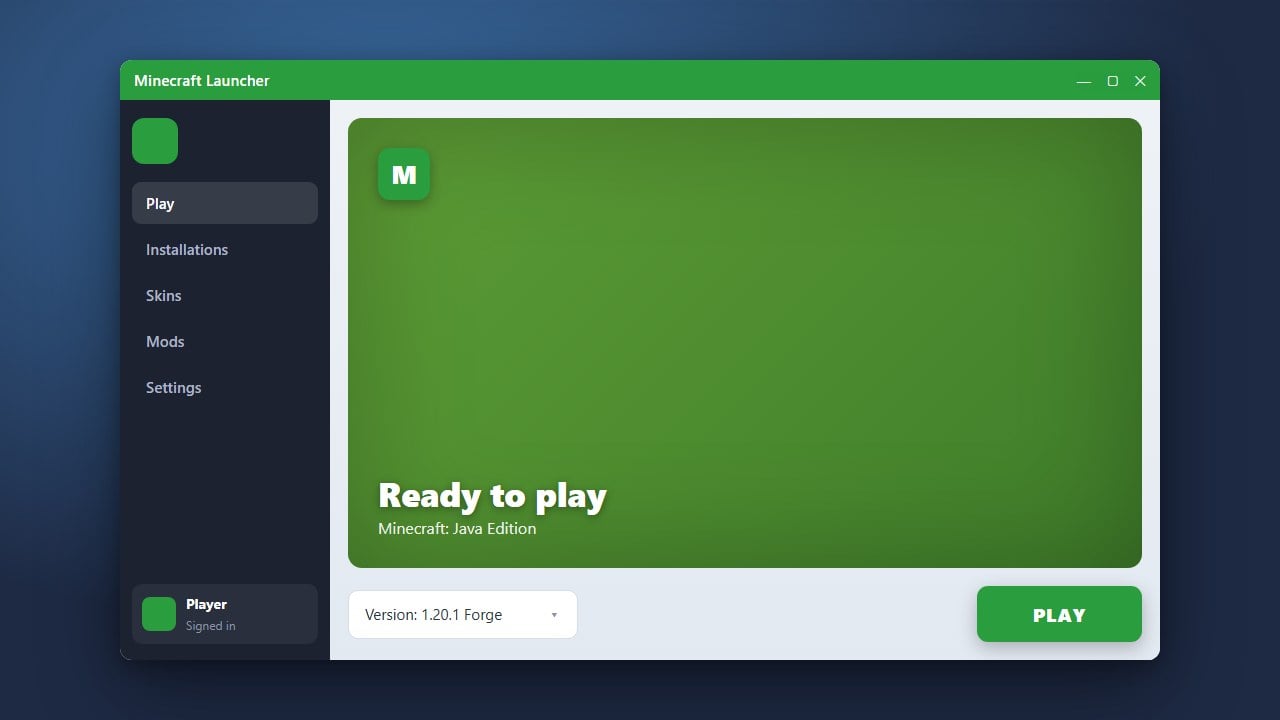
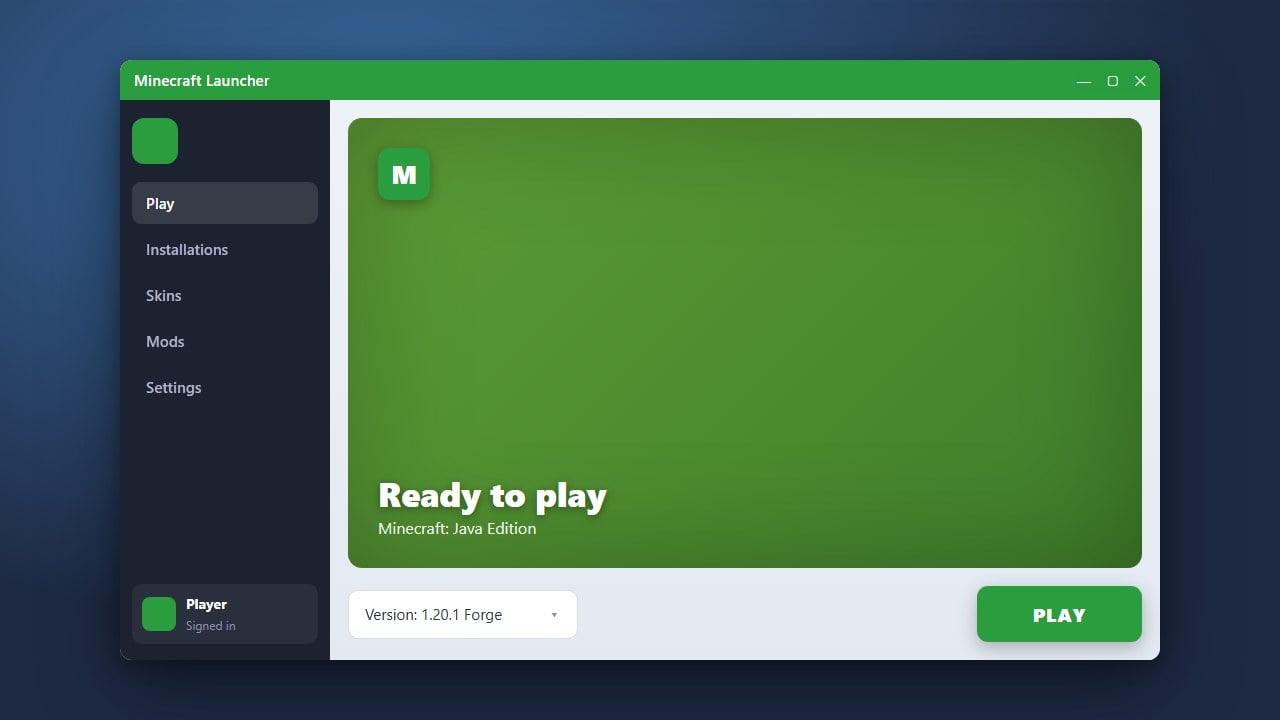
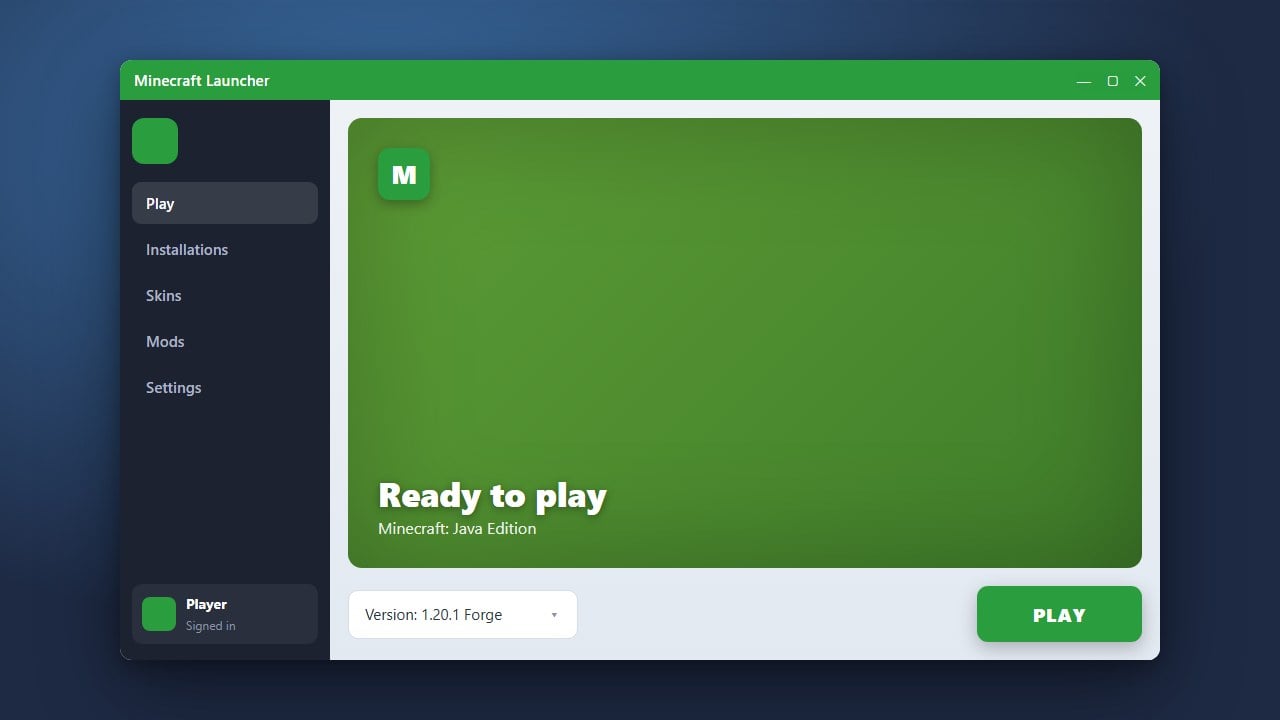
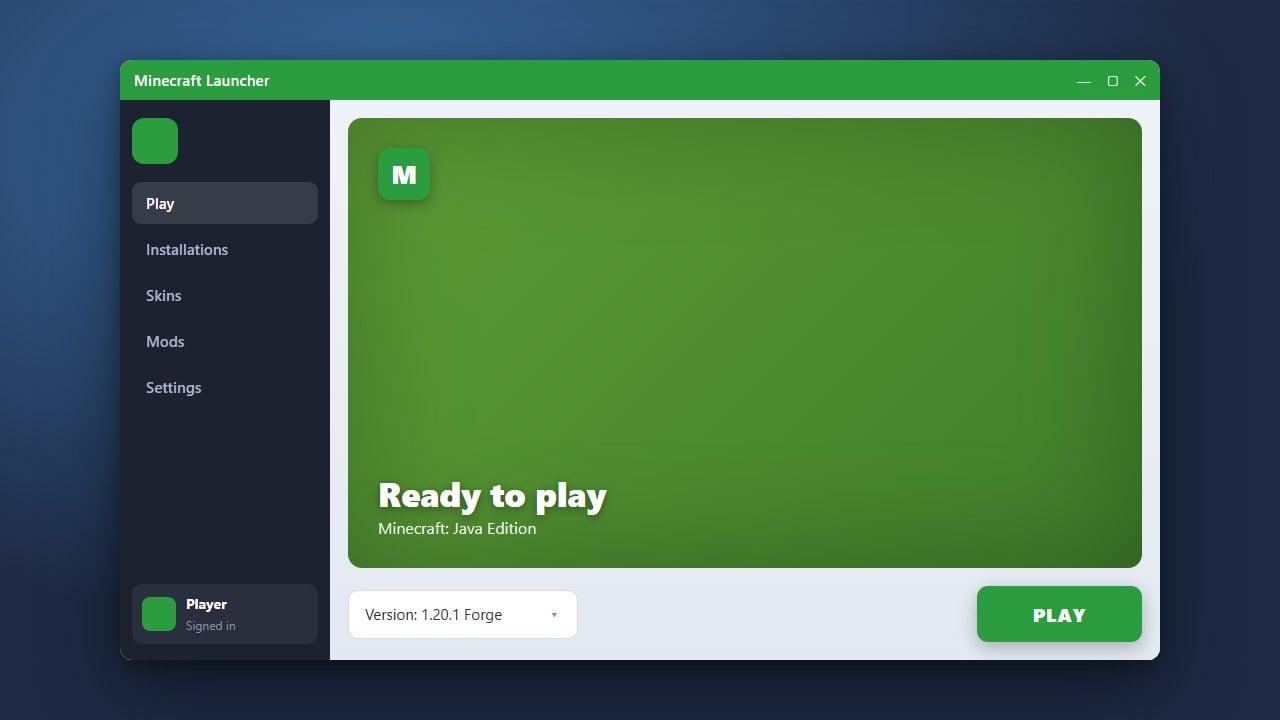
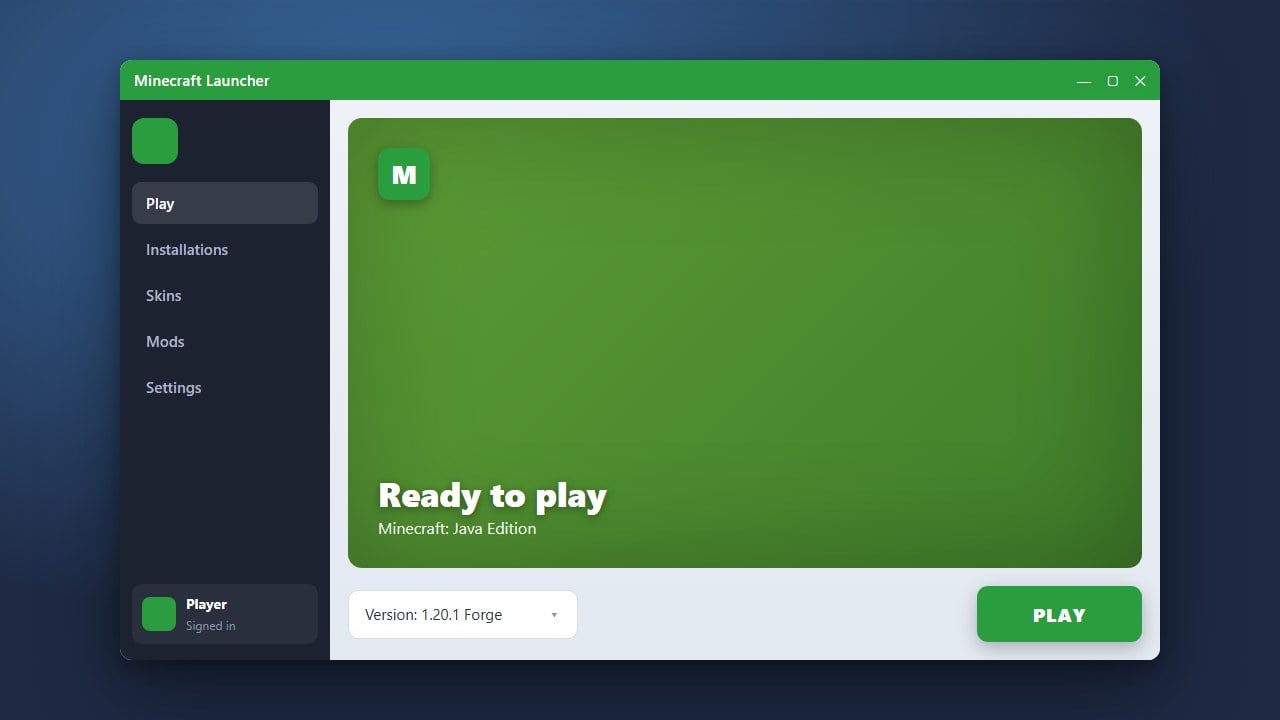
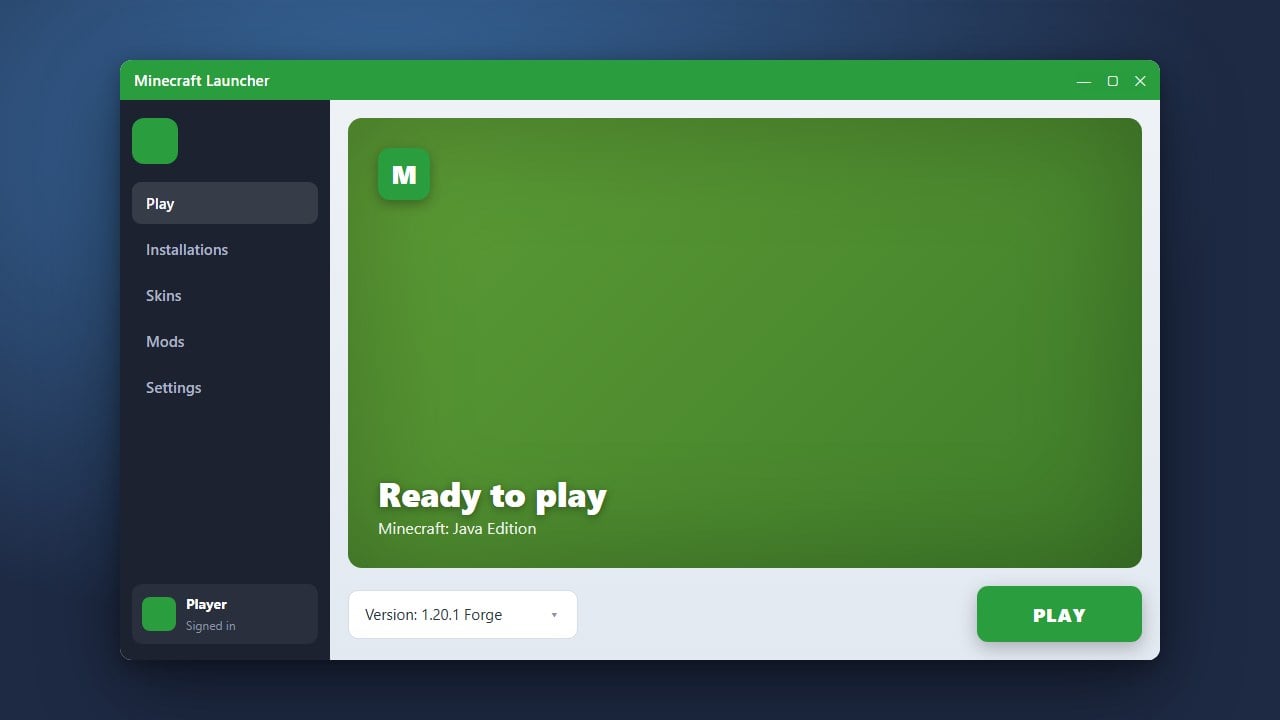
Launch the newly installed Minecraft Launcher from your desktop or Start menu. Choose Microsoft Login and enter the email and password you created earlier. Once signed in, the launcher dashboard will load your user profile.
Select and Start Your Free Trial
On the left-hand sidebar of the launcher, choose either Minecraft: Java Edition or Minecraft for Windows (Bedrock Edition). Because the account does not yet own a full license, the launcher will display a Play Demo button for Java Edition or a Free Trial option for Bedrock. Click the button to download the latest game files (version 1.21+) and jump straight into the trial world.
Frequently Asked Questions
Can I install mods on the free Minecraft trial?
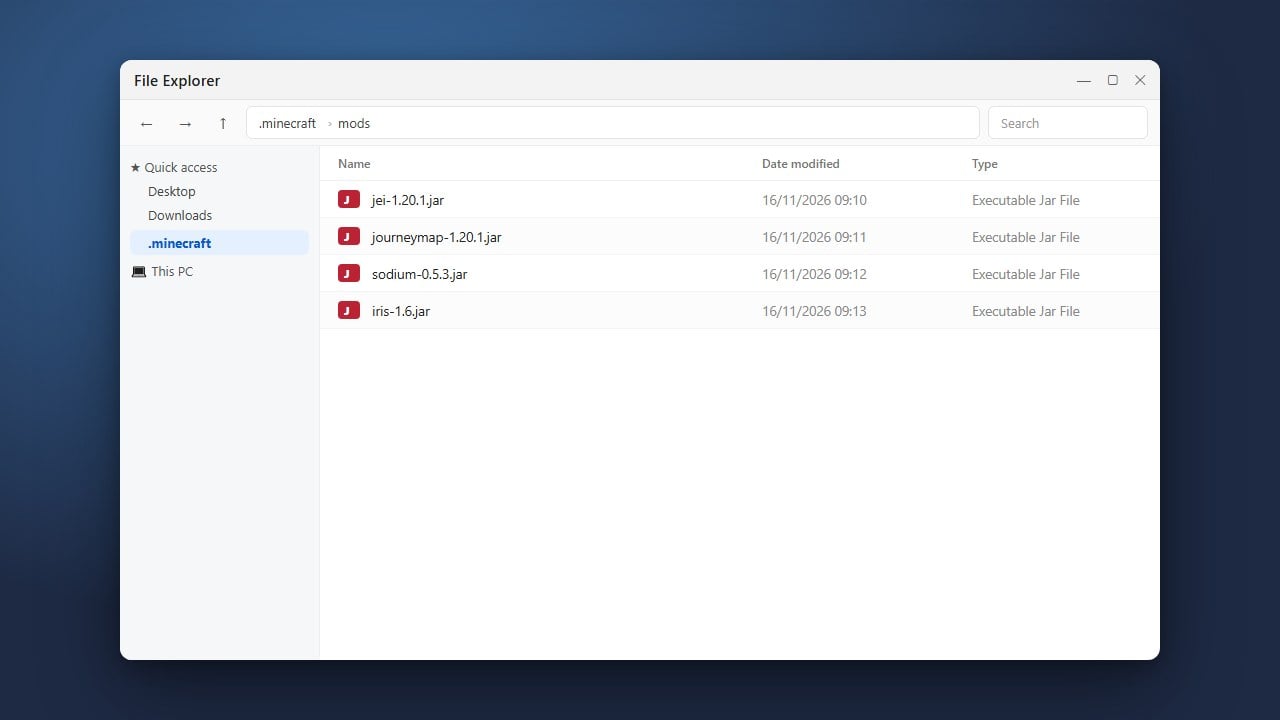
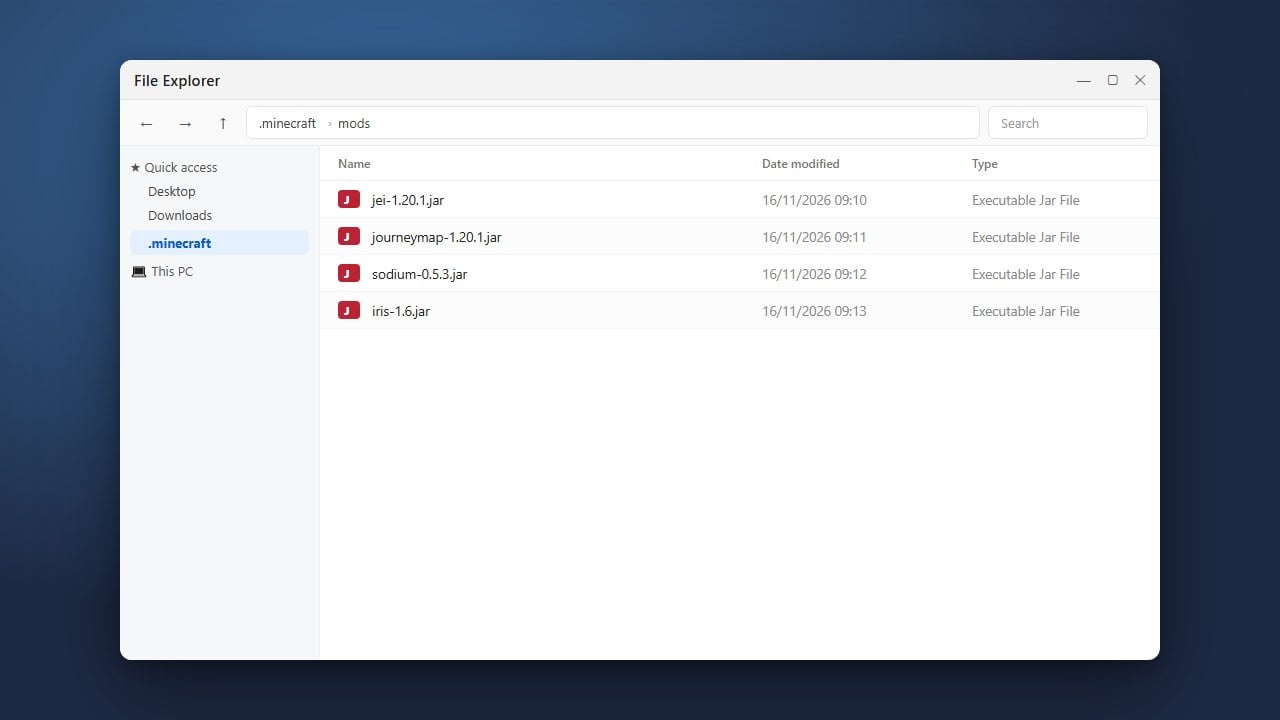
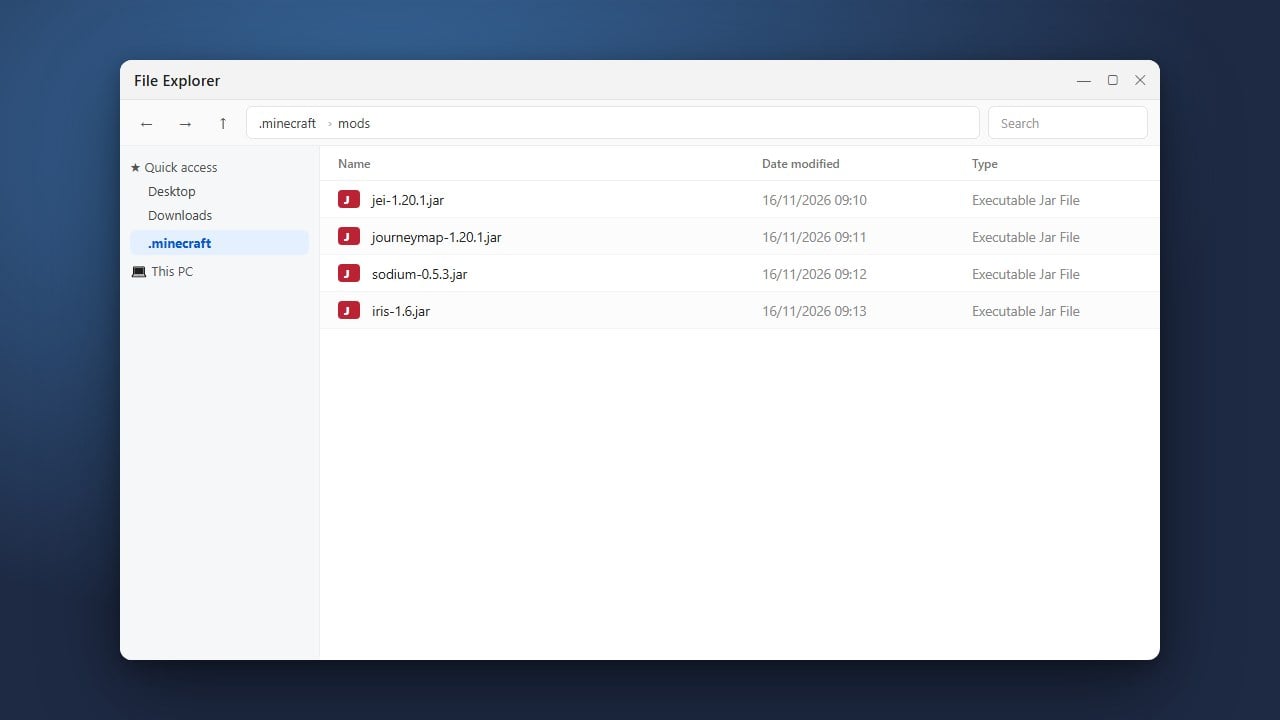
No. The Java Edition demo restricts world loading and does not support mod loaders like Fabric or Forge. To use mods or access your game directory (as explained in how to find your .minecraft folder), you must upgrade to the full licensed version of the game.
Can I play multiplayer on the free trial?
Multiplayer is disabled in the free trials. On Java Edition, you cannot connect to external public servers or Realms. On Bedrock Edition, online multiplayer and cross-platform play remain locked until you own the standard license on your Microsoft account.
Will my progress carry over if I buy the full game?
Yes. Any demo or trial worlds saved locally on your computer remain stored in your system folders. Once you purchase the game on the same Microsoft account, you can load your existing single-player saves seamlessly.