Legacy Launcher makes loading customized Minecraft versions quick and lightweight. While Minecraft Bedrock uses behavior packs and add-ons, Java Edition launchers like Legacy Launcher rely on loaders like Forge, NeoForge, or Fabric to run standard Java mods. In this guide, you will learn how to set up a modded profile and add your favorite mod files correctly.
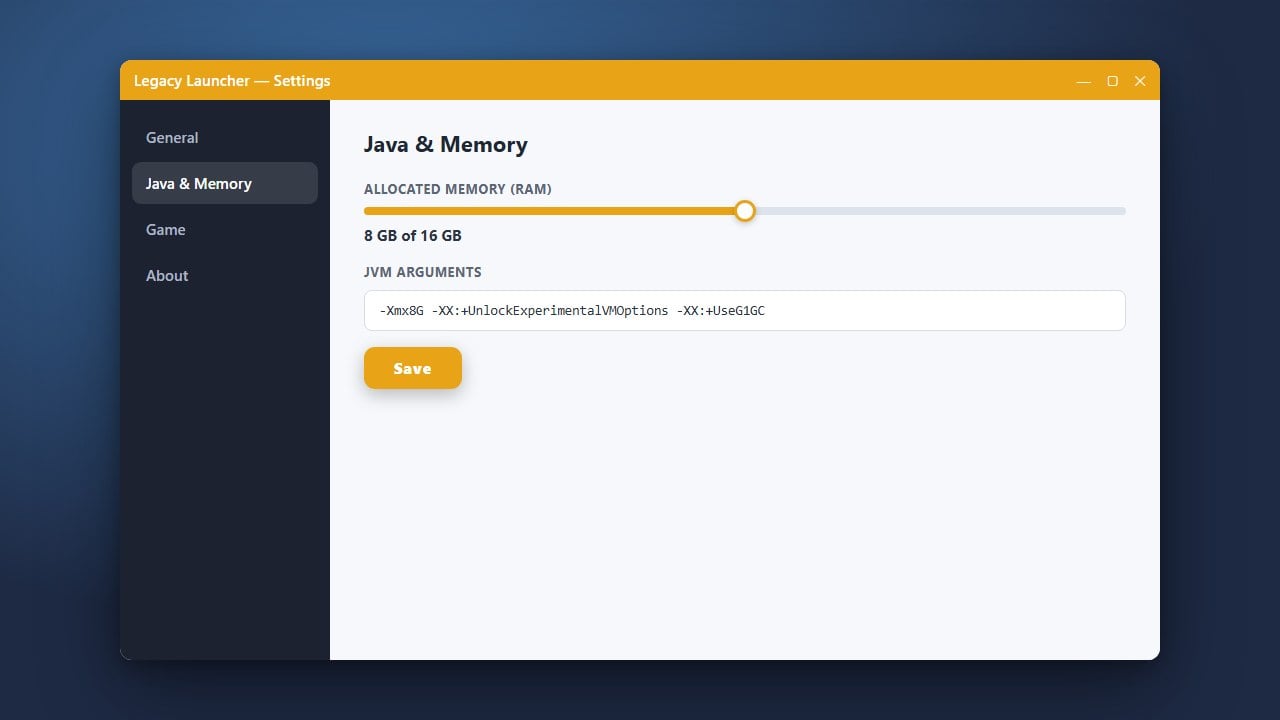
Running heavy modpacks or multiple performance mods? Make sure to configure your memory properly by learning how to allocate more RAM in Legacy Launcher to avoid stuttering and out-of-memory crashes.
Never mix mod loaders within the same profile. Fabric mods, Forge mods, and NeoForge mods are incompatible with each other unless explicitly designed as multi-loader mods.
Select a Mod Loader Profile in Legacy Launcher
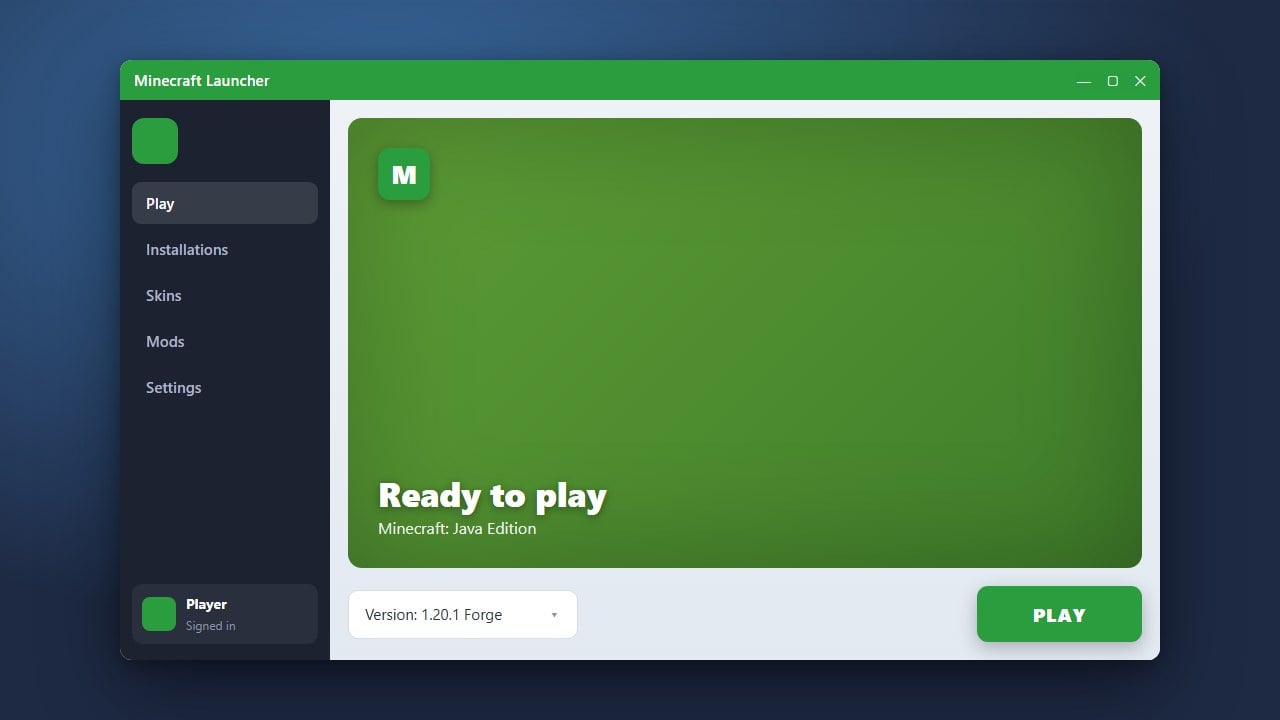
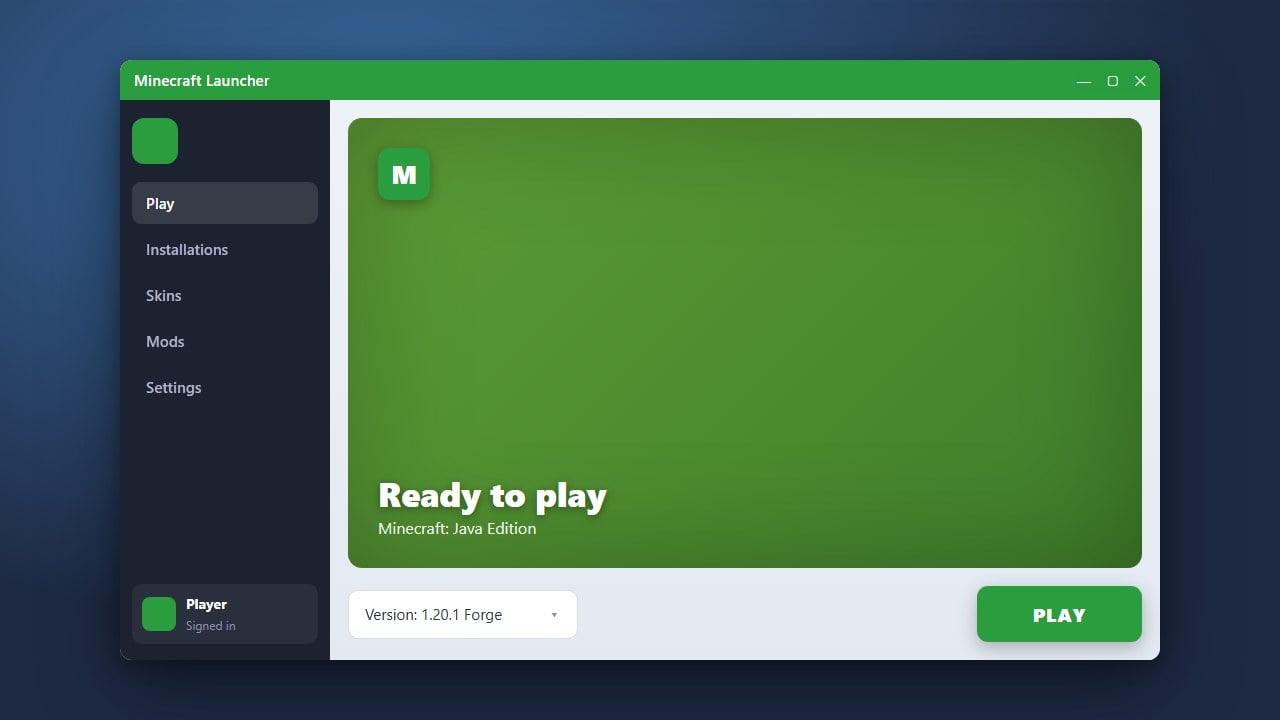
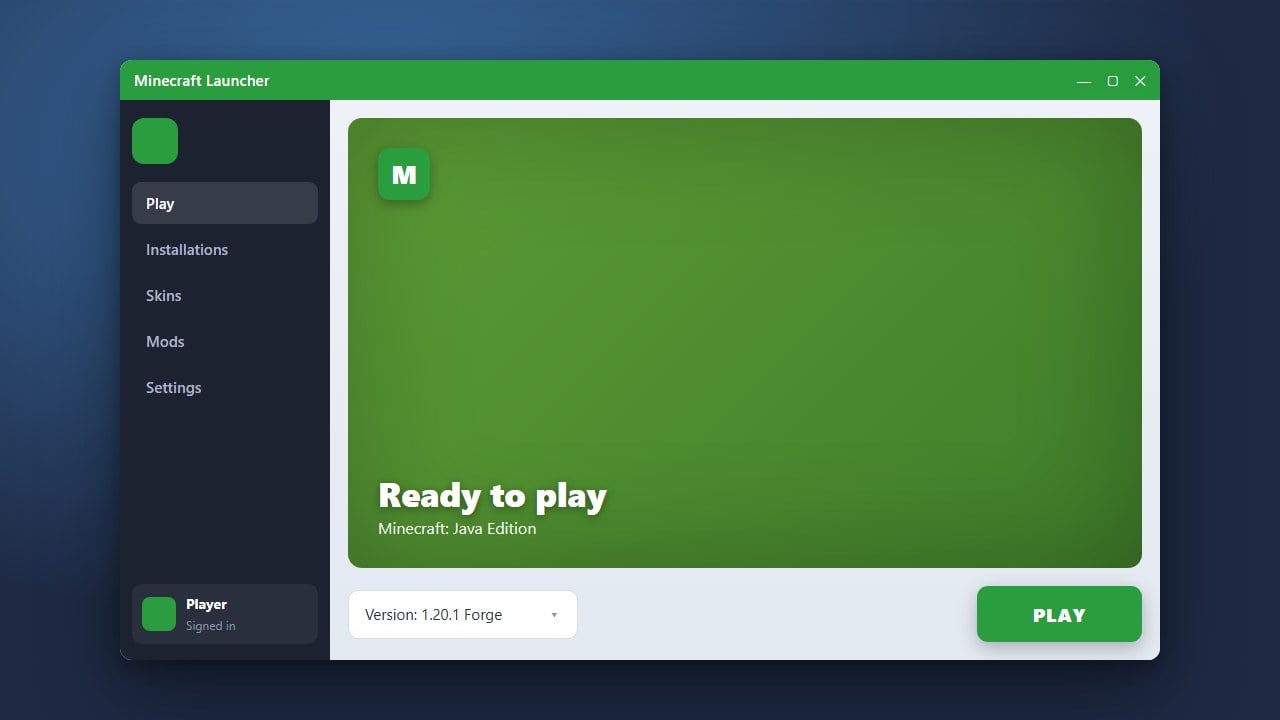
Open Legacy Launcher on your computer. In the main interface, locate the version drop-down menu near the bottom. Scroll through the available releases and pick a profile preconfigured with your preferred loader, such as Forge, Fabric, or NeoForge for your target Minecraft version (like 1.21).
Legacy Launcher conveniently bundles loaders into the version list, meaning you do not need to run a separate installer to create a mod-ready environment.
Download Compatible Mods
Download your desired mod files (ending in .jar) from trusted community sources. Always ensure the mod files match both your exact Minecraft version and your chosen loader (for example, Fabric mods will not load on a Forge profile).
If you are running Fabric mods, make sure to also download the required Fabric API file so dependent mods initialize properly.
Open the Game Directory
Legacy Launcher provides a direct shortcut to your game files. Click the small Folder icon located next to the version selector or settings button at the bottom of the launcher. This directly opens your active directory without needing to manually search for your system files.
If you ever need to track down the directory manually outside the client, you can follow our guide on how to find your .minecraft folder.
Place Mod Files in the Mods Folder
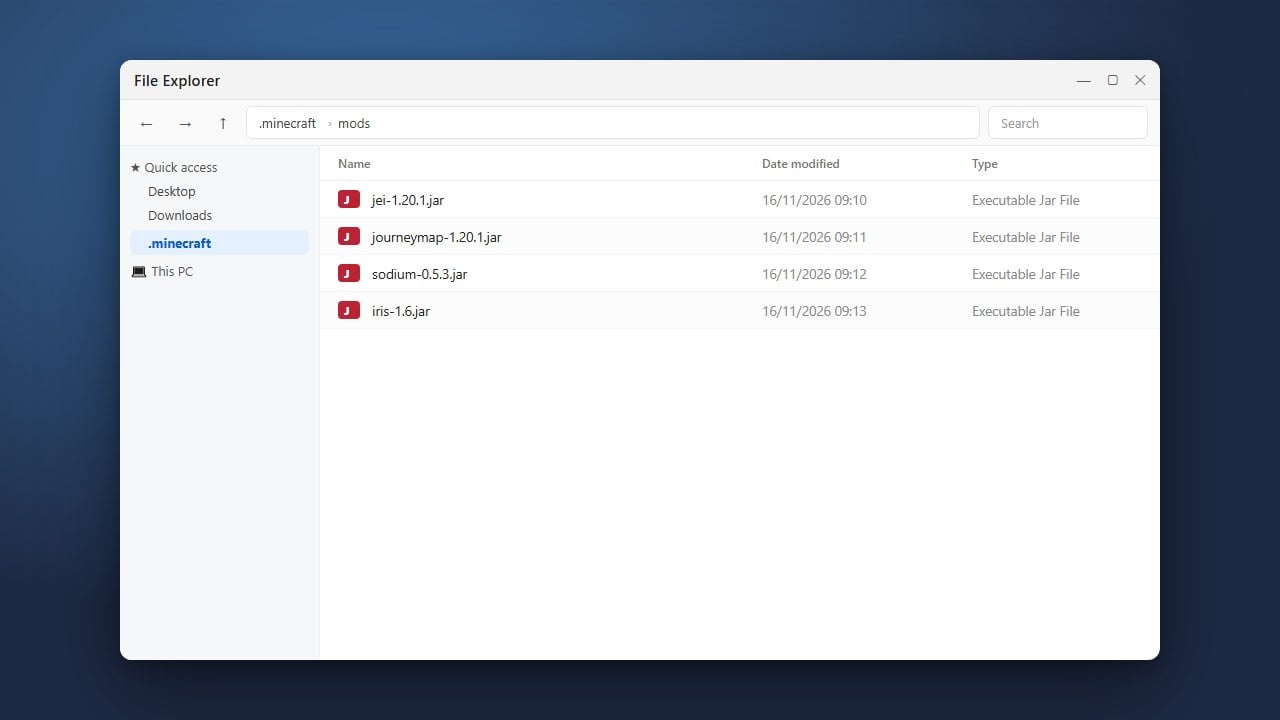
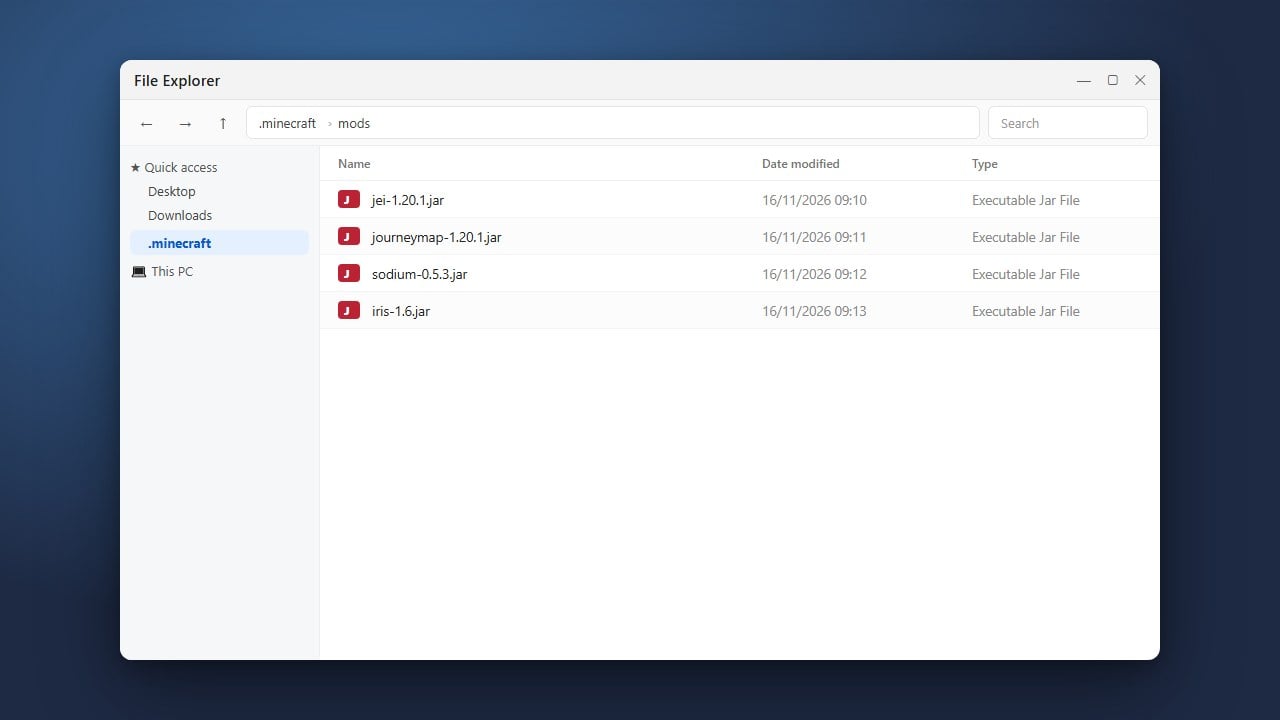
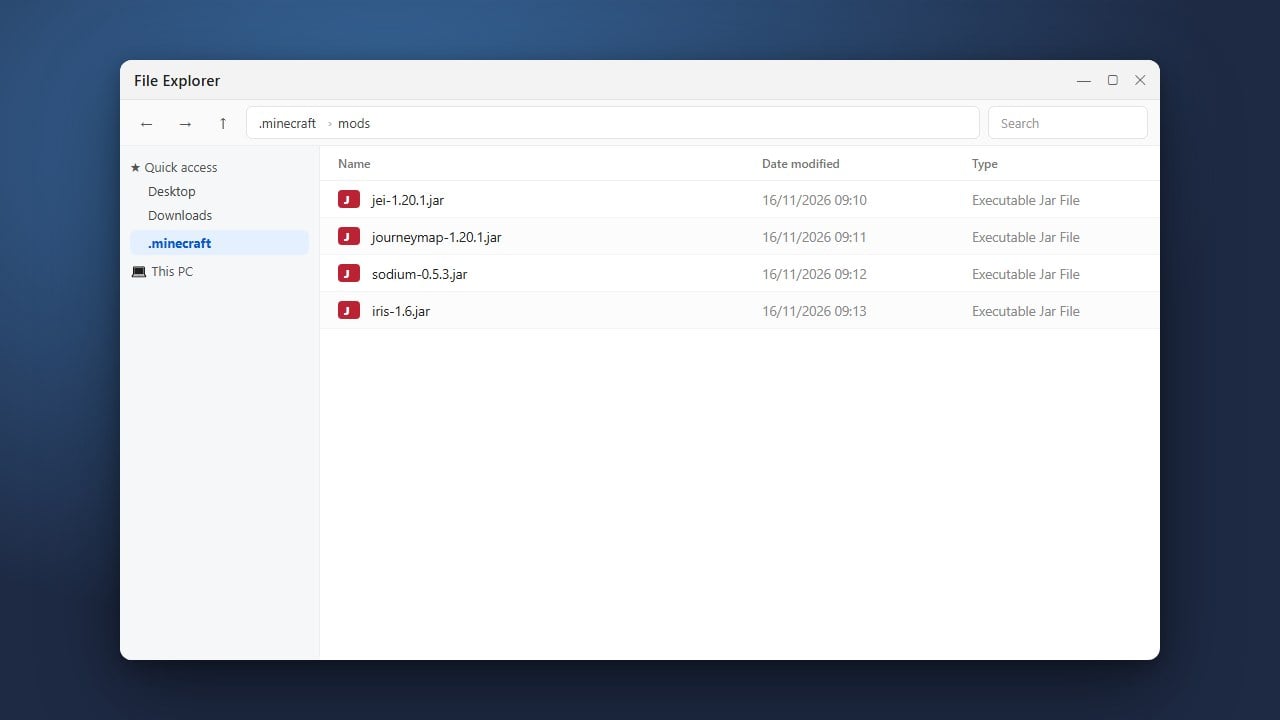
Inside the opened directory window, look for a folder named mods. If you do not see one yet, simply right-click in an empty space, create a new folder, and name it mods in all lowercase letters.
Copy or drag your downloaded .jar mod files into this mods folder. Keep the files as .jar archives—do not extract or unzip them.
Launch the Game and Test
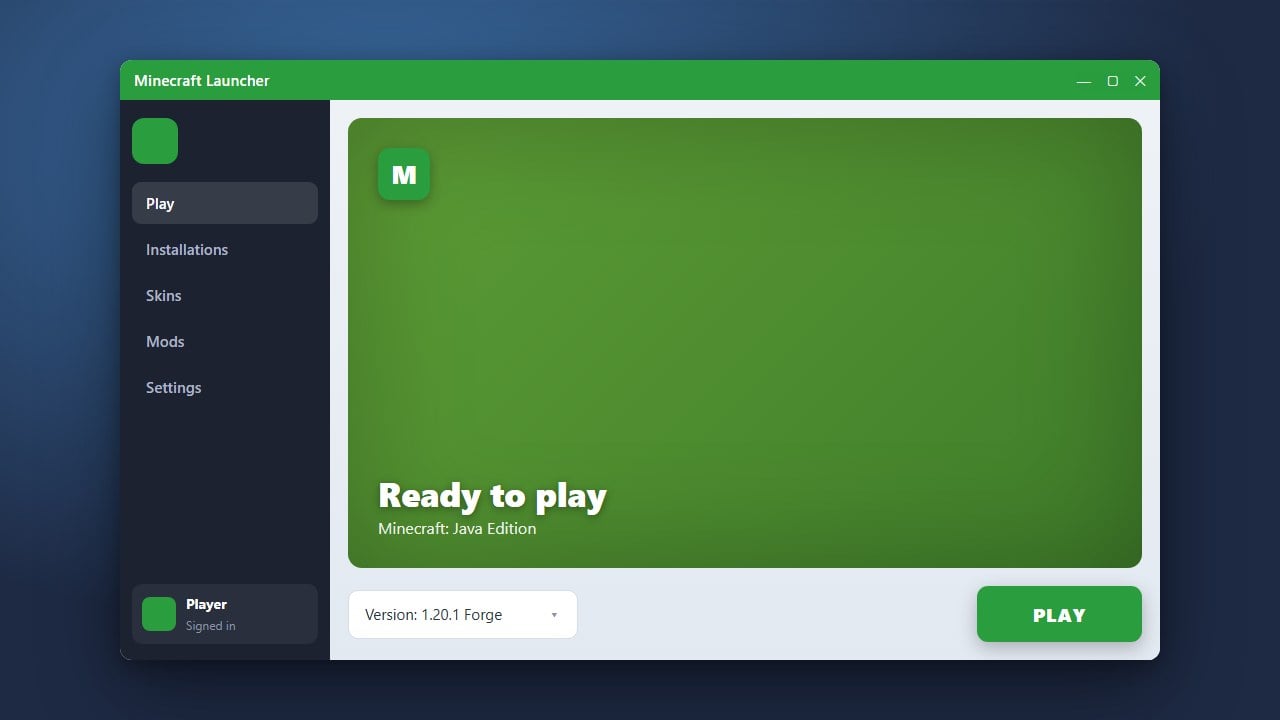
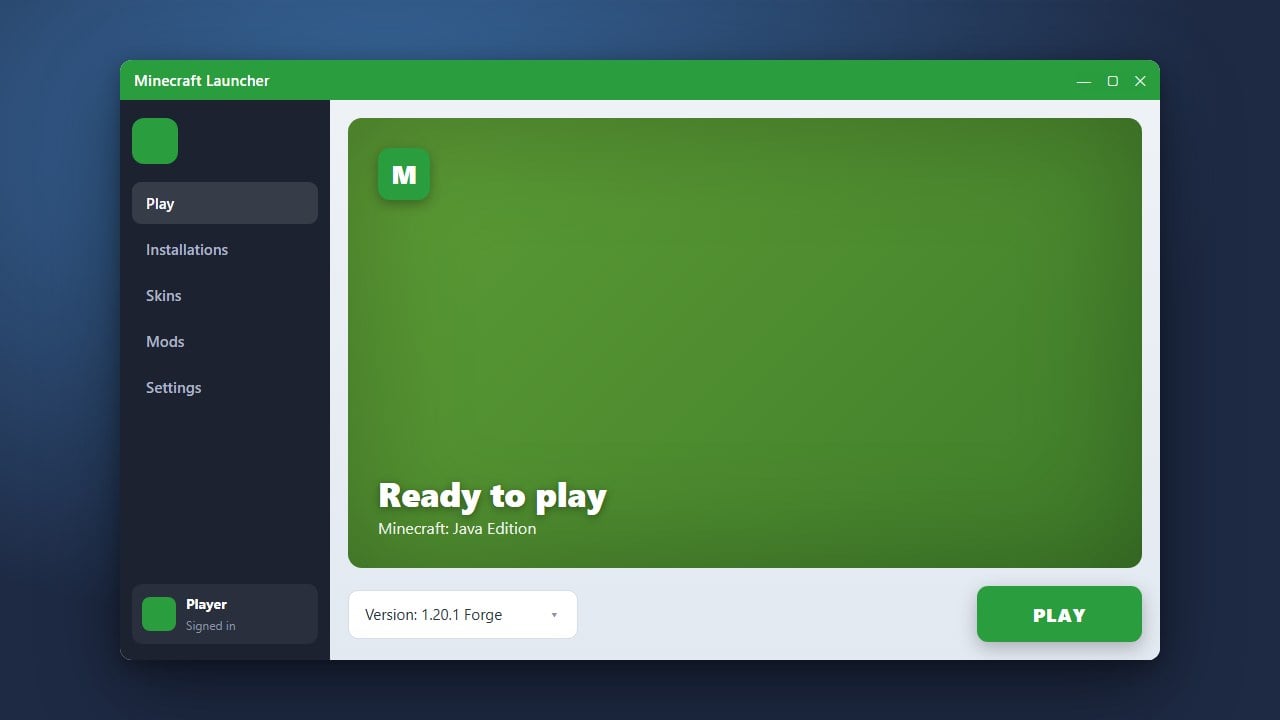
Return to Legacy Launcher and click the Enter the game (or Play) button. The launcher will download necessary libraries and boot up Minecraft.
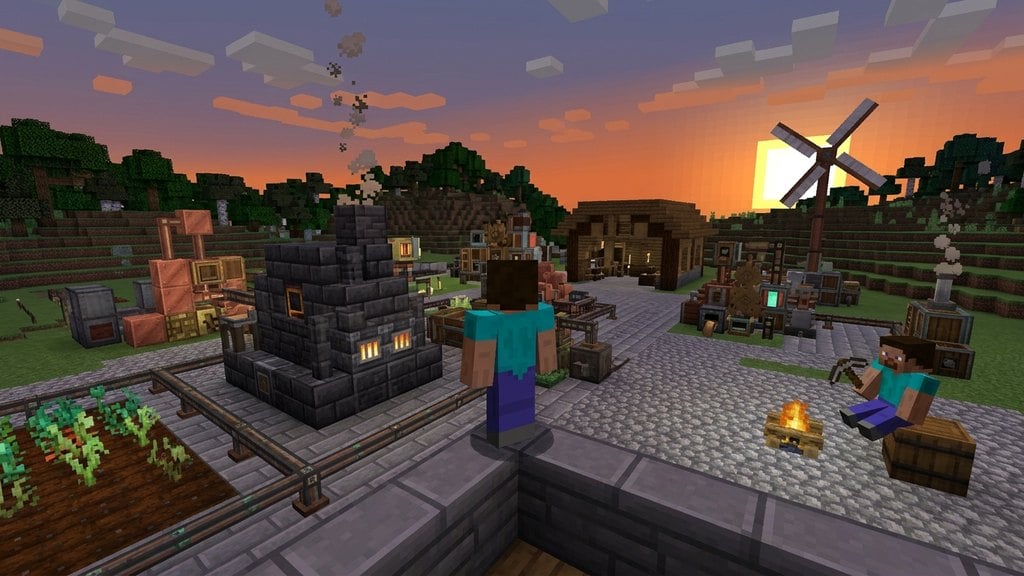
Once on the main menu, check the bottom-left corner or click the Mods menu button (available on Forge and NeoForge, or via Mod Menu on Fabric) to confirm your mods are active and working.
Frequently Asked Questions
Can I install Bedrock Add-ons in Legacy Launcher?
No. Legacy Launcher is designed exclusively for Minecraft Java Edition. Bedrock Add-ons (.mcpack and .mcaddon files) only work on Bedrock Edition platforms such as Windows 10/11 Bedrock, consoles, and mobile devices.
Why is Minecraft crashing as soon as I click Play?
Crashes at startup usually mean a mod is incompatible with your current Minecraft version, missing a required library (like Fabric API), or conflicting with another mod. Remove newly added mods one by one to identify the culprit.
Do I need to unzip .jar mod files?
No, you should never extract .jar files. Minecraft mod loaders read the compiled Java archives directly from the mods folder as single files.